Build Failure Analysis
Build Failure Analysis helps you find out why a build failed without reading through the full build log line by line. When a build fails, the build log can contain hundreds of lines of output from tools such as Xcode or Gradle, and the actual cause of the failure is often buried among them. Build Failure Analysis reviews the failed build for you and explains the error.
Build Failure Analysis starts from the Build Logs window, the same window you use to review each workflow step of a build. For details on opening and working with build logs, see viewing build logs.
Before You Start
- Organization consent: The first time anyone in your organization uses Build Failure Analysis, Appcircle asks for acceptance of the AI disclaimer on behalf of the organization. Only an Organization Manager or the Organization Owner can accept it, and other members get an access denied message until one of them does. After acceptance, every member of the organization can use Build Failure Analysis.
- AI credits: Each successful analysis uses 1 AI credit from your organization's shared monthly pool. A failed analysis doesn't use a credit. If your organization has no credits available, Appcircle shows a payment required message instead of running the analysis. To set or increase your credit allowance, contact Appcircle.
How It Works
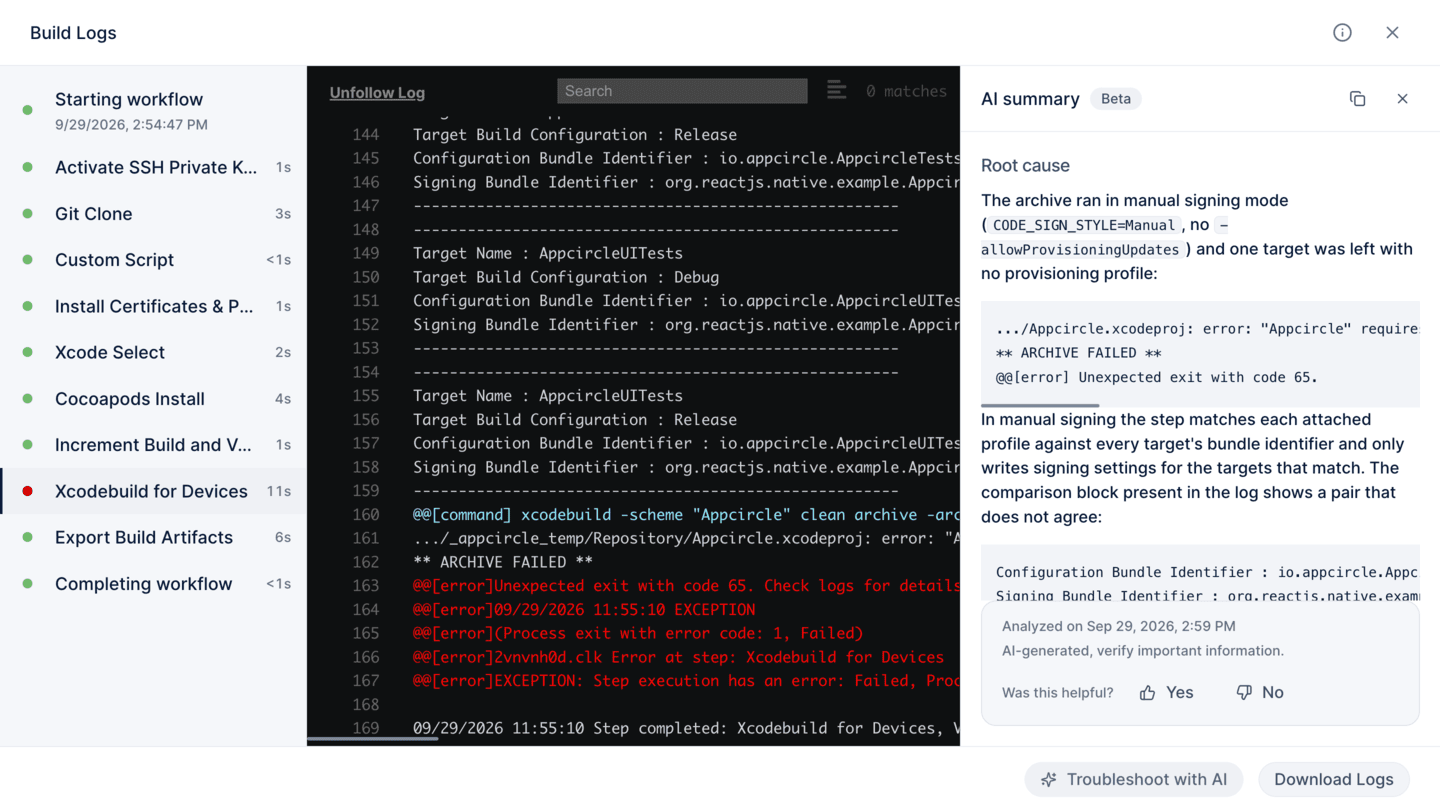
When you select Troubleshoot with AI, Appcircle analyzes the failed step and opens the AI summary panel on the right side of the Build Logs window. The summary has two sections:
- Root cause: Explains why the build failed in plain language. It quotes the relevant lines from the build log, such as the error message and related configuration output, so you can see the evidence behind the explanation.
- Suggested fix: Lists numbered steps to resolve the error, in Appcircle or in your project.
Appcircle saves each successful analysis for that build step. When you select Troubleshoot with AI again, the panel shows the saved result with the time it was analyzed, without using another AI credit. If an analysis fails, you can retry it from the panel.
To learn which build data is sent to the model and how it is anonymized, see the AI FAQ and Disclaimer.
Analyze a Failed Build
-
Open the build profile that contains the failed build.
-
Open the Build Logs window for the failed build.
-
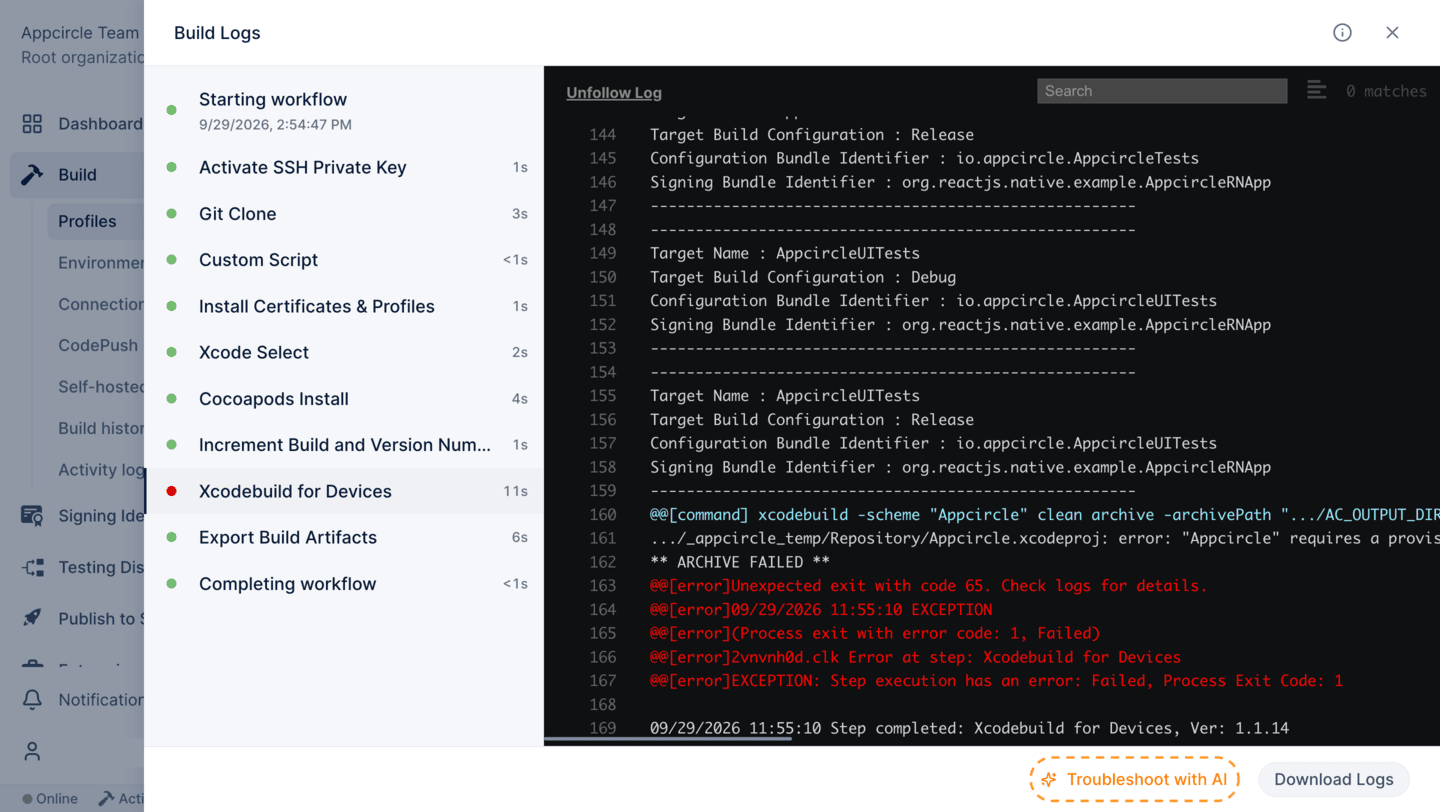
Select Troubleshoot with AI at the bottom of the window, next to Download Logs.
-
Review the AI summary panel, which shows the Root cause and Suggested fix sections.
If more than one step failed, Build Failure Analysis analyzes the step you select in the Build Logs window. If you haven't selected a failed step, it analyzes the first failed step.
Give Feedback
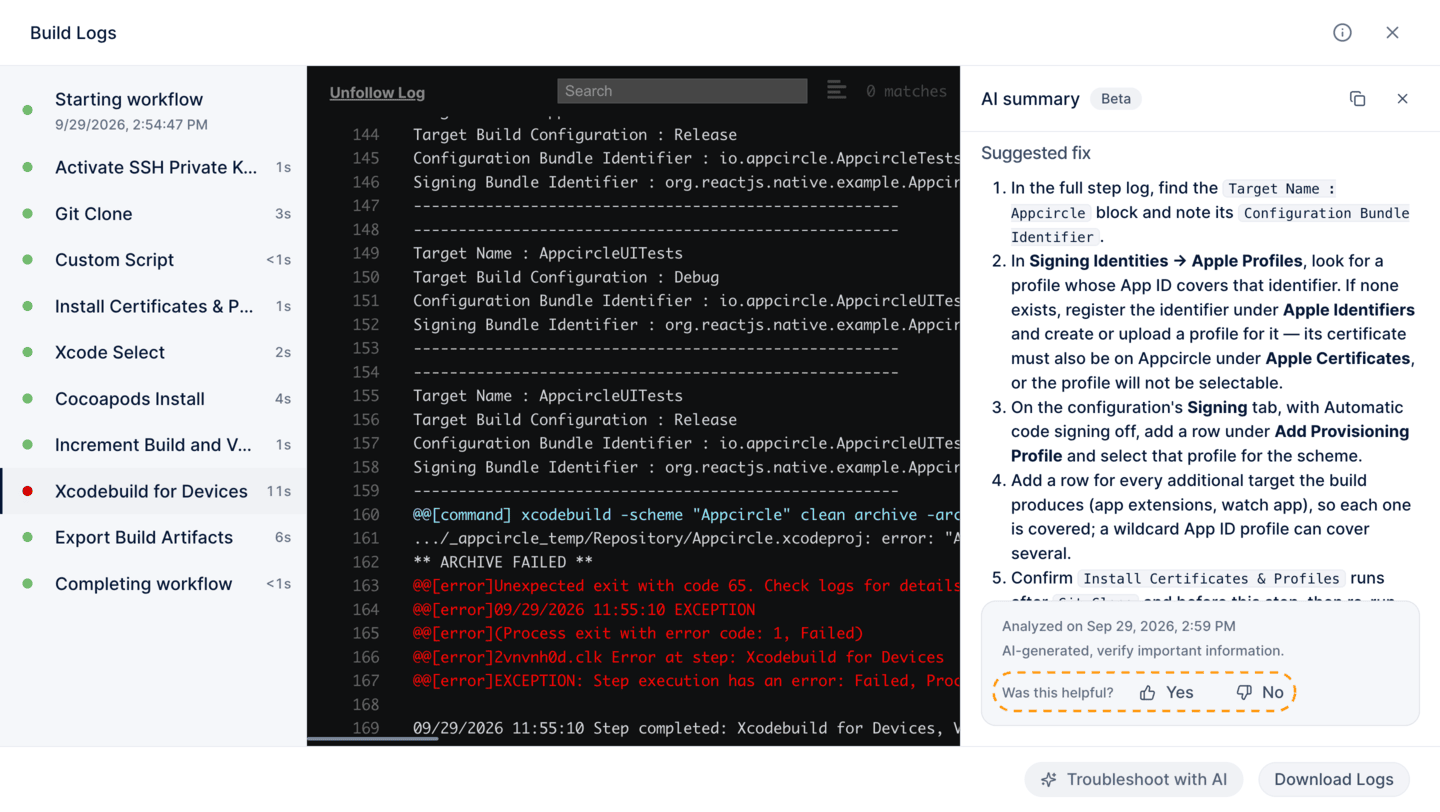
Each summary ends with a Was this helpful? prompt. Select Yes or No to rate the summary. Your feedback helps Appcircle improve the accuracy of future analyses.
To learn how Appcircle uses your feedback, see AI FAQ and Disclaimer.