Connecting to Azure DevOps
Appcircle can connect your build profiles to repositories on two Azure DevOps platforms:
- Azure DevOps Services: Microsoft's cloud-hosted service at
https://dev.azure.com. - Azure DevOps Server: the self-hosted version that your organization runs on its own infrastructure.
Each platform offers different connection types, so check which one hosts your repositories before you begin.
Selecting an Azure DevOps Connection
To connect a build profile to Azure DevOps, select Azure from the list of Git providers.
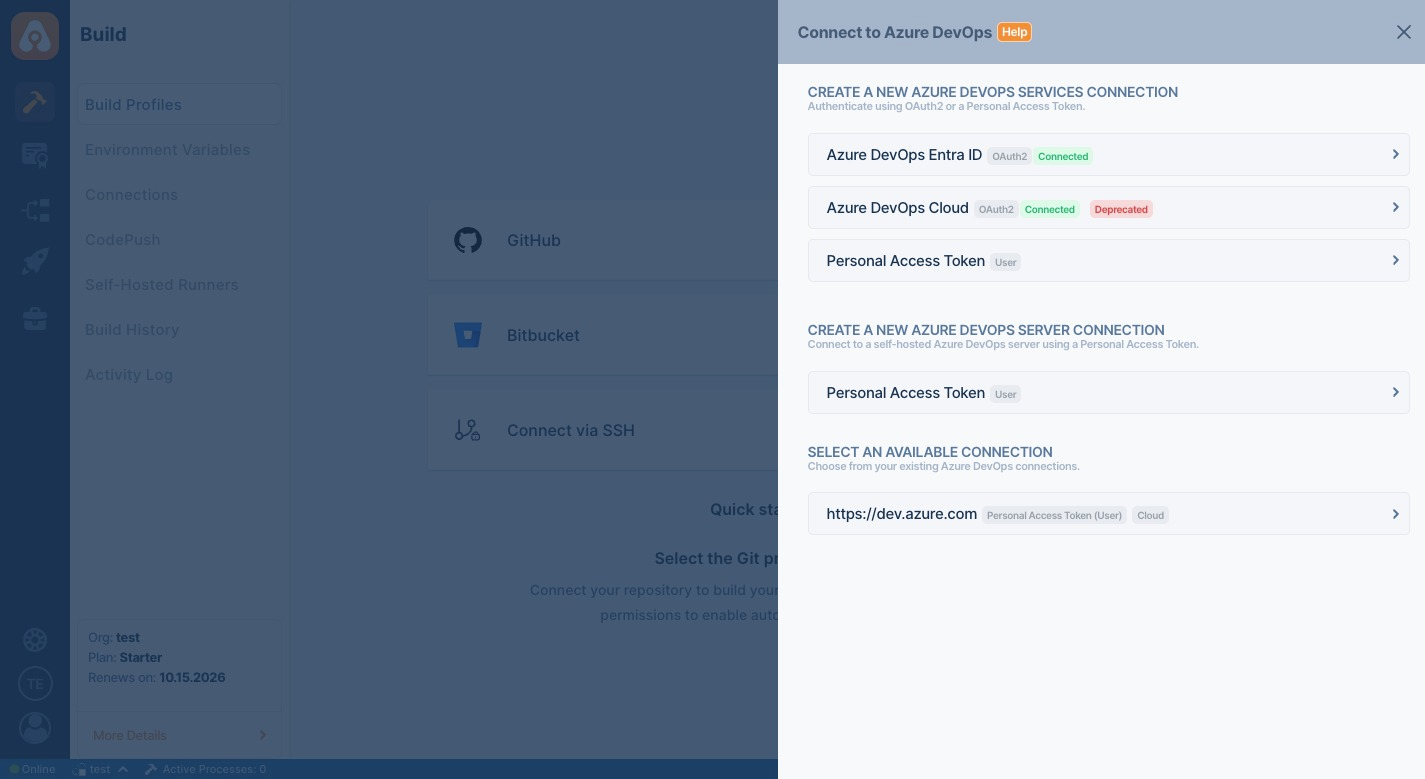
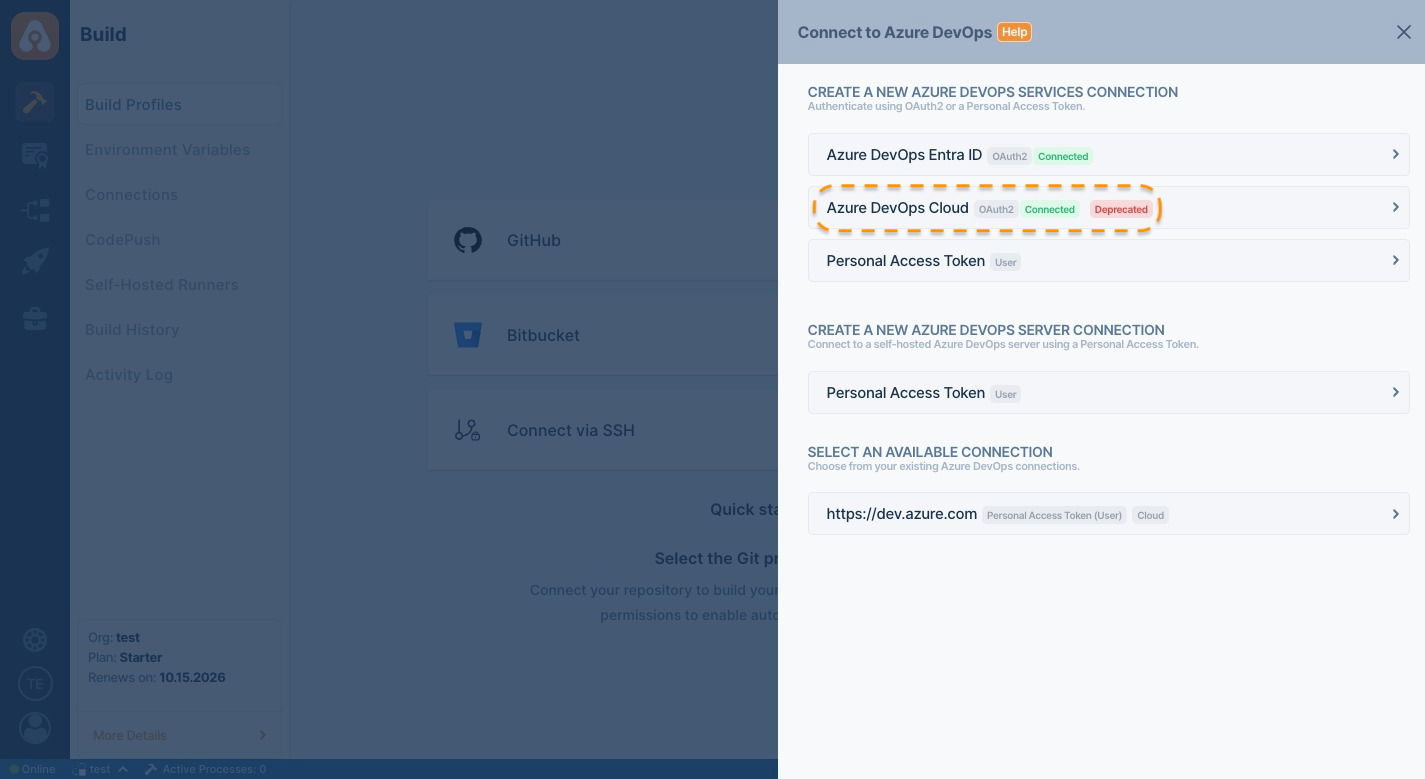
The Connect to Azure DevOps panel opens with three sections:
- Create a New Azure DevOps Services Connection: Connect to Azure DevOps Services with OAuth2 or a Personal Access Token. For details, see Connecting to Azure DevOps Cloud Repository.
- Create a New Azure DevOps Server Connection: Connect to a self-hosted Azure DevOps Server with a Personal Access Token. For details, see Connecting to Azure DevOps Server Repository.
- Select an Available Connection: Reuse a connection that you created earlier. Each connection shows its URL, its authentication type, and whether it targets Azure DevOps Services (Cloud) or Azure DevOps Server.
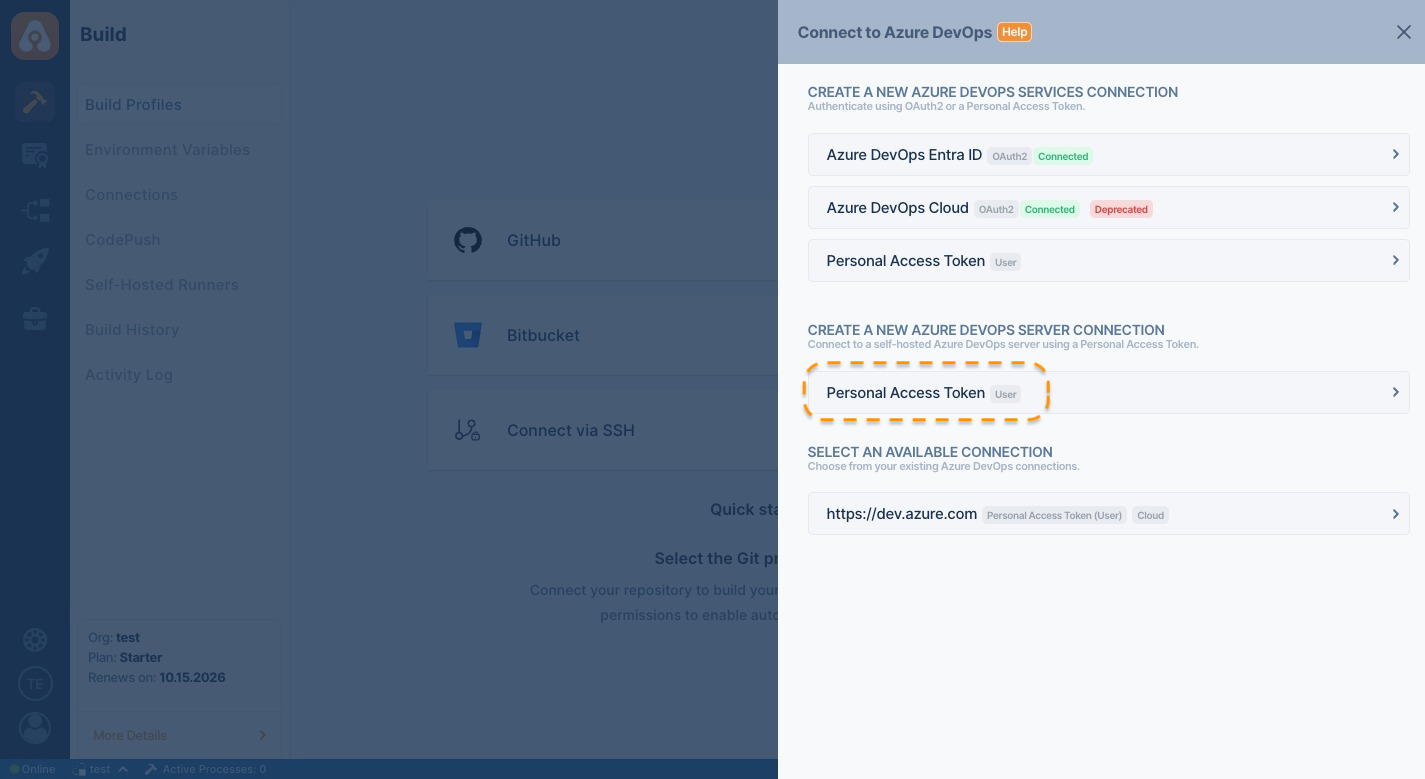
The labels next to each option describe its state:
- Connected: You have already authorized Appcircle with this OAuth2 connection type.
- Deprecated: The connection type is being retired. Use a supported connection type for new connections.
When you successfully authorize your account, the following screen appears so that you can select a repository to connect:
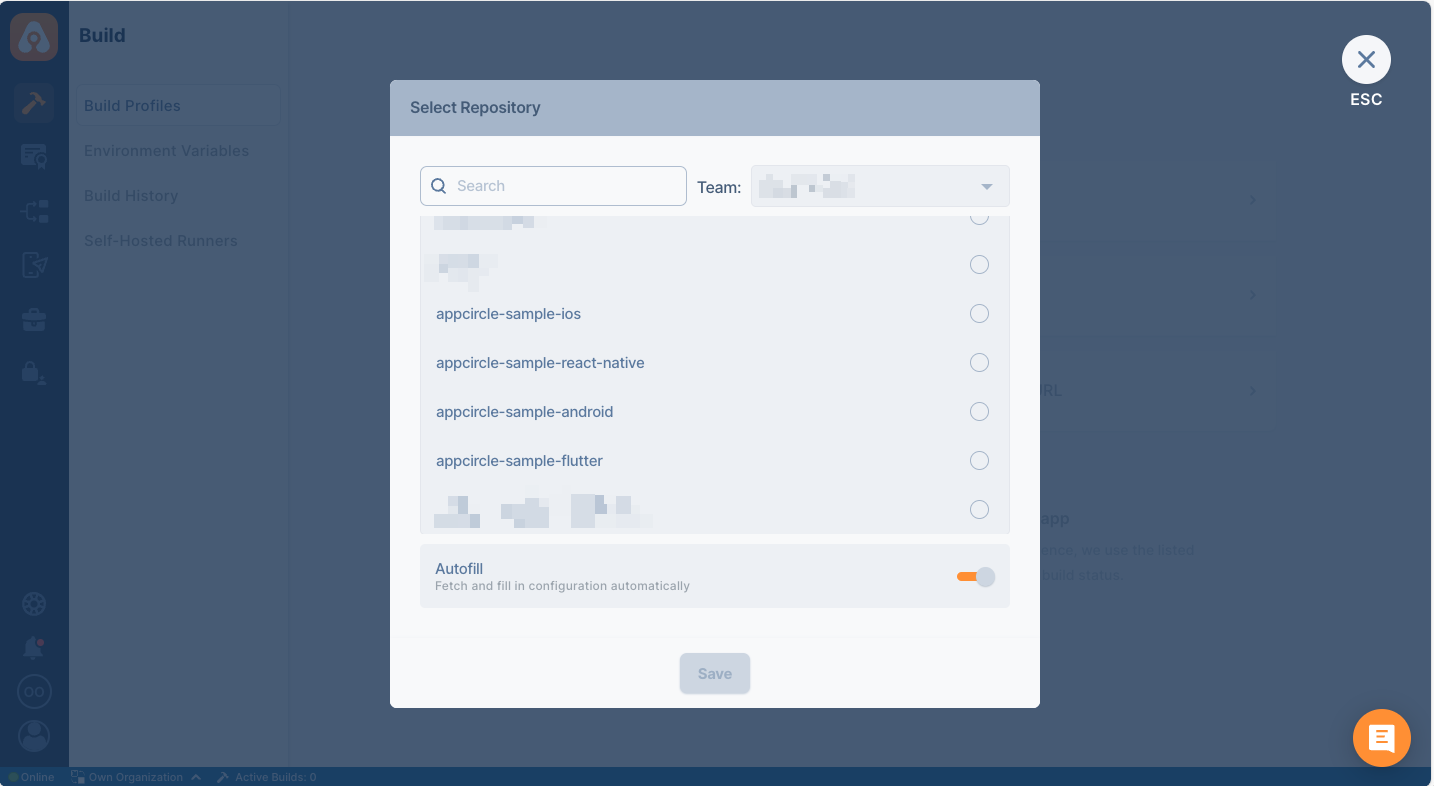
After the connection is successful, you can view your newly created profile and start building.
Connecting to Azure DevOps Cloud Repository
To connect to an Azure DevOps Services repository, choose one of the following connection types under Create a New Azure DevOps Services Connection:
| Connection type | Authentication | When to use |
|---|---|---|
| Azure DevOps Entra ID | OAuth2 through Microsoft Entra ID | Recommended for all new OAuth2 connections. |
| Azure DevOps Cloud (Deprecated) | OAuth2 through Azure DevOps OAuth | Existing connections only. Move these build profiles to Azure DevOps Entra ID. |
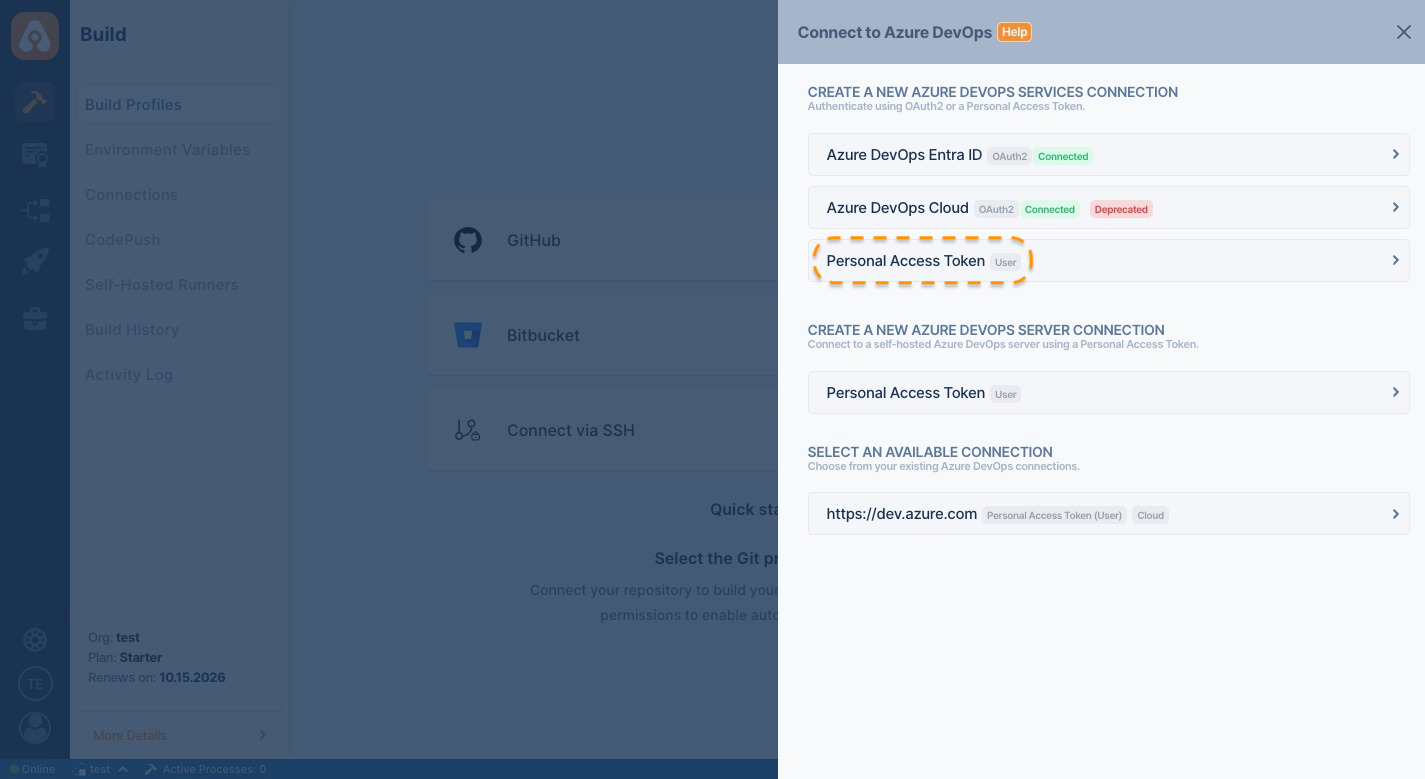
| Personal Access Token (User) | Personal Access Token | You sign in with a personal Microsoft account, or your organization doesn't allow OAuth2 applications. |
Azure DevOps Entra ID is available only for Azure DevOps Services. To connect to Azure DevOps Server, use a Personal Access Token.
Connecting with Azure DevOps Entra ID
The Azure DevOps Entra ID connection signs you in through Microsoft Entra ID (formerly Azure Active Directory), Microsoft's identity service for work and school accounts. Microsoft recommends Microsoft Entra ID OAuth for all new Azure DevOps integrations. Because authentication goes through Microsoft Entra ID, your organization's security controls, such as multifactor authentication and Conditional Access policies, apply when you connect.
Before you begin, make sure that:
- You sign in with a Microsoft Entra ID work or school account that has access to your Azure DevOps organization. Microsoft Entra ID OAuth doesn't support personal Microsoft accounts, such as Outlook.com accounts, for Azure DevOps. If you use a personal Microsoft account, connect with a Personal Access Token instead.
- Your Microsoft Entra ID tenant allows you to consent to Appcircle, or an administrator grants consent on behalf of your organization.
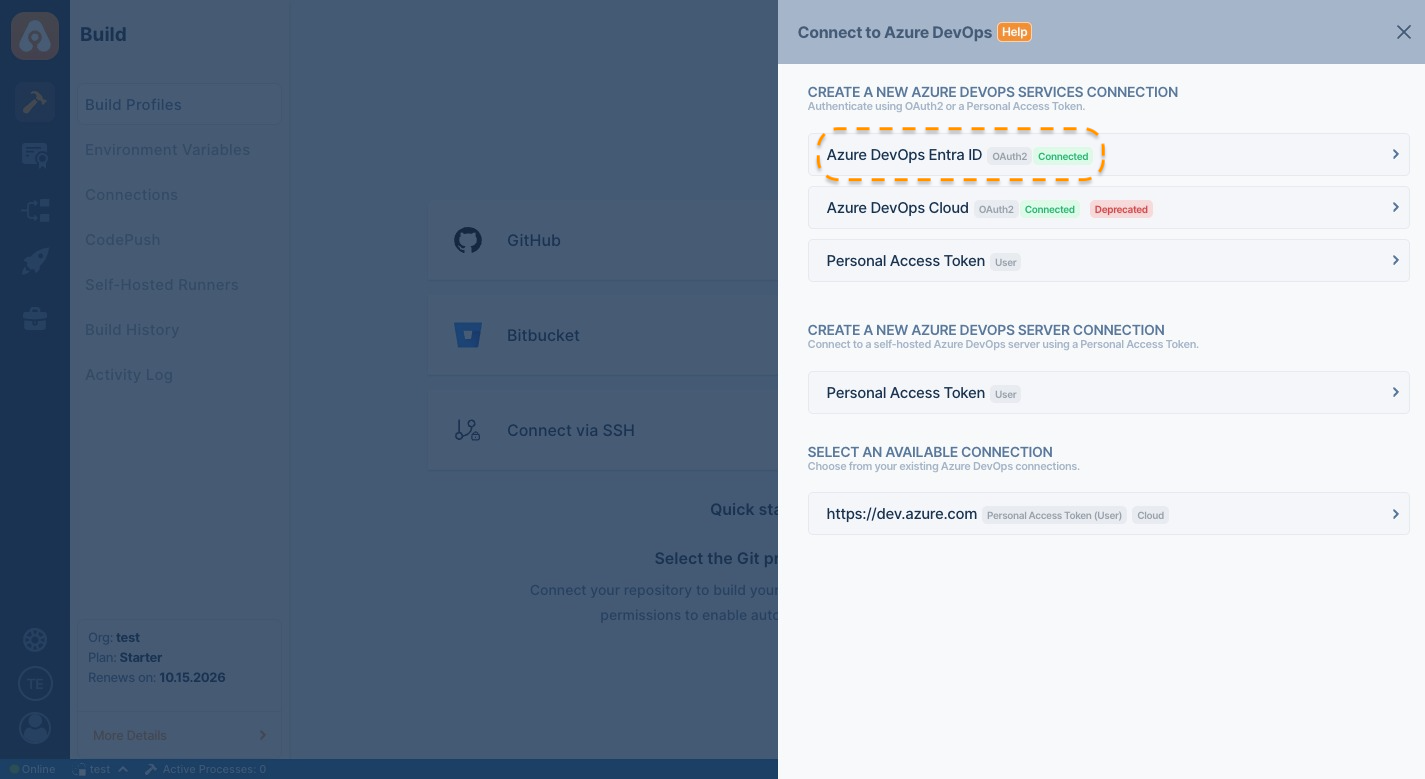
To connect with Azure DevOps Entra ID:
- Select Azure DevOps Entra ID under Create a New Azure DevOps Services Connection.
- Sign in with your Microsoft Entra ID account on the Microsoft sign-in page.
- Review the permissions that Appcircle requests, and then select Accept. For the full list, see OAuth2 Permissions for Azure DevOps Integration.
- After Microsoft redirects you back to Appcircle, select the repository that you want to connect.
The Azure DevOps Third-party application access via OAuth policy applies only to the deprecated Azure DevOps Cloud connection. You don't need to enable it for Azure DevOps Entra ID. For more information, see Microsoft's application connection policy documentation.
If the Microsoft sign-in page shows Need admin approval, your Microsoft Entra ID tenant doesn't allow users to consent to applications themselves. Ask a Microsoft Entra ID administrator to grant tenant-wide admin consent to Appcircle, and then connect again.
Connecting with Azure DevOps Cloud (Deprecated)
The Azure DevOps Cloud connection uses Azure DevOps OAuth, which Microsoft has deprecated. Microsoft stopped accepting new Azure DevOps OAuth application registrations in April 2025 and plans to remove Azure DevOps OAuth in 2026. For more information, see Microsoft's Azure DevOps OAuth deprecation notice.
Use Azure DevOps Entra ID for new connections, and move your existing build profiles to Azure DevOps Entra ID so that they keep access to their repositories.
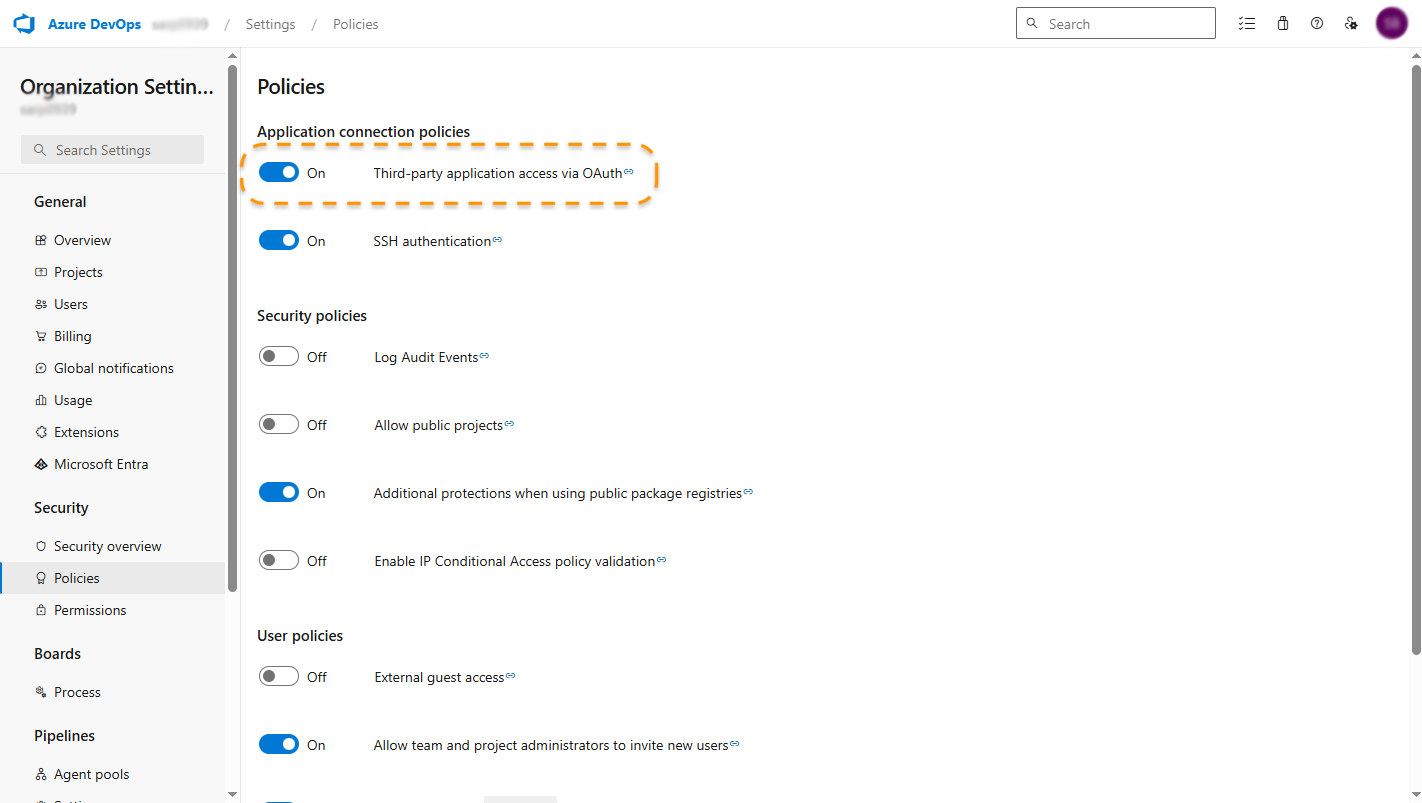
The Azure DevOps Cloud connection requires the Third-party application access via OAuth policy in your Azure DevOps organization. If this policy is turned off, Appcircle can't connect, and the repository integration fails.
To enable the policy:
- Go to
https://dev.azure.com. - Select Organization settings from the left sidebar.
- Select Policies under Security.
- Turn on Third-party application access via OAuth.
Moving Build Profiles to Azure DevOps Entra ID
Build profiles that use the deprecated Azure DevOps Cloud connection lose access to their repositories when Microsoft removes Azure DevOps OAuth. Reconnect each of these build profiles with Azure DevOps Entra ID to avoid build interruptions.
- Open the build profile, and then select Connection Settings.
- Select Disconnect, and then confirm.
- Select Reconnect next to Connection Settings.
- Select Azure, and then select Azure DevOps Entra ID under Create a New Azure DevOps Services Connection.
- Sign in with your Microsoft Entra ID account, select the same repository, and then select Save.
Disconnecting and reconnecting a build profile keeps its previous builds, configurations, workflows, and triggers. For details, see Change Git Provider and Reconnect.
After you move all build profiles, you can revoke the Azure DevOps Cloud connection.
Revoking an OAuth2 connection disconnects every build profile that still uses it. Revoke the Azure DevOps Cloud connection only after you move all of its build profiles.
Connecting with a Personal Access Token
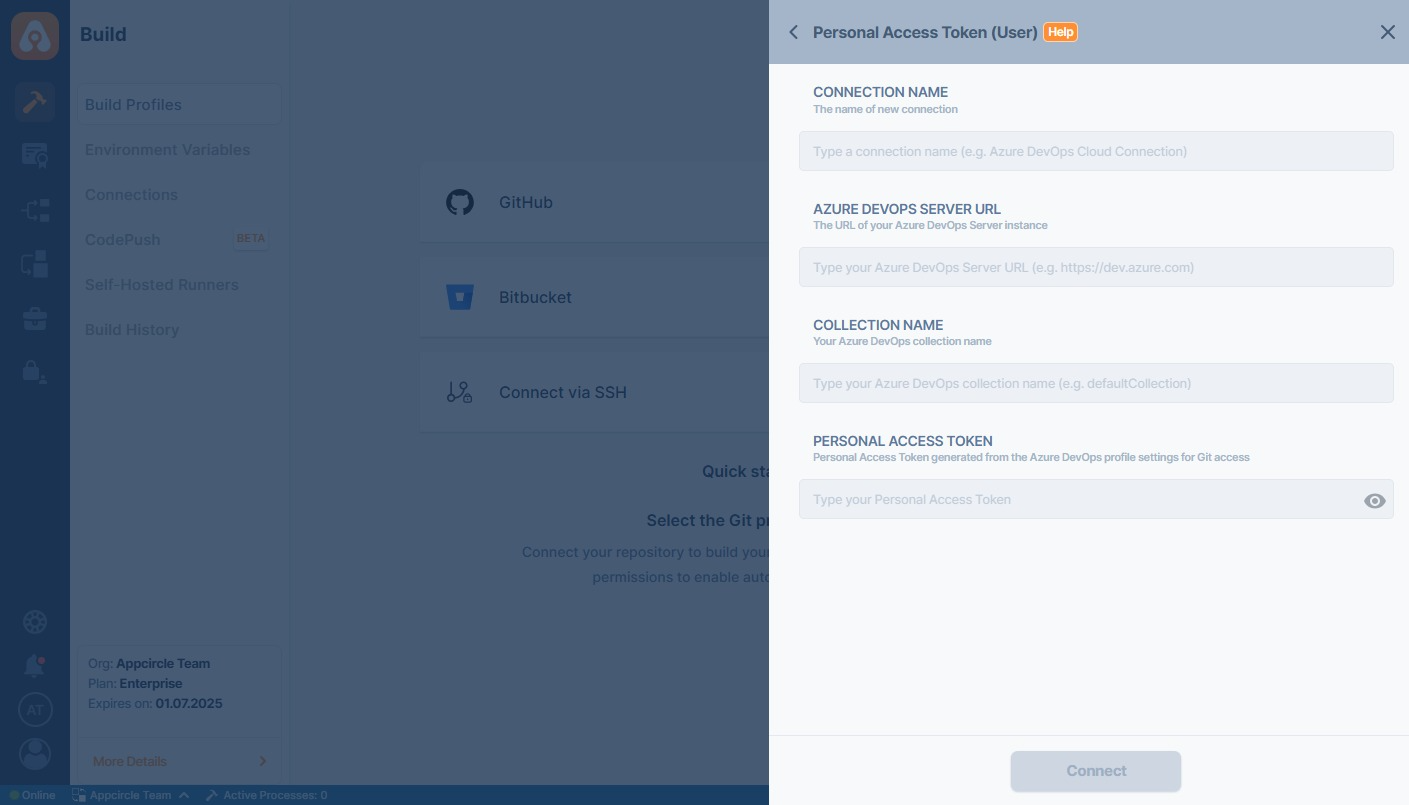
Select Personal Access Token under Create a New Azure DevOps Services Connection to connect with your Azure DevOps Personal Access Token (PAT). A PAT is a token that you generate in Azure DevOps and that grants access to the repositories your user can access. Fill in the following fields:
- Connection Name
- Azure DevOps Server URL (for example,
https://dev.azure.com) - Collection Name (for example,
DefaultCollection) - Personal Access Token
OAuth2 Permissions for Azure DevOps Integration
The following table lists the Azure DevOps permissions that Appcircle requests for the Azure DevOps Entra ID and Azure DevOps Cloud OAuth2 connections. These permissions grant read access to projects, repositories, pull requests, and webhooks, so that Appcircle can fetch your code and trigger builds.
| Scope | Permission | Description |
|---|---|---|
| Code | Read , Status | Provides read access to repositories, enabling applications to fetch and view source code. Allows applications to post and update build or commit statuses in repositories. |
| PR threads | Full | Enables access to pull request comments and discussions (threads), including reading and posting messages. |
| Service Endpoints | Read , Query | Grants read, query access to service endpoints. Allows listing external service integrations and retrieving details of existing connections, but does not permit creating or modifying. |
| Project and team | Read | Provides read access to project and team-related information, such as project details and team memberships. |
| Notifications | Read | Grants read-only access to notification settings. |
Connecting to Azure DevOps Server Repository
The overall process is similar to a private repository connection through SSH, but Appcircle allows you to directly connect through the Azure DevOps Server URL.
TFS is not compatible with Azure DevOps Server on Appcircle.
Azure DevOps Server version must be Azure DevOps Server 2020 or higher.
Select Azure, and then select Personal Access Token under Create a New Azure DevOps Server Connection:
Fill in the relevant information about your Azure DevOps Server. If you are not sure what those are, contact your system administrator.
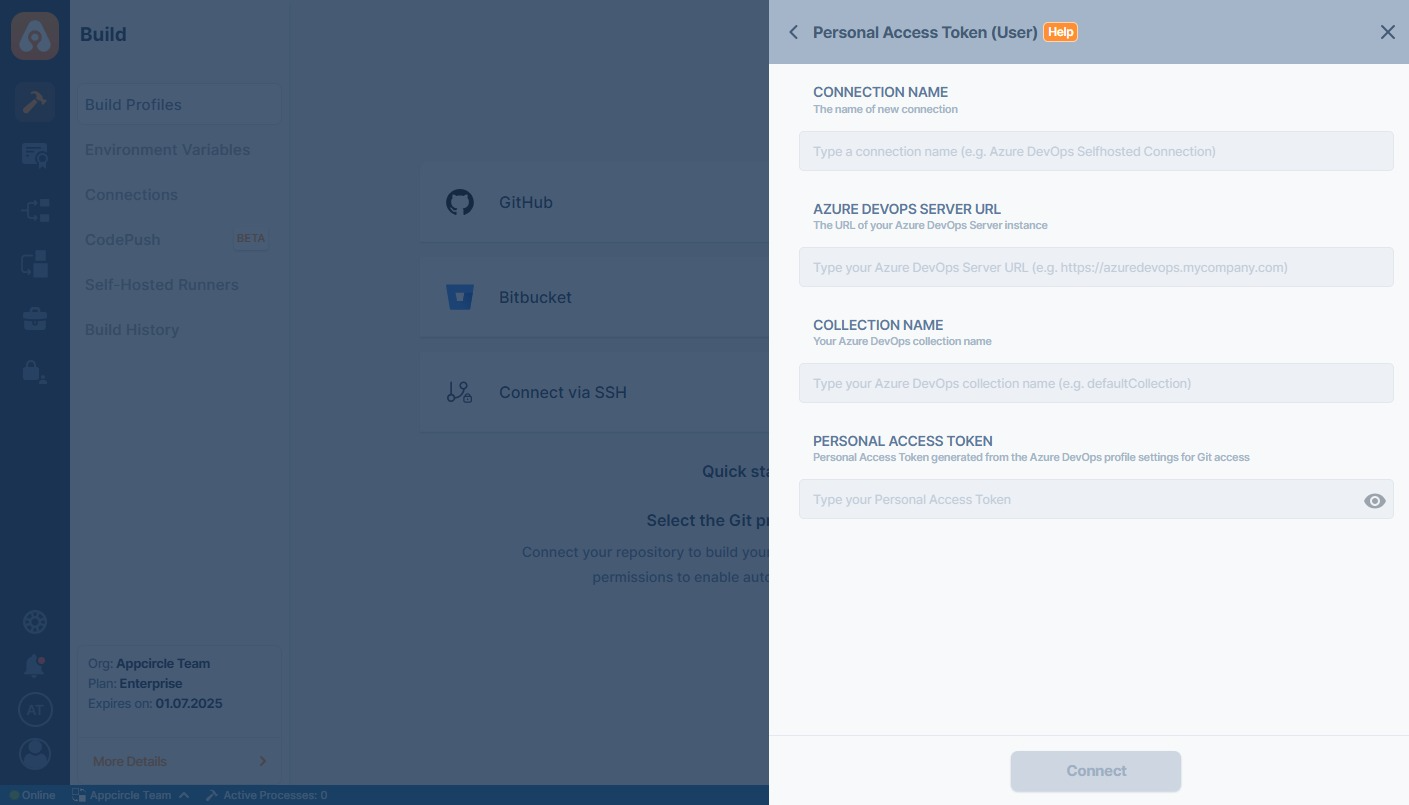
- Connection Name: Give a name to this connection for easier identification in your list of integrations.
- Azure DevOps Server URL: Provide the base URL of your Azure DevOps Server (e.g.,
https://azuredevops.mycompany.com). - Collection Name: Specify the name of the collection on your Azure DevOps Server (e.g.,
DefaultCollection). - Personal Access Token: Enter the token generated in your Azure DevOps Server profile settings for Git access.
Required permissions are listed below:
| Scope | Permission | Description |
|---|---|---|
| Identity | Read | Allows reading identity information, such as users and groups within the organization |
| Code | Read , Status | Provides read access to repositories, enabling applications to fetch and view source code. Allows applications to post and update build or commit statuses in repositories. |
| Notifications | Read | Grants read-only access to notification settings. |
Azure Devops Server That Is Upgraded From a TFS Server
If your Azure DevOps Server is upgraded from a TFS server, you should identify your Azure DevOps Server URL.
- Copy a repository clone URL for any git repository.
- Check if your URL has an unexpected path in the URL.
- For example:
https://azure.spacetech.com/tfs/DefaultCollection/MOBILE_IOS/_git/wallet
- For example:
- If there is a path between your domain (
azure.spacetech.com) and your collection name (DefaultCollection), you must give that path (tfs) as a prefix in the "Owner Username".- For example, the fields should have values like below.
- Azure DevOps Server URL:
https://azure.spacetech.com - Owner Username:
tfs/DefaultCollection - Personal Access Token:
54rdrkce6wa4d22kf75lhmq4hosgx7iy7h76cc62y77oguombnnq
- Azure DevOps Server URL:
- For example, the fields should have values like below.
For Appcircle to connect to the Azure DevOps Server instance, your connection must be reachable over the network.
Is your Azure DevOps Server instance under the enterprise firewall? Learn which IP addresses and ports Appcircle uses to function under the whitelist documentation:
Accessing Repositories in Internal Networks (Firewalls)
Token Creation
A user’s Personal Access Token enables connection to their repository through Appcircle. It is used to authorize access to all repositories the user can access.
Check Token
You can follow the steps below to check if your token is valid.
- Open the terminal and issue the following command:
personalAccessToken=abcde && \
serverUrl=https://azure.spacetech.com && \
organizationName=Appcircle && \
curl -H "Authorization: Basic $(echo -n :${personalAccessToken} | base64)" \
"${serverUrl}/${organizationName}/_apis/projects?api-version=6.0" | jq
The above command should print out your projects. If you don't see an output, please check your token, Azure DevOps Server address, or collection name.
Please also make sure that the output doesn't show any reference to localhost. If you see localhost, you need to configure Azure DevOps Server and put the correct address of the instance.
Need help?
Get help from Appcircle's support team, or see how others are using Appcircle by joining our Slack Channel.
