Setting Up Appcircle Publish to Stores Plugin
The Appcircle Publish to Stores plugin allows users to upload an application binary to an Appcircle Publish profile and/or trigger its publish flow (app store publishing) directly from your Fastlane pipeline.
Discover Action
You can discover more about this action and install it from: Appcircle Publish to Stores - Fastlane
System Requirements
Compatible Agents:
- macOS 14.2, 14.5
Supported Version:
- Fastlane 2.222.0
- Ruby 3.2.2
Both Appcircle Cloud and self-hosted Appcircle installations are supported. See Self-Hosted Appcircle below to configure custom endpoints.
Generating/Managing the Personal Access Key
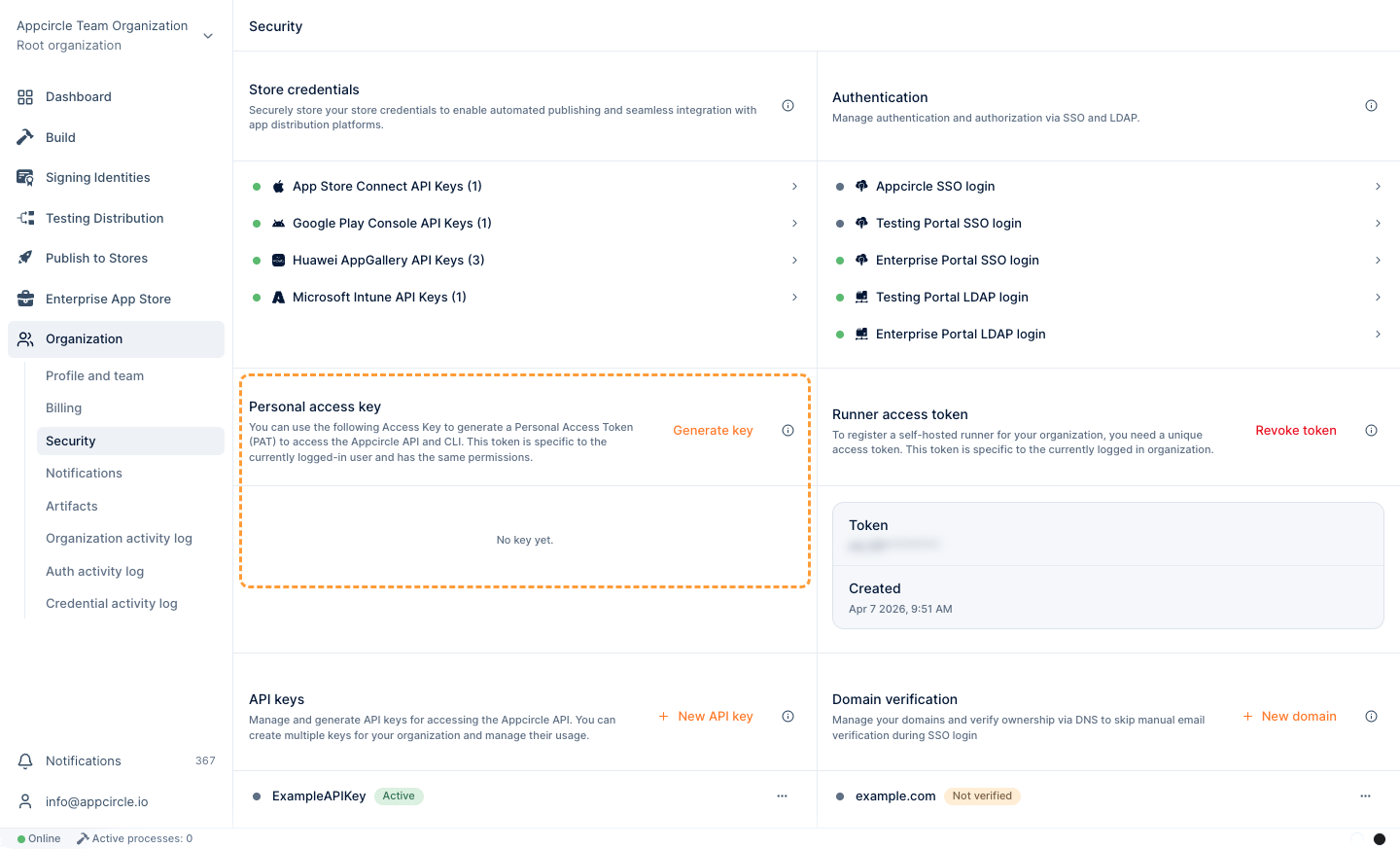
To generate a Personal Access Key:
- In the left sidebar, go to Organization > Security.
- Find the Personal access key section.
- Select Generate key to generate your first key.
What the Action Does
The action has two independent switches, upload and publish, both default to false. You must enable at least one. Create the Publish profile in Appcircle first; the action targets it by name (profile names are unique per platform).
upload | publish | Behavior |
|---|---|---|
true | false | Upload appPath as a new app version on the profile. |
false | true | Trigger the publish flow for the profile's current release candidate. |
true | true | Upload appPath, mark the new version as release candidate, then trigger the publish flow for it. |
false | false | Error — nothing to do. |
- In-progress guard: if a publish is already running for the target profile, the action does not start a new one and fails fast.
- Release candidate: when both
uploadandpublisharetrue, the freshly uploaded version is automatically marked as the release candidate before it is published. In publish-only mode, the profile's existing release candidate is published. - Progress: while publishing, the action polls the publish status and prints step-by-step progress (with status icons) until the flow succeeds or fails.
If the profile's publish flow contains a manual step (e.g. "Get Approval via Email"), the flow waits for that action and the plugin keeps polling until it completes or the poll times out. For CI use, prefer publish flows without manual gates.
How to Add the Appcircle Publish Action to Your Pipeline
To use the Appcircle Publish to Stores action, install the plugin and add the following step to your pipeline:
fastlane add_plugin appcircle_publish
Upload only:
lane :upload_to_publish do
  appcircle_publish(
    personalAPIToken: "$(AC_PERSONAL_API_TOKEN)",
    platform: "$(AC_PLATFORM)", # "ios" or "android"
    publishProfile: "$(AC_PUBLISH_PROFILE)",
    upload: true,
    appPath: "$(AC_APP_PATH)"
  )
end
Publish only (publishes the profile's current release candidate):
lane :trigger_publish do
  appcircle_publish(
    personalAPIToken: "$(AC_PERSONAL_API_TOKEN)",
    platform: "$(AC_PLATFORM)",
    publishProfile: "$(AC_PUBLISH_PROFILE)",
    publish: true
  )
end
Upload and publish (uploads, marks it release candidate, then publishes):
lane :upload_and_publish do
  appcircle_publish(
    personalAPIToken: "$(AC_PERSONAL_API_TOKEN)",
    platform: "$(AC_PLATFORM)",
    publishProfile: "$(AC_PUBLISH_PROFILE)",
    upload: true,
    publish: true,
    appPath: "$(AC_APP_PATH)"
  )
end
personalAPIToken/personalAccessKey: Provide exactly one of these to authenticate Appcircle services.platform: Target platform of the Publish profile,iosorandroid.publishProfile: Name of the Publish profile to target.upload(defaultfalse): UploadappPathas a new app version.publish(defaultfalse): Trigger the profile's publish flow.appPath: Path to the application file. Required whenuploadistrue. For iOS use a.ipafile; for Android use a.apkor.aabfile.
Ensure that this action is added after build steps have been completed, since you will need to specify the build path later on.
Self-Hosted Appcircle
If you run a self-hosted Appcircle installation, point the action to your own endpoints with the optional authEndpoint and apiEndpoint parameters. Both default to the Appcircle cloud, so existing cloud users do not need to set them.
authEndpoint(optional): Authentication endpoint URL. Defaults tohttps://auth.appcircle.io.apiEndpoint(optional): API endpoint URL. Defaults tohttps://api.appcircle.io.
appcircle_publish(
  personalAPIToken: "$(AC_PERSONAL_API_TOKEN)",
  platform: "$(AC_PLATFORM)",
  publishProfile: "$(AC_PUBLISH_PROFILE)",
  publish: true,
  authEndpoint: "https://auth.my-appcircle.example.com",
  apiEndpoint: "https://api.my-appcircle.example.com"
)
If your self-hosted Appcircle server uses a self-signed certificate (or one issued by a private/internal CA), requests will fail certificate validation. The plugin does not disable TLS verification. Trust the server's CA on the machine running Fastlane — add it to the system certificate store, or point the SSL_CERT_FILE environment variable at a PEM bundle that includes it.
CLI Usage
Recommended method of using the action is adding it to the Fastfile as described above.
If you prefer to use it from the terminal, you can execute the following command and enter the inputs interactively:
fastlane run appcircle_publish
To pass parameters with the command, you can use the :symbol format. For example:
fastlane run appcircle_publish parameter1:"value1" parameter2:"value2"
The CLI only supports primitive types such as integers, floats, booleans, and strings. Hashes are not currently supported.
Leveraging Environment Variables
Utilize environment variables seamlessly by substituting the parameters with $(VARIABLE_NAME) in your task inputs. The plugin automatically retrieves values from the specified environment variables within your pipeline.
References
-
For details on generating an Appcircle Personal Access Key, visit Generating/Managing Personal Access Keys.
-
For more detailed instructions and support, visit the Appcircle Publish to Stores documentation.