Appcircle Publish to Stores Azure DevOps Task
The Appcircle Publish extension allows users to upload their application binaries to an Appcircle Publish profile and/or trigger its publish flow to release apps to app stores, directly from an Azure DevOps pipeline.
System Requirements
Compatible Azure DevOps Versions:
- Azure DevOps Services (cloud)
- Azure DevOps Server 2020 (on-premises)
- Azure DevOps Server 2022 (on-premises)
Compatible Agents:
Both cloud and self-hosted agents are supported.
- macOS 14 (arm64)
- Ubuntu 22.04 (x86_64)
Setup Appcircle Publish to Stores
Refer to our comprehensive Publish to Stores Docs for detailed information about: Publish profiles, app store integrations, release candidates, publish flows and more.
How to Get the Appcircle Publish Extension
Permissions
Before installing the extension, ensure you have the necessary permissions in your Azure DevOps organization. If you don't have permission to add extensions, you'll need to request approval from your organization administrator.
Installation
You can discover more about this extension and install it from here:
Appcircle Publish - Visual Studio Marketplace
For details on how to install the extension, visit the Azure extension installation guide.
When visiting the installation guide, ensure you select the correct version of Azure DevOps from the dropdown menu at the top of the page. The available options include "Azure DevOps Services" and "Azure DevOps Server 2022" etc.
How to Add the Appcircle Publish Task into Your Pipeline
1. Get a Personal Access Key
For this extension to authenticate to your Appcircle, you need to create a Personal Access Key, and use it in your task configuration.
You can follow the Generating and Managing Personal Access Keys page to create a Personal Access Key.
2. Add Task to Your Pipeline
To install the Appcircle Publish Extension, follow these steps:
- Go to your pipeline, click "Edit" button on the top right corner.
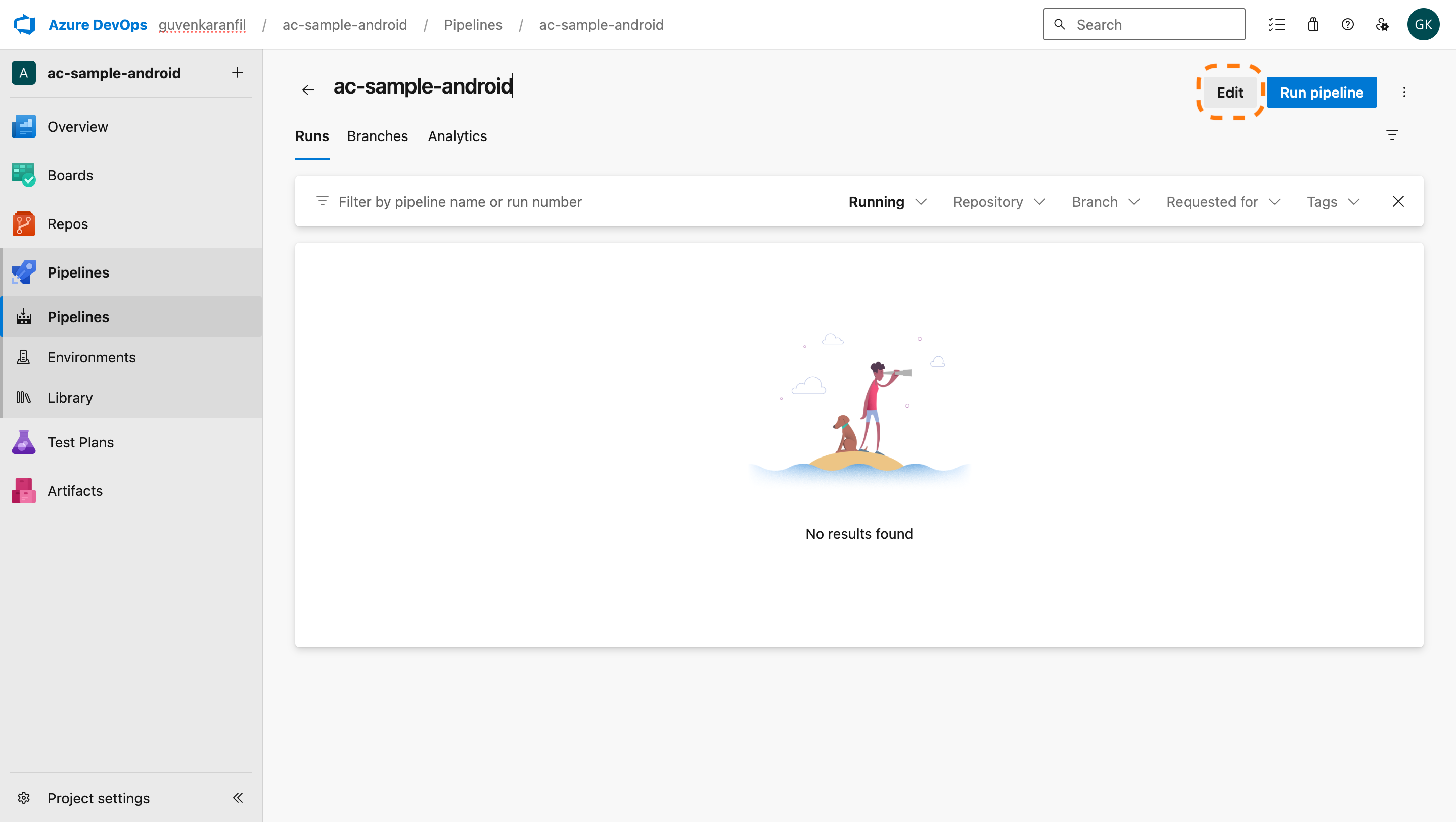
- Search for the "Appcircle Publish" task within your
YAMLfile. - Fill out the necessary input fields and click the Add button.
3. Configure the Task
After filling out the required fields, the AppcirclePublish@0 task will appear in your pipeline steps as shown below:
- task: AppcirclePublish@0
  inputs:
    personalAPIToken: $(AC_PERSONAL_API_TOKEN)
    authEndpoint: $(AC_AUTH_ENDPOINT)
    apiEndpoint: $(AC_API_ENDPOINT)
    subOrganizationName: $(AC_SUB_ORGANIZATION_NAME)
    platform: $(AC_PLATFORM)
    publishProfile: $(AC_PUBLISH_PROFILE)
    upload: $(AC_UPLOAD)
    publish: $(AC_PUBLISH)
    appPath: $(AC_APP_PATH)
-
personalAPIToken: The Appcircle Personal API token (Personal Access Key) used to authenticate and authorize access to Appcircle services within this extension. -
authEndpoint(optional): Authentication endpoint URL for self-hosted Appcircle installations. If not specified, uses Appcircle Cloud by default (auth.appcircle.io). -
apiEndpoint(optional): API endpoint URL for self-hosted Appcircle installations. If not specified, uses Appcircle Cloud by default (api.appcircle.io). -
subOrganizationName(optional): Sub-organization name for the publish profile. Leave empty to use the root organization. Use this when your Personal API Token (Personal Access Key) belongs to the root organization but the target publish profile lives in a sub-organization. -
platform: Specifies the target platform of the Publish profile. Accepts eitheriosorandroid. -
publishProfile: Specifies the name of the Publish profile that will be used. Since profile names are unique per platform, the profile is resolved based on the selectedplatform. Create the Publish profile in Appcircle before running the task. -
upload(optional, defaultfalse): When set totrue, uploadsappPathas a new app version on the target Publish profile. -
publish(optional, defaultfalse): When set totrue, triggers the publish flow for the target profile. Ifuploadis alsotrue, the freshly uploaded version is automatically marked as the release candidate before the flow starts. Ifuploadisfalse, the profile's existing release candidate is published instead. -
appPath: Indicates the file path to the application package that will be uploaded to the Appcircle Publish profile. Required whenuploadistrue. For iOS, use a.ipafile; for Android, use a.apkor.aabfile. The path can be specified in two ways:When Build and Publish tasks are in the same pipeline: Assuming you are using the Publish task after a build step, you can use the output directory of the build step. For example:
-
iOS
$(Build.SourcesDirectory)/output/app.ipaor./output/app.ipa
-
Android
$(Build.SourcesDirectory)/app/build/outputs/apk/release/app-release.apkor./app/build/outputs/apk/release/app-release.apk
When the Publish task is a separate pipeline: Assuming you have published a build artifact in your build pipeline using the
PublishBuildArtifactstask, you can retrieve the artifact using theDownloadBuildArtifactstask into a specified directory and use it in the publish pipeline. For example: -
$(Build.ArtifactStagingDirectory)/app.ipa -
$(Build.ArtifactStagingDirectory)/app.apkMake sure the path points to a valid application package file.
-
The upload and publish switches are independent, and you must enable at least one of them. Leaving both as false results in an error, since there would be nothing for the task to do.
Task Behavior
upload | publish | Behavior |
|---|---|---|
true | false | Upload appPath as a new app version on the profile. |
false | true | Trigger the publish flow for the profile's current release candidate. |
true | true | Upload appPath, mark the new version as release candidate, then trigger the publish flow for it. |
false | false | Error — nothing to do. |
Rules
-
In-progress guard: If a publish is already running for the target profile, the task does not start a new one and fails fast.
-
Release candidate: When both
uploadandpublishare enabled, the freshly uploaded version is automatically marked as the release candidate before it is published. In publish-only mode, the profile's existing release candidate is published. -
Progress: While publishing, the task polls the publish status and prints step-by-step progress (with status icons) until the flow succeeds or fails.
Manual-approval steps: If the profile's publish flow contains a manual step (e.g., "Get Approval via Email"), the flow waits for that action, and the task keeps polling until it completes or the poll times out. For CI use, prefer publish flows without manual gates.
Build Steps Order
Ensure that this action is added after build steps have been completed.
Using with Appcircle Self-Hosted
Self-signed Certificates
Adding custom certificates is not currently supported in this extension. The task does not disable TLS verification.
If your self-hosted Appcircle server uses a self-signed certificate (or one issued by a private/internal CA), requests will fail certificate validation. You must trust the server's CA on the Azure DevOps agent that runs the pipeline — for example, by setting the NODE_EXTRA_CA_CERTS environment variable to a PEM file containing the CA certificate, or by adding the CA to the system certificate store.
Leveraging Environment Variables
Utilize environment variables seamlessly by substituting the parameters with $(VARIABLE_NAME) in your task inputs. The extension automatically retrieves values from the specified environment variables within your pipeline.
References
-
For details on generating an Appcircle Personal Access Key, visit Generating/Managing Personal Access Keys.
-
To create or learn more about Appcircle Publish profiles, please refer to the Appcircle Publish to Stores documentation.