Binary Information
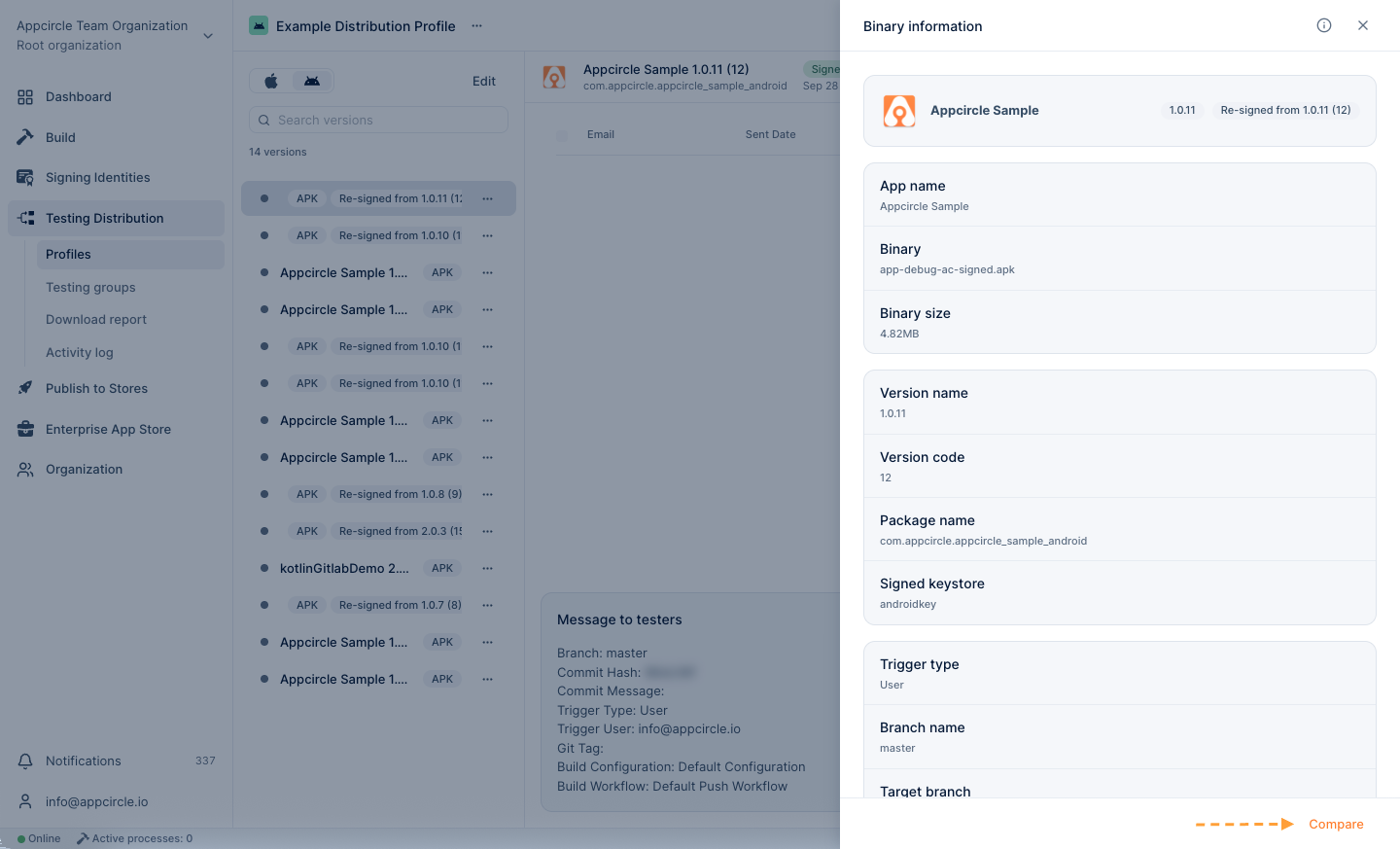
This window provides information about your binary, including the provisioning profile type, certificate name, and build details, such as the branch and logs. Also you can compare the current binary with another one of your choice.
- Select the binary.
You can select the files from the list.
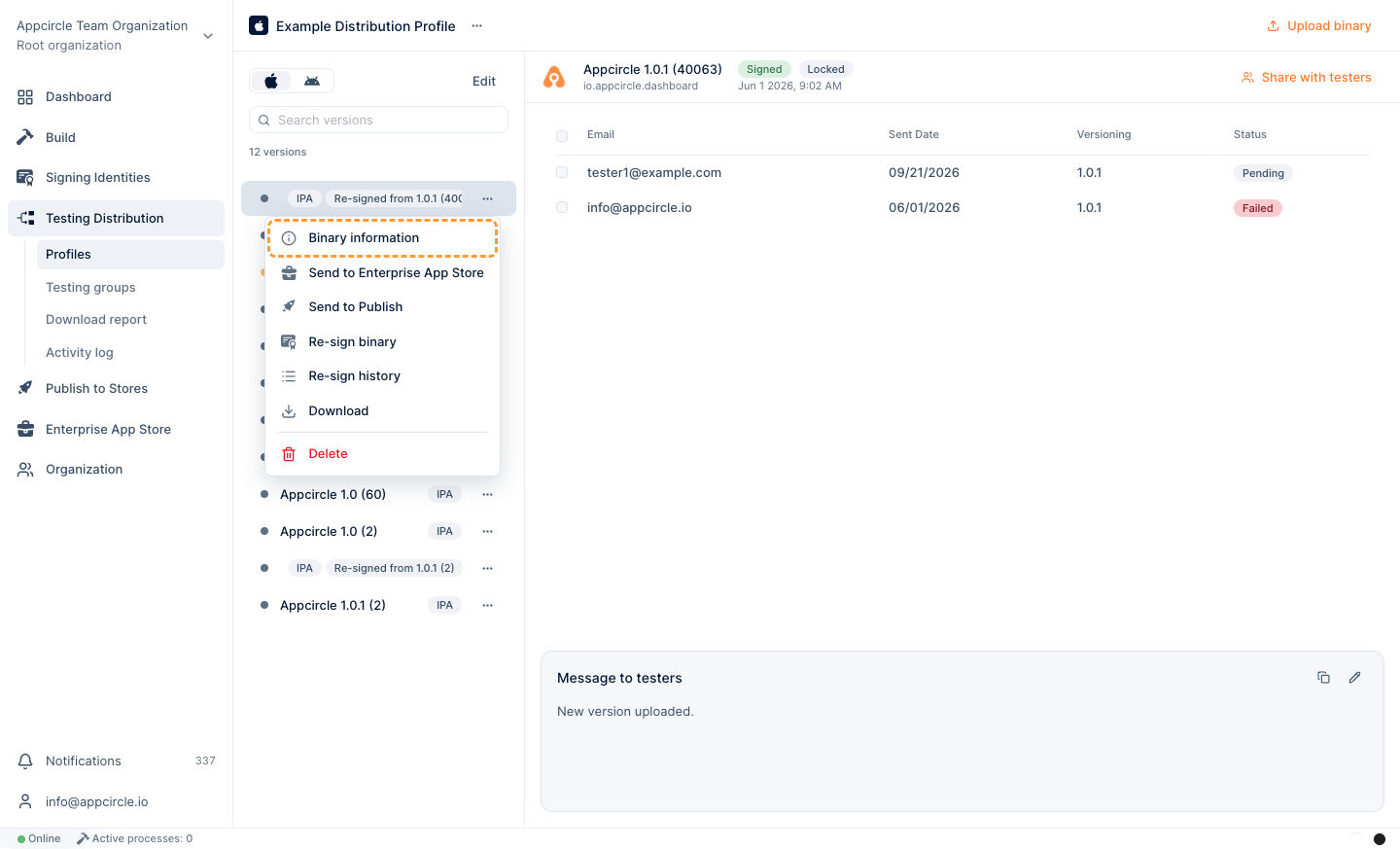
- Click the ... button and select Binary Information.
- This window provides information about your binary, including the provisioning profile type, certificate name, and build details, such as the branch and logs.
Build Metadata Details
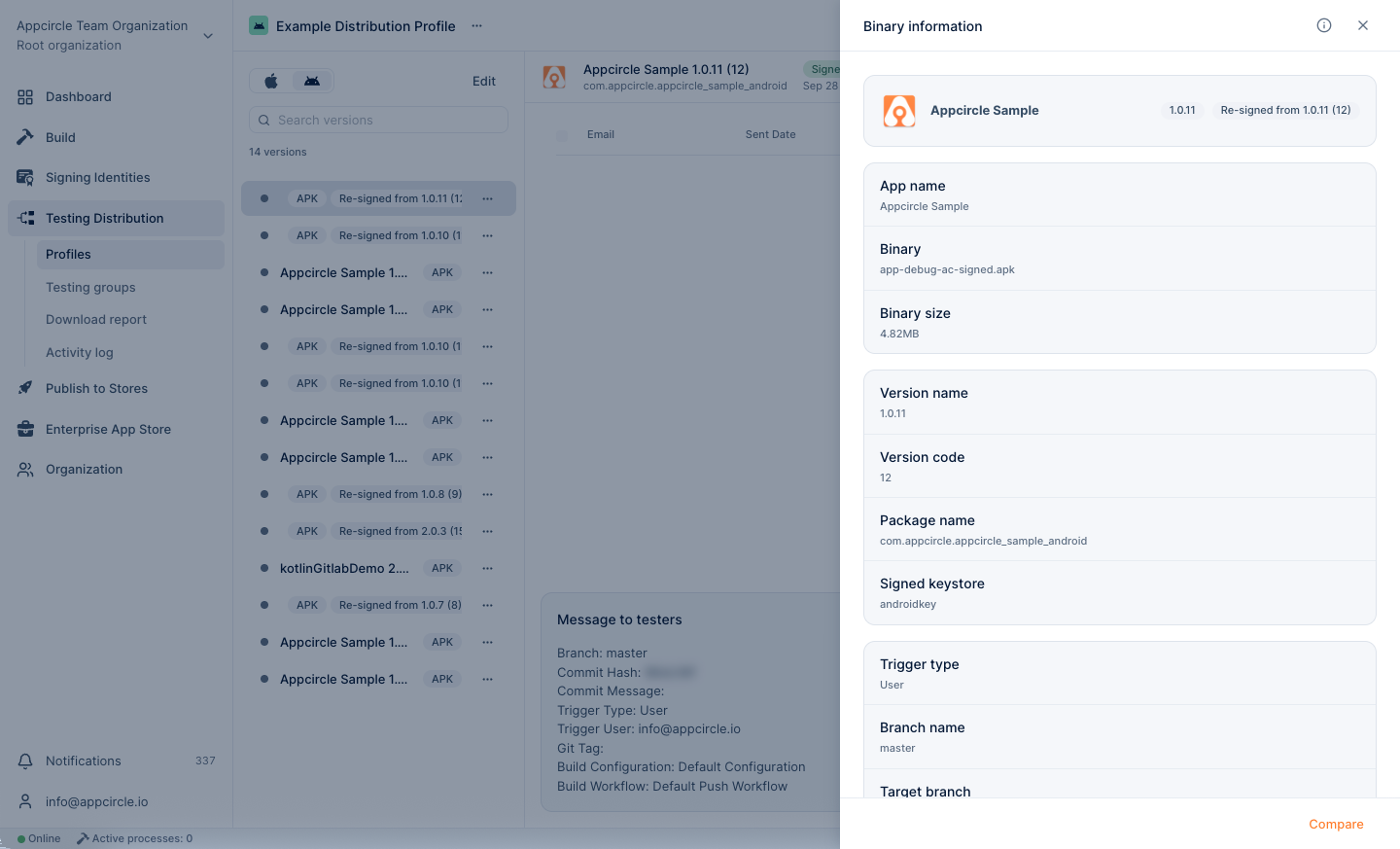
The following metadata is displayed in the Binary Information section of a Testing Distribution Profile only when the binary is generated via the Build Module, either through automatic or manual triggers, and subsequently distributed using Auto Distribution to the Testing Distribution module.
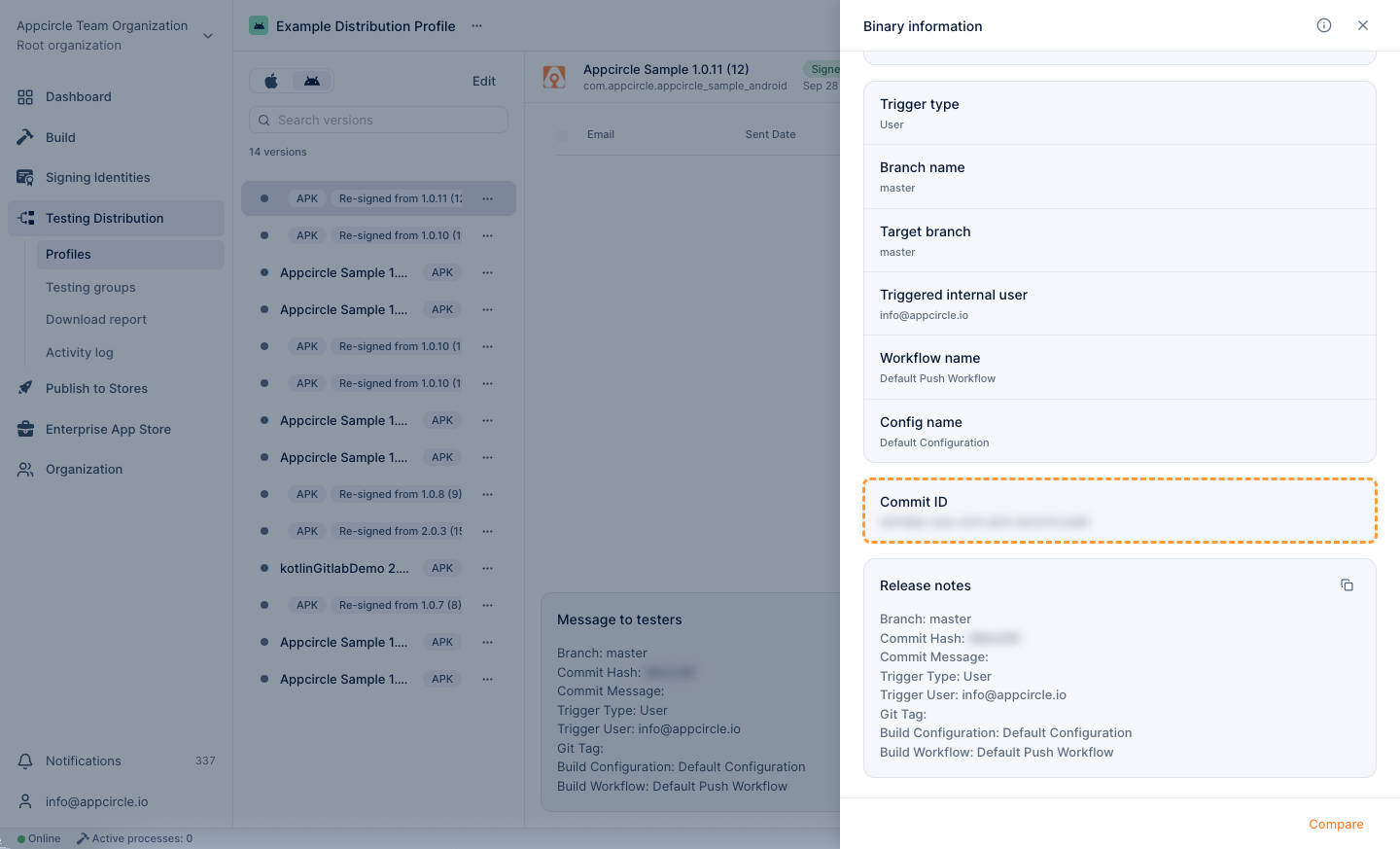
- Trigger Type: Indicates what initiated the build. Possible values include:
- Pull Request: The build was triggered by the creation or update of a pull request.
- User: A build was manually triggered by a user.
- Commit: A new commit triggered the build automatically.
- Tag: The build was initiated when a new Git tag was pushed to the repository.
- Branch Name: The source branch used during the build process.
- Target Branch: Typically used in pull request or merge-based triggers, this is the destination branch for the pull request or merge target.
- Git Tag: If the trigger type is Tag, this field shows the tag that initiated the build.
- Triggered Internal User: Displays the email address of the internal user who triggered the build or the user responsible for the action.
- Workflow Name: The name of the workflow profile name executed during the build process (e.g., Default Push Workflow).
- Config Name: Indicates the configuration profile name used within the selected workflow (e.g., Default Configuration).
Binary Comparison
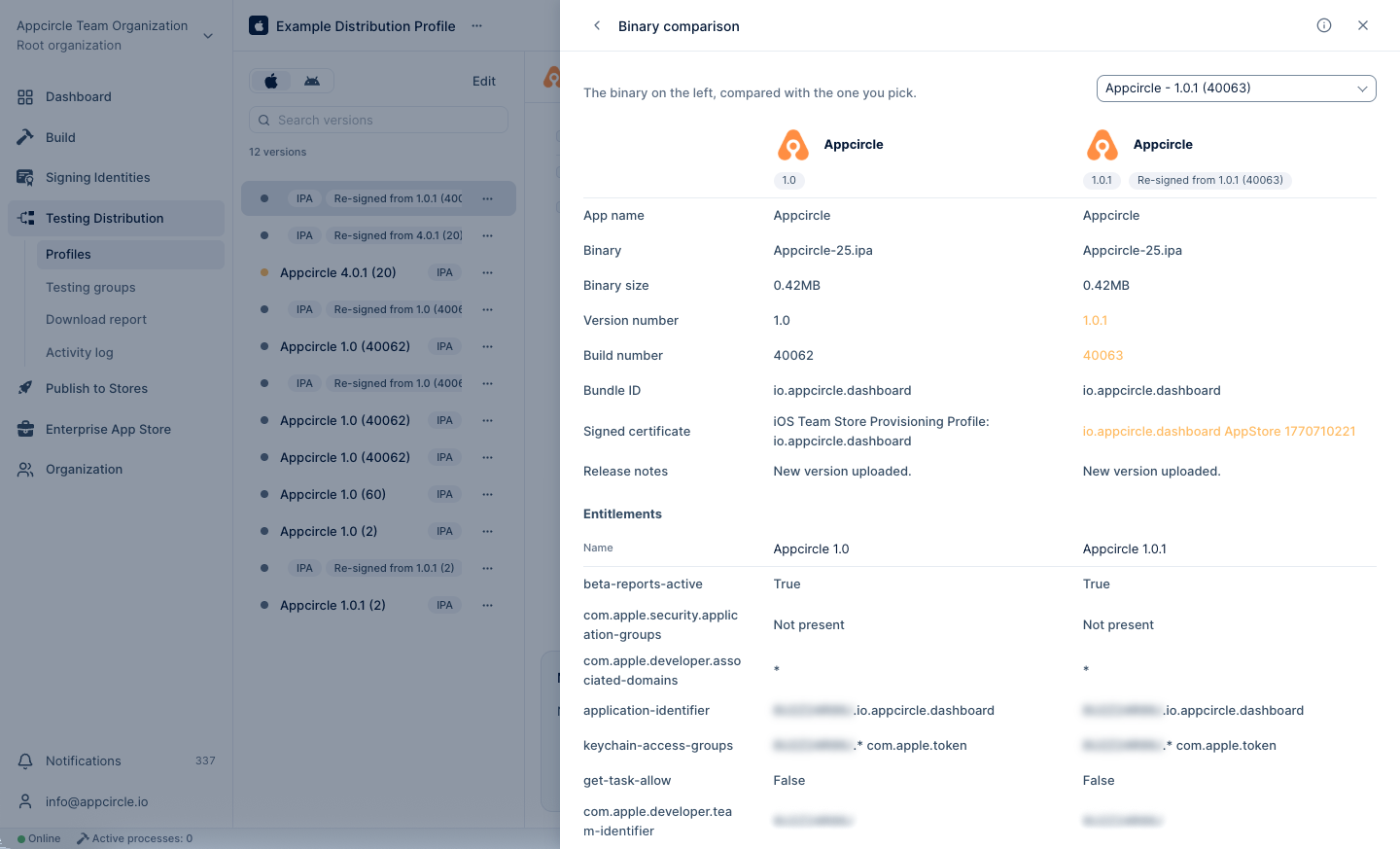
In the top-right corner of the Binary Information screen, you can click the Compare button to compare the current binary with another of your choice. The comparison highlights differences between the two binaries using color-coded indicators for easy identification.
Binaries generated through the Appcircle Build Module include associated build details. However, if the compared binary was manually uploaded to Appcircle, those details will not be available for comparison.