App Store Connect API Key
You can add, delete and manage iOS Certificates and Provisioning Profiles manually using Appcircle. There is also an easier way. By linking your Apple Developer account to Appcircle, you can see a list of certificates and provisioning profiles and pick the ones you want to use for building and distributing.
To link your Apple Developer account, you need an App Store Connect API Key from Apple's App Store Connect Panel.
Login to App Store Connect
Go to 
.jpg)
Make sure that the correct team is selected on the top right. For developer accounts that belong to multiple teams, this is important.
Once the team is correct, select Users and Access from the menu:
.jpg)
After navigating to Users and Access, you will see 4 tabs next to the title. Select the Integrations tab. Then make sure that App Store Connect API is selected from the list on the left.
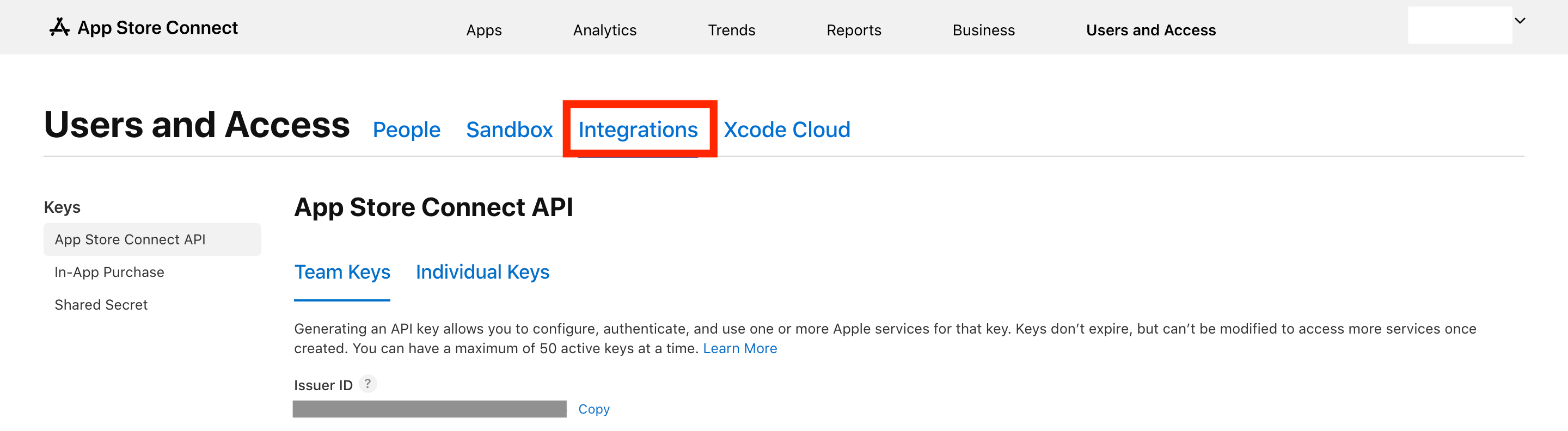
Generating a New Key
To generate a new key, press the + button.
Only Account Holders can enable the API Key generation. If you see a disabled Request Access button, contact your account holder and make them follow the steps above. After they request access, you can create new keys.
.jpg)
A modal popup will ask you to enter a name and add roles for this key:
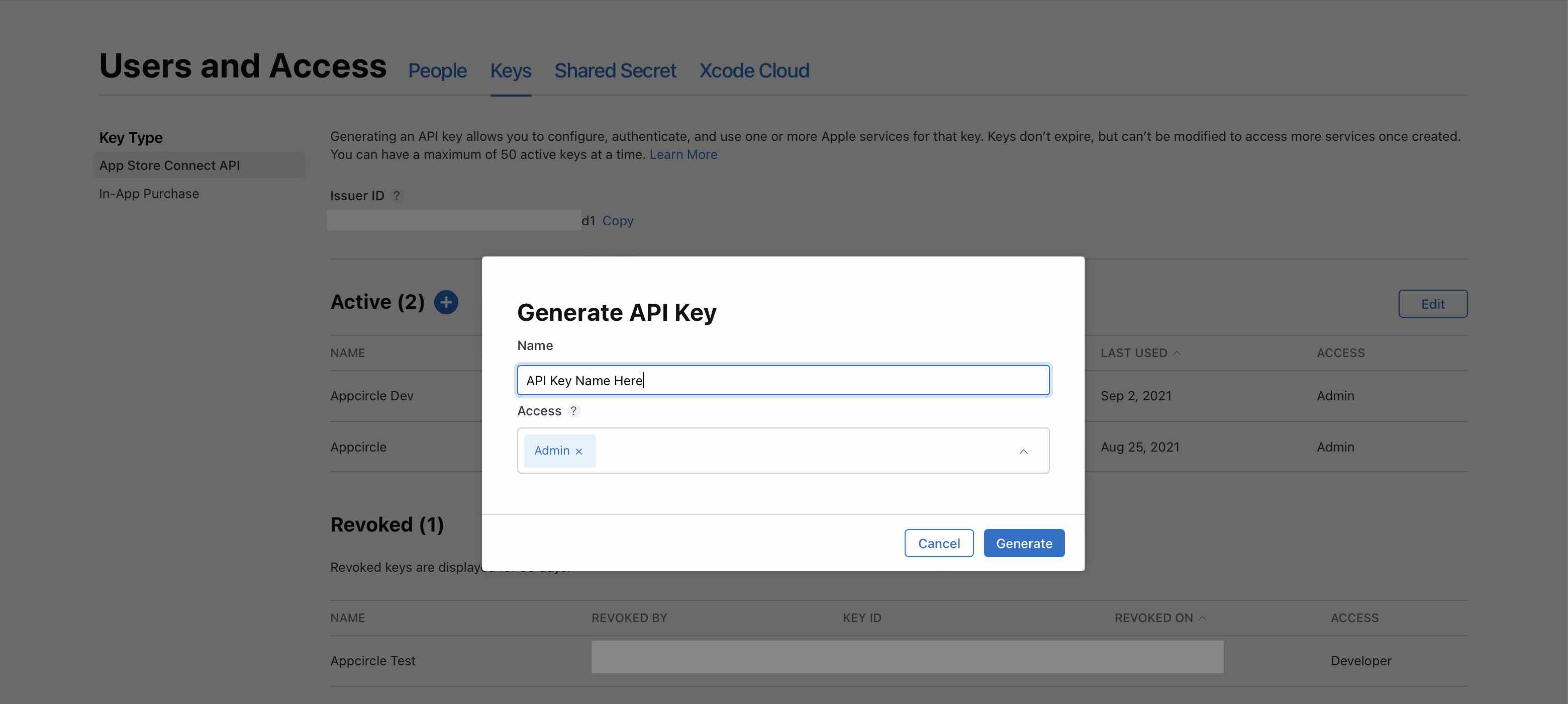
Choosing the API Key Role
The role you assign to the key determines which Appcircle features it can support. An App Store Connect API key is limited to the permissions of the role it is given, and on Apple's side Certificates, Identifiers & Profiles (signing) is a separate permission area that is only available to the Admin role over the API.
| Appcircle feature | Admin | App Manager | Developer |
|---|---|---|---|
| Upload a binary to TestFlight | ✅ | ✅ | ✅ |
| Manage TestFlight builds and testers | ✅ | ✅ | ✅ (internal testers only) |
| Update App Store metadata | ✅ | ✅ | ⛔ |
| Submit to App Store (Add for Review) | ✅ | ✅ | ⛔ |
| Create / download certificates | ✅ | ⛔ | ⛔ (development only) |
| Create / download provisioning profiles | ✅ | ⛔ | ⛔ (development only) |
| Register / edit Bundle IDs | ✅ | ⛔ | ⛔ (no delete) |
Admin access is required to create and download certificates or provisioning profiles. Select Admin if you want Appcircle to manage your full Apple workflow automatically (certificates, provisioning profiles, Bundle IDs, TestFlight, metadata and App Store submission) with a single key. This is the recommended setup.
If signing is managed outside Appcircle (you create certificates, provisioning profiles and Bundle IDs yourself and add them manually under Signing Identities), an App Manager key is sufficient for the upload-focused flow: it can upload binaries to TestFlight, manage builds and testers, update metadata and submit to the App Store. An App Manager key cannot access Certificates, Identifiers & Profiles, so Appcircle's automatic signing will fail with that key. A Developer key can upload builds and manage internal testers and build information, but cannot edit App Store metadata or submit to the App Store.
You can also grant access to certain users on a per-app basis, but this requires additional configuration in App Store Connect under Users and Access.
To see a list of permissions each role has, visit:
Downloading the Key
After generating the key, download the key file by pressing Download API Key next to it.
.jpg)
You can only download the file once. If you lose the file, you need to generate a new key.
Linking Appcircle with App Store Connect
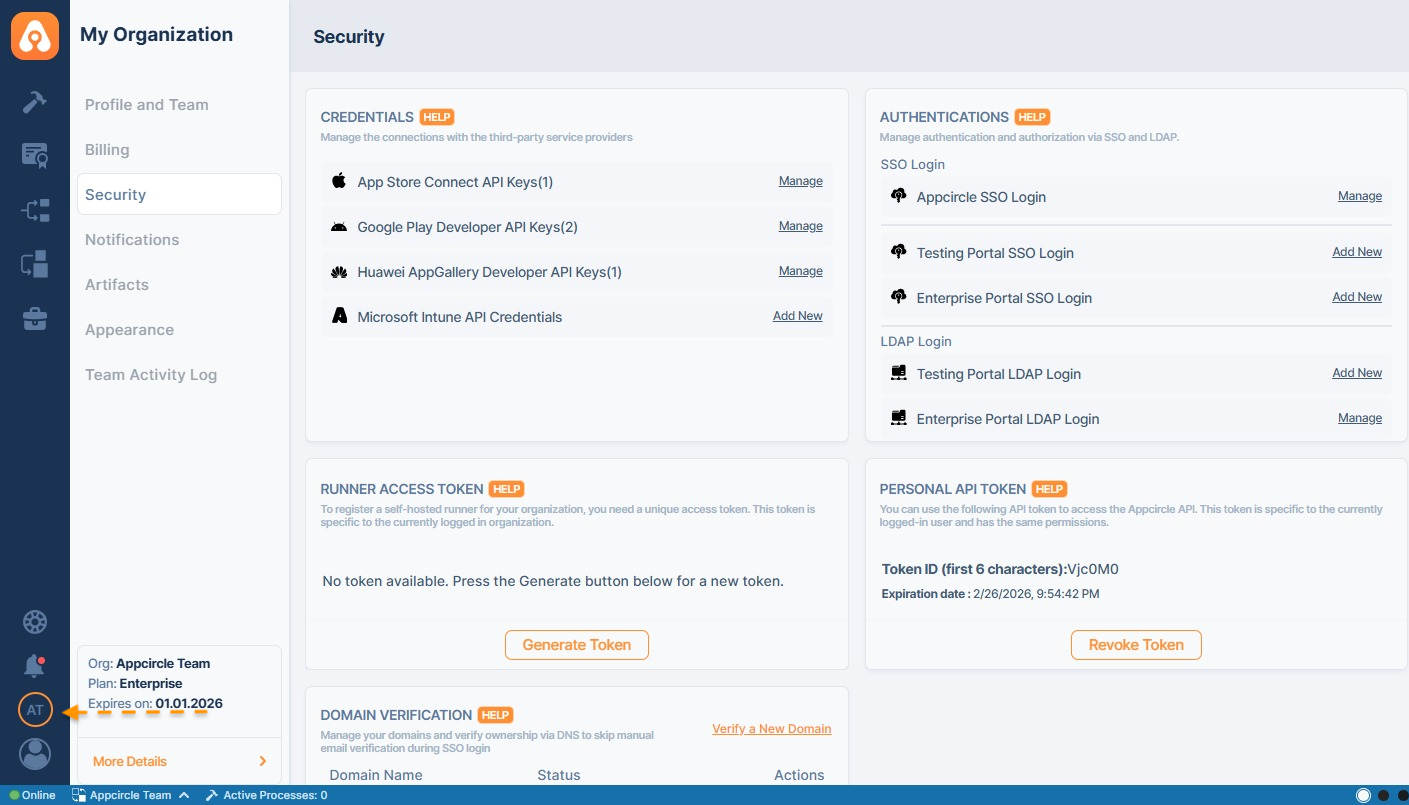
Adding a key to Appcircle is pretty easy. Go to your organization by selecting the bottom left button from the toolbar:
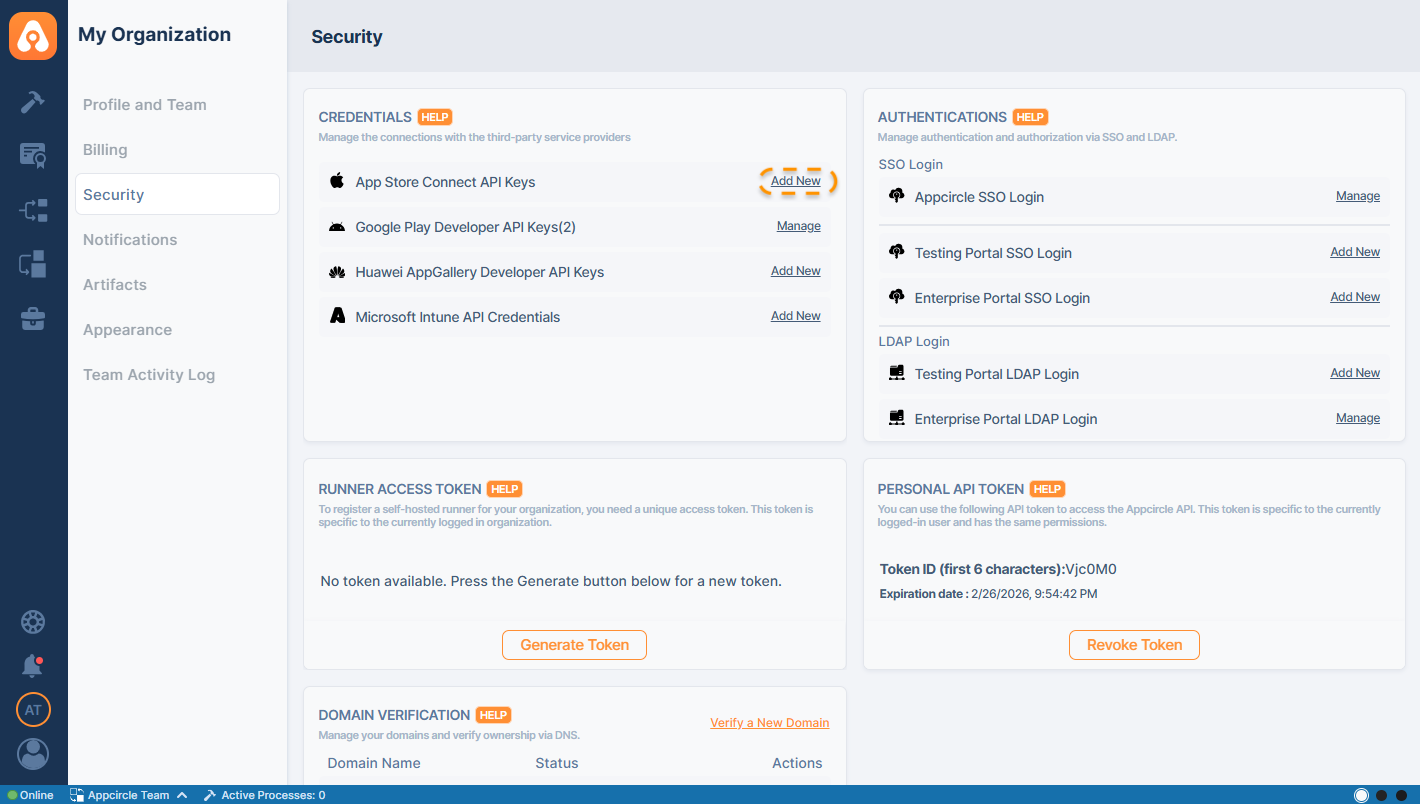
On the Organization screen, select Add New on App Store Connect API Keys list item:
On the form, upload the .p8 key file downloaded from App Store Connect:
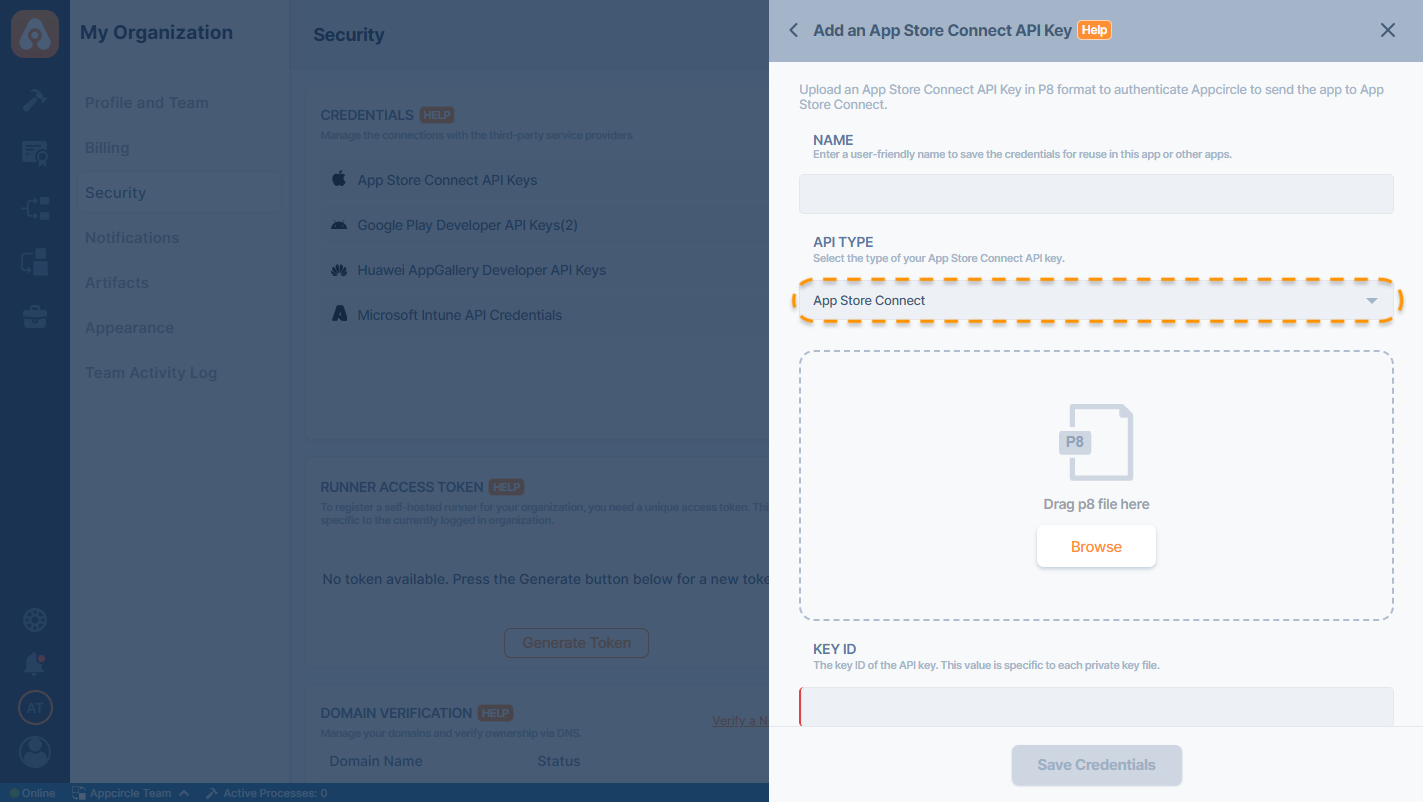
Fill in the rest of the form. You can find the Key ID and Issuer ID from App Store Connect Panel here:
.jpg)
Copy and paste them to the form in Appcircle, give it a name, and save.
You can add multiple keys. We'll ask you which key to use while downloading a certificate.
Enterprise API Key Option for App Store Connect
The App Store Connect Enterprise API Key is a crucial component for managing Apple Enterprise accounts within Appcircle. This API key allows seamless integration with App Store Connect, enabling automated provisioning, certificate management, and distribution processes for enterprise applications.
Prerequisites
Before using the App Store Connect Enterprise API Key, ensure that:
- You have an Apple Developer Enterprise Program account.
- You have Admin or Account Holder privileges in App Store Connect.
- Your App Store Connect account supports API access.
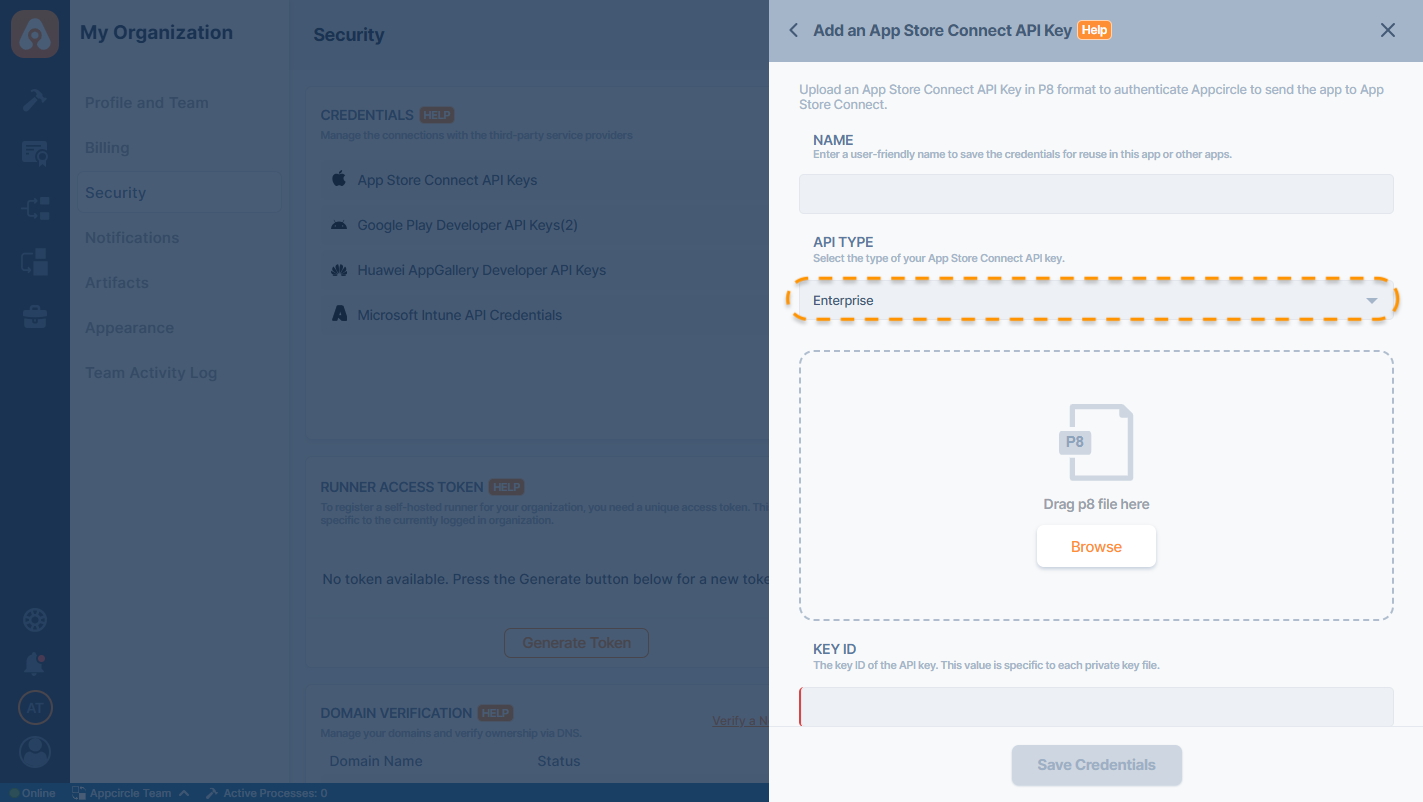
Adding the API Key to Appcircle
Once the API key is generated, it must be added to Appcircle:
- Navigate to the Organization module in Appcircle.
- Click Add New next to the App Store Connect API Keys section under Credentials area.
- Upload the downloaded .p8 file.
- Enter the Key ID and Issuer ID obtained from App Store Connect.
- Select the Enterprise API Key option for enterprise account integration.
- Click Save to complete the setup.
Please note that the registered Enterprise API Key cannot be used within the Publish module because the Apple Enterprise Program does not provide TestFlight or App Store Connect services.
Sharing App Store Connect Credentials
Root Organization users have the ability to share their saved credentials with Sub-Organization users. This feature helps streamline credential management across distributed teams and multiple organizational units.
How to Share Credentials
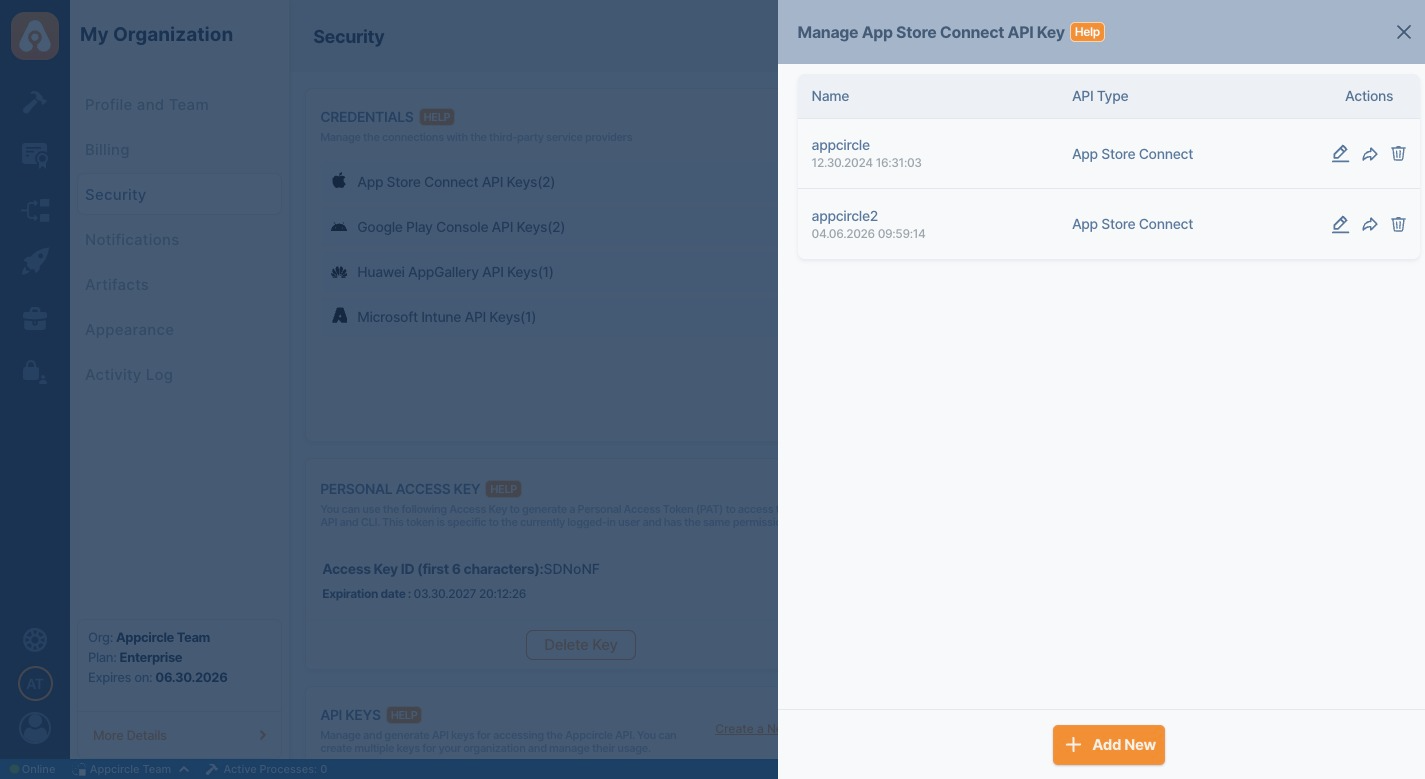
1. Navigate to the Credentials Section
Go to My Organization > Security > Credentials.
2. Open Manage Panel
Click the respective credential type (e.g., App Store Connect API Keys) to view your saved credentials.
3. Select the Credential
Click the Share icon under the Actions column for the credential you want to share.
4. Configure Sharing Settings
In the Share Credentials panel:
- Enter or confirm the Settings Name.
- Toggle Share with all sub-organizations if you want to make the credential available to all sub-organizations automatically.
- Alternatively, manually select specific sub-organizations that should have access by checking the boxes under Sub-Organizations.
5. Save Sharing Configuration Once your selections are made, click Share to apply.
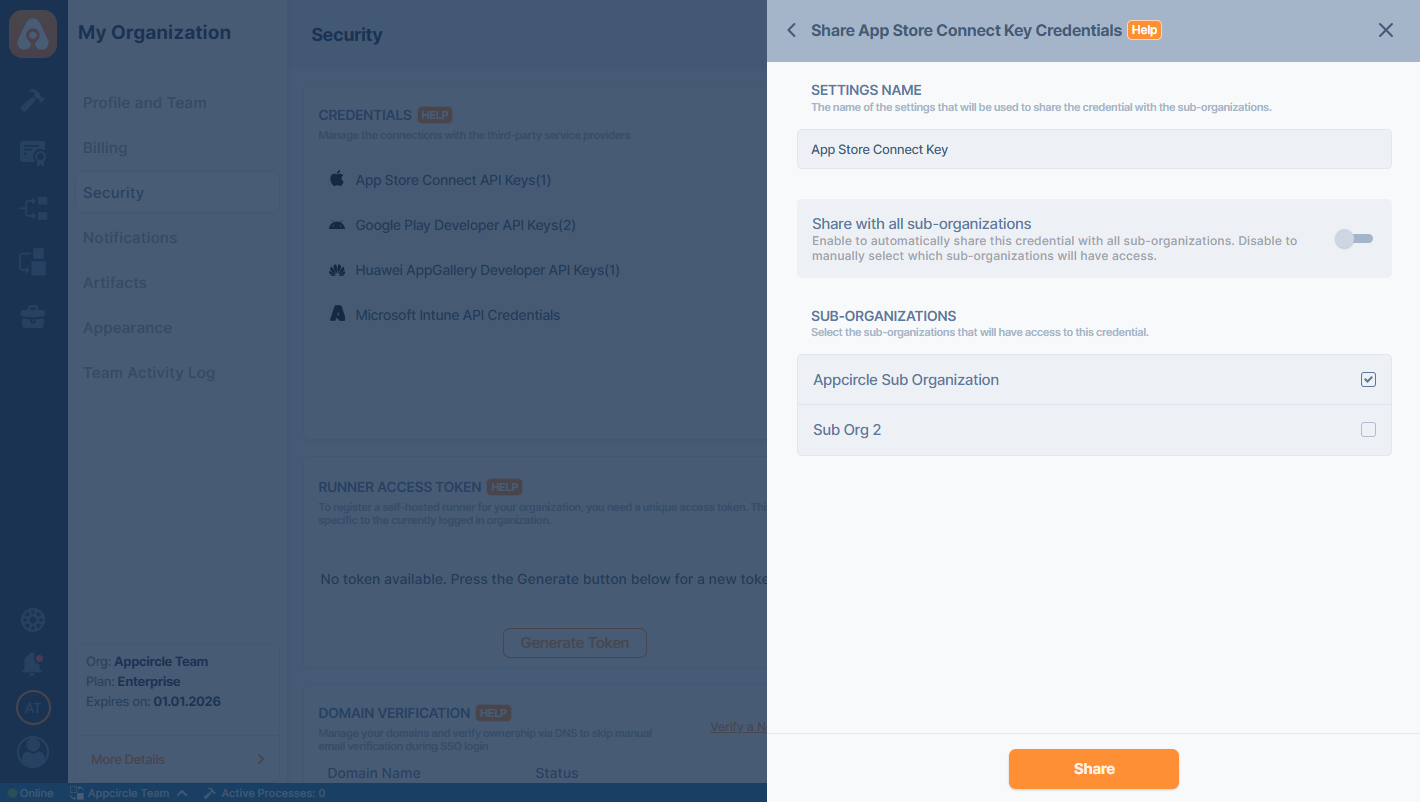
Shared credentials will be visible and usable in the selected Sub-Organizations as if they were their own.
Sub-Organizations cannot edit or delete credentials shared by the Root Organization.
The shared credentials by the Root Organization will be marked with Root Tag on the Sub Organization's credential list.
When the “Share with all sub-organizations” toggle is enabled, the credential is shared with all existing sub-organizations and will automatically be available for newly created sub-organizations.
You can also edit the name of the credential setting by clicking the edit button