Starting a Manual Build
To initiate a build in Appcircle, follow these steps:
- Click on the Start Build button to begin the process.
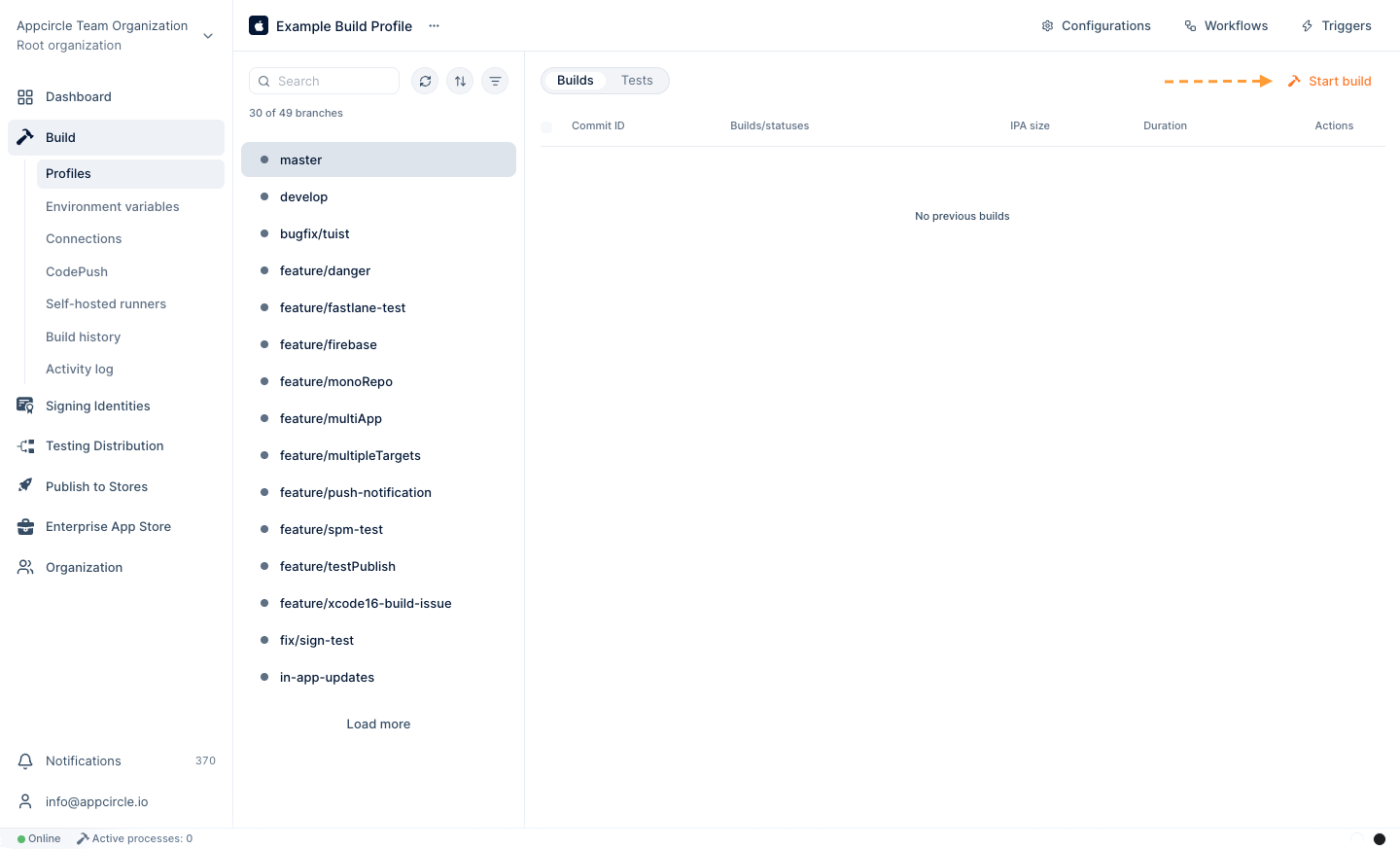
- Appcircle will prompt you to choose a configuration and workflow settings from the saved configurations. Select the appropriate settings that match your project requirements.
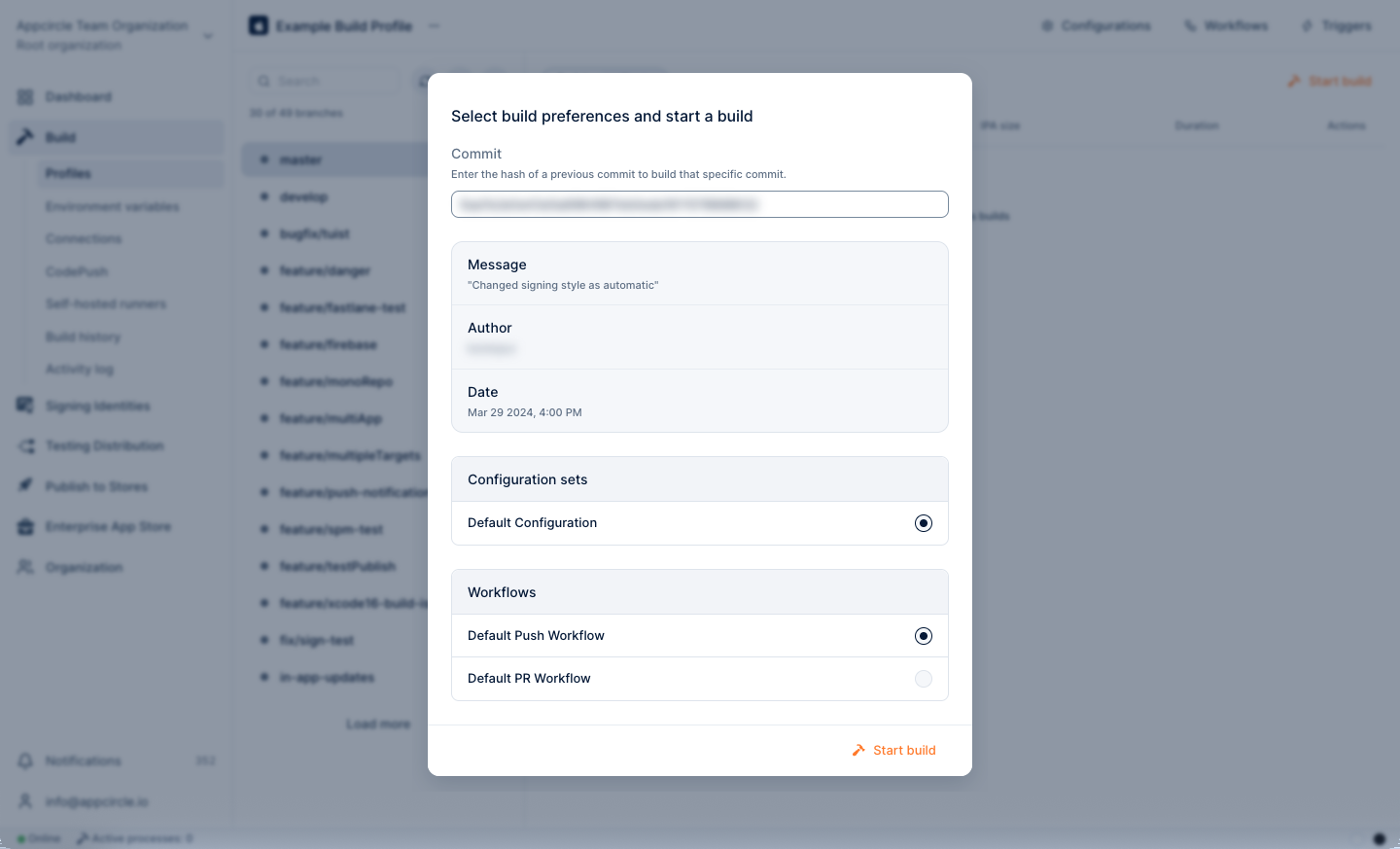
- Once the configurations are selected, click the Start button to start the build.
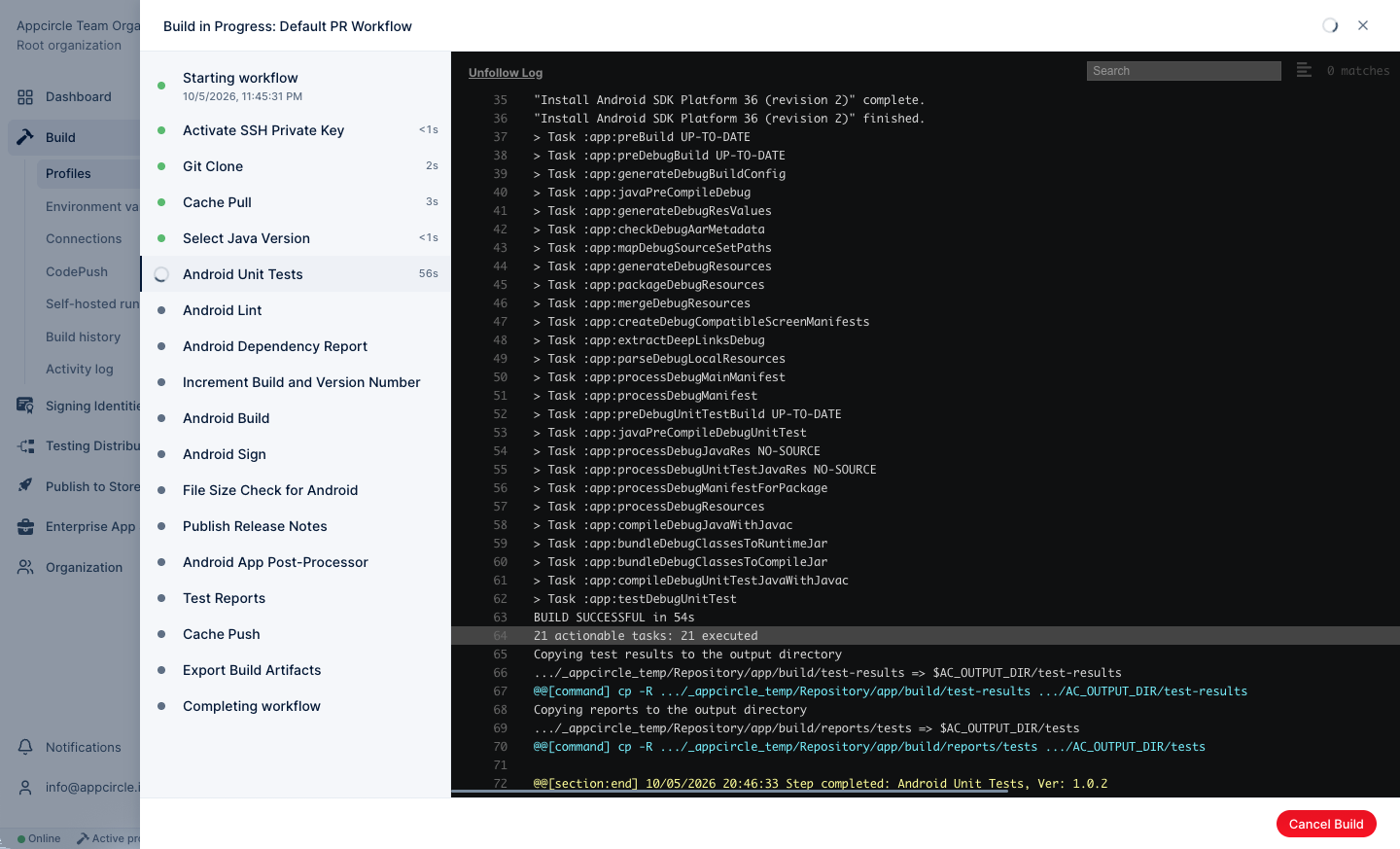
- Users can monitor the progress, results, and logs of the workflow steps in real-time via the interface.
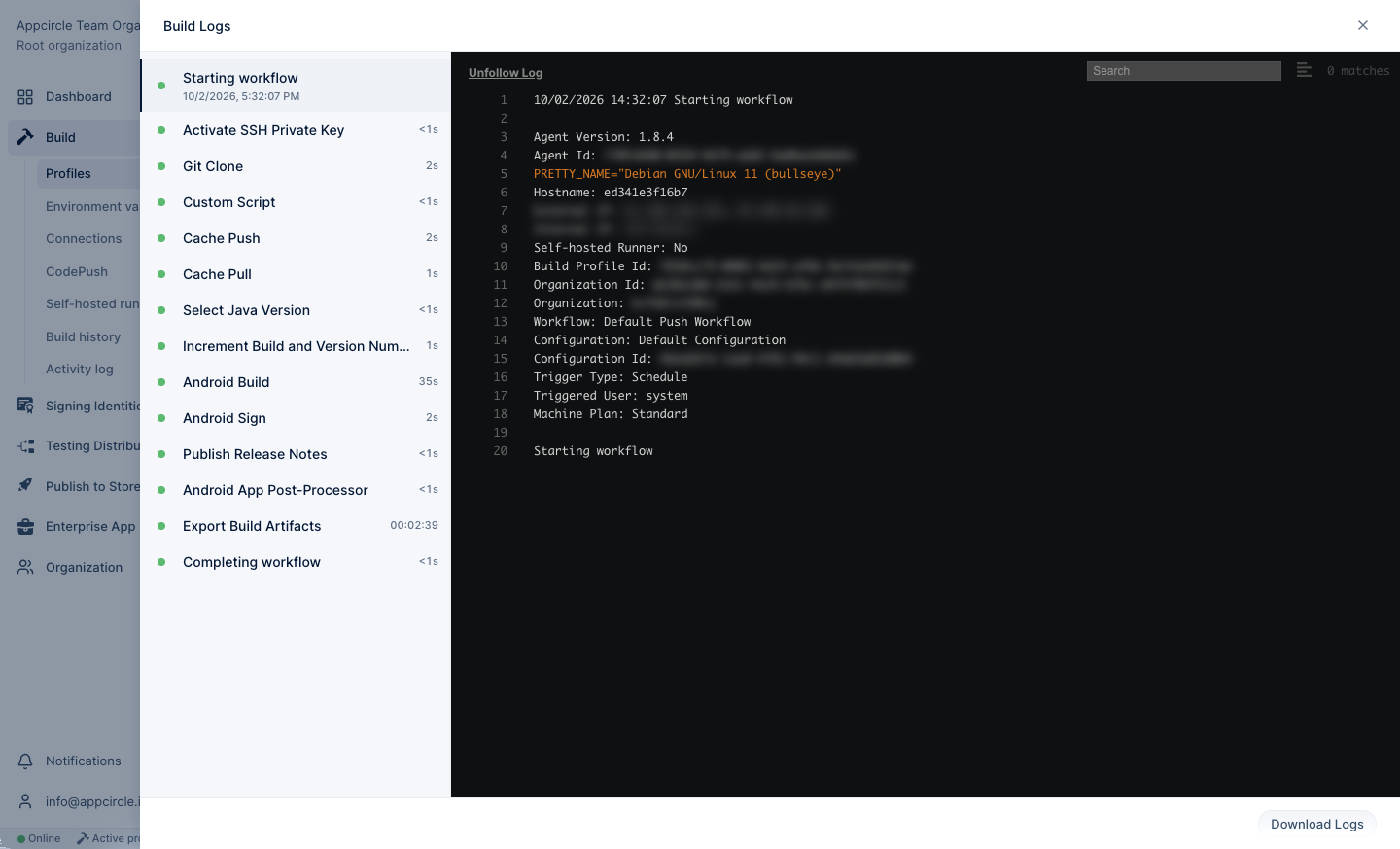
- After the build is complete, you have the option to download the build logs for reference or troubleshooting purposes.
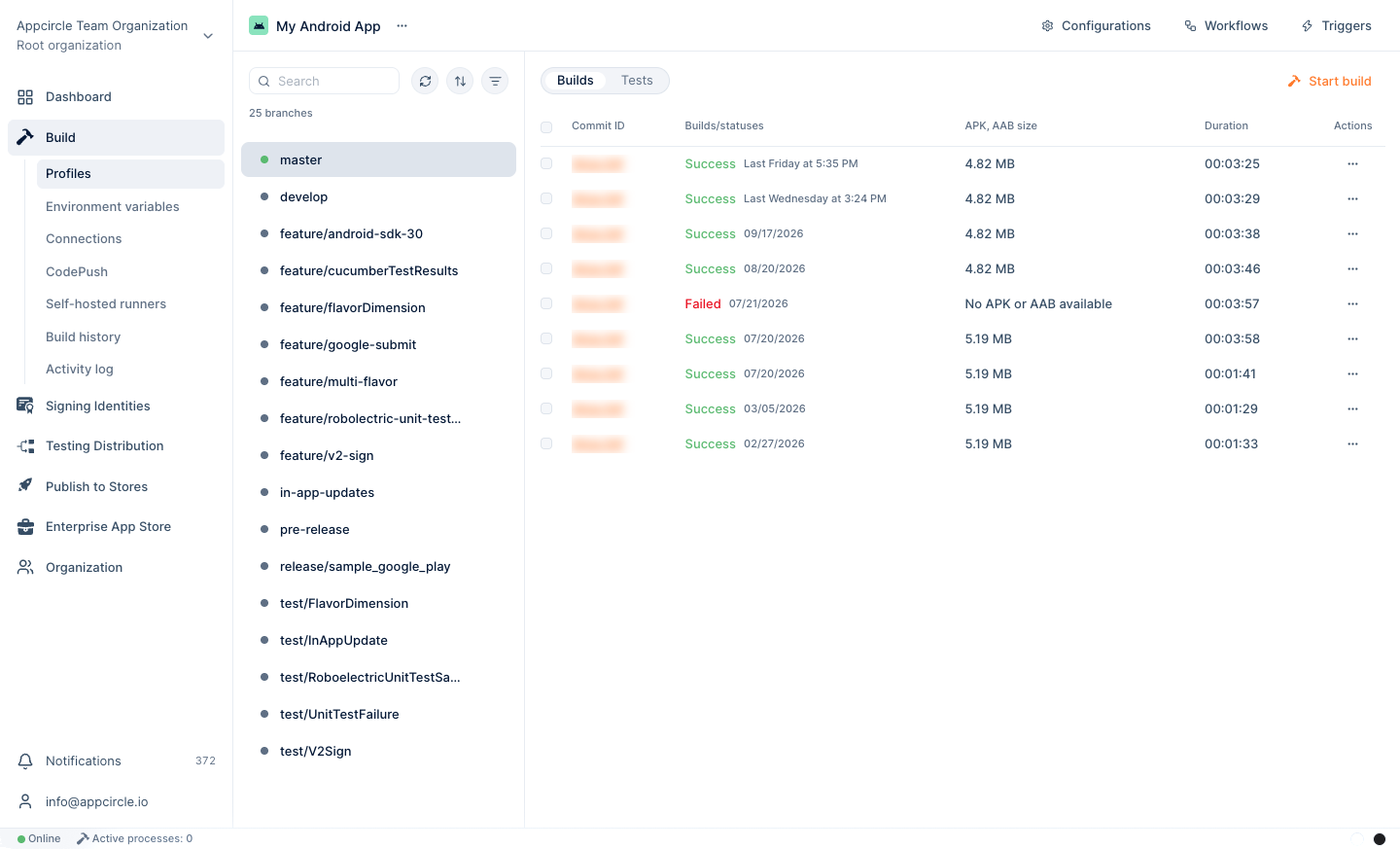
- Upon completion, the binary along with the artifacts will be displayed on the selected branch. These can be accessed for deployment or further use.
By following these steps, you can efficiently manage and monitor your builds in Appcircle.
For more detailed information on builds with different types of projects, please refer to the Platform Build Guides documentation.
Starting a Manual Build via API
You can also start a manual build through the Appcircle API and send environment variables that apply only to that build. Use this when a value changes from build to build. You do not need to create an Environment Variable Group for each value.
The variables are available to all workflow steps of that build. They are not saved to the build profile or to a variable group.
- An API token. See API Authentication.
- The IDs of the build profile, workflow and configuration. Get them from
GET /build/v2/profiles,GET /build/v2/profiles/{profileId}/workflowsandGET /build/v2/profiles/{profileId}/configurations.
Build the Latest Commit of a Branch
curl -X PUT "https://api.appcircle.io/build/v2/profiles/{profileId}/workflow/{workflowId}?branchName=develop&configurationId={configurationId}" \
  -H "accept: application/json" \
  -H "Content-Type: application/json" \
  -H "Authorization: Bearer Auth-Token-Goes-Here" \
  -d '{
    "RELEASE_NOTES": "Login screen fix. Please test the password reset flow.",
    "RUN_UI_TESTS": "true"
  }'
Build a Specific Commit
Get the commit ID from GET /build/v2/commits?branchId={branchId}. workflowId and configurationId are required.
curl -X PUT "https://api.appcircle.io/build/v3/commits/{commitId}/build/by-workflow/with-environment?workflowId={workflowId}&configurationId={configurationId}" \
  -H "accept: application/json" \
  -H "Content-Type: application/json" \
  -H "Authorization: Bearer Auth-Token-Goes-Here" \
  -d '{ "RELEASE_NOTES": "Hotfix build for QA", "RUN_UI_TESTS": "false" }'
Both requests return 202 Accepted with taskId and queueItemId of the queued build.
Using the Variables in the Workflow
Read the variables like any other environment variable. To give a default value when the request does not send one, set it in your script:
RUN_UI_TESTS="${RUN_UI_TESTS:-false}"

if [ "$RUN_UI_TESTS" = "true" ]; then
  echo "Running UI tests"
fi
If a variable with the same name is also defined in an Environment Variable Group that is attached to the configuration, the value from the group is used and the value in the request is ignored. Do not define the variables that you send through the API in any attached variable group.
- The request body is a JSON object of string key/value pairs.
- Do not send secrets in the request body. Keep them in an Environment Variable Group as secret variables.
- The Appcircle CLI does not support passing environment variables when it starts a build.
For the full request schemas, see the Build API reference.
Build Statuses
- Success: The build has finished successfully with no failures in the workflow steps.
- Failed: The build has failed due to one or more workflow steps failing.
- Warning: The build has finished with a failed workflow step that does not affect the final outcome.
- Timeout: The build exceeded the timeout limit and ended prematurely.
- Canceled: The build was canceled by the user or by Auto Cancel Redundant Pipeline.