Microsoft Teams Notifications
Appcircle supports sending notifications to Microsoft Teams for the major events in all modules. You can connect Appcircle to your Microsoft Team channel to set up module-based event notifications to be sent to the selected channel.
Connecting Microsoft Teams via Workflows
Microsoft now recommends using Workflows-based webhooks instead of the legacy Incoming Webhook connector.
This new approach provides a secure and scalable way to send notifications to Teams channels.
To connect Appcircle using Workflows:
- Open the target Teams channel.
- Click the ••• (More options) menu.
- Select Workflows.
- Choose the template Send Webhook alerts to a channel.
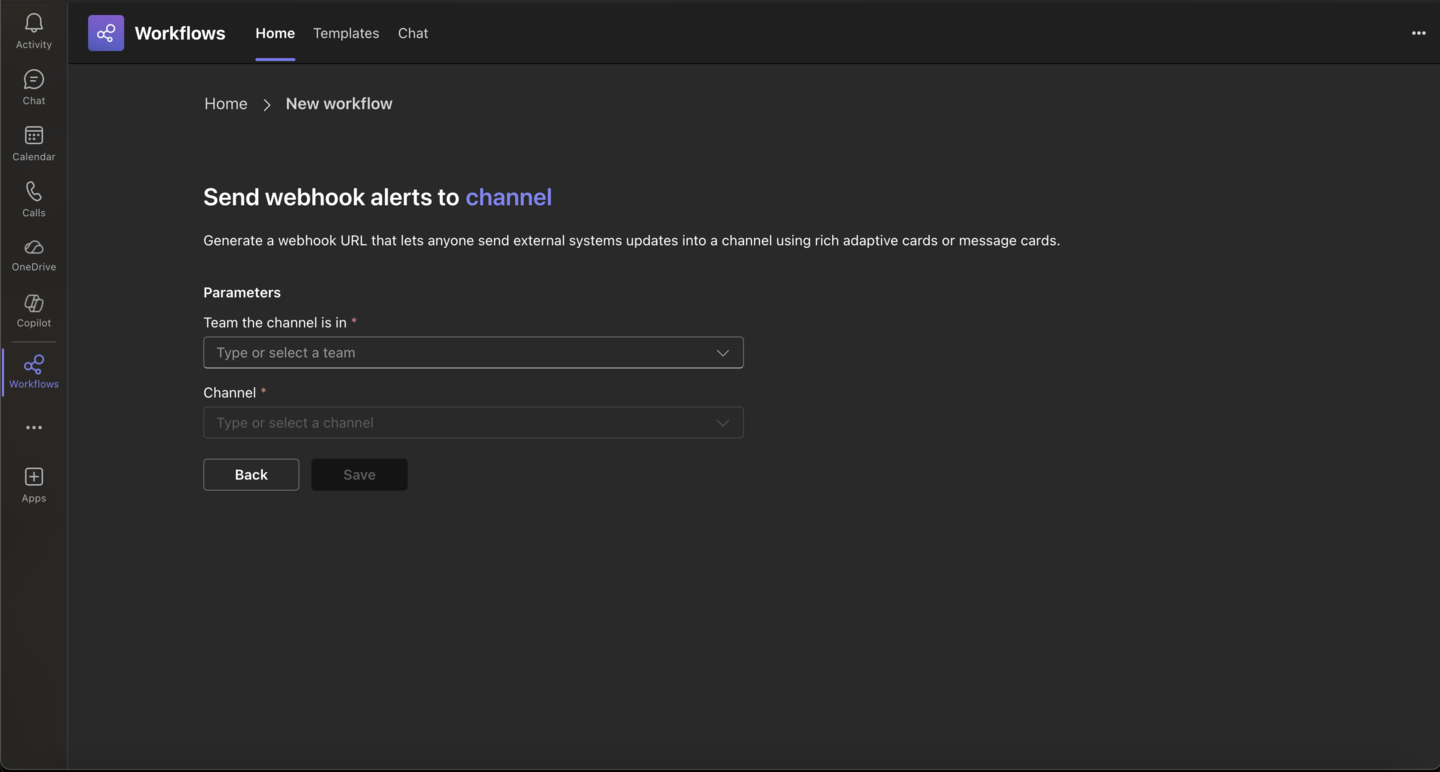
- Select the Team and Channel where notifications should be posted.
- Add the workflow and copy the generated webhook URL.
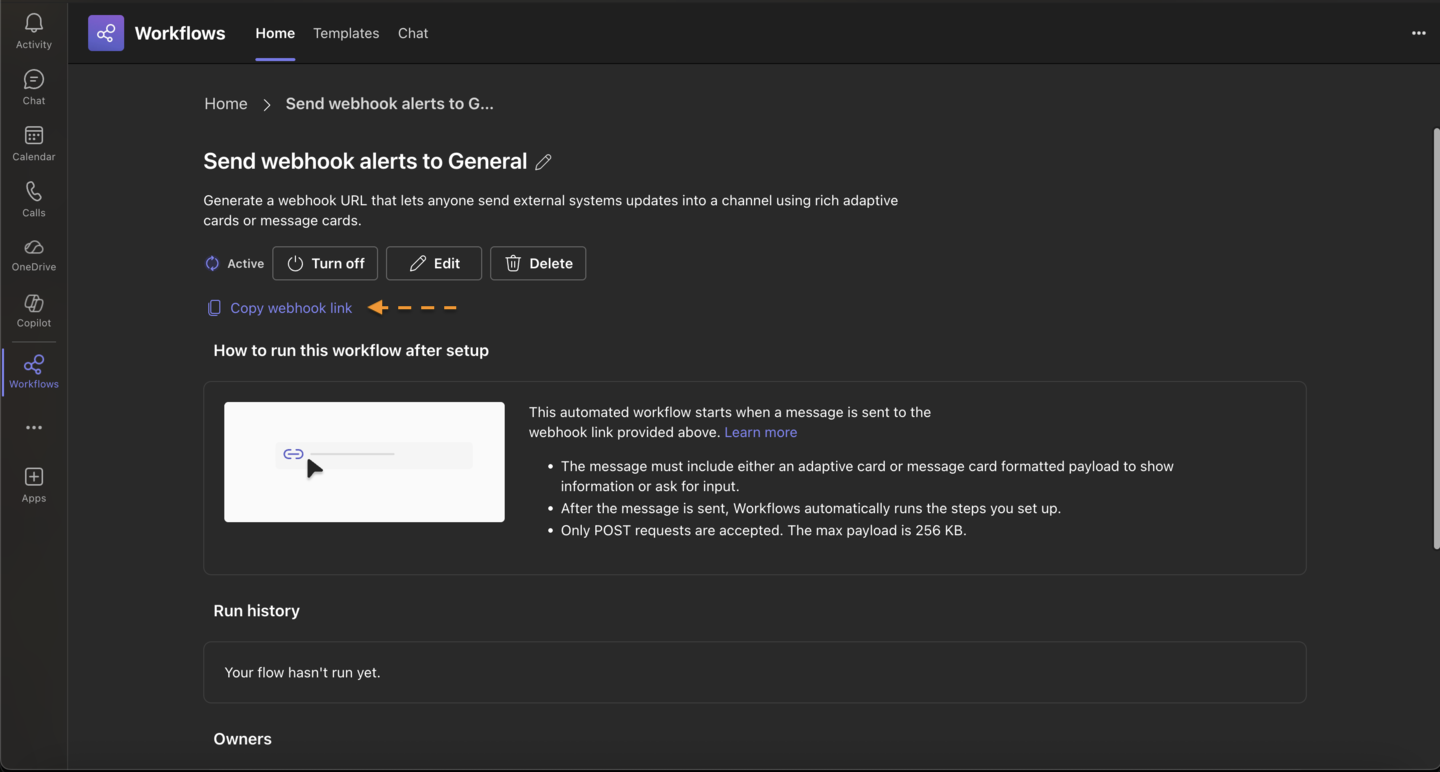
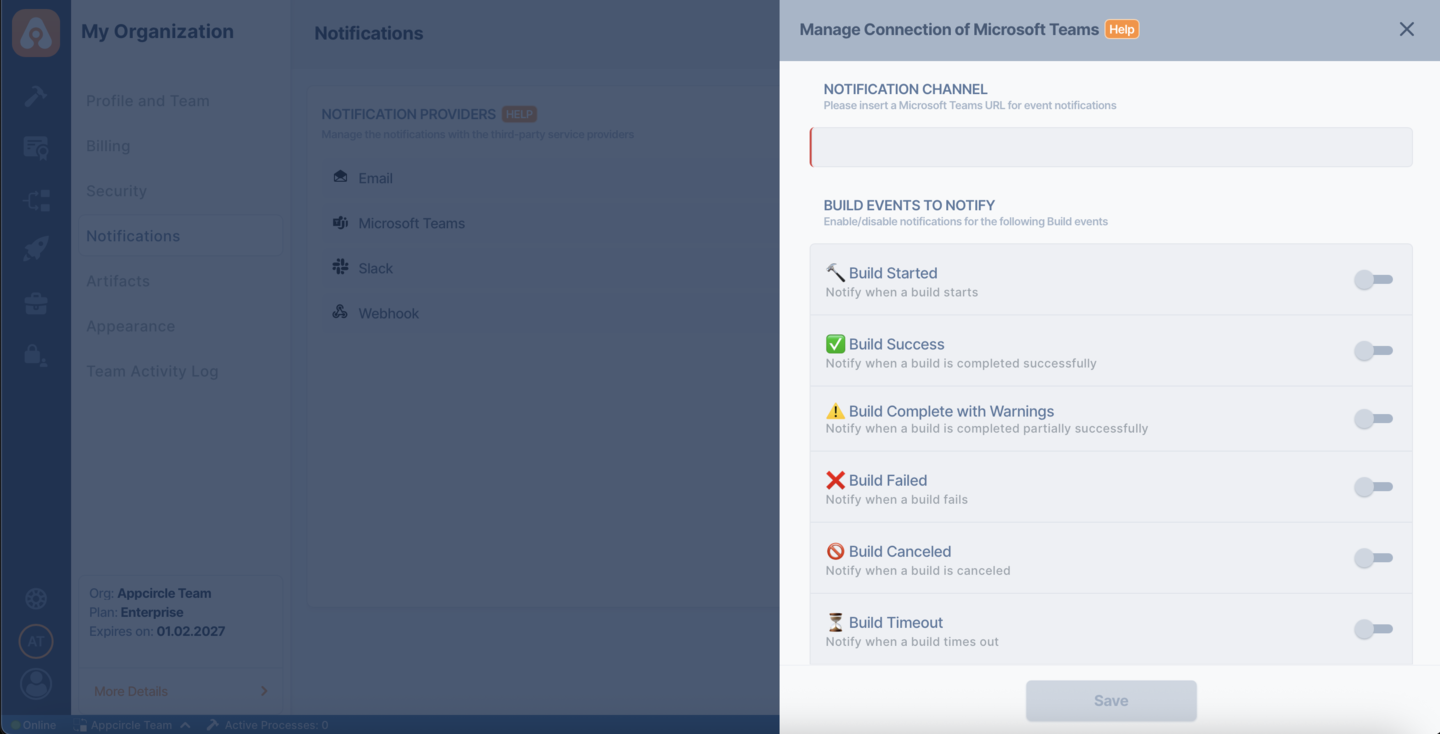
- Paste this URL into Appcircle when configuring notification webhooks (for example via the Send webhook alerts to channel workflow step).
When a notification payload is sent to this workflow URL, Microsoft Teams processes the request and posts the message to the configured channel.
Adding Incoming Webhook to Microsoft Teams
Microsoft is retiring Office 365 Connectors, including the Incoming Webhook integration used by Microsoft Teams.
The migration deadline has been extended, and organizations must transition to the new workflow-based webhook model by April 30, 2026 to avoid service disruption.
If you are using the Incoming Webhook integration in Appcircle, we strongly recommend migrating to the new workflow-based webhook connection method as soon as possible.
In order to get notifications, the administrator of the channel should add an incoming webhook to the given channel.
-
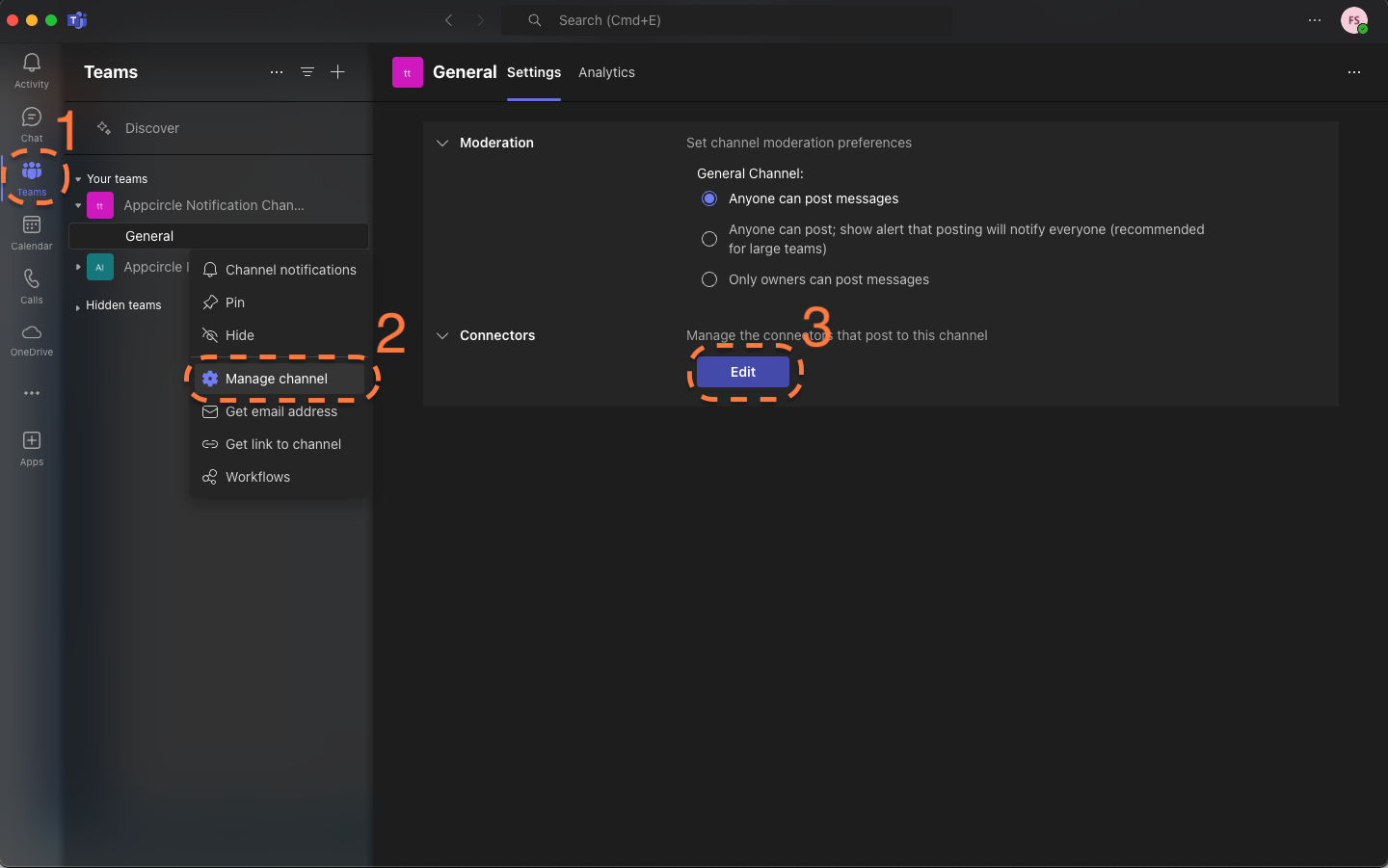
Click the ••• button to the right of
Generalunder the channel and then clickManage Channel[2]. -
On the openned screen, click on the
Editbutton under theConnectorheader [3].
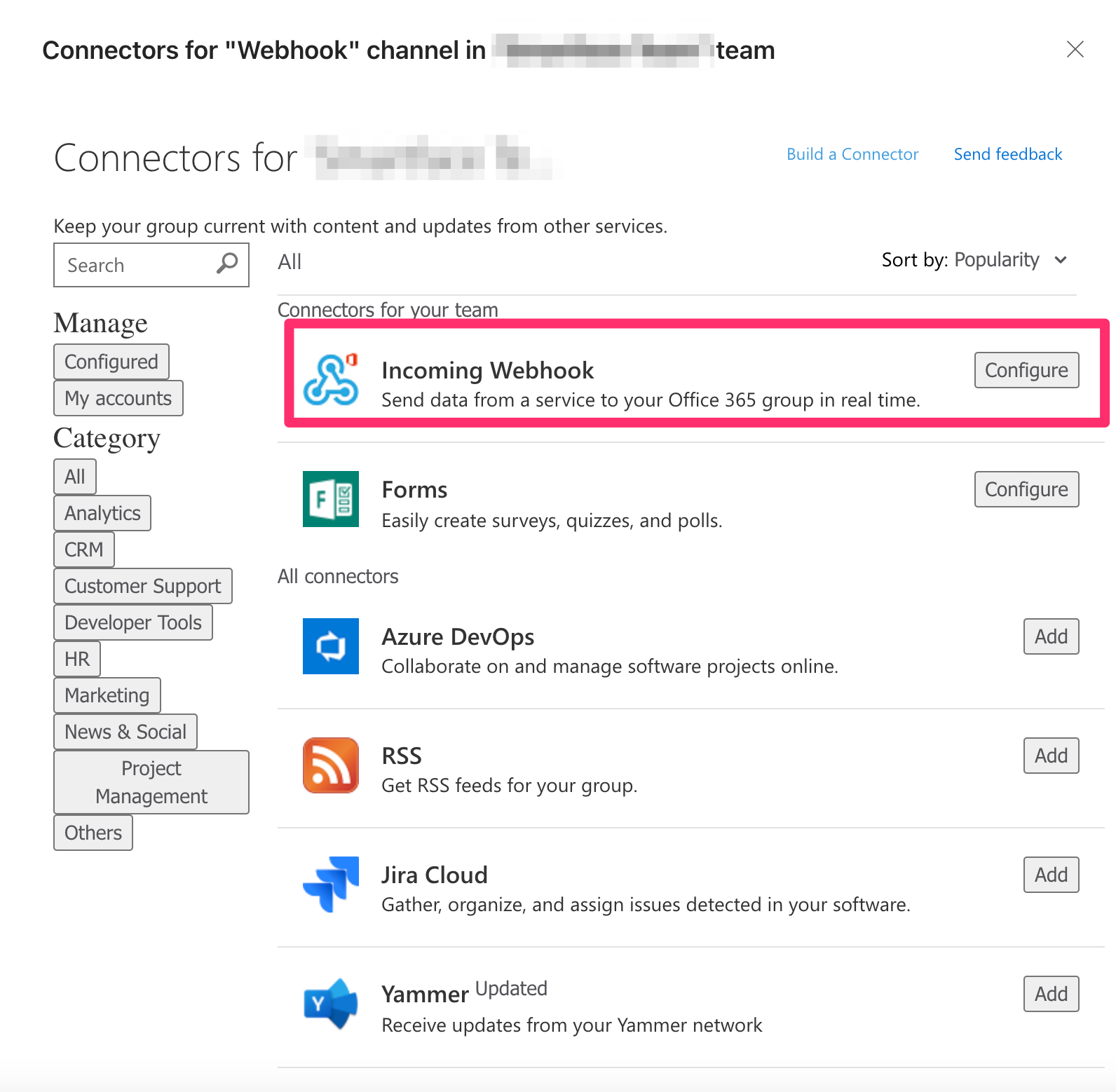
- Search for Incoming Webhook and click Configure.
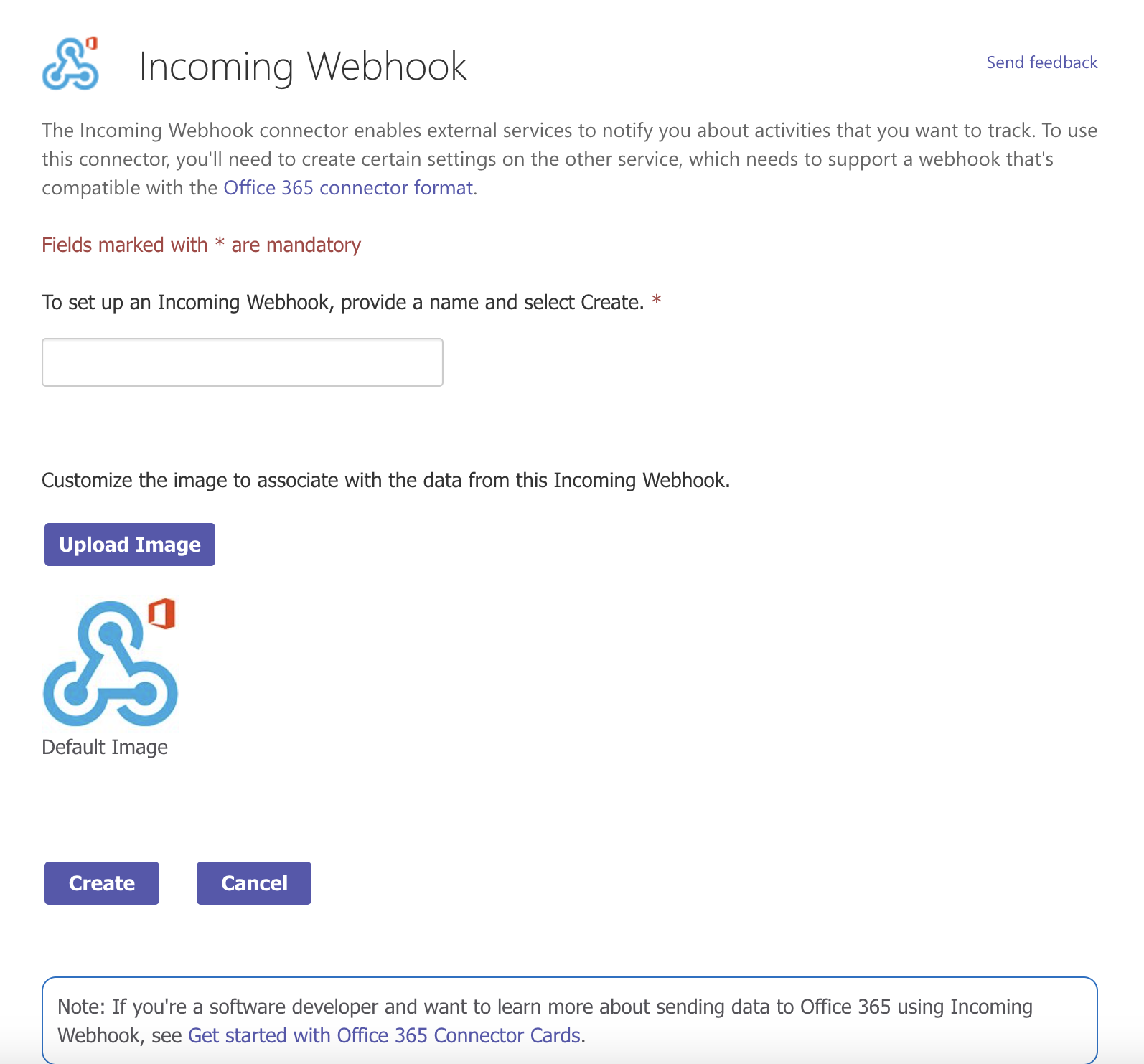
- Give your webhook a name and save it. It will give you a webhook URL.
Connecting Appcircle to Microsoft Teams
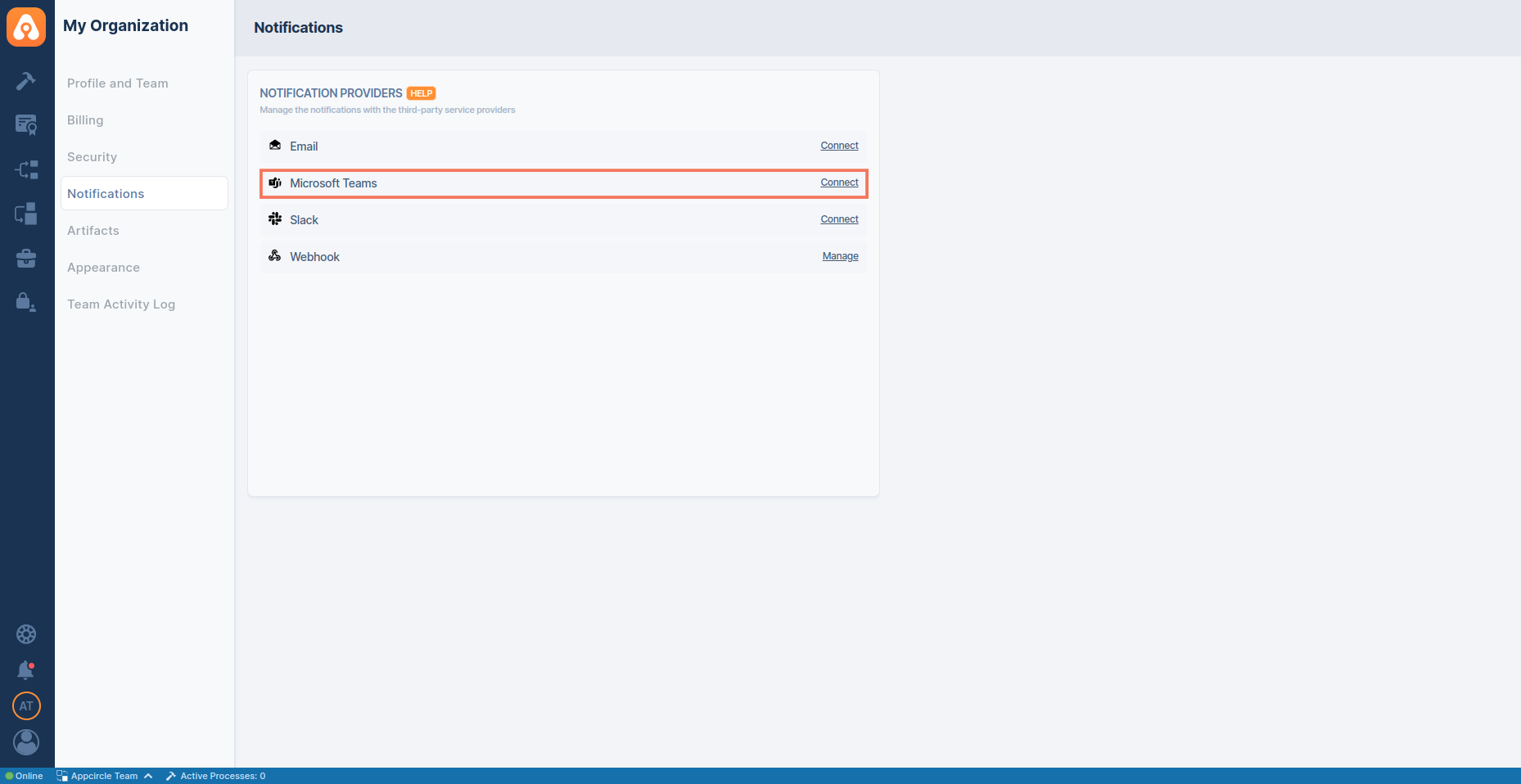
An Appcircle organization can be associated with a single Teams channel. To start, go to My Organization > Notifications screen and press the "Connect" button next to Microsoft Teams under the "Notification Providers" section.
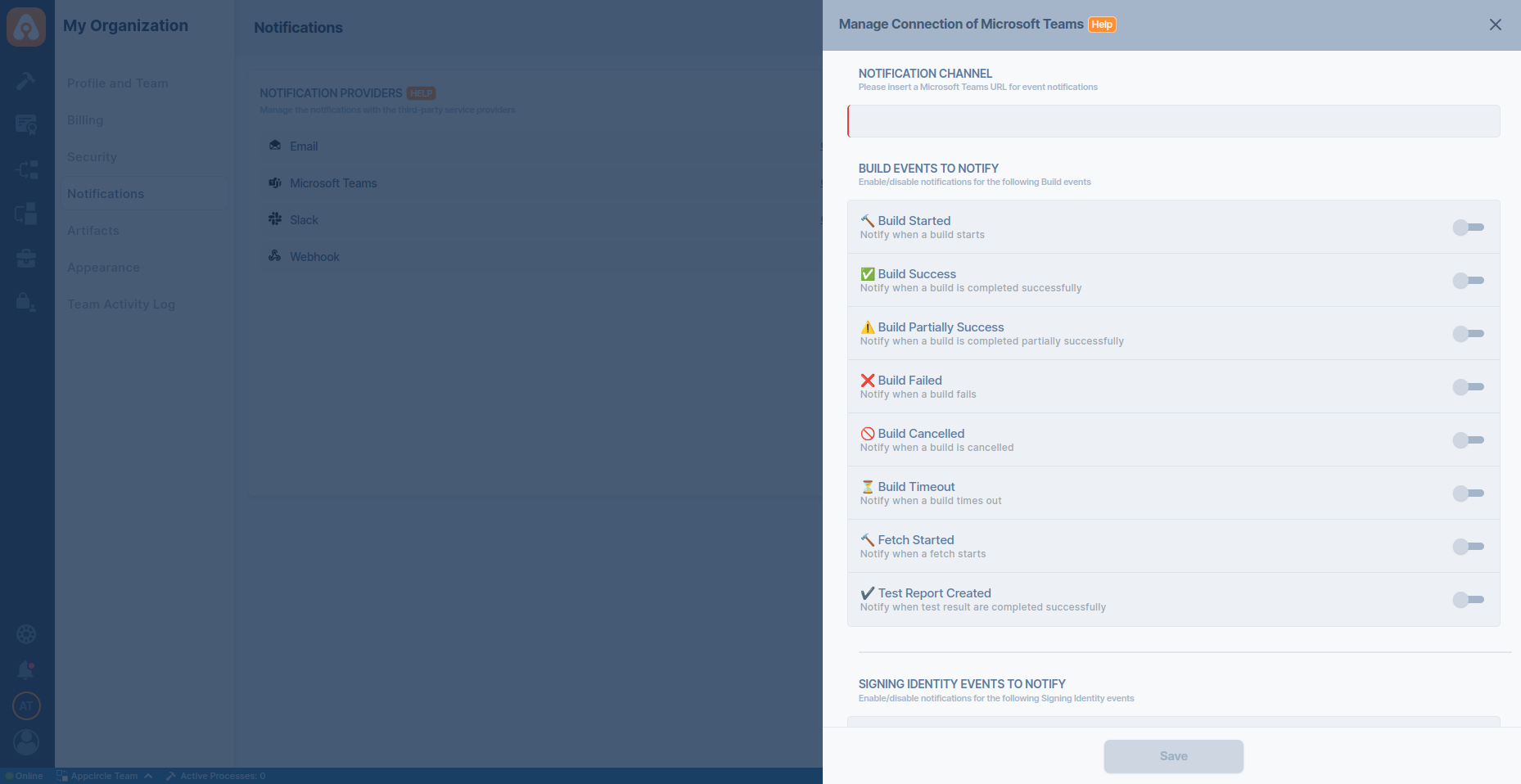
Write the webhook URL that you created in the previous step and select the events you want to receive. You can set up notifications for the major events in each module (Build, Signing Identities, Distribute and Store Submission).
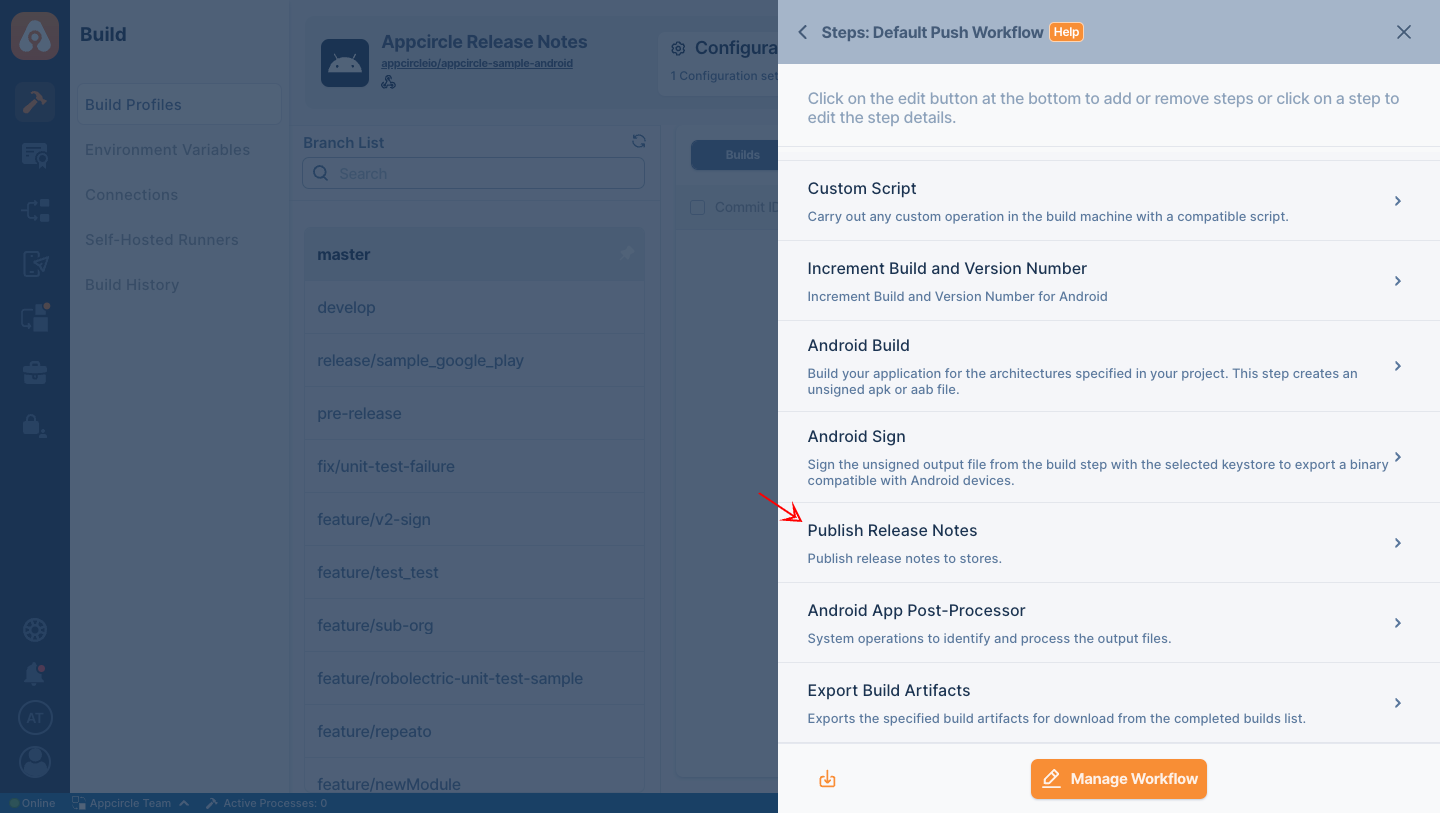
After completing the specified action in Appcircle, you have the option to share release notes via Microsoft Teams. To enable this feature, ensure you include the Publish Release Notes step in your workflow.
Additionally, note that you can access download links for the release notes for a duration of 90 days.
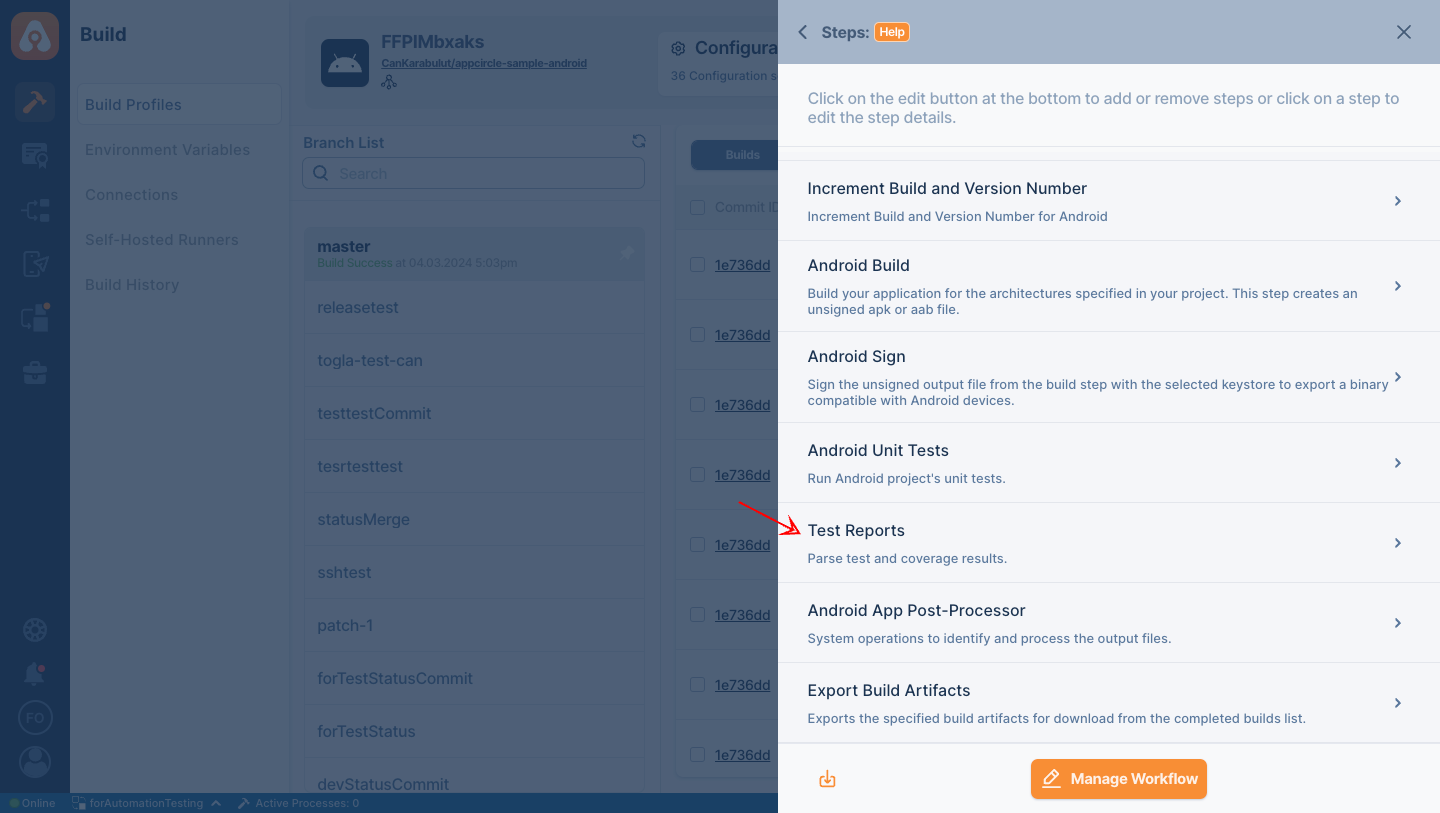
After completing the specified action in Appcircle, you have the option to share the test results via Microsoft Teams. To enable this feature, ensure you include the Test Reports step in your workflow.
Available Notification Events by Module
Appcircle allows you to configure Teams notifications separately for each module. Each module supports a set of predefined events that can trigger Slack notifications. You can subscribe different Teams Channels for each module to receive these events based on your needs.
Below is a high-level overview of the notification event categories per module. You can customize the event list according to your workflow and organizational requirements.
Build Module
The Build module can send notifications for key build lifecycle events, such as:
Build Events
- Build Started
- Build Success
- Build Complete with Warnings
- Build Failed
- Build Canceled
- Build Timeout
- Fetch Started
- Test Report Created
- Build Cache Cleared
License Events
- Retention Policy Updated
CodePush Events
- CodePush App Created
- CodePush Deployment Created
- CodePush App Deleted
- CodePush Deployment Channel Deleted
- New CodePush Release Published
- CodePush Release Disabled
- CodePush Release Enabled
- CodePush Release Rolled Back
- CodePush Rollout Updated
Signing Identity
Notifications related to certificate, keystore, and provisioning profile operations, such as:
- iOS Certificate Added
- iOS Certificate Deleted
- iOS Certificate Expiration Reminder
- iOS Provisioning Profile Added
- iOS Provisioning Profile Deleted
- iOS Provisioning Profile Expiration Reminder
- Android Keystore Created
- Android Keystore Uploaded
- Android Keystore Deleted
- Android Keystore Expiration Reminder
- Apple Device List Fetch Success
- Apple Device Registered
- Apple Device Updated
- Apple Multiple Devices Updated
- Apple Multiple Devices Registered
- Apple Device Provisioned
- Apple Device Unregistered
- Apple Identifier Created
- Apple Identifier Deleted
- Apple Identifier Created in Apple Developer Portal
- Apple Identifier Updated in Apple Developer Portal
Testing Distribution
Notifications for Testing Distribution related events such as:
- New Version Added for Distribution
- New Version Uploaded for Distribution
- App Shared for Testing Distribution
Publish to Stores
Notifications for Publish to Stores related events such as:
- Store Status Changed
- New Version Deployed to Publish
- New Version uploaded to Publish
- A Version is Rejected on Publish
- Publish Step is Starting
- Publish Step is Restarting
- Publish Step Started
- Publish Step Succeeded
- Publish Flow Updated
- Publish Step Failed
- Publish Step Canceled
- Publish Step Timed Out
- Publish Flow Failed
- Publish Flow Canceled
- Publish Flow Timed Out
- Publish Flow Succeeded
Enterprise App Store
Notifications for Enterprise App Store related events such as:
- New Version Deployed to the Enterprise Store
- New Version Uploaded to the Enterprise Store
- App Shared on Enterprise Store
Re-sign
Notifications for binary re-sign actions throughout each supporting module.
- Initializing Re-sign
- Re-sign Successful
- Re-sign Failed
- Re-sign Canceled
Disconnecting Microsoft Teams
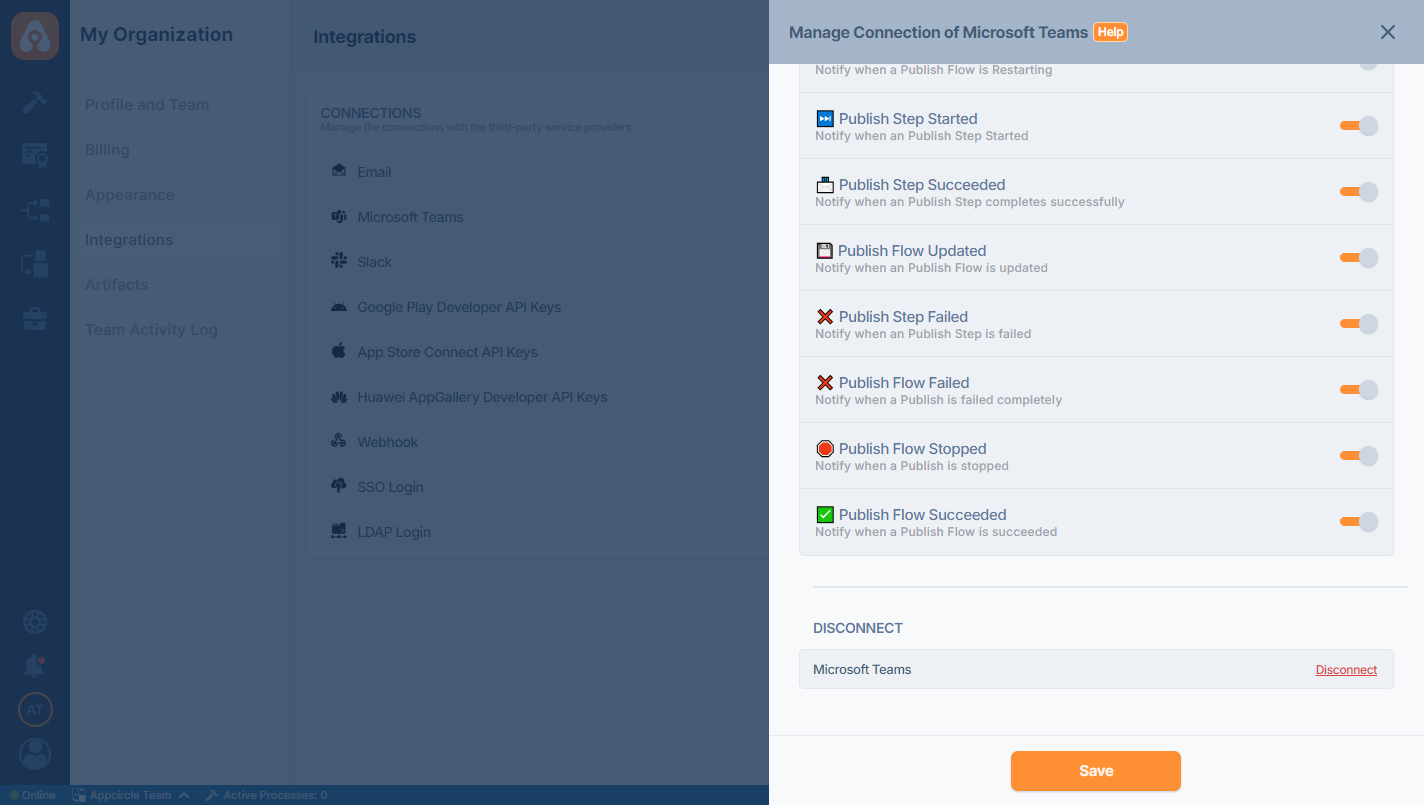
If you want to disconnect or reauthorize the Microsoft Teams connection, scroll down to the end of the management screen and press the "Disconnect" button.
Troubleshooting & FAQ
Notifications are not delivered when using self-hosted Appcircle.
If your Microsoft Teams notifications are not delivered while using the self-hosted Appcircle, there can be 3 reasons for this to check.
1. Proxy Requirement
If you are using a proxy to connect to the internet on the host, the proxy must also be enabled for the Appcircle services too, that is, in the containers. You can refer to the Proxy Configuration documentation to see how to configure proxy for the self-hosted Appcircle server.
2. Network Access
The Appcircle server may not have network access to the Microsoft Teams webhook URL you provided. For example, if you are using a firewall or proxy, you must have permission to access this URL. Please contact your network administrator for the required network access permission.
3. Untrusted SSL Certificate
When the Appcircle server sends a request to the webhook URL through the proxy, it might encounter an error due to the untrusted SSL certificate of the proxy. In this case, you should refer to the Connecting External Services section in the self-hosted Appcircle documents to see how to trust your self-signed certificates.
Need help?
Get help from Appcircle's support team, or see how others are using Appcircle by joining our Slack Channel.
