Custom Roles
Custom Roles let you build your own organization roles by hand-picking exactly which permissions (called granular scopes) they grant, instead of relying only on Appcircle's predefined roles (e.g. Manager, Operator, Viewer).
Each scope maps to a specific action in a specific module. For example, listing build profiles, starting a build, or deleting a signing identity, so you can grant members precisely the access they need and nothing more.
Some actions depend on scopes from more than one module. For example, re-signing a binary in Testing Distribution also requires the relevant Signing Identity scopes — granting only the Testing Distribution scope will not be enough.
When building a custom role, check whether the actions you want to enable rely on scopes from other modules, and include those scopes as well. Otherwise, members with that role may see the action in the UI but be unable to complete it.
Custom Roles work alongside predefined roles: you can assign a member a mix of predefined roles for some modules and custom roles for others.
Custom Roles is currently in Beta. Behavior, available permissions, and the UI described below may change.
Accessing Custom Roles
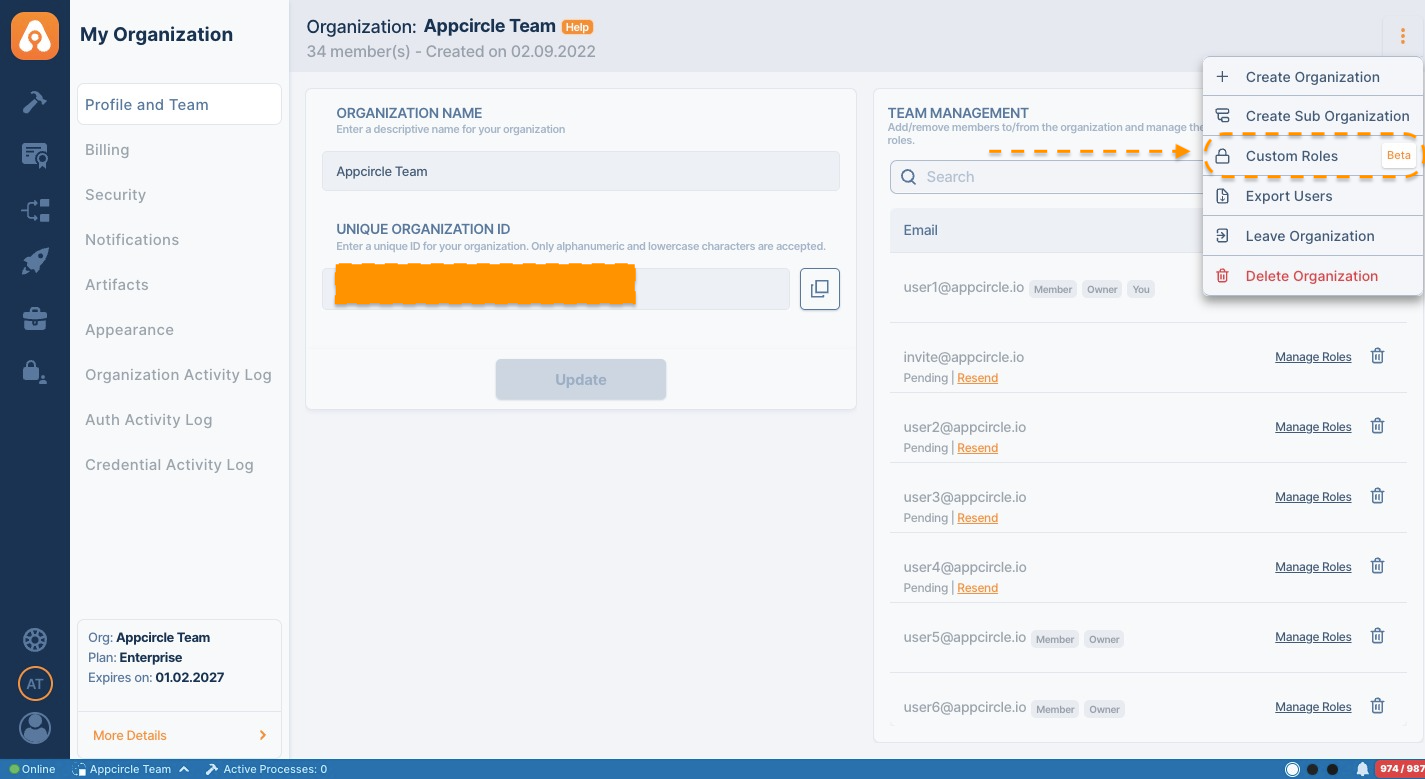
- Go to My Organization > Profile and Team.
- Click the ⋮ menu in the top-right corner.
- Select Custom Roles.
This opens the Custom Roles management screen, where all roles for the organization are listed on the left.
Creating a custom role
- From the Custom Roles screen, click + New.
- Give the role a name and, optionally, a description and a color to help distinguish it in lists.
- In the permissions panel, browse or search for the scopes you want to grant. Scopes are grouped by module, for example:
- Build
- CodePush
- Signing Identity
- Testing Distribution
- Publish to Stores
- Enterprise App Store
- Organization
- Identity & Access Management
- Store Credentials
- Connection & Notifications
- Reporting
- Expand a module to see its individual scopes. Each scope shows a short name, a description, and an action-type badge (View, Write, Modify, or Delete) indicating the kind of access it grants.
- Check the scopes you want to include. Selected scopes appear in the Selected Scopes panel on the right, grouped by module, and can be removed individually from there.
- Use Select all to grant every scope within a single module, or Select everything to grant all available scopes across all modules.
- Click Save changes to create the role.
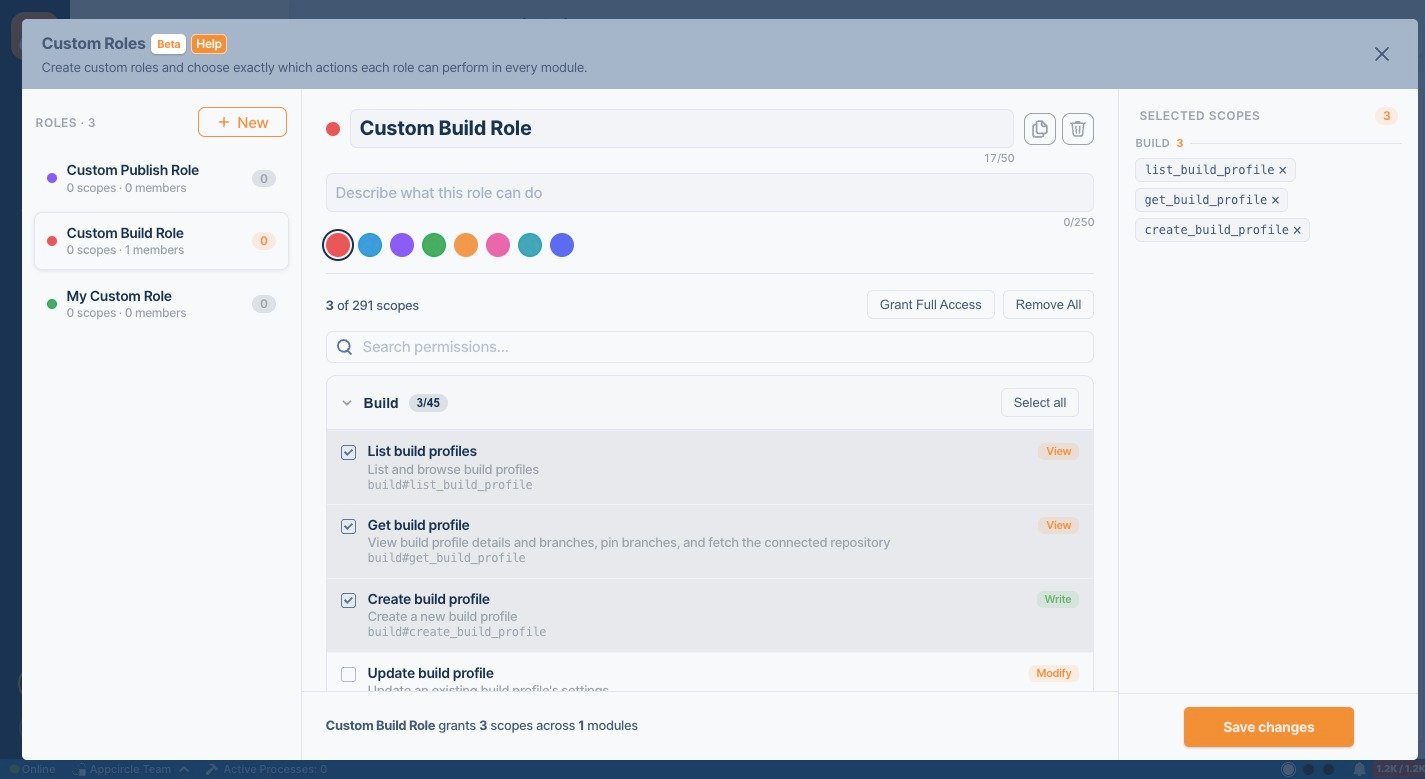
The footer of the screen keeps a running summary, such as "grants 5 scopes across 1 module," so you can confirm the scope of the role before saving.
Assigning a custom role to a member
- Go to My Organization > Profile and Team.
- Find the member in Team Management and open their user management dialog.
- Under Custom Roles, check the role(s) you want to assign to that member. This can be combined with predefined, per-module roles (e.g. Manager, Operator, Viewer) lower down in the same dialog.
- Click Save.
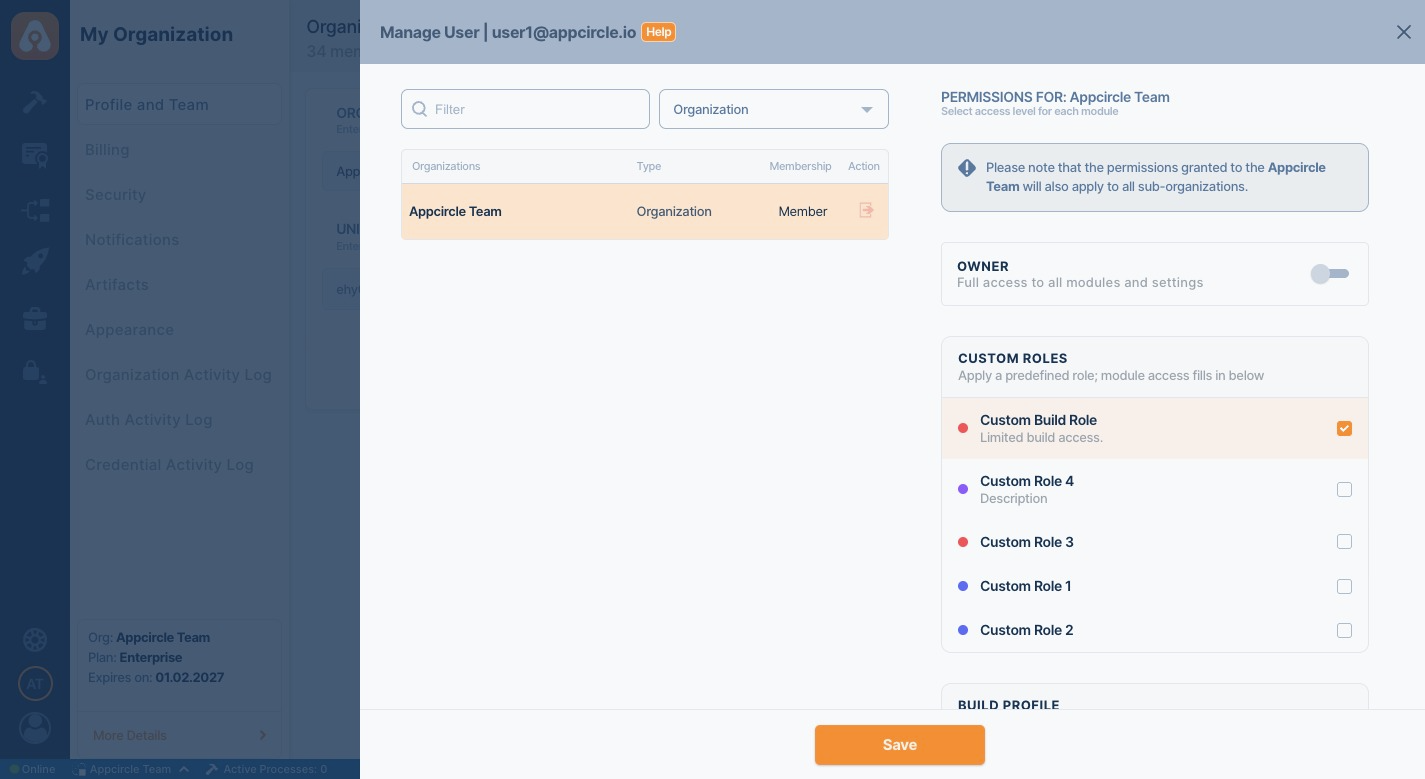
A member can hold multiple custom roles at once; their effective permissions are the union of all scopes granted by every role assigned to them.
Updating or deleting a custom role
- Open the role from the Custom Roles list to edit its name, color, or scopes, then Save changes.
- Use the copy and delete icons at the top of a role's detail panel to duplicate or remove it.
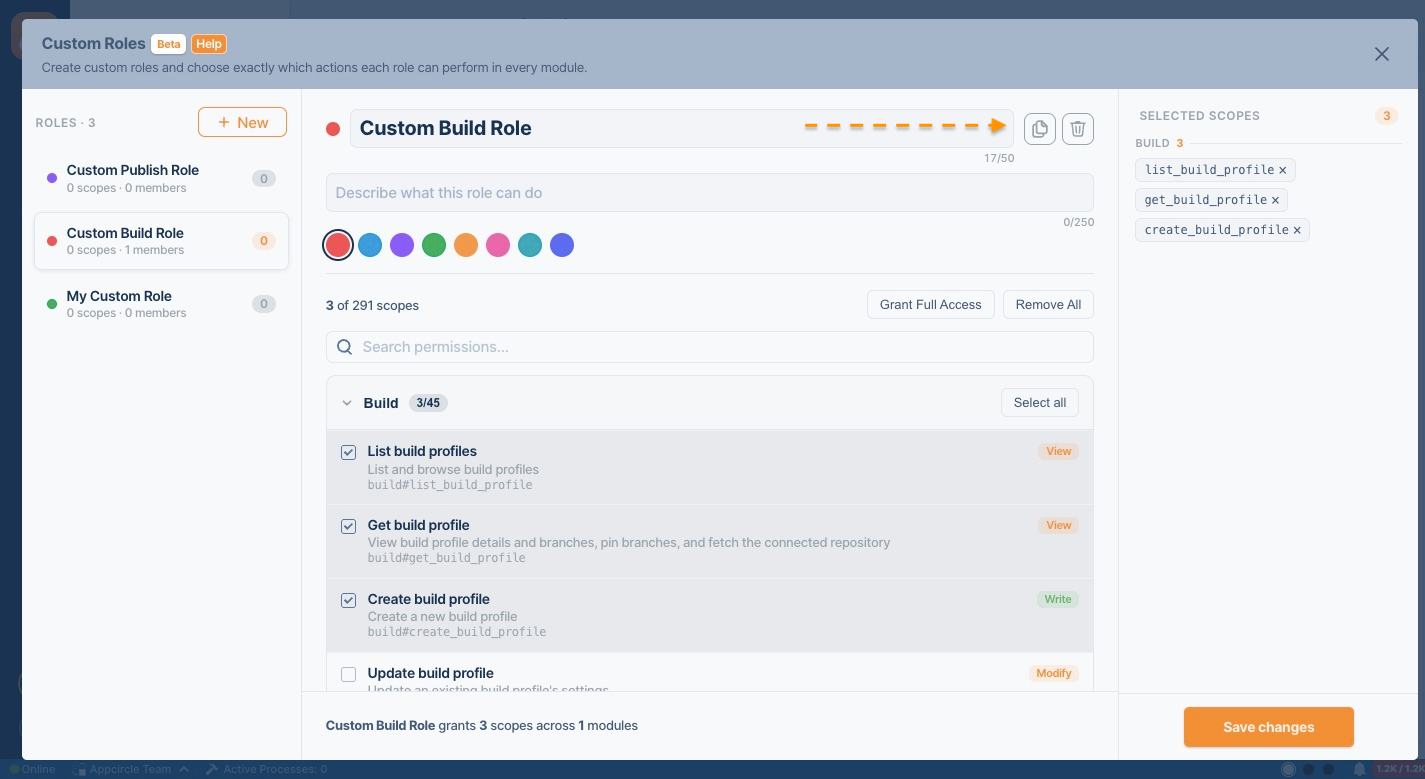
Because a role can be assigned to multiple members, updating or deleting it affects everyone currently holding that role. Review who is assigned before making changes that remove access.
Who can manage Custom Roles
| Organization role | Access |
|---|---|
| Owner | Create, update, delete, view, and assign custom roles |
| Manager | Create, update, delete, view, and assign custom roles |
| Viewer | View only |
Permissions granted through a custom role also apply to any sub-organizations, the same way predefined role permissions do.
Even if a custom role includes owner-like scopes, changes to Owner membership or Owner role assignments are always restricted to users who already have the Owner role.
Custom Roles feature is only available on an Enterprise plan.
If Appcircle introduces new scopes for a module after a custom role is created, existing custom roles are not updated automatically. Review your custom roles periodically and add newly available scopes as needed.