Signing Identities Walkthrough
Why Use the Signing Identities Module: Features and Benefits
Every mobile application must be digitally signed before you can install it on a real device or submit it to a store. A signing identity proves who built the application. For iOS, a signing identity is a certificate (.p12) paired with a provisioning profile (.mobileprovision). For Android, it is a keystore (.keystore).
The Signing Identities module in Appcircle is the central place where you create, store, share, and maintain these files for your whole organization. With this module, you can:
- Centralize Signing Assets: Keep certificates, provisioning profiles, and keystores in one secure place instead of on individual developer machines.
- Work Without a Mac: Generate a Certificate Signing Request (CSR) and a
.p12certificate without a macOS computer. - Manage the Apple Developer Portal from Appcircle: Register bundle identifiers, devices, and provisioning profiles, and renew or revoke certificates, without signing in to the Apple Developer Portal.
- Prevent Expiry Surprises: Receive expiration notifications and let Appcircle renew Apple certificates automatically.
- Share Across Teams: Share signing identities from the root organization with sub-organizations.
- Audit Usage: See which build used which signing identity, and who changed what, with Signing Reports and the Activity Log.
By using the Signing Identities module, you reduce manual work and the risk of lost or expired signing files, so your build and distribution pipelines keep running.

Getting Started
The following sections walk you through a typical journey: prepare the prerequisites, create or import your signing identities, use them in builds, and maintain them over time.
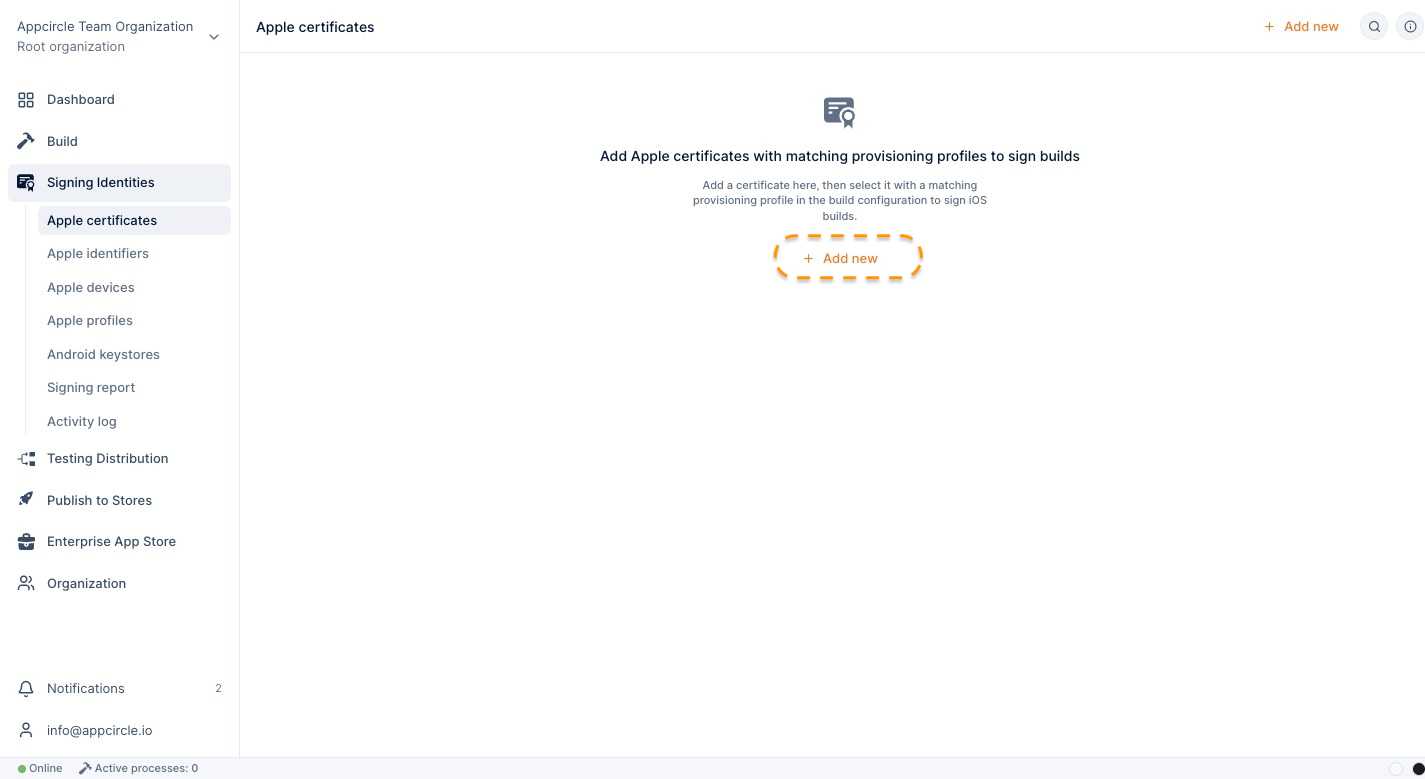
Prerequisites for Using the Signing Identities Module
Apple Developer Account and App Store Connect API Key
To sign iOS applications, you need an Apple Developer account. Many Signing Identities features use the Apple Developer Portal on your behalf, so they need an App Store Connect API Key in your Appcircle organization. These features include:
- Creating, renewing, and revoking Apple certificates
- Registering and fetching bundle identifiers
- Fetching, registering, enabling, and disabling Apple devices
- Registering, fetching, renewing, and updating provisioning profiles
To add a key, go to Organization > Security. Under Store credentials, select App Store Connect API Keys, then fill in the Issuer ID, Key ID, and the .p8 File in the side panel.
Adding an App Store Connect API KeyYou can still upload a .p12 certificate and .mobileprovision files that you obtained from the Apple Developer Portal yourself. Uploaded provisioning profiles cannot be renewed from Appcircle.
Android Signing Information
For Android, decide if you will generate a new keystore in Appcircle or upload an existing one. To upload a keystore, you need the .keystore file, the keystore password, the alias, and the alias password.
Google Play identifies your application by its signing key. If you lose your upload keystore, you must request a key reset from Google Play. For more information, see What to Do if I Lost My Keystore.
Roles and Permissions
Users need the related Signing Identities role to create, edit, or delete signing identities. Users with the Manager or Viewer Signing Identities role can select signing identities in a build profile configuration. For details, see Role Management.
iOS Signing Setup Process
Step 1: Register a Bundle Identifier
A bundle identifier (BundleID) uniquely identifies your application on Apple platforms, for example com.example.spacetech. Every provisioning profile is created for one BundleID, so start here.
- Open Apple Identifiers and select Register Bundle Identifier to create a new BundleID on the Apple Developer Portal, or select Get Bundle Identifiers from Apple Developer to list your existing ones in Appcircle.
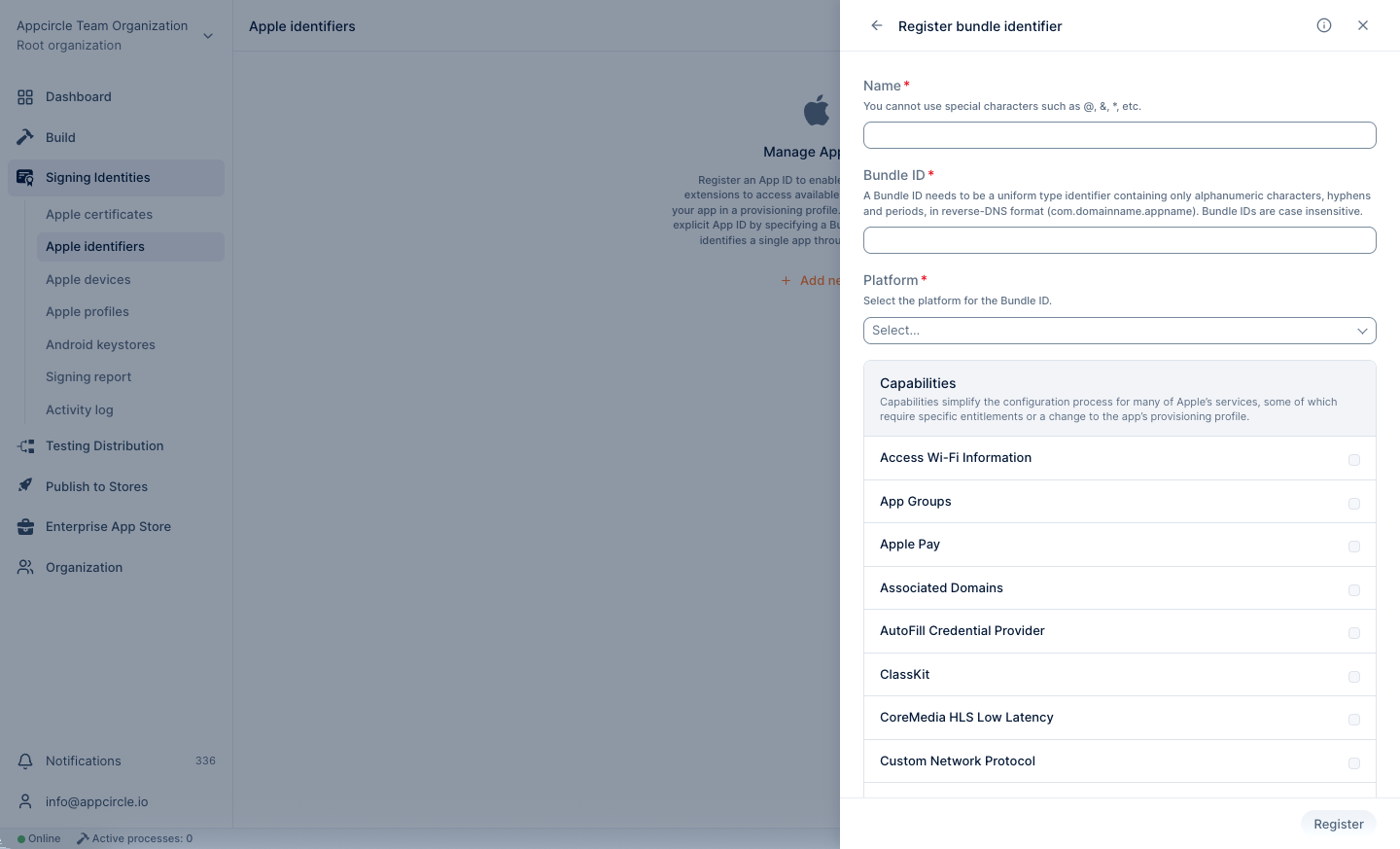
- Select the capabilities that your application uses, such as push notifications. Appcircle saves the BundleID and its capabilities to your Apple Developer account at the same time.
For more information, see the Apple Identifiers document.
Step 2: Create or Upload an Apple Certificate
An Apple certificate identifies the developer or the team that signs the application. Use an Apple Distribution certificate to distribute through the App Store, TestFlight, Ad Hoc, or Enterprise channels. Use an Apple Development certificate for development and debugging.
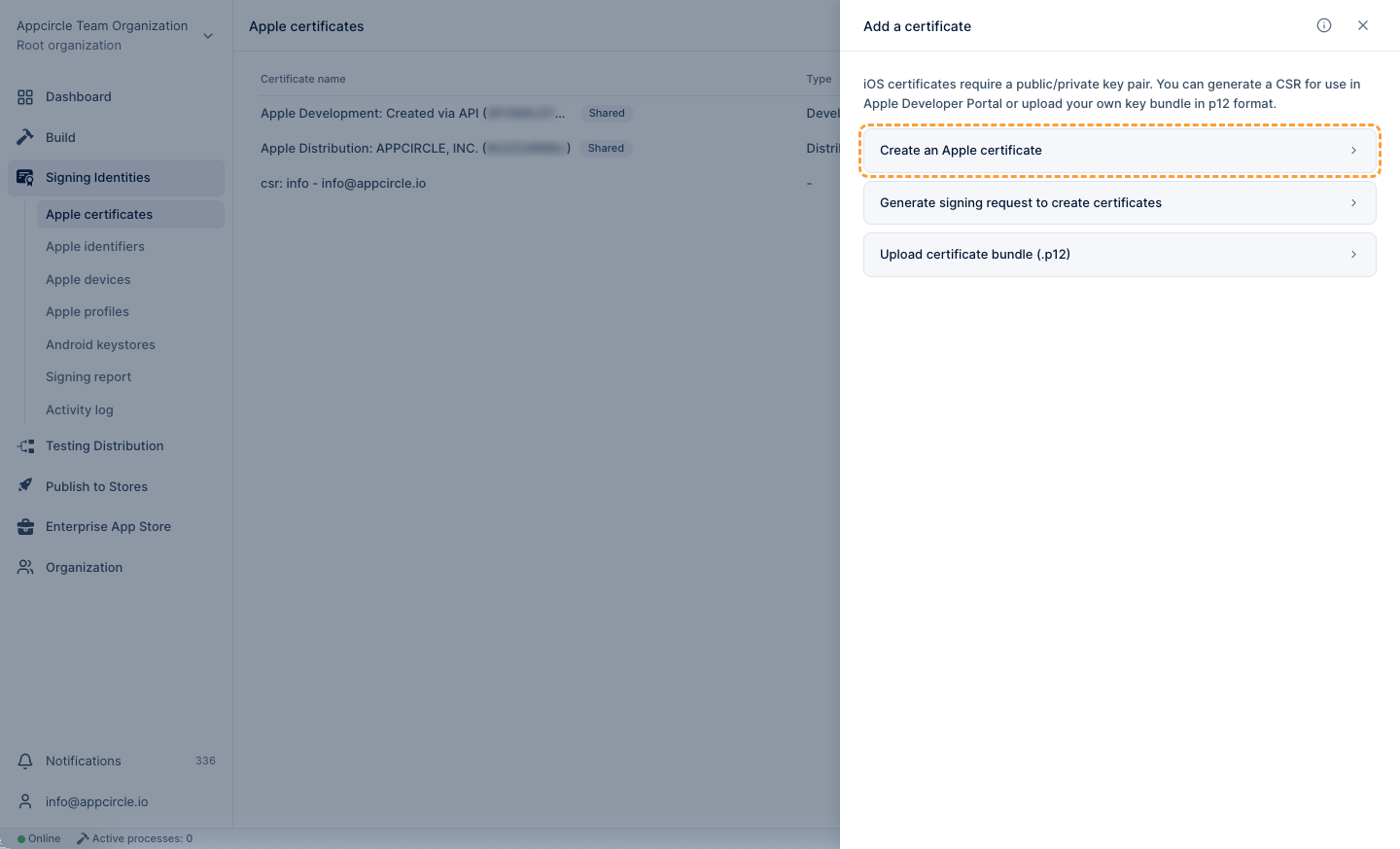
You have three options:
- Create an Apple certificate: Appcircle creates the certificate on the Apple Developer Portal with your App Store Connect API Key and a CSR file that you generated in Appcircle. No Mac is necessary.
- Generate a CSR and upload the CER file: Generate a CSR in Appcircle, create the certificate on the Apple Developer Portal with it, and upload the resulting
.cerfile. Appcircle converts it to a.p12file. - Upload certificate bundle (.p12): Upload a certificate that you already exported, together with its password.
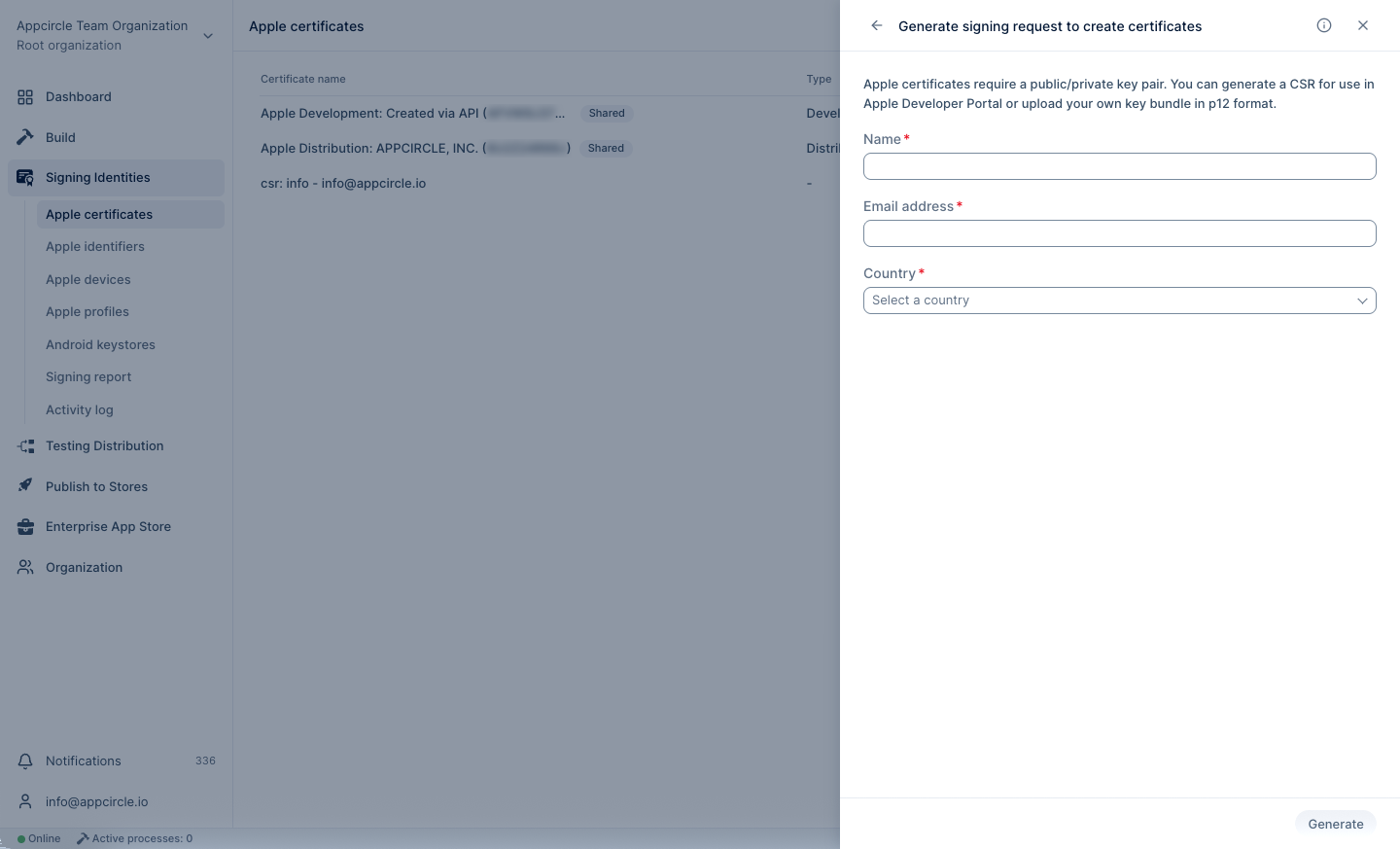
To generate a CSR, enter your name, email, and country. Make sure that this information is correct, because Apple can reject a certificate request with incorrect details.
If you use Auto Generate Password, record the generated password. If your password contains special characters such as $ or #, the build can fail with MAC verification failed during PKCS12 import.
Apple limits the number of certificates per account: 3 for Distribution and 2 for Development. If you reach the limit, Apple does not allow a new certificate until you revoke an existing one.
For more information, see the Apple Certificates document.
Step 3: Register Your Test Devices (Ad Hoc and Development Only)
Ad Hoc and Development builds install only on devices that are registered in your Apple Developer account. If you distribute with the App Store or Enterprise profiles, skip this step.
In Apple Devices, you can:
- Fetch registered devices: Select Get Devices from Apple Developer Portal to list devices that are already in your Apple Developer account.
- Add a device manually: Enter the device UDID in the Non-Registered tab, then register it to the Apple Developer Portal.
- Invite users by email: Send an invitation. The user opens the link on the device and installs a temporary profile, and Appcircle collects the UDID automatically.
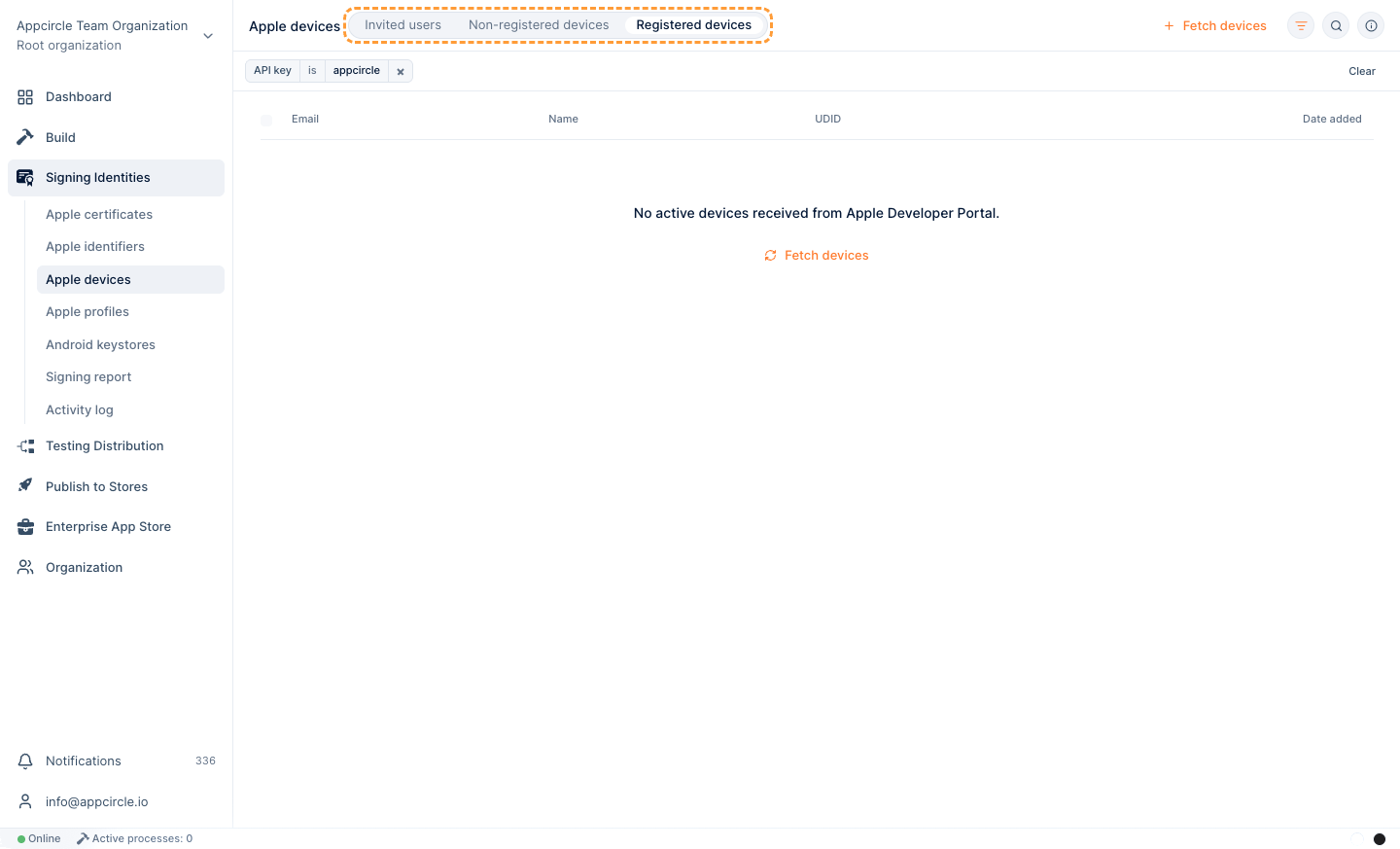
An Apple Developer account can register a maximum of 100 iOS devices. This limit resets only once a year, at the start of your membership year.
For more information, see the Apple Devices document.
Step 4: Register, Fetch, or Upload a Provisioning Profile
A provisioning profile connects a BundleID, a certificate and, for Ad Hoc and Development, a list of devices. It defines where the signed application can run.
In Apple Profiles, select one of the following options:
- Register a new provisioning profile: Select the distribution method, the App ID, the certificate and, for Ad Hoc or Development, the devices. Appcircle creates the profile on the Apple Developer Portal.
- Get Provisioning Profiles from App Store Connect: Select profiles from your Apple Developer account and download them to Appcircle. Alternatively, keep only a reference, so the build agents fetch the profile before each build and remove it after the build.
- Upload a provisioning profile: Upload a
.mobileprovisionfile that you downloaded from the Apple Developer Portal.
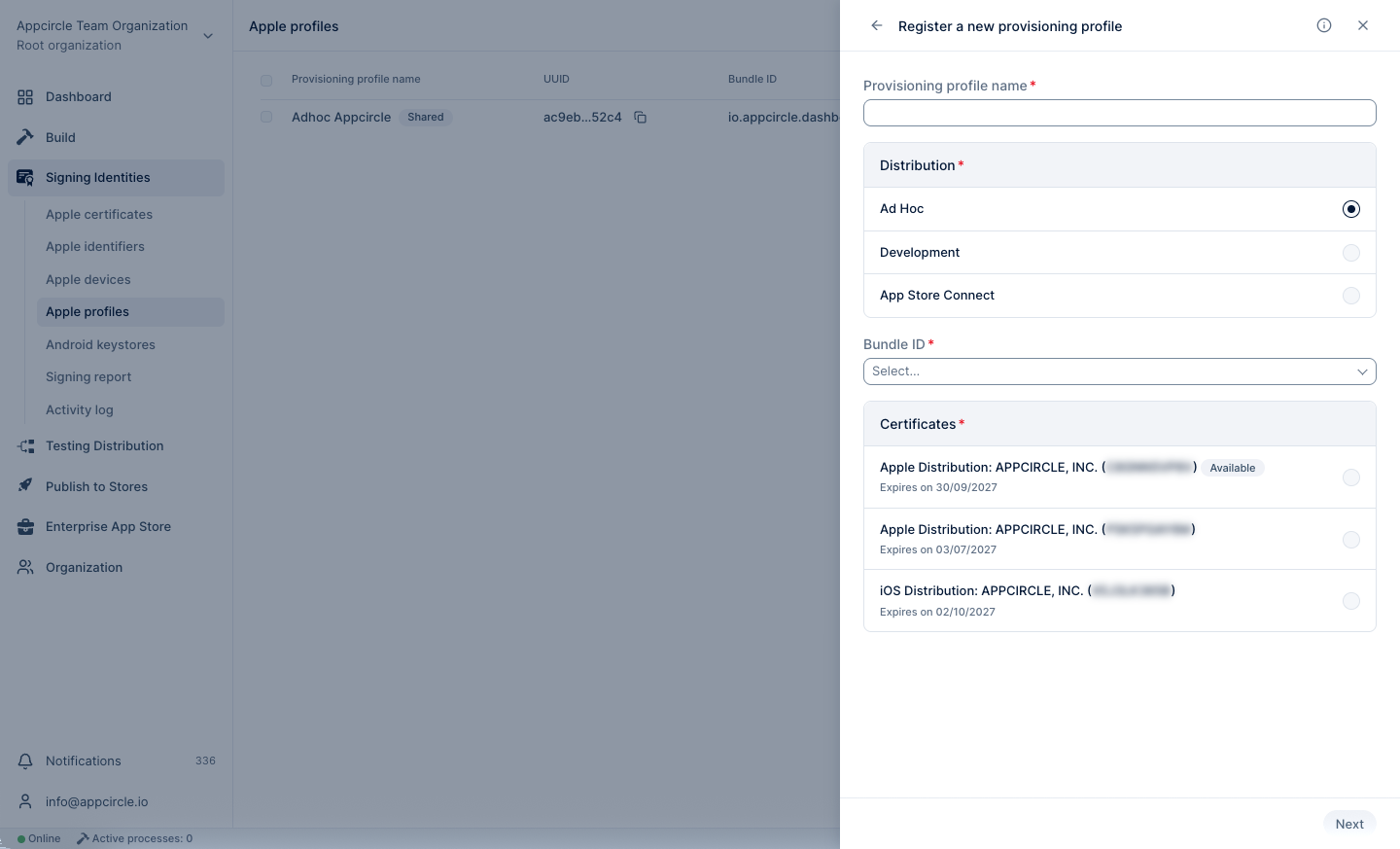
Appcircle matches each profile with its certificate automatically. A green check mark shows that the matching certificate is in Appcircle. A red cross mark shows that the certificate is missing, and builds that use this profile cannot be signed.
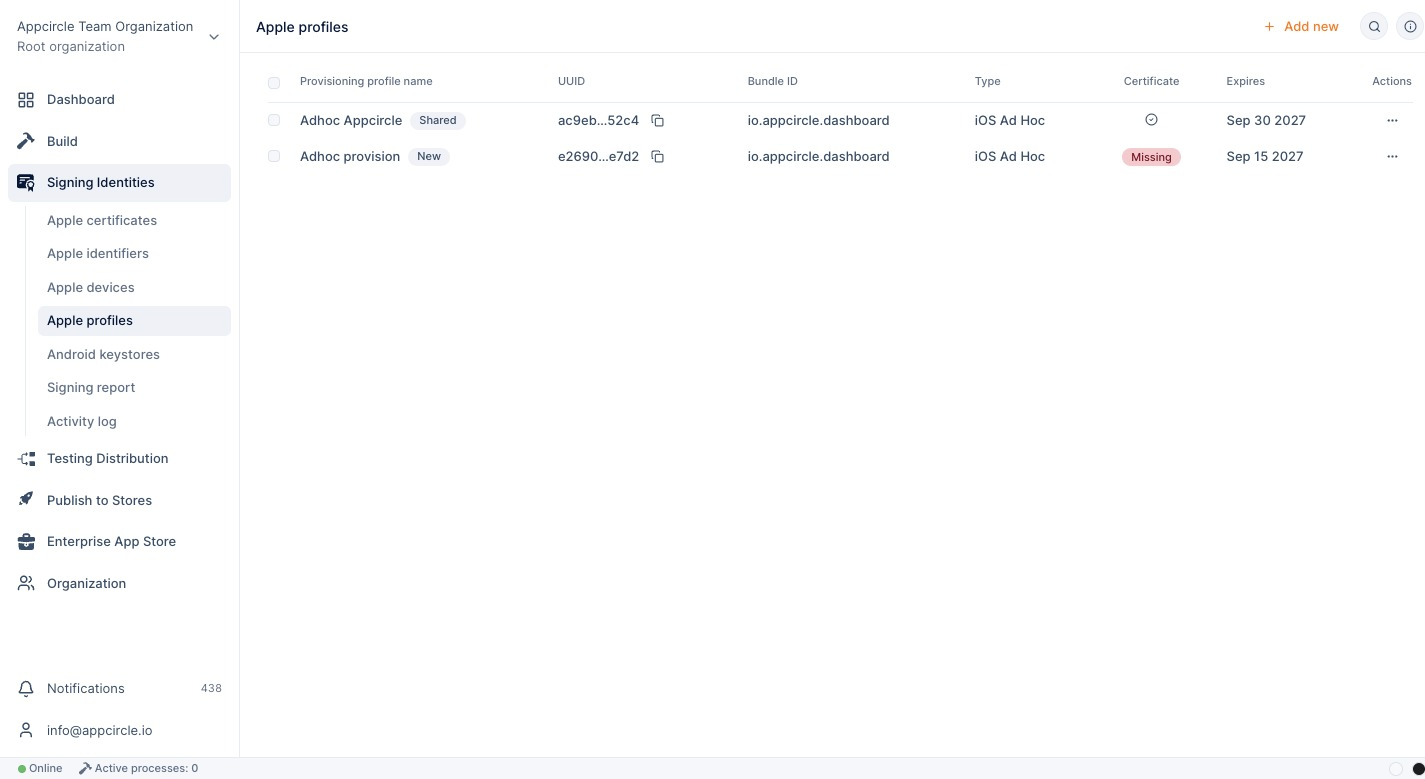
Only registered or fetched profiles can be renewed from Appcircle. Manually uploaded profiles cannot be renewed.
For more information, see the Apple Profiles document.
Android Signing Setup Process
Generate or Upload an Android Keystore
Open Android Keystores and select one of the following options:
- Generate a keystore: Enter the required information, and Appcircle creates the keystore. No additional software is necessary.
- Upload a keystore: Upload your
.keystorefile with its passwords and alias.
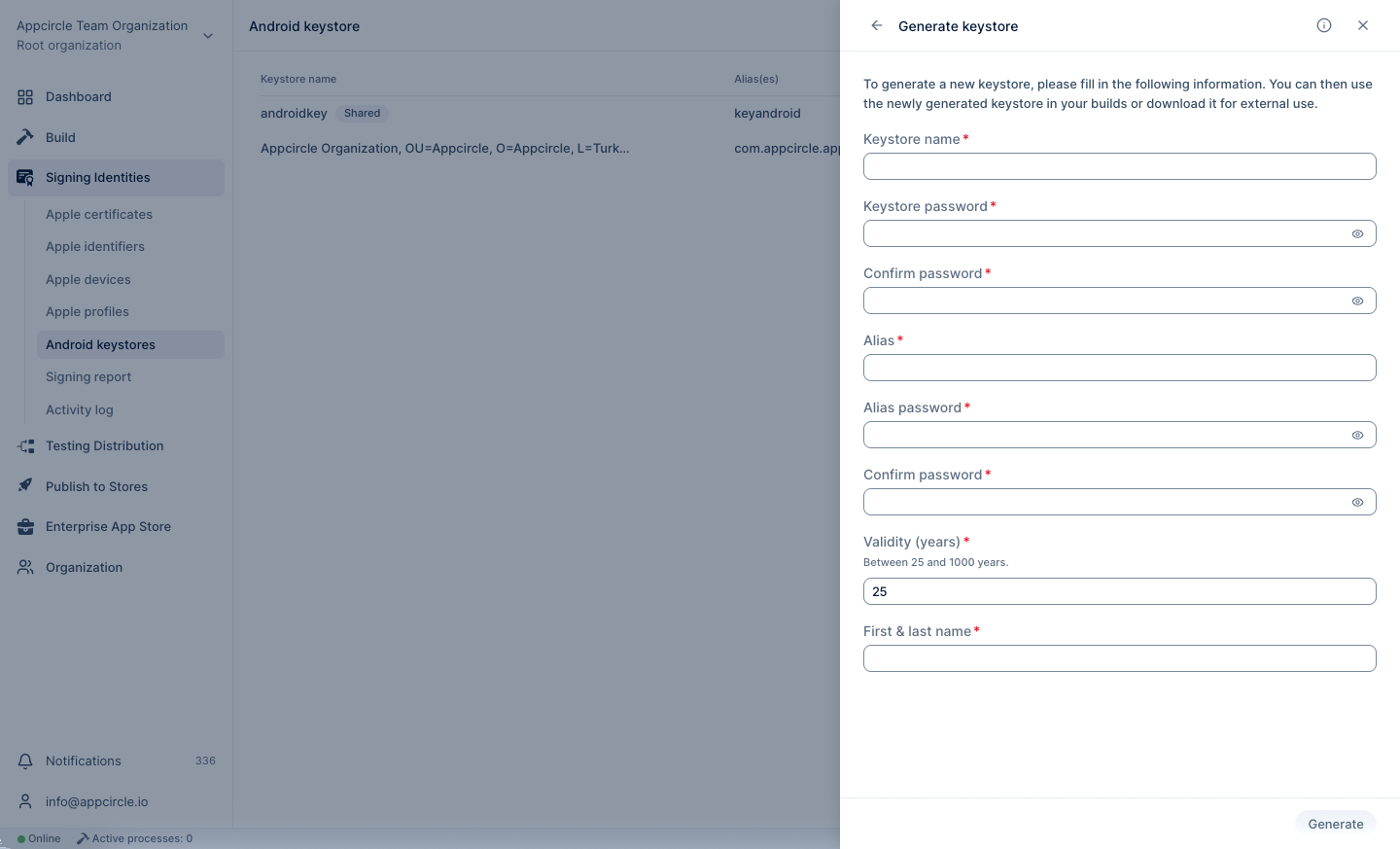
If your keystore contains more than one alias, upload the same keystore one time for each alias, with the correct alias and password for each entry.
Debug builds are signed with a default keystore, so they do not need a keystore in Appcircle. Release builds for distribution need your own keystore.
For more information, see the Android Keystores document.
Using Signing Identities
Signing in the Build Module
After you add your signing identities, select them in your build profile. Open the build profile configuration and go to the Signing configuration. Distribution-ready binaries are signed with the selected identities, both for manual and automatic distribution.
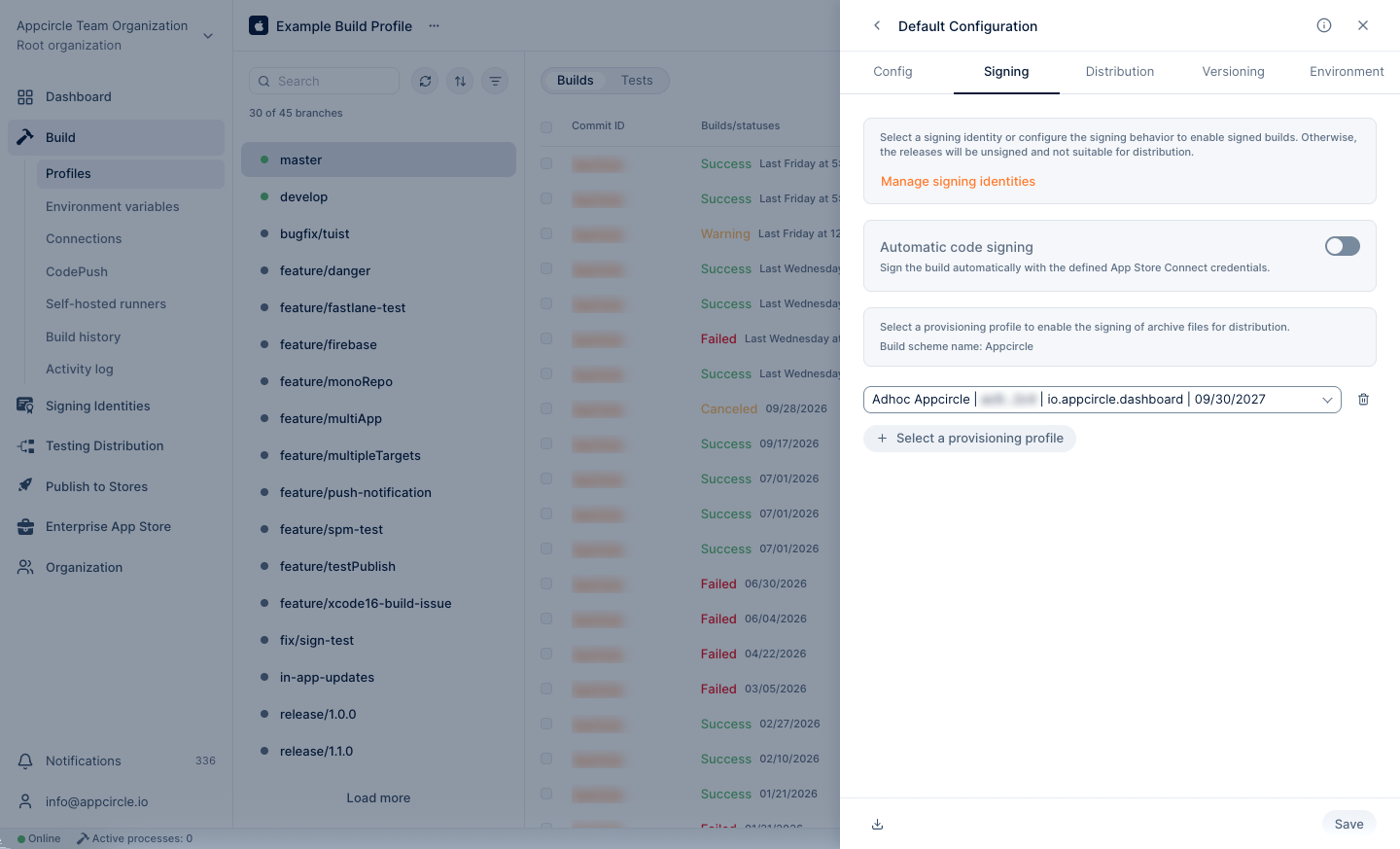
For iOS, select one of the following signing methods:
- Manual signing: Select the bundle identifier and the provisioning profile. If your application has more than one target, such as a widget or a watchOS extension, add a provisioning profile for each bundle identifier with the + button.
- Automatic signing: Xcode creates the provisioning profiles during the build. This method needs Xcode 13 or later, both Development and Distribution certificates in Appcircle, and an App Store Connect API Key.
If you do not upload Development and Distribution certificates for automatic signing, Xcode creates new certificates for each build. You cannot use them later because you do not have their private keys, and they count against the Apple certificate limit.
For Android, select the keystore in the Signing configuration. If you prefer to keep signing information in your Gradle file, disable the Sign Application step in the workflow.
For more information, see the Signing Configuration and Automatic Signing documents.
Re-signing Binaries
You can also use your signing identities to re-sign an existing binary with a different certificate, provisioning profile, or keystore, without building it again. For more information, see the Re-sign Binaries document.
Sharing Signing Identities with Sub-Organizations
Root organization users can share Apple certificates, Apple profiles, and Android keystores with sub-organizations. Open the ... menu of the signing identity under the Actions column, select Share, and select the sub-organizations, or enable Share with all sub-organizations.
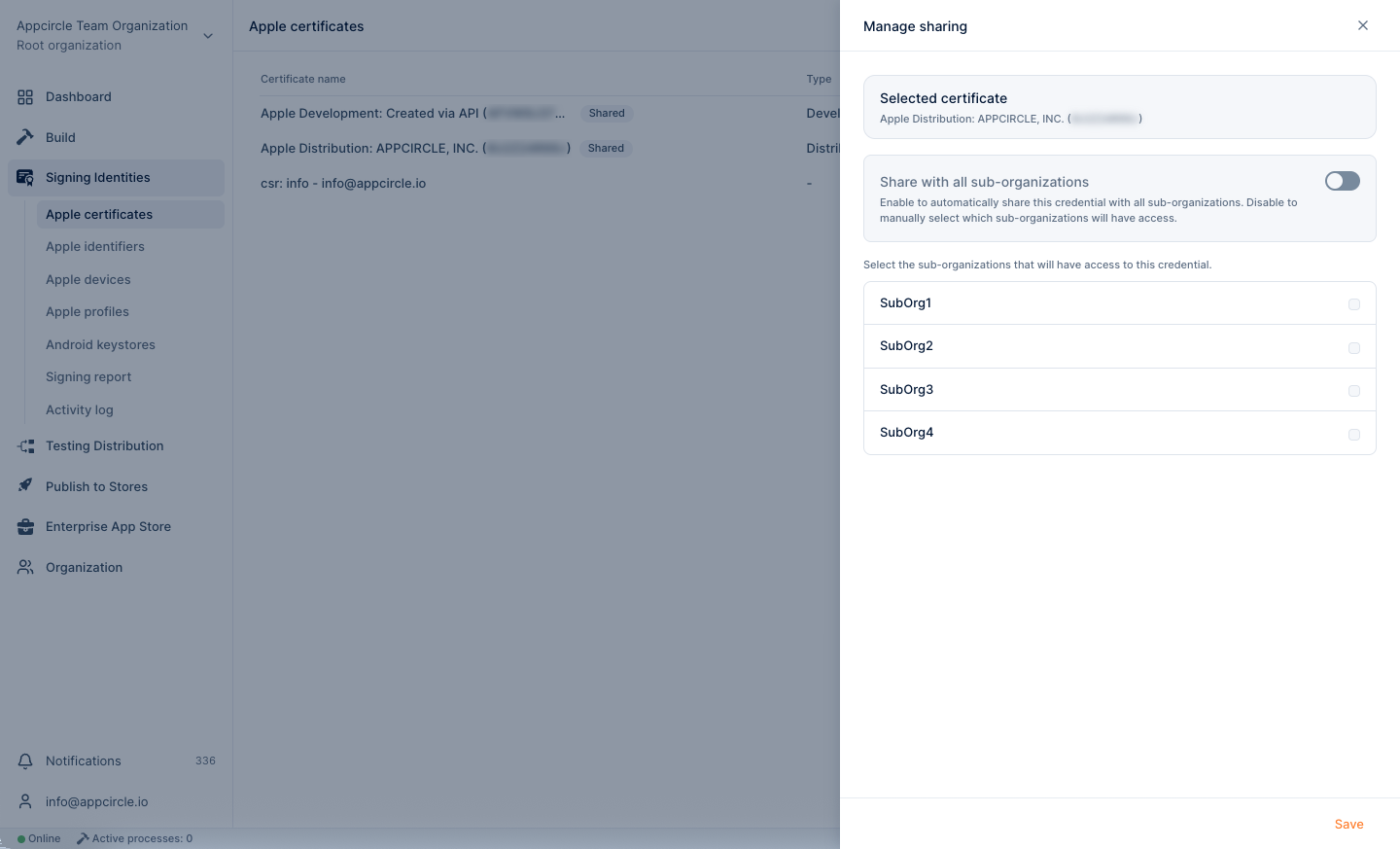
Shared items have a Shared tag in the root organization and an Inherited tag in sub-organizations. Sub-organization users can use them in builds but cannot edit, rename, or delete them.
A change or deletion in the root organization affects every sub-organization that uses the shared item.
Maintaining Signing Identities
Signing identities expire. An expired certificate or provisioning profile causes build and distribution failures, so plan their maintenance in advance.
Expiration Notifications
Appcircle notifies you before an Apple certificate, a provisioning profile, or an Android keystore expires: 30, 15, 7, 3, and 1 days before, and on the expiration day. Notifications appear in the in-app notification window. You can also send them to Email, Slack, or Microsoft Teams. For more information, see the Notifications document.
Renewing Apple Certificates
You can renew an Apple certificate in two ways:
- Manual renewal: Open the ... menu of the certificate, select Renew > Manual renew Apple certificate (.cer), and select the API key, the CSR file, and the password options. The preview shows the existing certificate, the replacement certificate, and the affected profiles.
- Auto renewal: Select Renew > Auto renew Apple certificate (.cer), enable the toggle, and select a CSR file and a lead time of 1, 3, 5, or 7 days. Appcircle renews the certificate automatically before it expires.
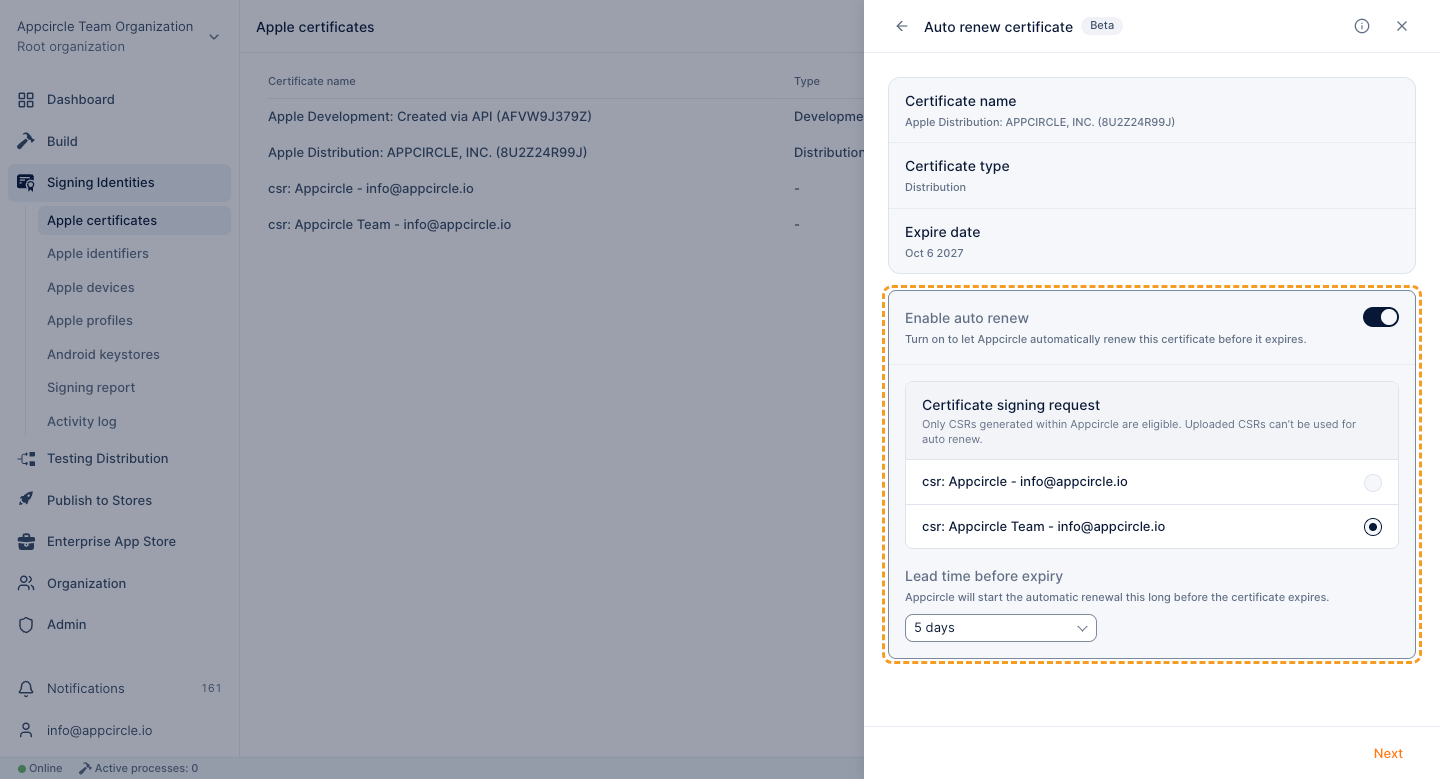
In both cases, Appcircle regenerates the related provisioning profiles and replaces the old certificate in your build and re-sign profiles. Applications that are already distributed keep their old signature, so rebuild and redistribute them to update.
When you revoke an Enterprise (in-house) or Ad Hoc distribution certificate, all applications signed with it stop working, including the ones already installed on user devices. Auto renewal always revokes the old certificate. For these certificates, use manual renewal with Revoke This Certificate Before Renew disabled, redistribute your applications, and revoke the old certificate only after your users update. For the full procedure, see Renewing an Enterprise or Ad Hoc Distribution Certificate.
For more information, see the Manual Renew Certificate and Auto Renew Certificate sections.
Renewing and Updating Provisioning Profiles
- Renew: Open the ... menu of an expired or out-of-date profile and select Renew. A build profile that uses the profile continues to work with the renewed version.
- Add or remove devices: Open the ... menu, select Profile information > Manage device, update the device list, select the API key, and select Update profile. Appcircle replaces the profile with a new one whose name includes the update date and time.
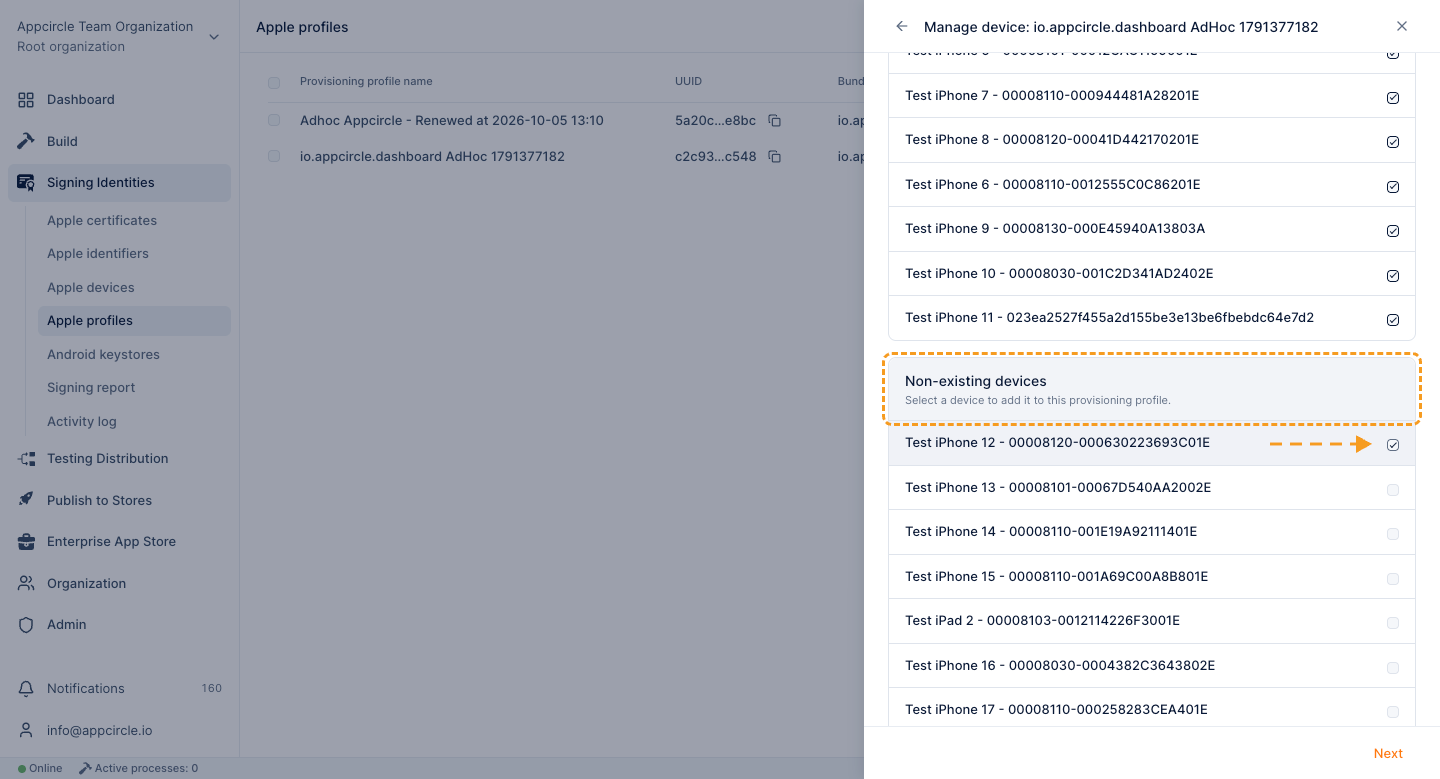
Apple requires at least one device in an Ad Hoc or Development provisioning profile, so you cannot remove all devices.
Revoking and Deleting
- Revoke permanently invalidates a certificate on the Apple Developer Portal. Binaries signed with it are no longer valid. This action cannot be undone.
- Delete removes a certificate, BundleID, or provisioning profile only from Appcircle. It does not change your Apple Developer account. If you delete a provisioning profile that a build profile uses, Appcircle shows the affected build profiles first.
Auditing Signing Identities
The Signing Identities module gives you full visibility into how your signing identities are used.
- Signing Reports: Lists every build that used a signing identity from the module in a selected time period, with the provisioning profile or keystore name and the build status. Use it to see who used which signing identity and when.
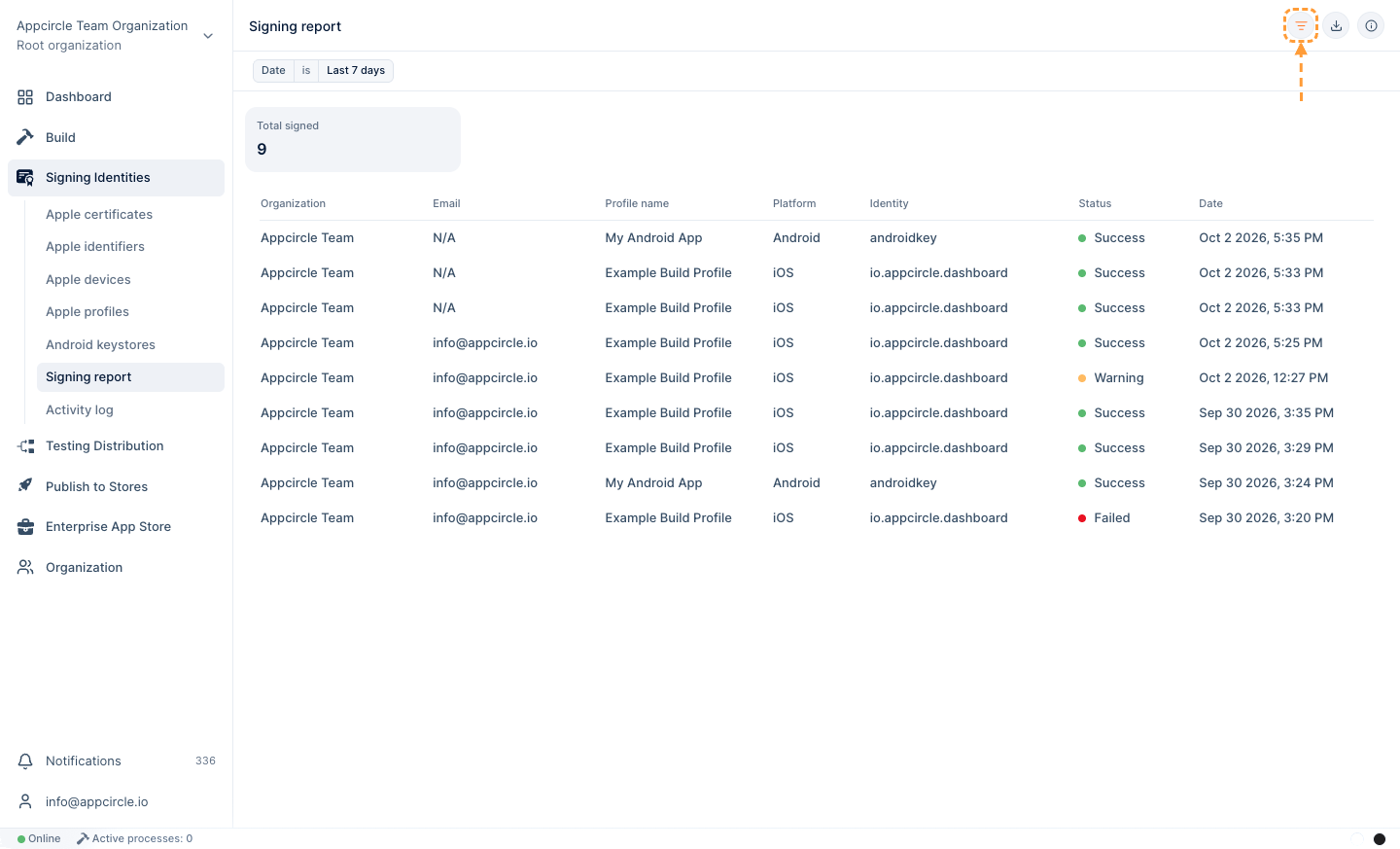
- Activity Log: Records actions on signing identities, such as certificate uploads, CSR generation, deletions, and provisioning profile renewals, in the root organization and its sub-organizations.
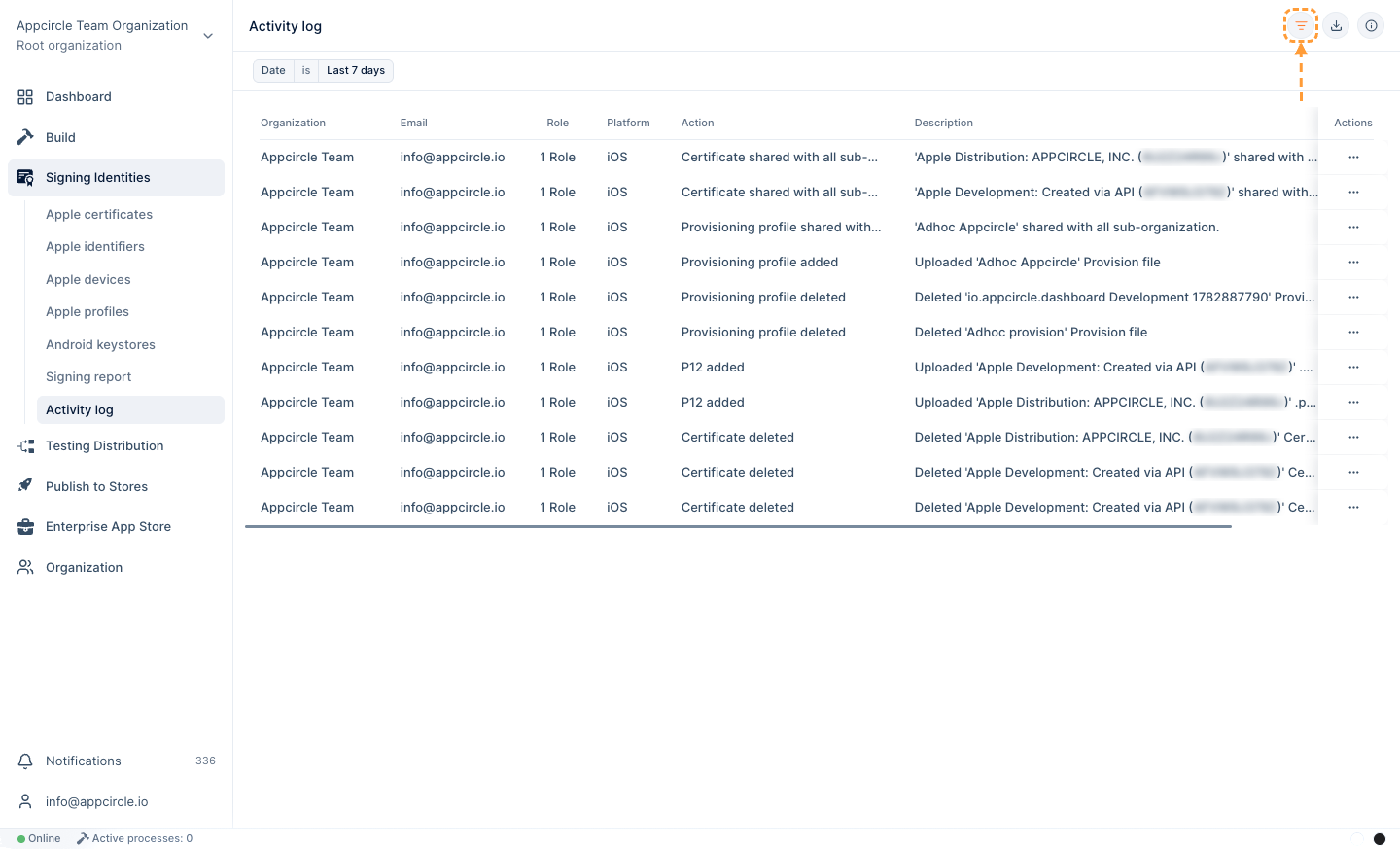
For more information, see the Signing Reports and Activity Log documents.
Signing Identities Module Troubleshooting
Common Issues and Solutions
- Missing certificate for a provisioning profile: A red cross mark in the Apple Profiles list shows that the certificate of the profile is not in Appcircle. Upload or create the matching certificate.
- Device cannot install an Ad Hoc build: Make sure that the device UDID is registered and included in the provisioning profile. Add the device with Manage device, then build the application again.
MAC verification failed during PKCS12 import: The.p12password contains special characters such as$or#. Export the.p12file again with a password without these characters and upload it.- Certificate creation or renewal fails: You can be at the Apple certificate limit, or the API key can be invalid or without enough permissions. Check the API key and the number of certificates in your Apple Developer account.
- Multi-target application fails to sign: Add a provisioning profile for each bundle identifier, including extensions and widgets, in the build profile signing configuration.
- Invited user cannot register a device: The UDID collection needs Safari. It does not work in Microsoft Edge. If Lost/Stolen Device Protection is enabled on iOS 17 or later, the profile installation can need a one-hour security delay.
Frequently Asked Questions About the Signing Identities Module
Can I create an iOS certificate without a Mac?
Yes. Generate a CSR in Appcircle and create the certificate with your App Store Connect API Key, or upload the .cer file that you create on the Apple Developer Portal. Appcircle produces the .p12 file for you. For more information, see Creating P12 File Without Mac.
Which provisioning profile type should I use?
- App Store: For App Store and TestFlight submission.
- Ad Hoc: For testing on registered devices, for example with Testing Distribution.
- Enterprise (In-House): For internal distribution in organizations enrolled in the Apple Developer Enterprise Program.
- Development: For debugging on registered devices.
For more information, see Apple Profiles Overview.
Does deleting a signing identity in Appcircle delete it on Apple?
No. Delete removes the item only from Appcircle. To invalidate a certificate on the Apple Developer Portal, use Revoke.
Can Appcircle sign my application with an Enterprise certificate if I am not in the Apple Enterprise Program?
No. Only members of the Apple Developer Enterprise Program can create Enterprise certificates. Appcircle is not an enterprise signing service.
What happens to my build profiles when a certificate is renewed?
Appcircle regenerates the related provisioning profiles and replaces the old certificate in your build and re-sign profiles. You do not need to change the build profile configuration.
Can sub-organizations use signing identities from the root organization?
Yes. The root organization can share certificates, provisioning profiles, and keystores with sub-organizations. Sub-organization users can use shared items but cannot change or delete them.
Further Support and Resources
If you need additional help with the Signing Identities module, the following resources are available:
Need help?
Get help from Appcircle's support team, or see how others are using Appcircle by joining our Slack Channel.

- Technical Documentation: Refer to the Signing Identities documentation for detailed guides on each section of the module.