Testing Distribution Walkthrough
The Testing Distribution module lets you share iOS and Android builds with testers before release, from a single profile per app. It helps you to:
- Distribute Automatically: Send every new build, manual upload, or CLI upload to your testing groups without manual steps.
- Control Access: Let testers download from a branded Testing Portal with the sign-in method you choose (none, static credentials, SSO, or LDAP).
- Re-sign Binaries: Re-sign iOS and Android binaries for testers, and convert AAB files to installable APKs.
- Track Testers: See which tester opened, signed in, and downloaded which version, and export a download report.

Getting Started
This walkthrough follows the order in which a Testing Distribution setup is usually done: create a profile, create testing groups, configure the profile settings, add app versions, share them with testers, and track the results. The following sections describe each step.
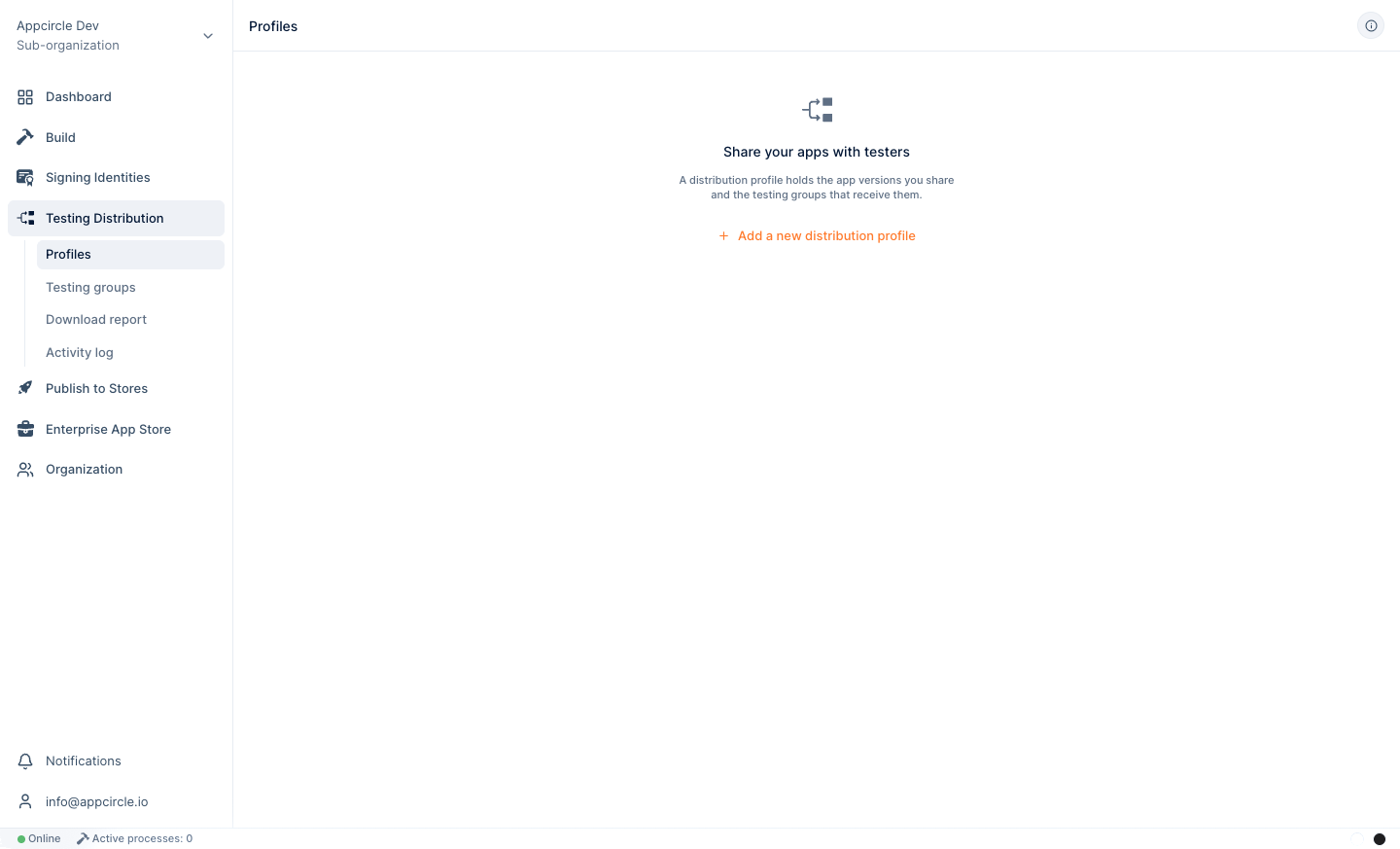
Prerequisites for Using the Testing Distribution Module
iOS: Signing for Device Installation
Testers can only install an iOS binary that is signed for distribution outside the App Store. Make sure your .ipa is signed with one of the following:
- Ad Hoc provisioning profile: The UDID of every tester device must be registered in your Apple Developer account and included in the provisioning profile. A device that is not in the profile cannot install the app.
- Enterprise (In-House) provisioning profile: Available to Apple Developer Enterprise Program members. Device UDIDs are not required, but testers must trust the enterprise developer certificate on the device after installation.
When a new tester joins an Ad Hoc distribution, register the tester's device UDID in your Apple Developer account, regenerate the provisioning profile, and re-sign or rebuild the binary. Sharing the existing binary with a new device will not make it installable on that device.
Android: Installing from Unknown Sources
Android binaries downloaded from the Testing Portal are installed outside Google Play. Testers must allow their browser (or file manager) to install unknown apps on their device. Android prompts for this permission the first time a tester opens a downloaded .apk.
.aab is a store-only format and cannot be installed directly on a device. If your build produces an .aab, enable Auto re-sign for Android with the Convert AAB to APK option so testers receive an installable .apk. See Auto Re-sign.
Testing Distribution Setup Process
Creating a Distribution Profile
Select Testing Distribution > Profiles from the left menu and click New profile. Give your profile a name, usually the name of your application.
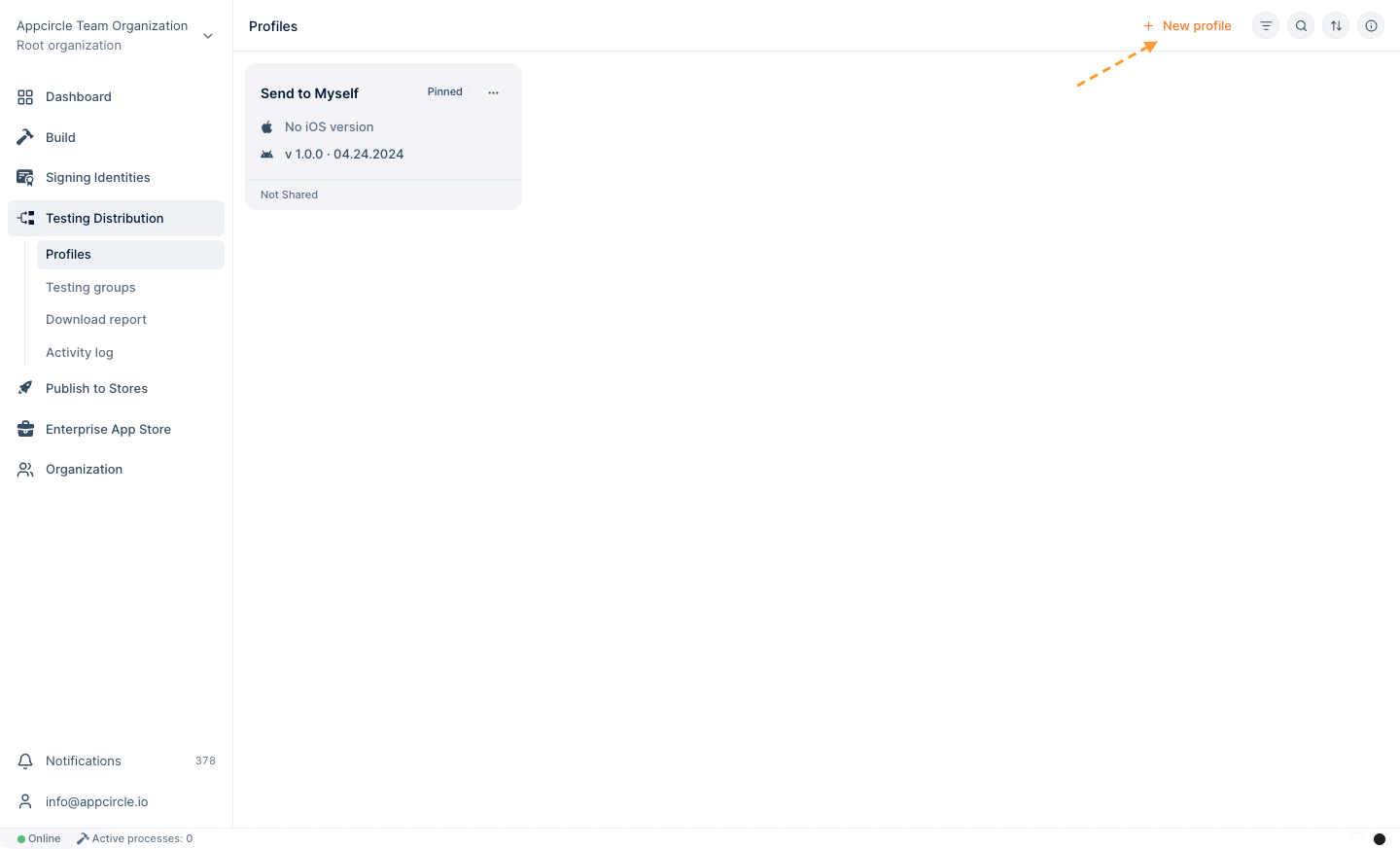
A distribution profile holds the versions of the same application for both iOS and Android. As a best practice, use a single profile for both platforms instead of creating separate profiles. An empty profile named Send to Myself is created automatically for every account.
For details on listing, searching, renaming, pinning, and deleting profiles, see the Distribution Profile documentation.
Creating Testing Groups and Adding Testers
Testing groups let you share versions with a predefined audience (for example "QA", "Beta", or a customer team) instead of typing email addresses each time.
- Go to Testing Distribution > Testing groups.
- Click Add testing group, type a group name, and press Enter.
- Type one or more tester email addresses (separated by commas or spaces) and click Add.
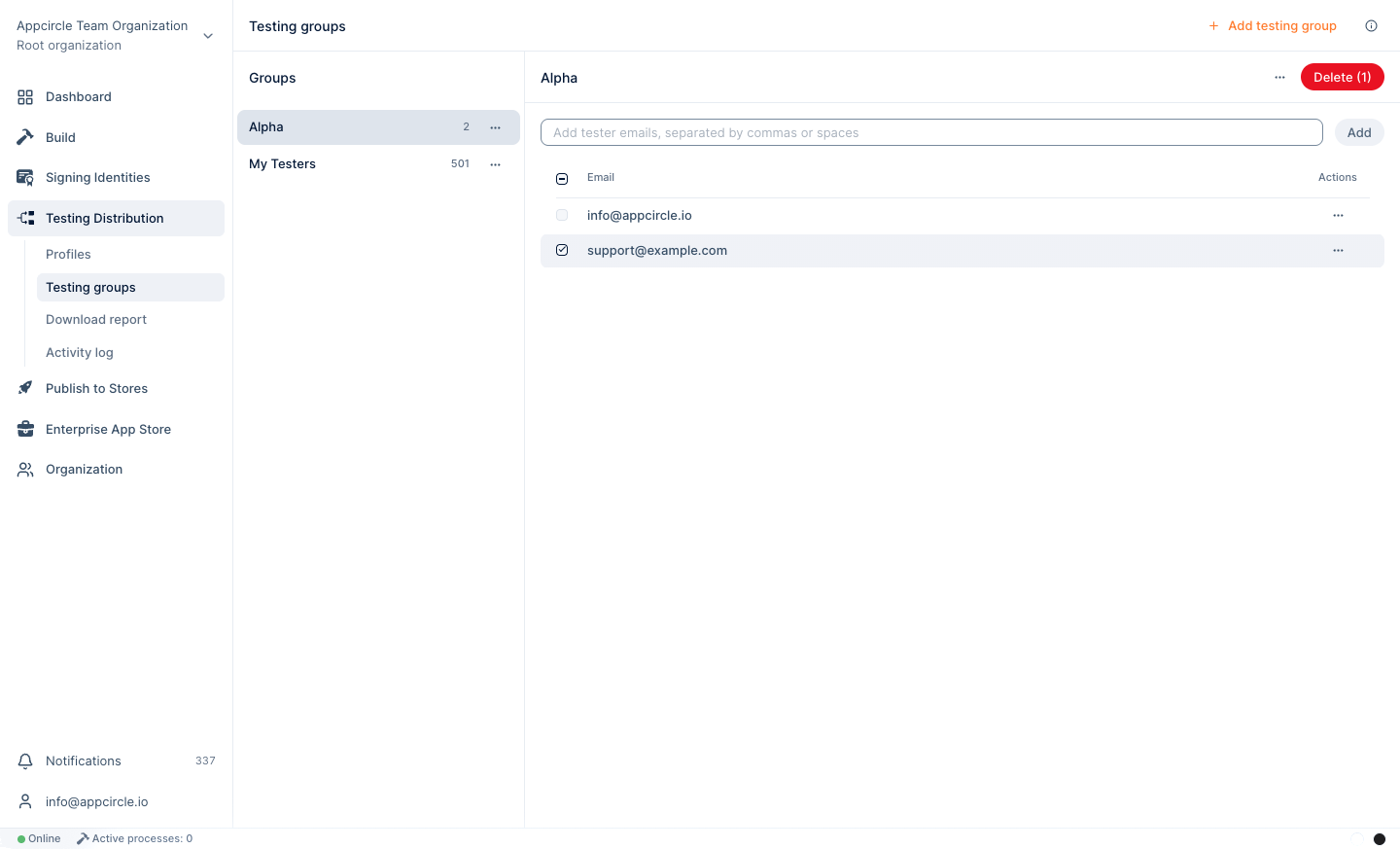
Testers can also be imported from a CSV file or synced from LDAP groups. See Testing Groups.
Configuring the Profile Settings
To open the profile settings, select Settings from the ... menu next to the profile name. The settings are grouped into the tabs described below, in the order they appear on the screen.
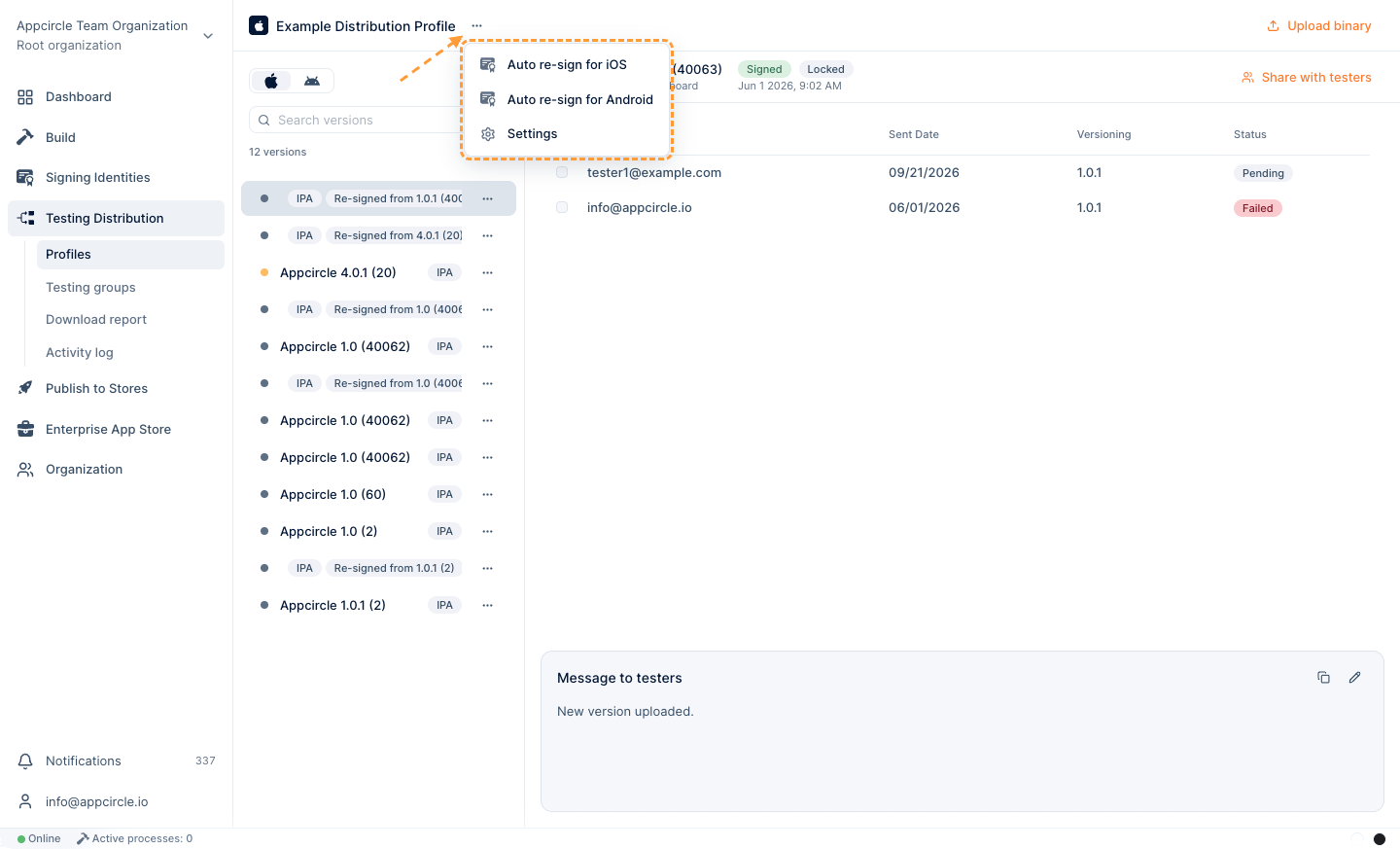
Config
The Config tab holds binary-related settings for the profile.
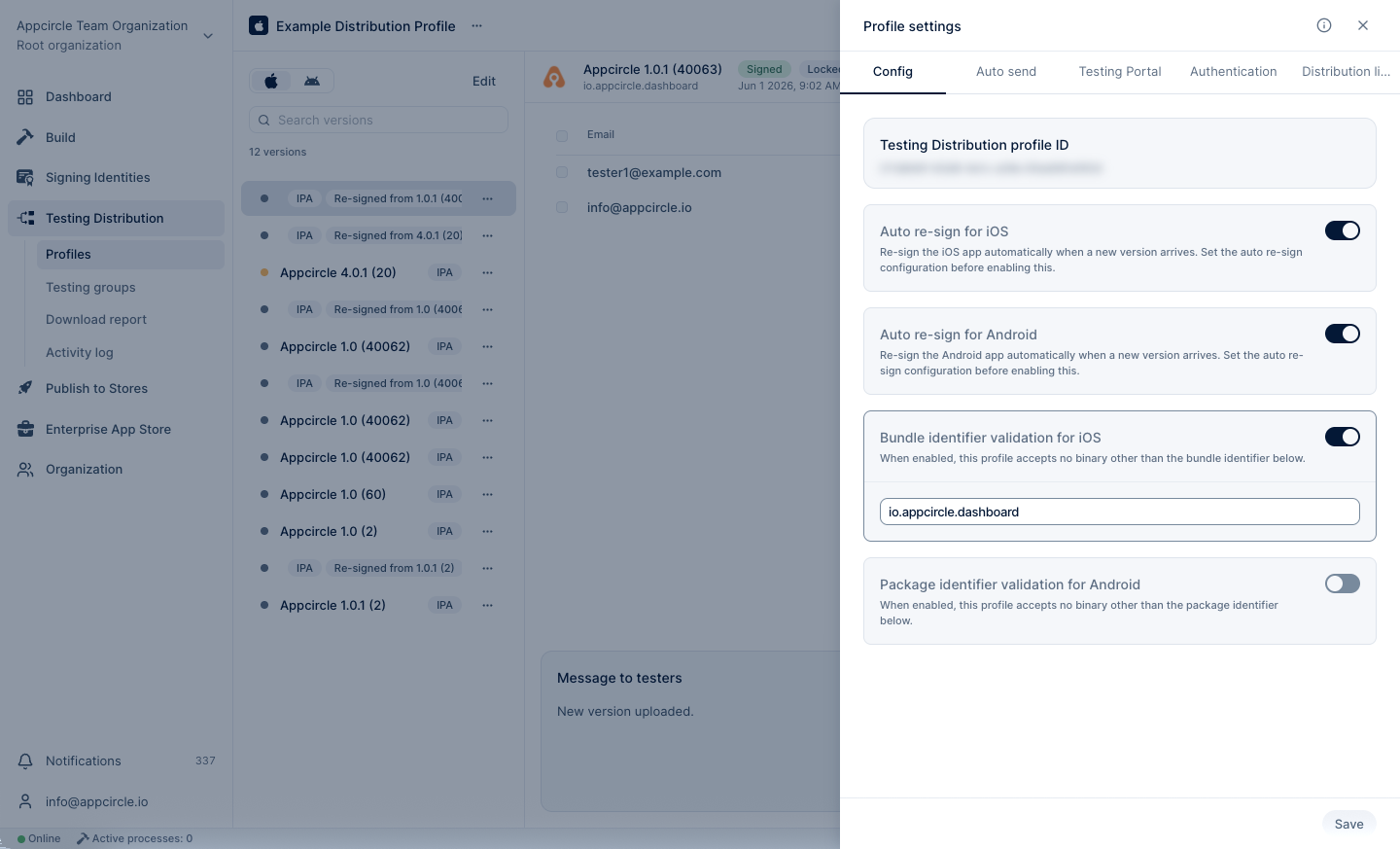
Bundle/Package Identifier Validation
When enabled, only binaries whose bundle or package identifier matches the profile can be uploaded. See Distribution Profile.
Auto Re-sign
The Auto re-sign for iOS and Auto re-sign for Android toggles re-sign every new binary uploaded to the profile, before it reaches testers. This is useful when builds are signed with a development identity, or when a single binary must be distributed under a different certificate, provisioning profile, or keystore.
Auto re-sign uses the certificates and keystores in Signing Identities. For requirements and all configuration options, see Re-sign Binaries.
Auto Send
The Auto Send tab lists your testing groups. Enable the groups that should receive every new version automatically, whether the version comes from a build, a manual upload, or the CLI.
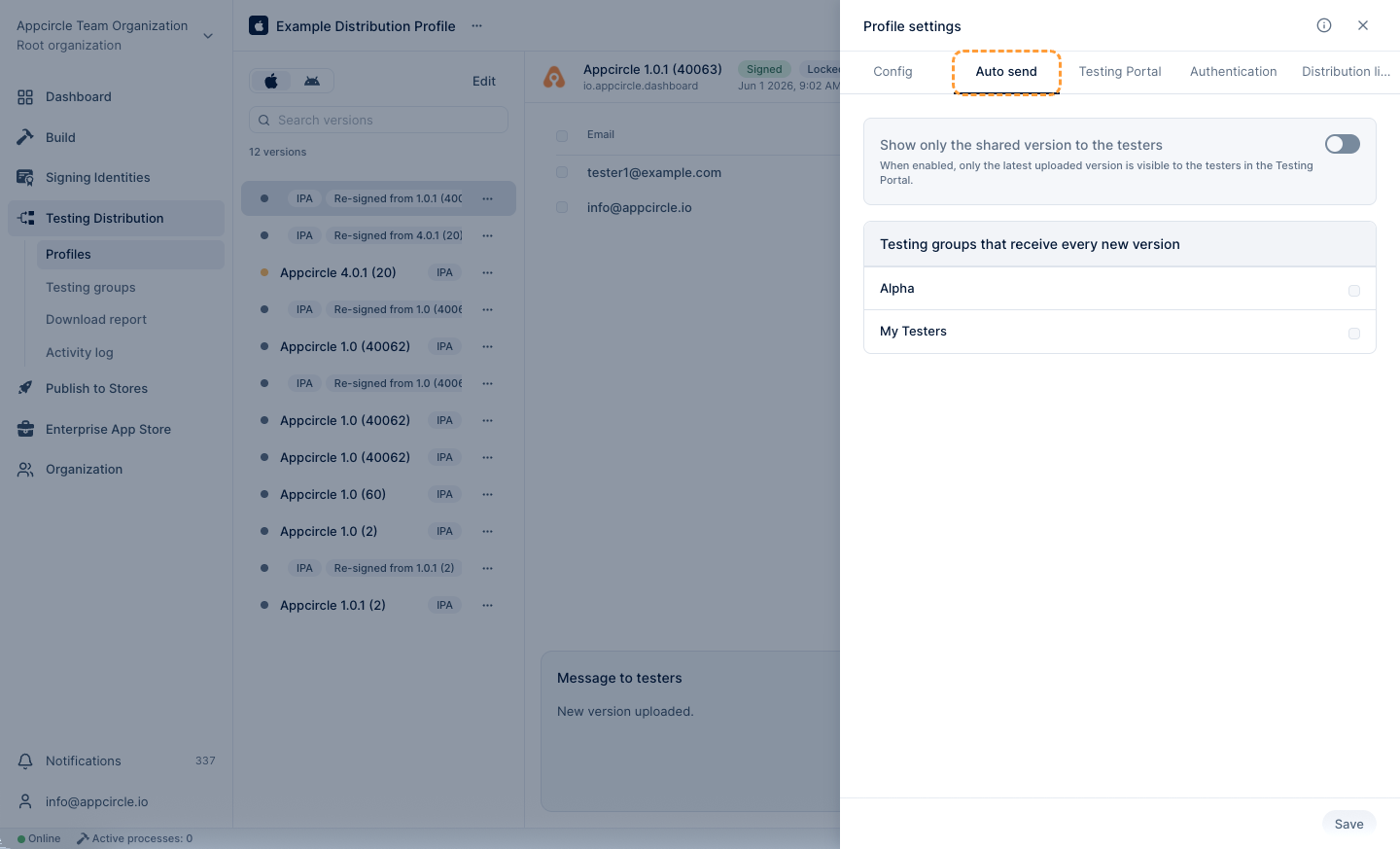
- Show Only the Shared Version to the Tester: When enabled together with auto send, testers only see the most recently shared version on the Testing Portal.
Testing groups must exist before they can be selected here. See Creating Testing Groups and Adding Testers. Expired binaries are never sent automatically.
Testing Portal
The Testing Portal tab controls what testers see on the portal for this profile.
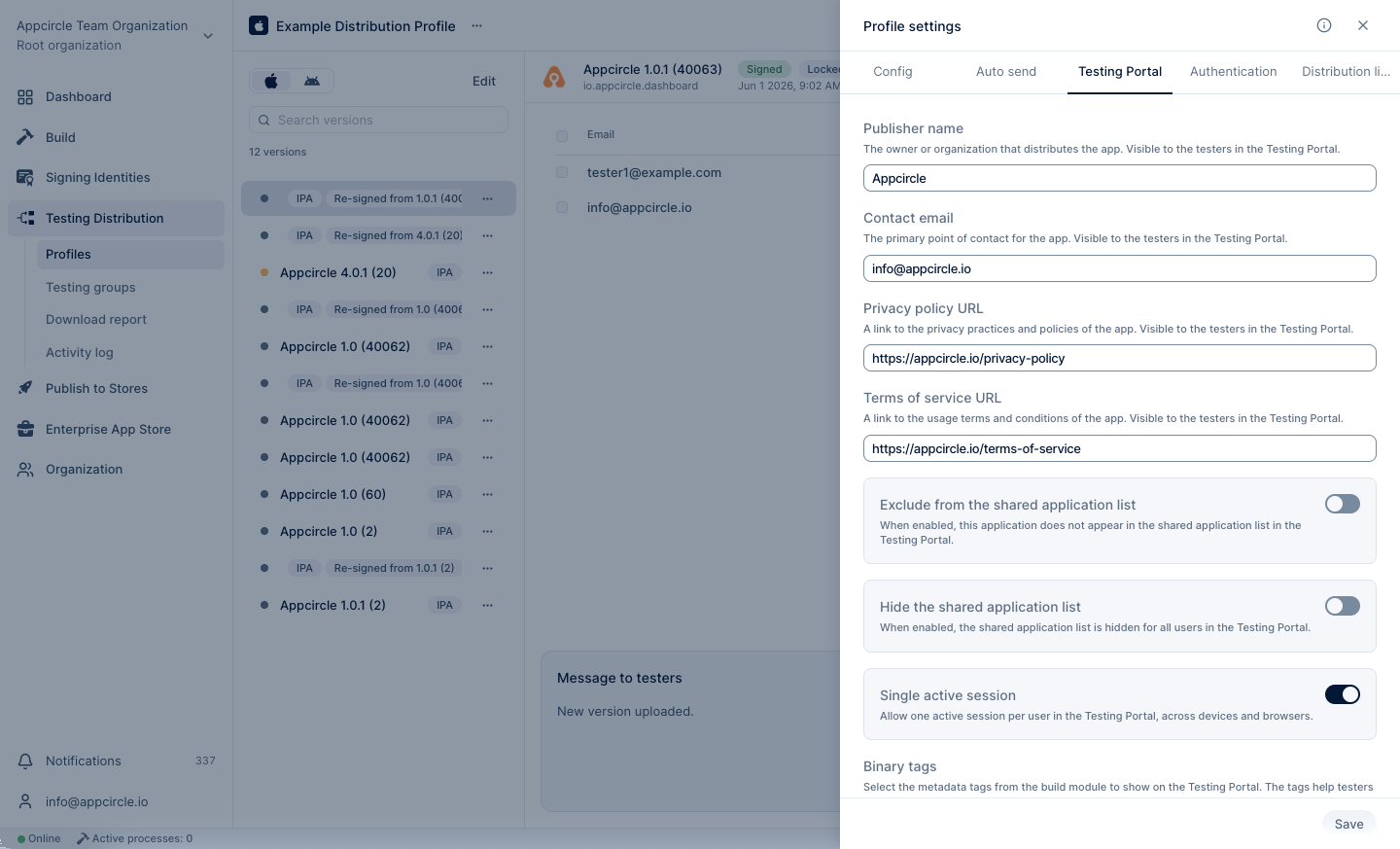
You can add publisher information, control whether the app appears in the shared application list, limit testers to a single active session, and show build metadata as binary tags. See Distribution Profile.
Authentication
The Authentication tab sets how testers sign in to the Testing Portal for this profile.
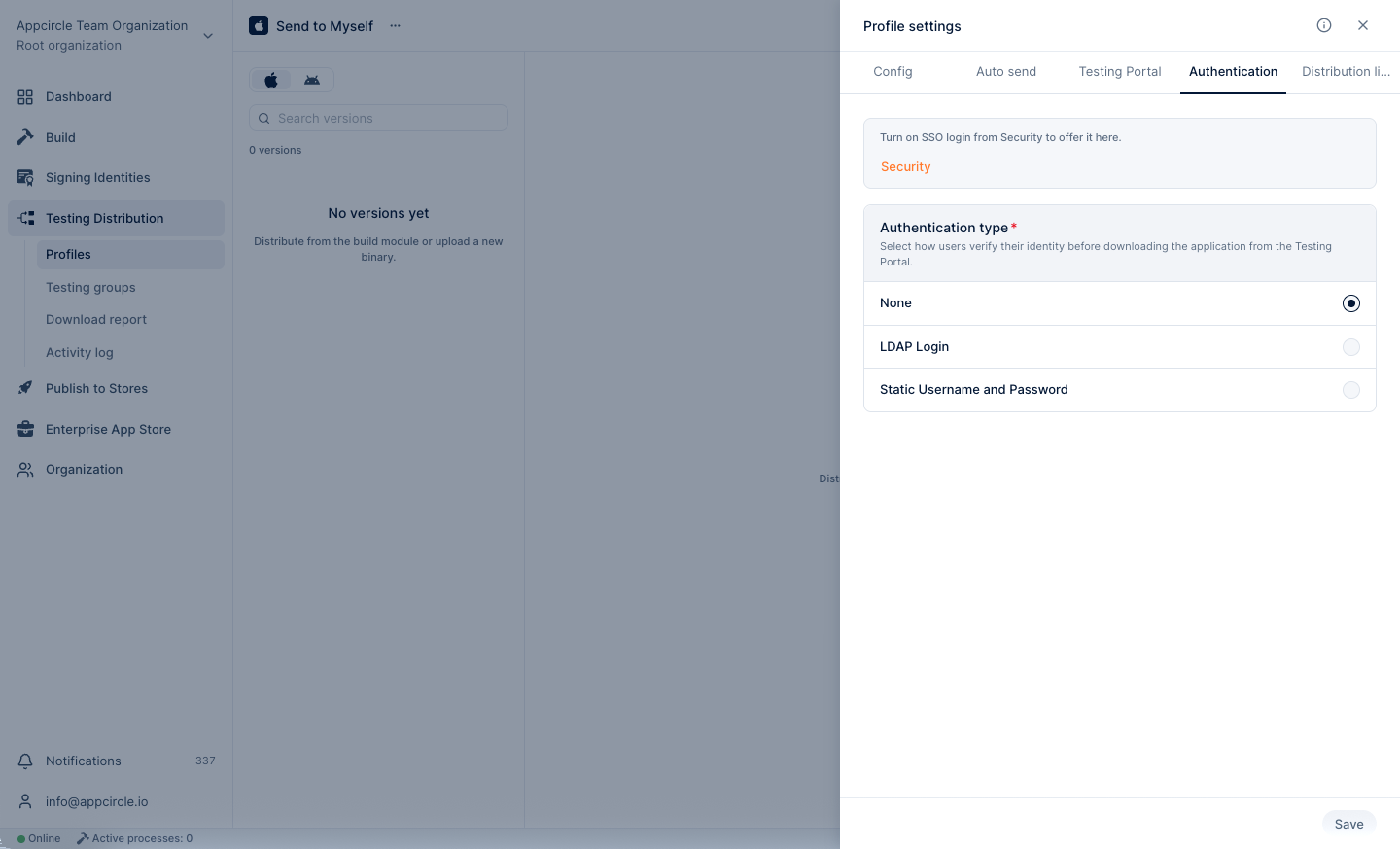
- None: Anyone with the link can download the binaries.
- Static Username and Password: A single username and password shared by all testers.
- SSO Login: Testers sign in with your identity provider (Enterprise plans).
- LDAP Login: Testers sign in with their LDAP credentials (Enterprise plans).
SSO and LDAP appear as options only after they are configured under Organization > Security > Authentication. See Testing Portal SSO Login and Testing Portal LDAP Login.
Distribution Link
The Distribution Link tab enables a public link (and a QR code) that gives access to all versions of the profile. It is the quickest way to share a profile with people who are not in a testing group, for example during a demo.
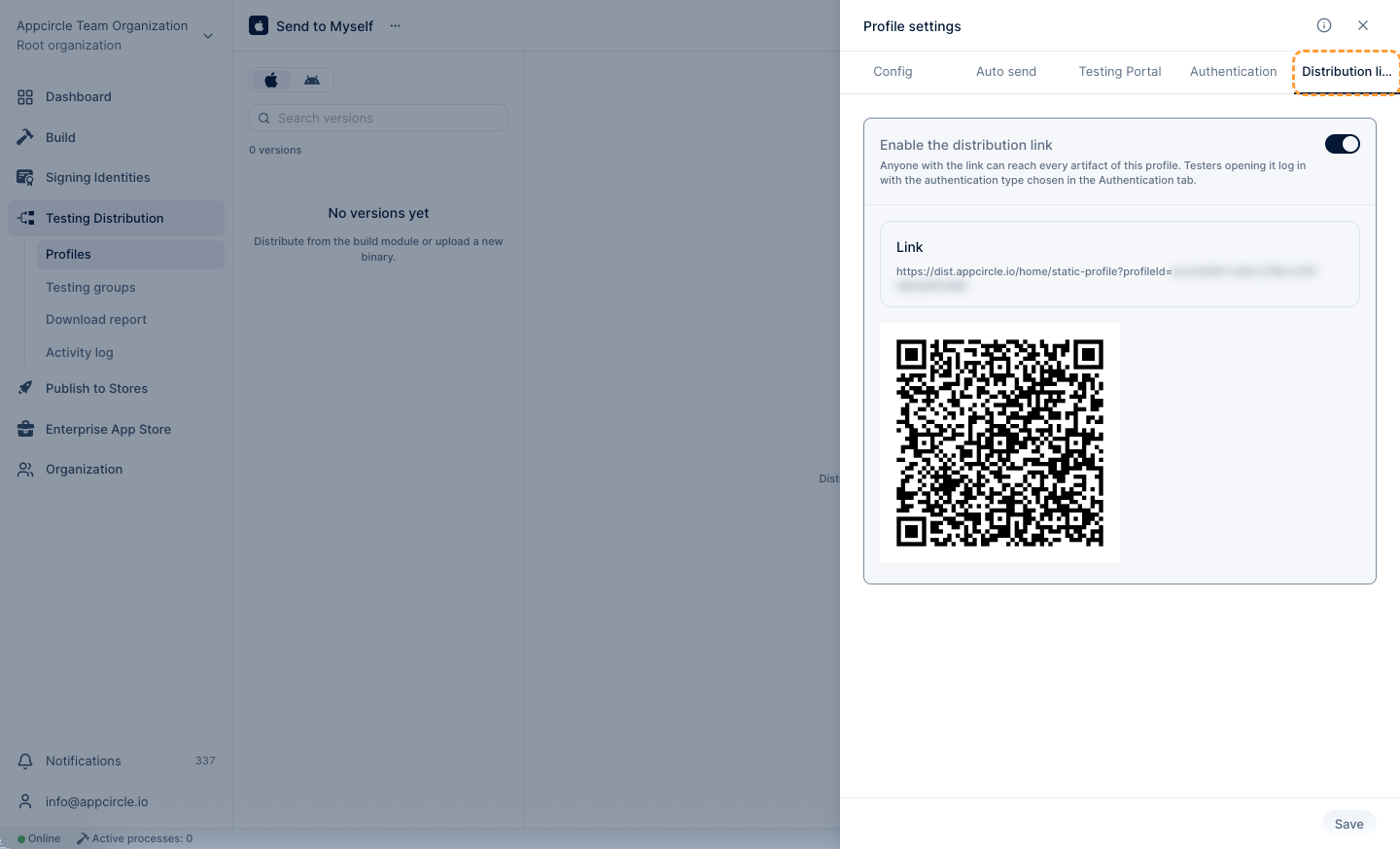
Anyone who has the link can reach every version in the profile. The link uses the authentication method selected in the Authentication tab, so set an authentication method before sharing it outside your team. Downloads made through the public link are listed as N/A in the download report because the downloader cannot be identified.
Managing App Versions
Adding an App Version to the Profile
Upload via Build Module
Every successful build can be sent to a distribution profile automatically. Go to Build > select the build profile > Configurations > select a configuration > Distribution tab, enable the Testing Distribution toggle, select one or more distribution profiles, and click Save.
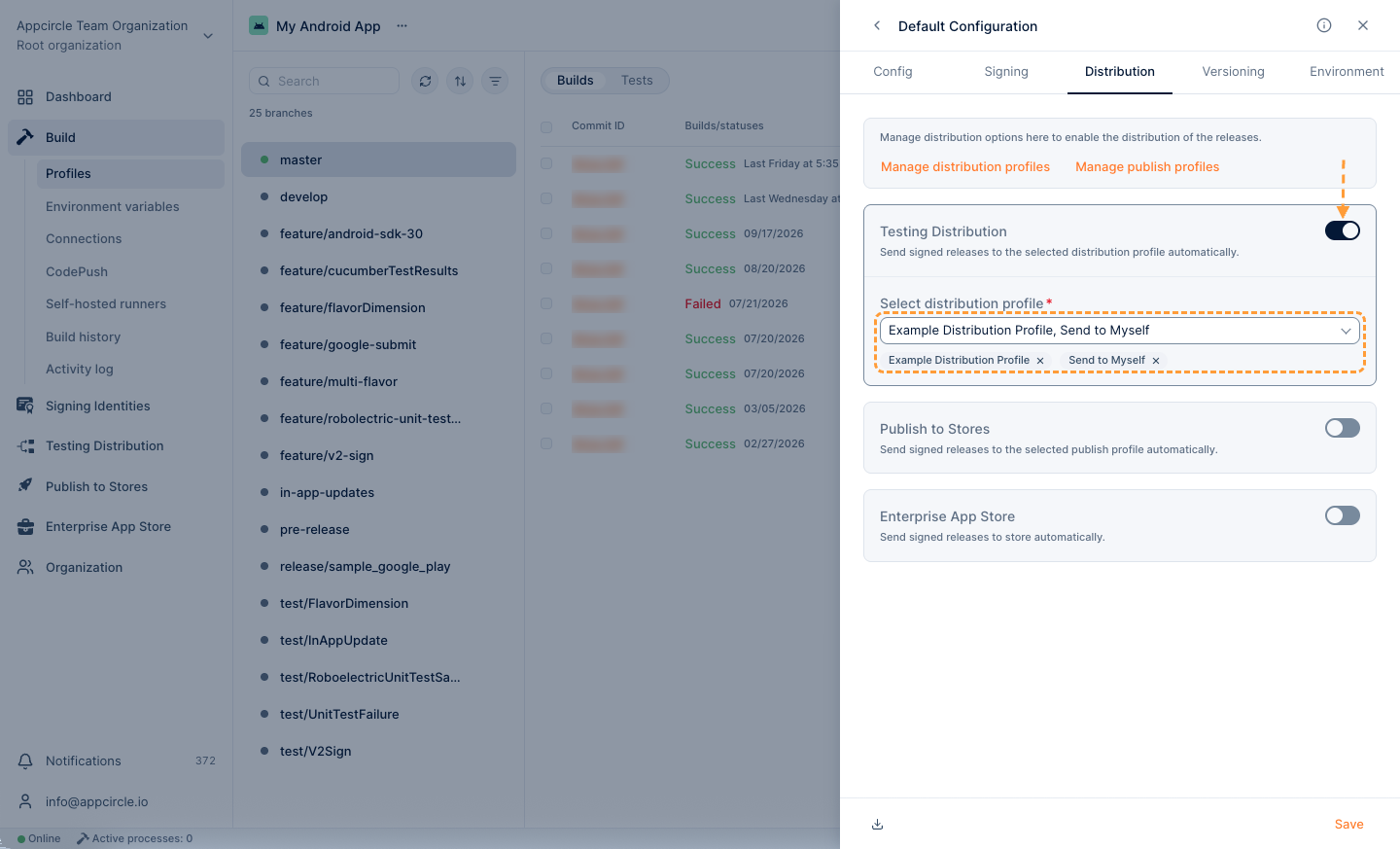
For details, see Distribution Configuration.
Only signed builds are distributed. If Bundle/Package Identifier Validation is enabled on the profile, a build whose identifier does not match the profile is rejected.
Manual Binary Upload
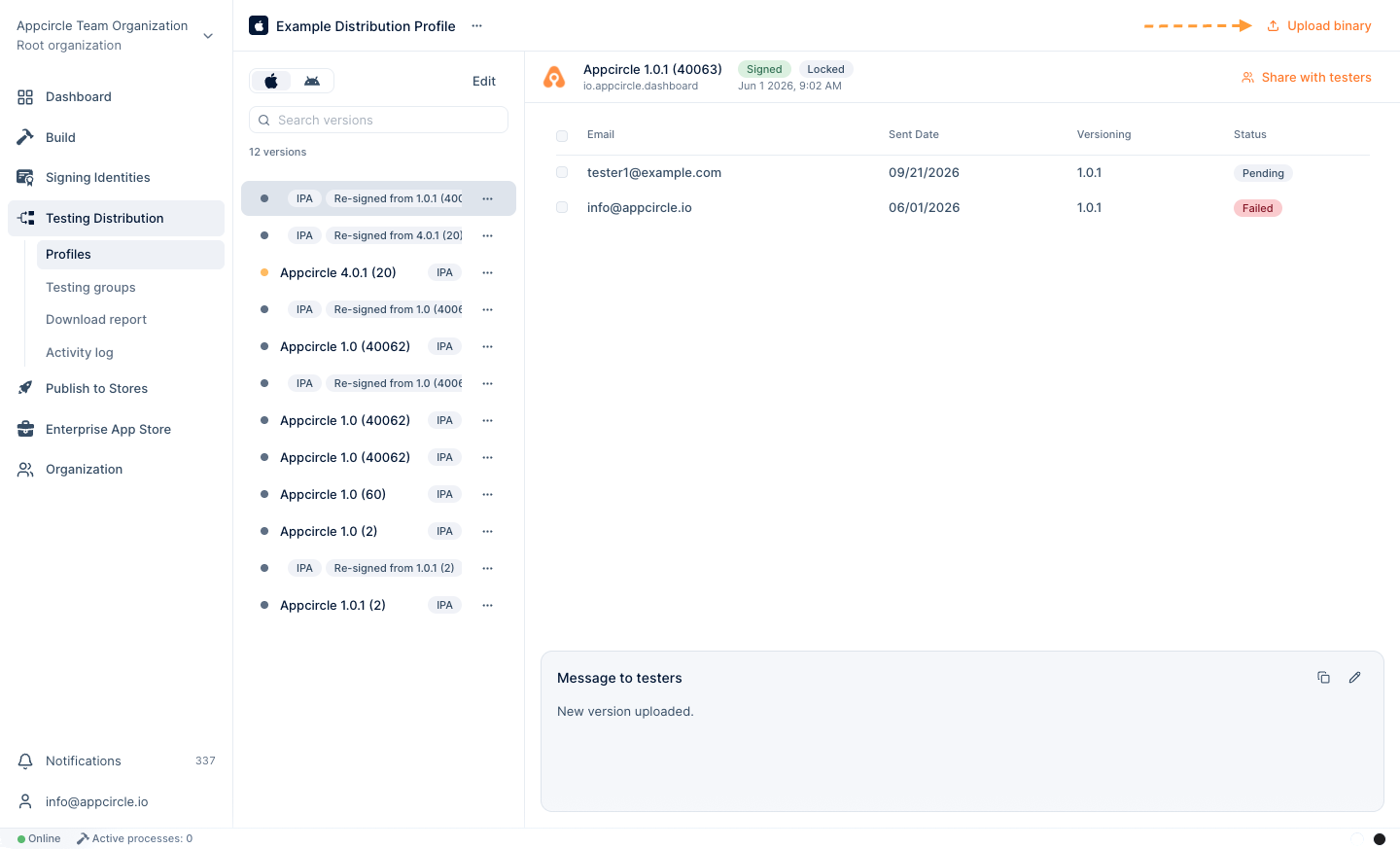
Click Upload binary at the top right of the profile and select an .ipa, .apk, or .aab file. The file is validated and its metadata is parsed; any errors are shown in the upload area.
Version List and Version Details
New versions appear at the top of the profile's version list, separated by iOS and Android, with their signing and expiration status.
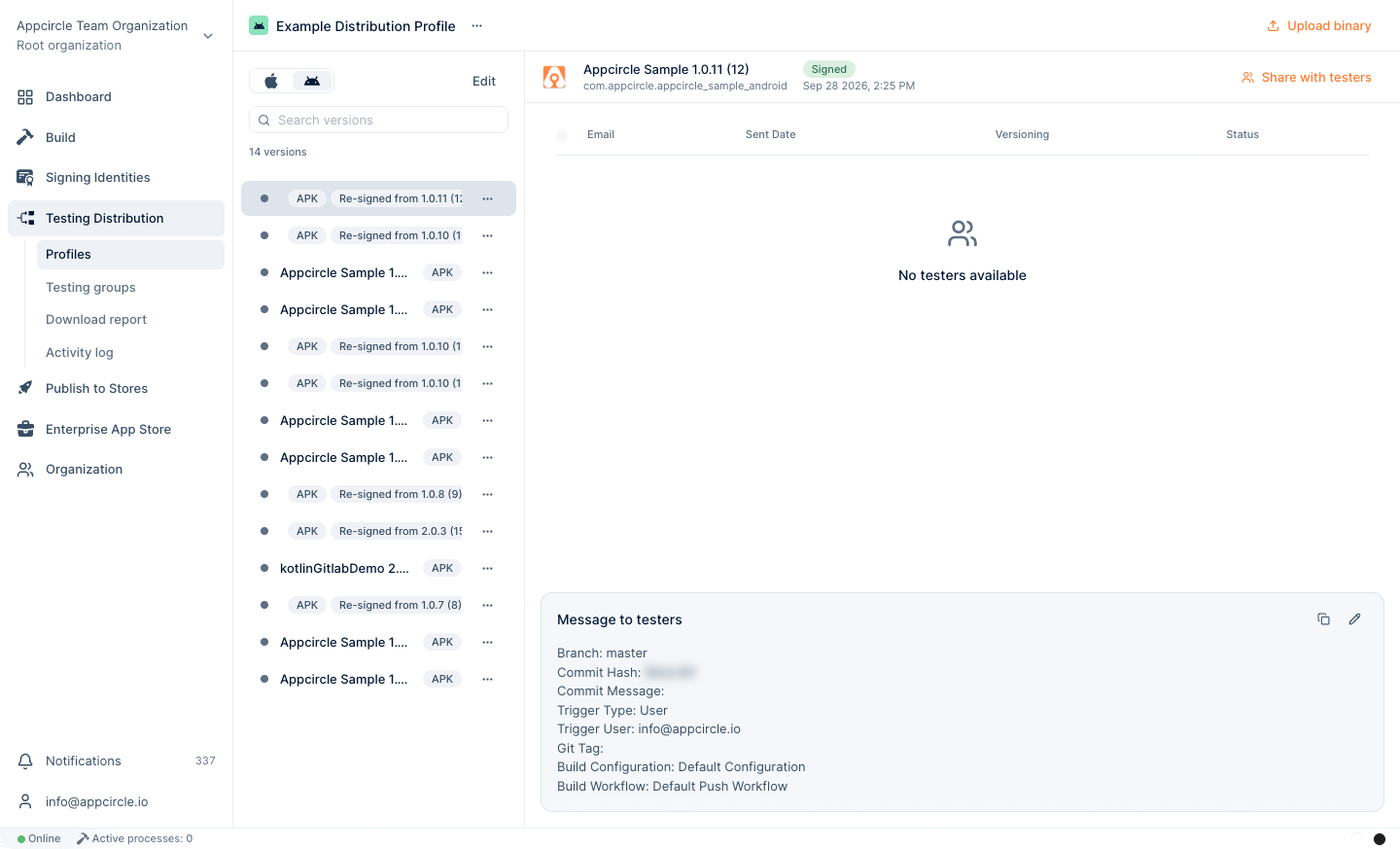
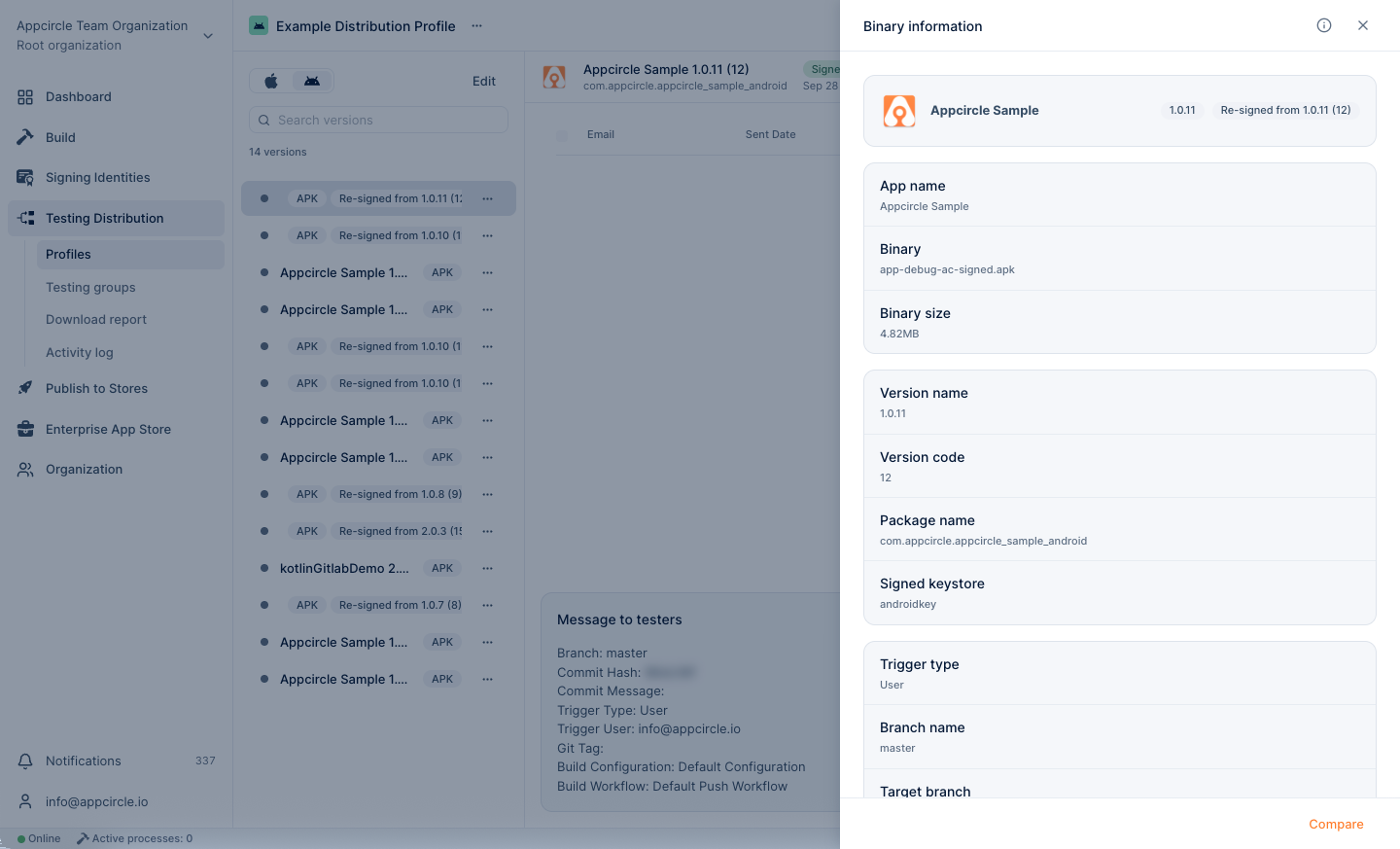
For signing and build details of a version, see Binary Information.
Sharing with Testers
Sharing a Version
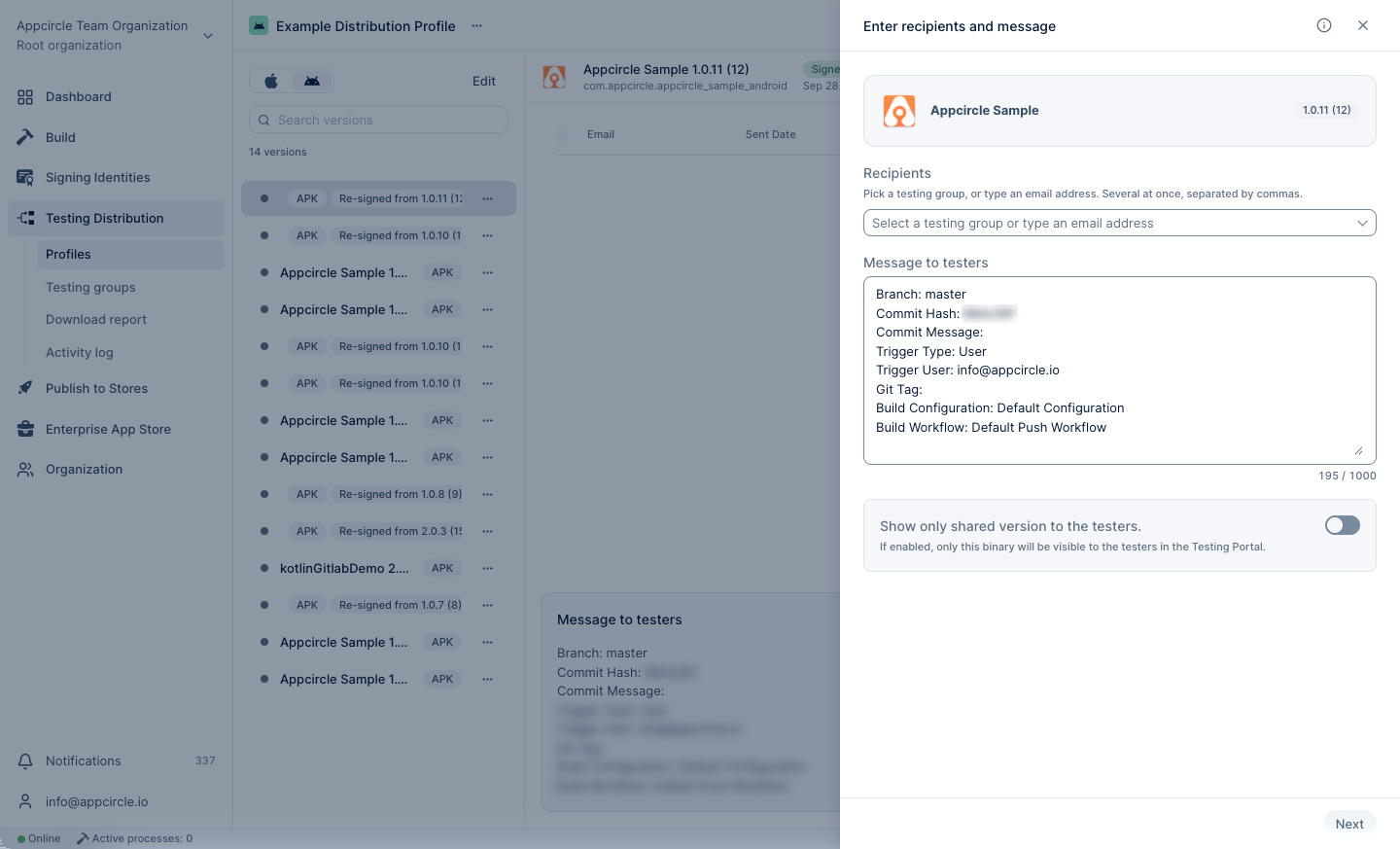
Select a version and click Share with testers. Choose one or more testing groups, or type individual email addresses to send the version directly without a group.
Message to Testers
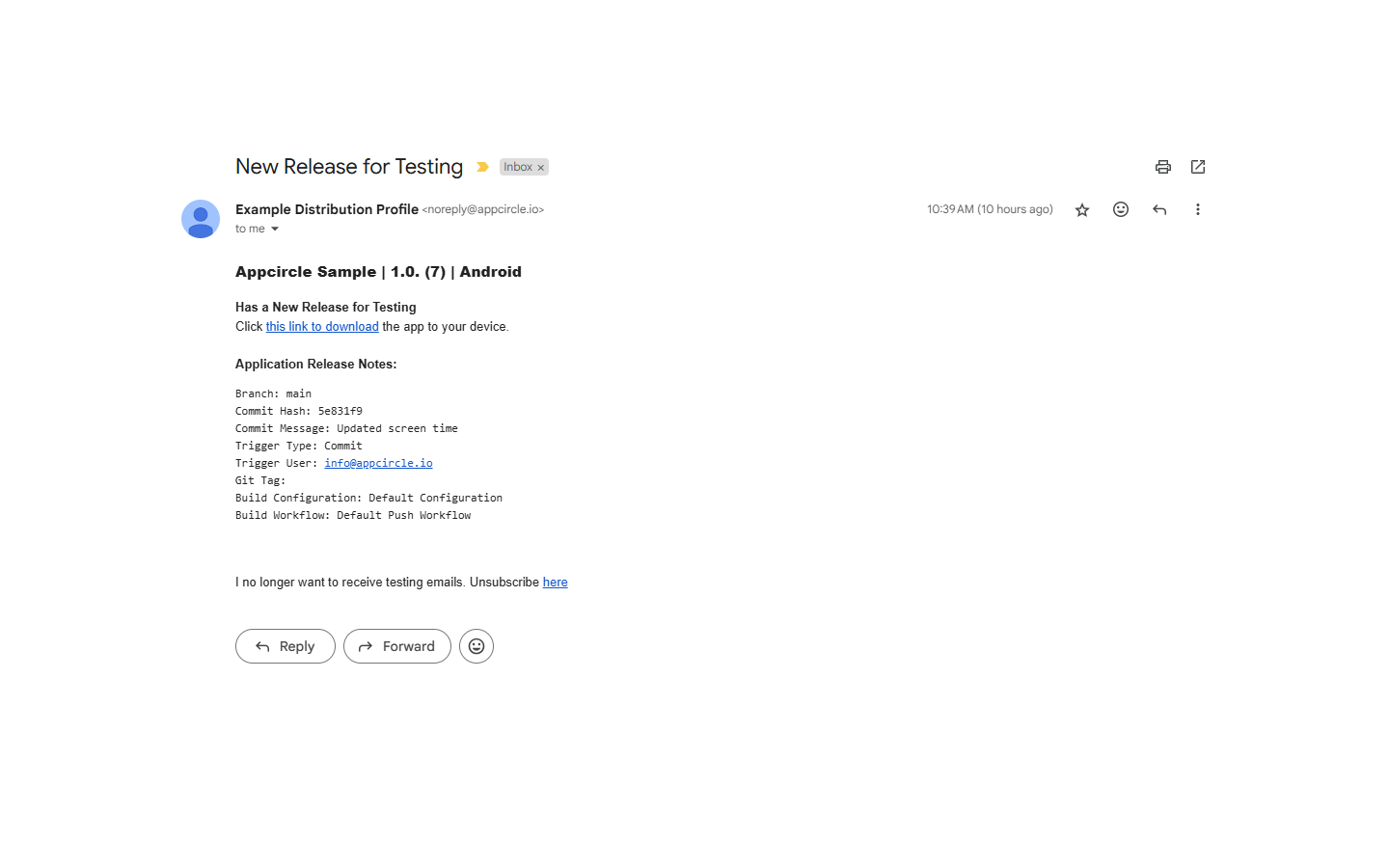
Use the Message to testers field to add release notes or testing instructions. The message is included in the email testers receive, as in the example below. For builds coming from the Build module, the Git commit message is added automatically, and the message can be automated with the Release Notes component.
A version whose signing certificate has expired cannot be shared, and its download button is disabled on the Testing Portal.
Notifications
- Tester emails: Each tester receives an email with the version, release notes, and a link to the Testing Portal. The distribution profile name is shown as the sender name.
- Team notifications: Notify your team on Slack, Microsoft Teams, or email when a new version is added or shared. See Notifications.
Tester Experience: Testing Portal
Login
Testers open the link in the email (or the distribution link) and land on the Testing Portal. The login screen depends on the profile's authentication method: no login for None, a username and password for Static, the identity provider's page for SSO, and LDAP credentials for LDAP.
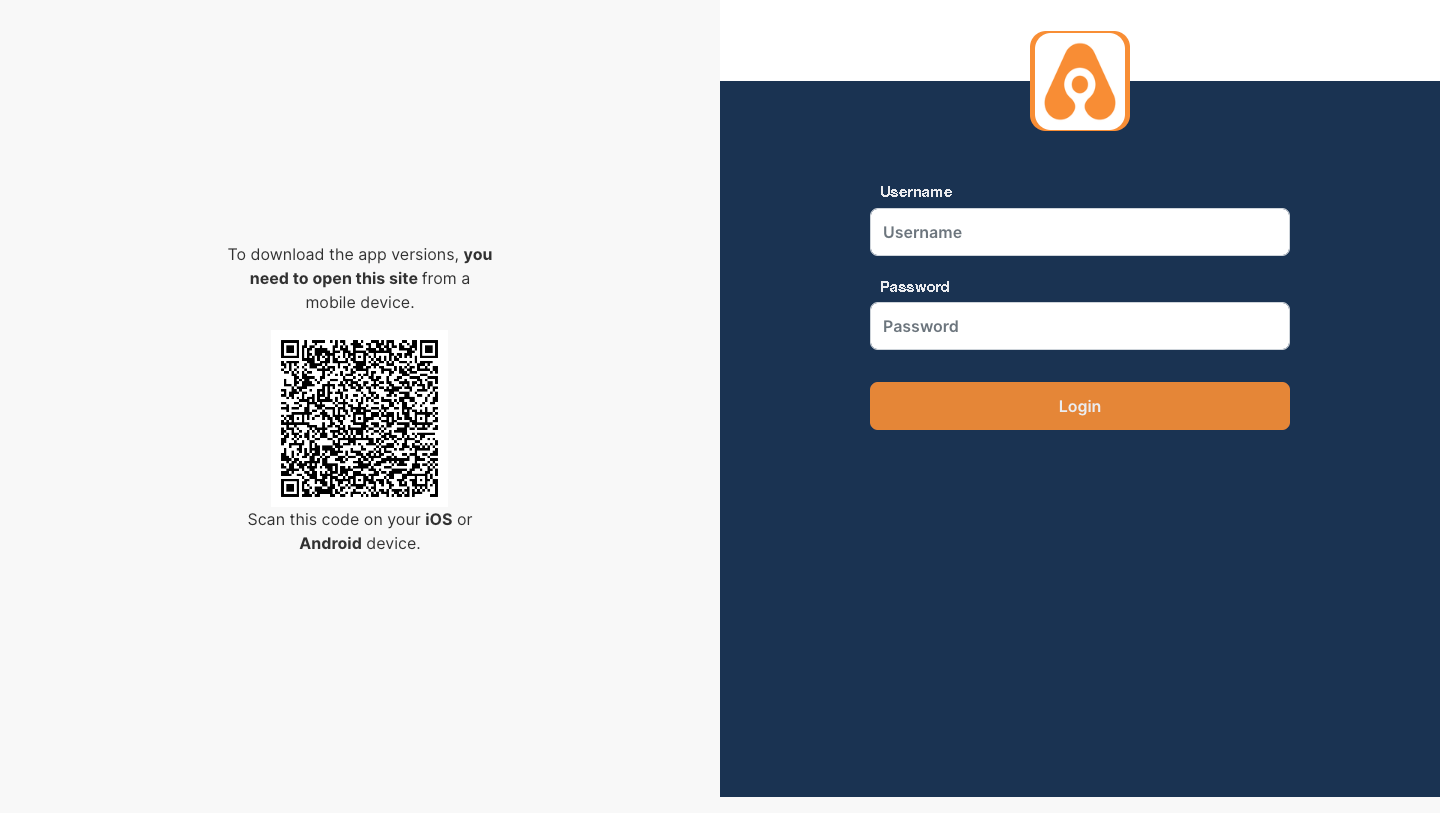
Testing Portal accounts are independent of Appcircle accounts and are used only to download shared apps. Cookies must be enabled in the browser to sign in.
Shared Application List and App Details
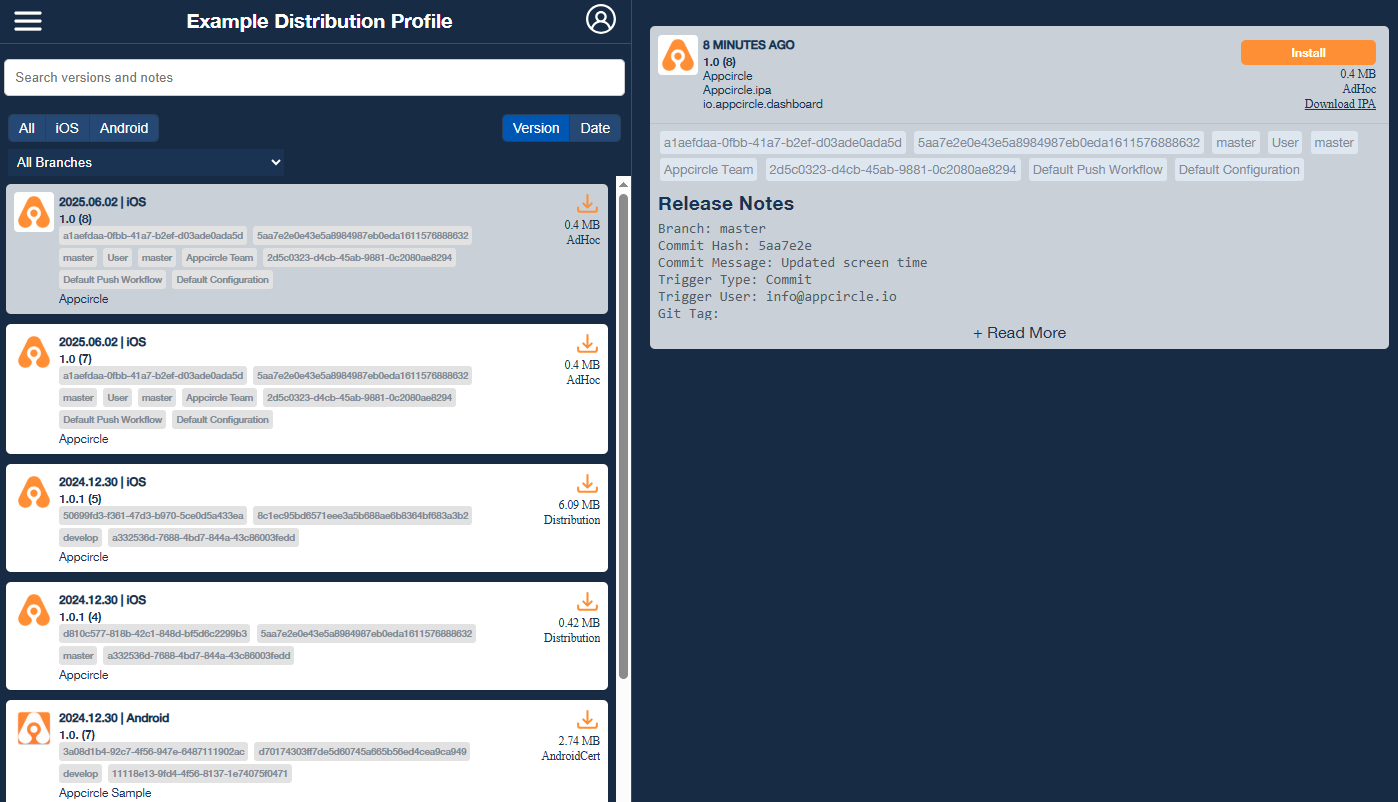
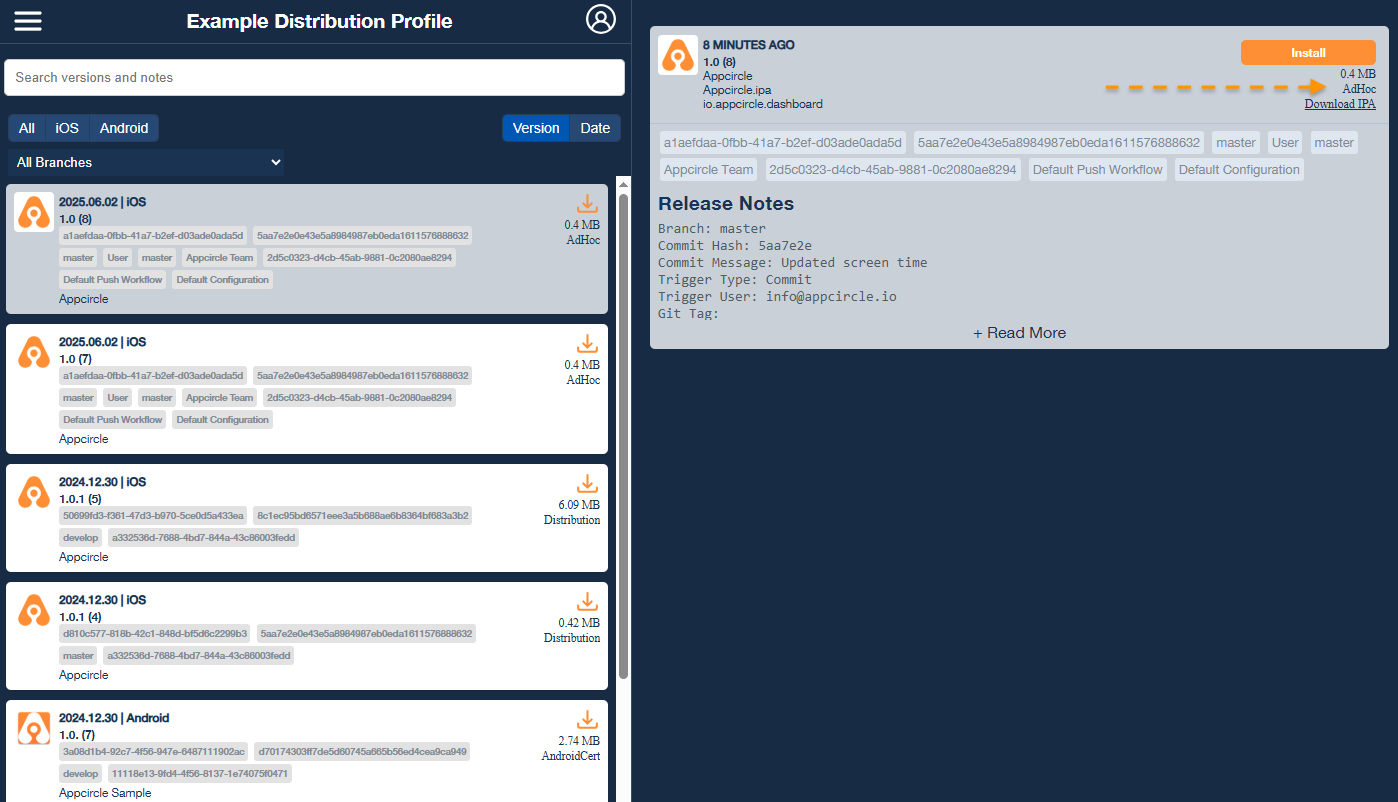
After signing in, testers see the versions shared with them with their release notes, and can search, filter, and switch between the apps shared with them.
Installing on iOS and Android
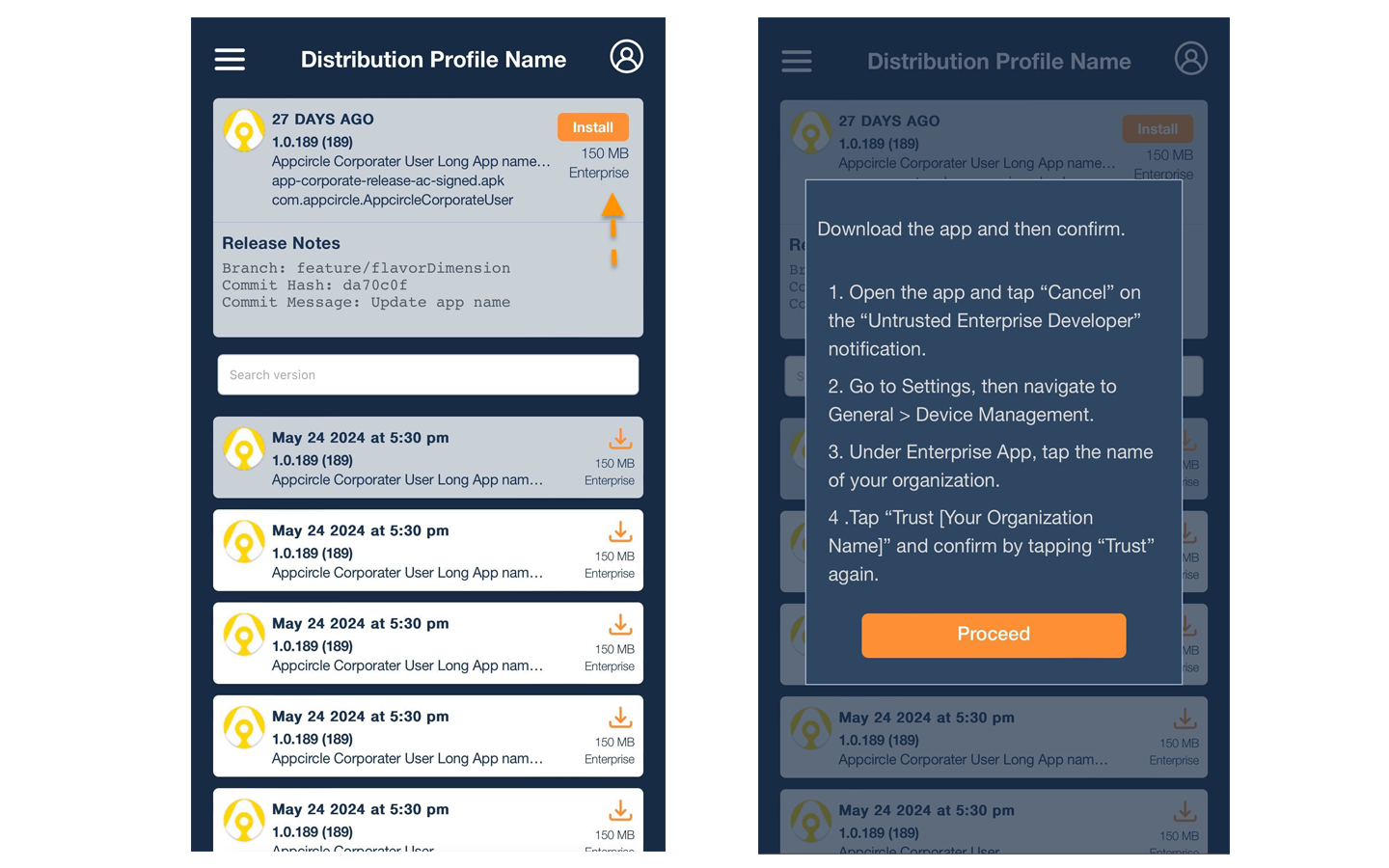
- iOS: Open the portal in Safari on the device and tap Install. For enterprise-signed apps, go to Settings > General > VPN & Device Management and trust the developer certificate before opening the app. The portal shows this guidance for enterprise builds.
- Android: Tap Download, open the
.apk, and allow installing unknown apps for the browser when prompted.
For more information, see Testing Portal.
Tracking and Reporting
Tester Status
After a version is shared, the version detail view shows the status of each tester next to the tester's email address:
- Pending: The tester has not opened the link yet.
- Clicked: The tester opened the link but has not signed in (authenticated profiles only).
- Login, No Download: The tester signed in but has not downloaded the binary.
- Downloaded: The tester downloaded the binary.
Download Report
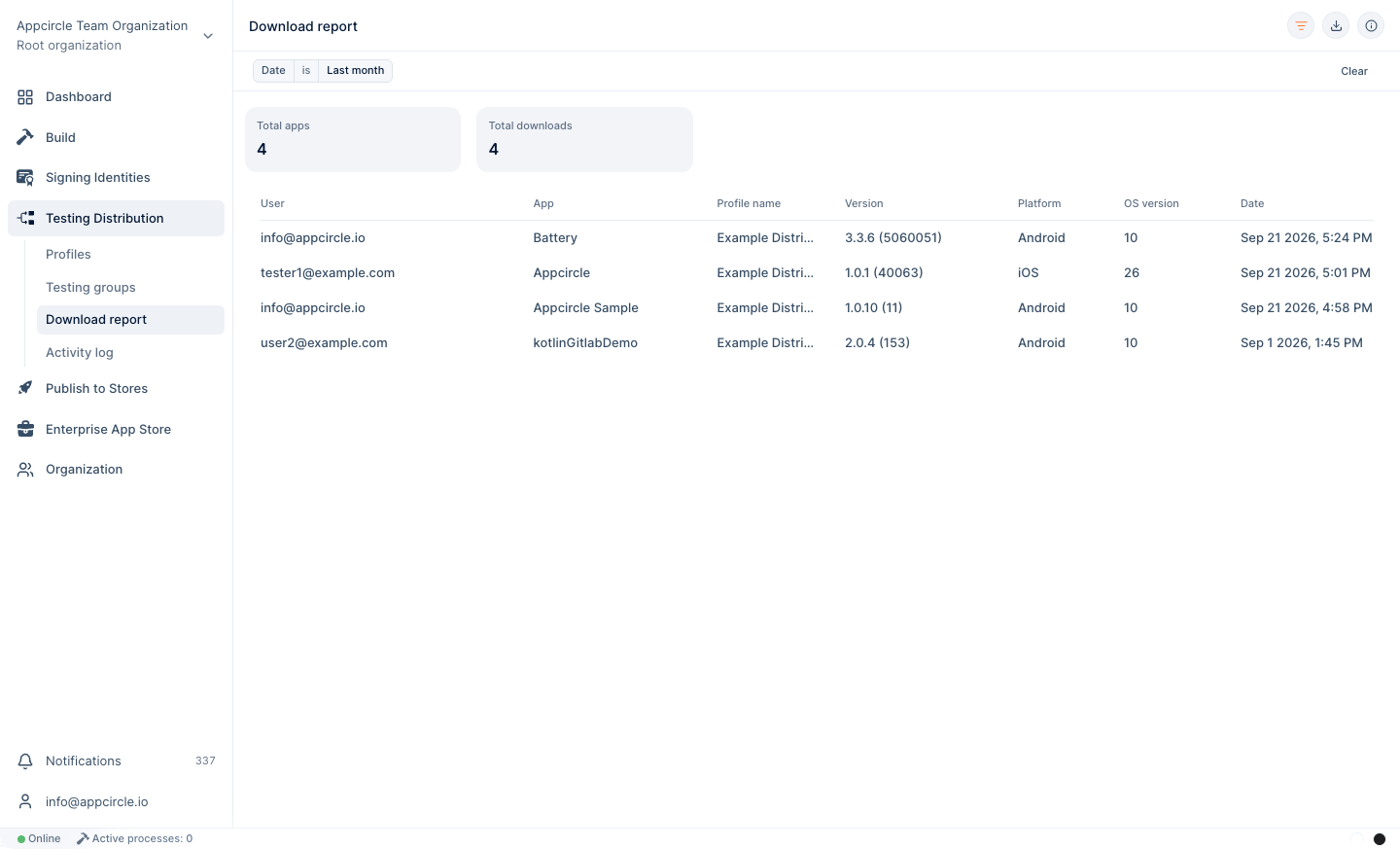
Go to Testing Distribution > Download report to see who downloaded which version and on which device, and export it as CSV. See Reporting.
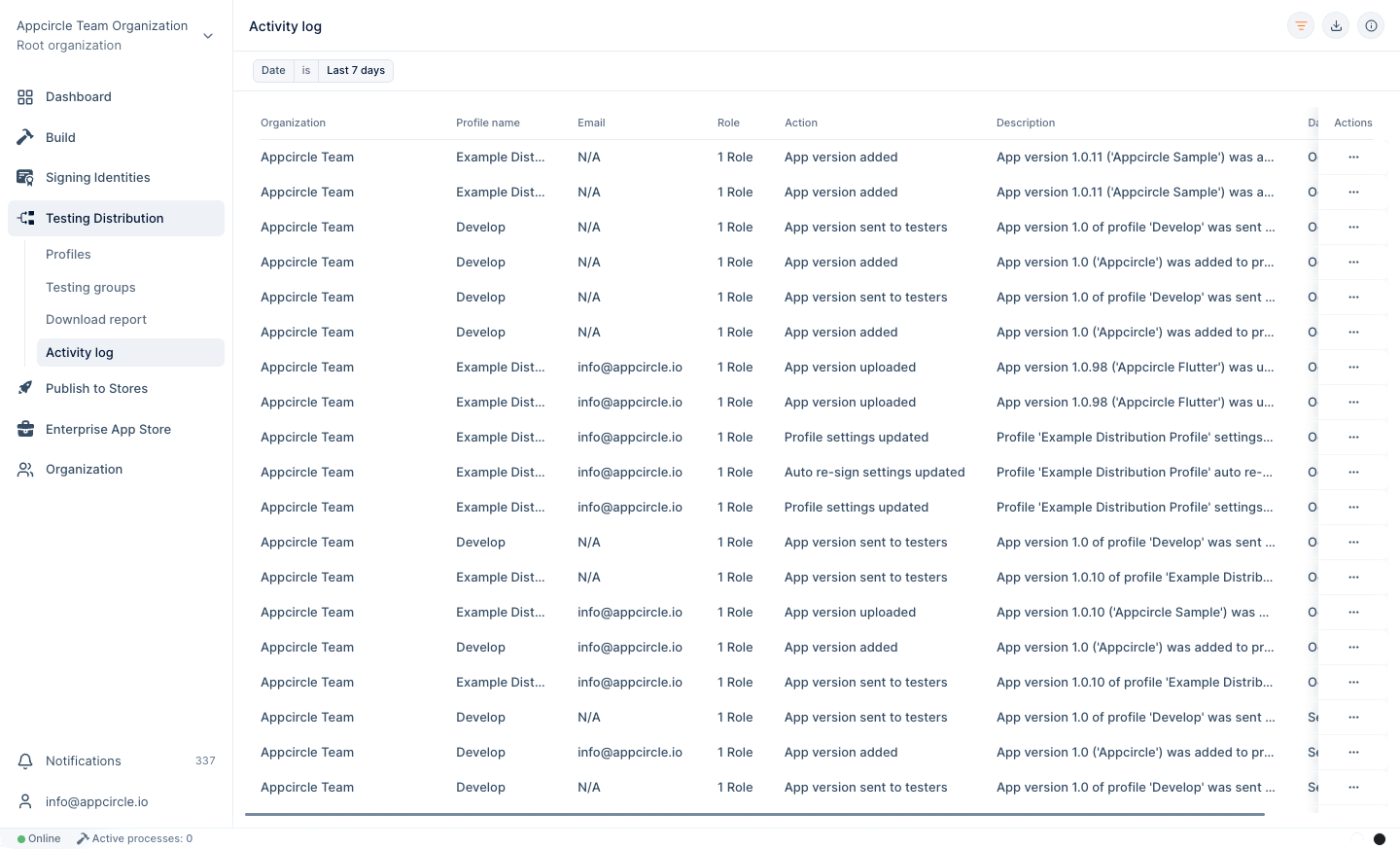
Activity Log
The Activity Log records profile, version, and testing group changes for auditing.
Automating Testing Distribution with Appcircle CLI & API
If you build outside Appcircle, upload binaries from your existing CI with the Appcircle CLI. Combined with auto send, every upload is shared with the selected testing groups automatically.
npm install -g @appcircle/cli
appcircle login personal-access-key --secret "$AC_PERSONAL_ACCESS_KEY"

# One-time setup: select the testing groups that receive every new upload
appcircle testing-distribution profile settings auto-send \
  --distProfile "My App" \
  --testingGroups "QA Team,Beta Testers"

# On every CI run: upload the binary with release notes
appcircle testing-distribution upload \
  --distProfile "My App" \
  --message "Release notes" \
  --app ./build/app-release.apk
Profiles, testing groups, and testers can also be managed from the CLI (appcircle testing-distribution profile, appcircle testing-distribution testing-group). For direct REST access, see the Appcircle API.
FAQ
Why is my binary rejected as invalid during upload?
The file is validated and parsed before it is added to the profile. Make sure it is a valid, signed .ipa, .apk, or .aab, and that it is not corrupted. If Bundle/Package Identifier Validation is enabled, the binary's identifier must exactly match the identifier locked on the profile.
Why does the Testing Portal say no compatible package was found?
The tester's device platform does not match the versions shared with them, for example an Android tester opening a profile with only iOS versions shared. Share a version for the tester's platform. An .aab that was not converted to .apk cannot be installed either; enable Convert AAB to APK in Auto Re-sign.
Why can't a tester install the iOS app?
With an Ad Hoc provisioning profile, the tester's device UDID must be registered in your Apple Developer account and included in the provisioning profile used to sign the binary. Register the device, regenerate the provisioning profile, and rebuild or re-sign the binary. Then share the new version.
Why are two Android packages distributed for one build?
Your project signs the APK with Gradle and the Appcircle Android Sign step is also enabled, so two signed APKs are produced. Use only one signing path. See the Distribution Profile FAQ.
Why didn't a tester receive the email?
Ask the tester to check the spam folder. If the tester previously unsubscribed, add their email address directly in Share with testers to re-subscribe them. See Testing Groups.
Further Support and Resources
Testing Distribution Distribution Profile Re-sign Binaries Testing PortalNeed help?
Get help from Appcircle's support team, or see how others are using Appcircle by joining our Slack Channel.
