Testing Portal LDAP Settings
This document serves as a helpful guide for setting up and managing LDAP (Lightweight Directory Access Protocol) login integration within our organizational system. Whether you're new to LDAP or looking to streamline your authentication process, this document provides step-by-step instructions to ensure a smooth setup and management experience.
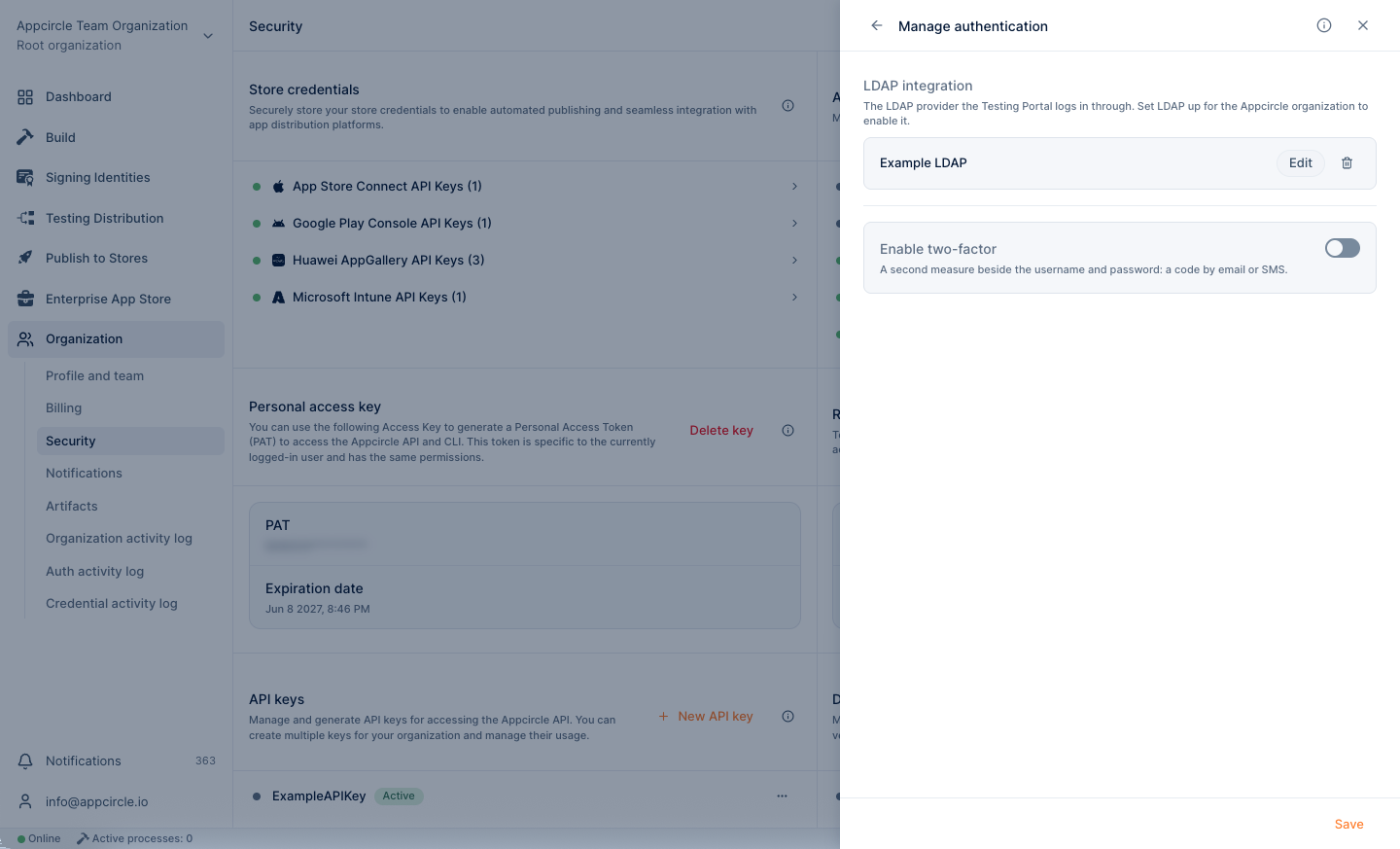
To get started, go to Organization > Security and select Testing Portal LDAP login under Authentication to open its side panel. From there, you'll be guided through the process of creating LDAP configurations, including filling in the necessary details and enabling Two Factor Authentication (2FA) for added security.
Cloud Appcircle supports only email 2FA method, while the self-hosted Appcircle installation using Docker/Podman supports both email and SMS 2FA methods.
Similar to the cloud, the self-hosted Appcircle installation using the Helm chart also does not support SMS 2FA method for now.
The SMS 2FA method on Docker/Podman-based self-hosted Appcircle requires a custom integration with your SMS service. Please contact us for further details.
Once set up, LDAP Login allows you to control access to distributed links and adjust distribution authorization through the Distribution Profiles. This means you can tailor access permissions according to your organization's specific needs.
If you ever need to remove LDAP Login integration, the document also provides clear instructions for doing so, ensuring that your system remains secure and up-to-date.
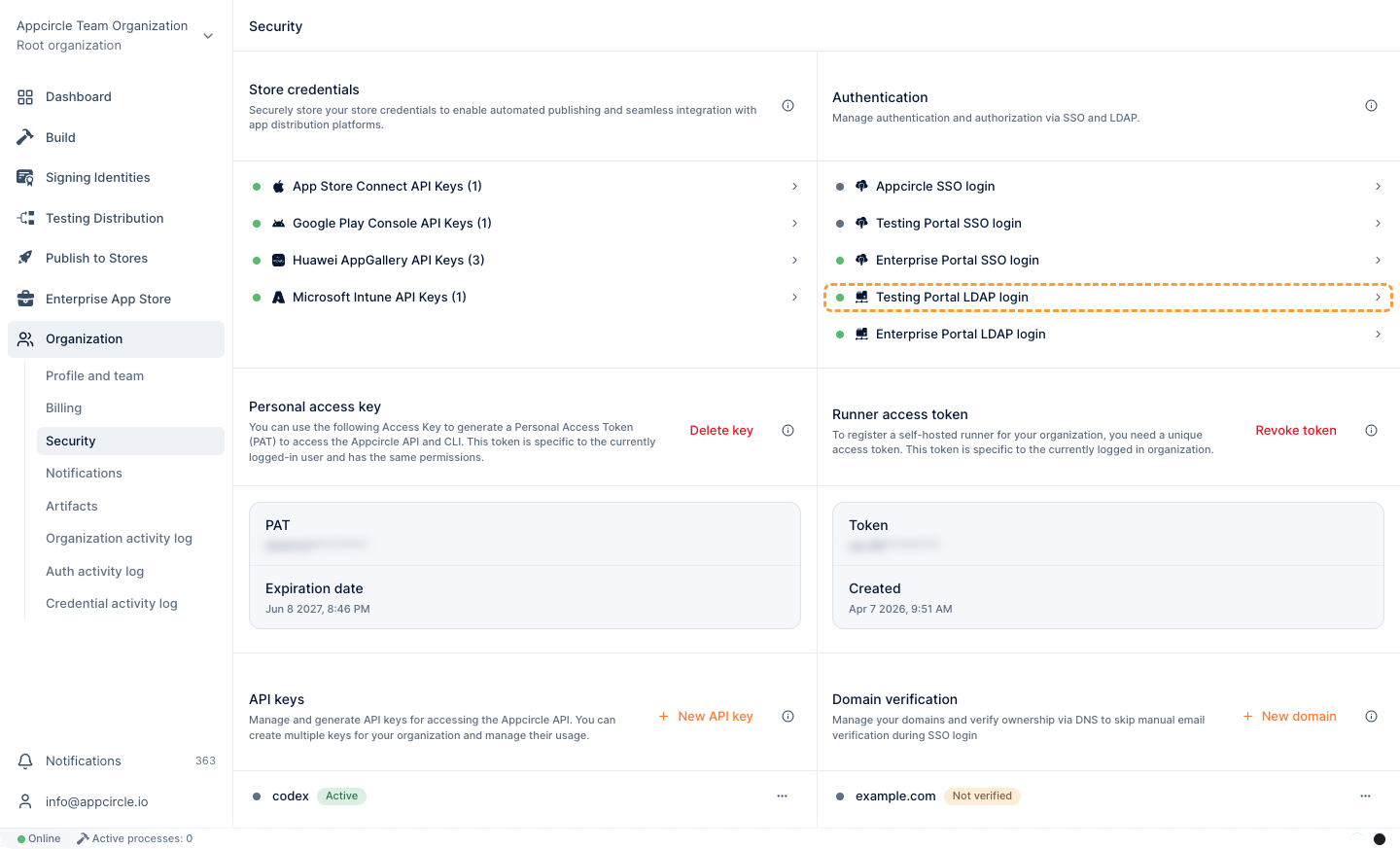
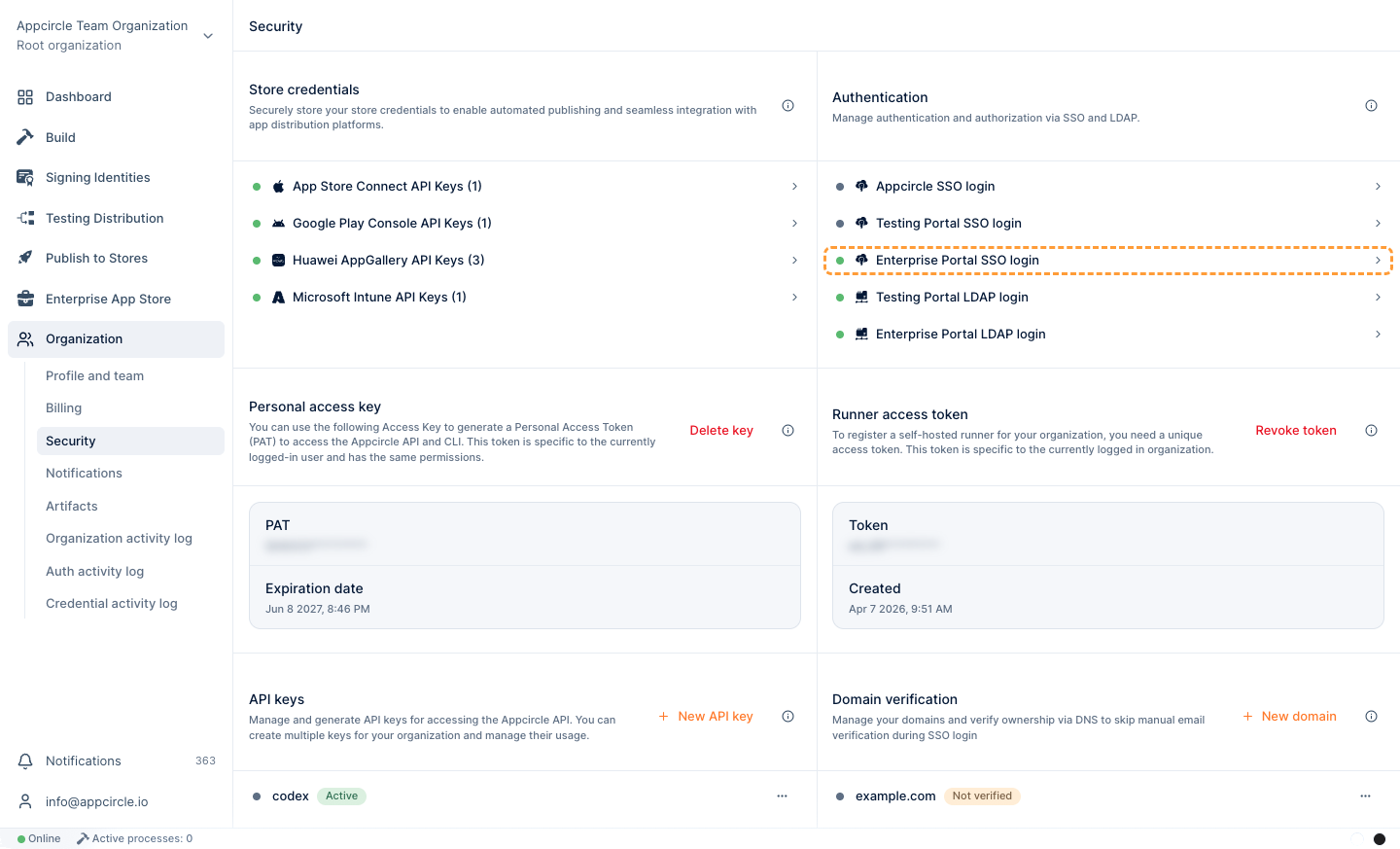
To start, go to Organization > Security. Under Authentication, select Testing Portal LDAP login to open its side panel.
-
The Manage Testing Portal LDAP Login side panel opens. Click the Create New Authentication button.
-
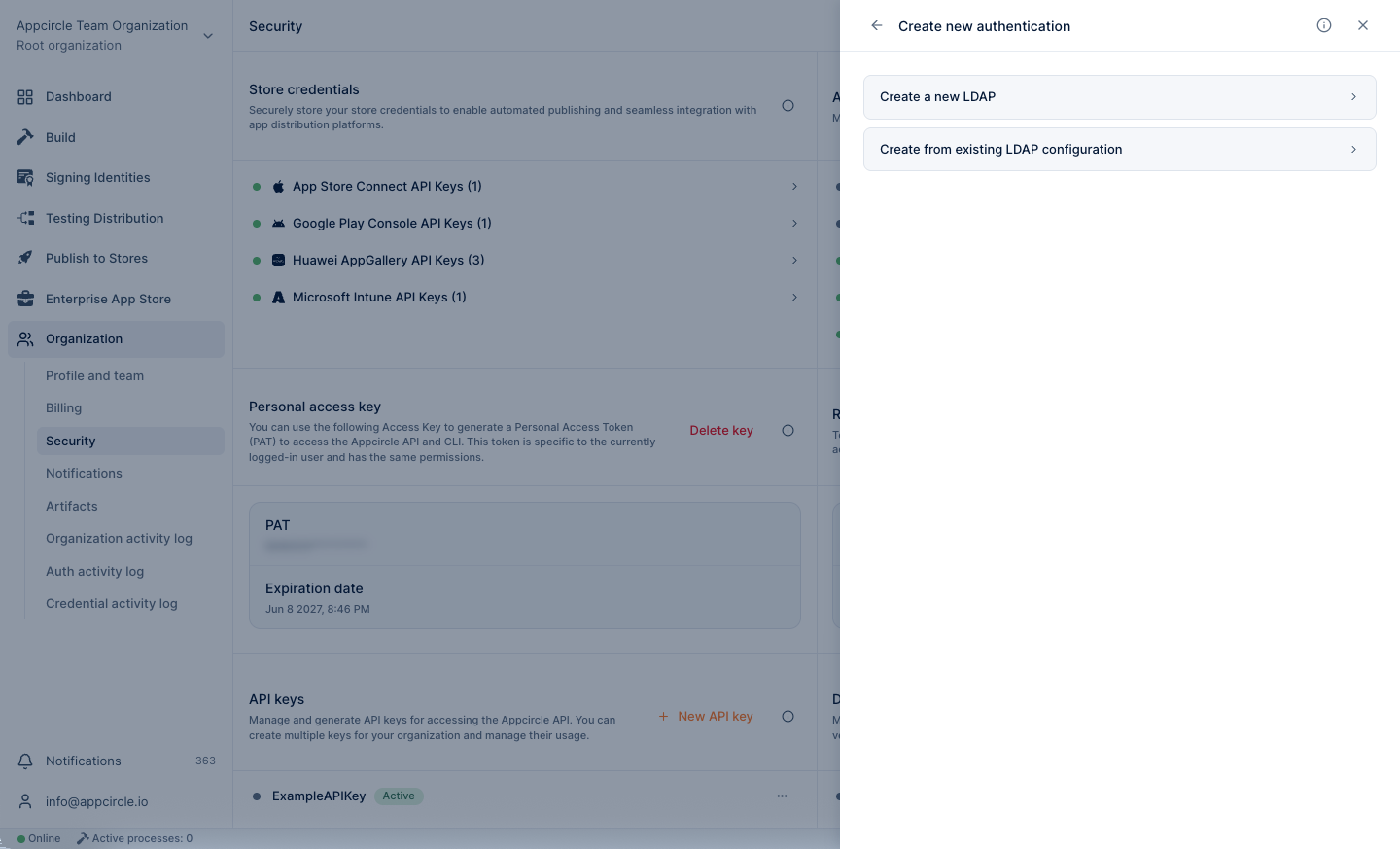
The Create New Authentication window will open, presenting two options:
- Create New Authentication
- Create From Existing Authentication You can create new configuration or create from existing configuration. Click on the Create New Authentication section to create new configuration. Please refer the Create From Existing LDAP Configuration.
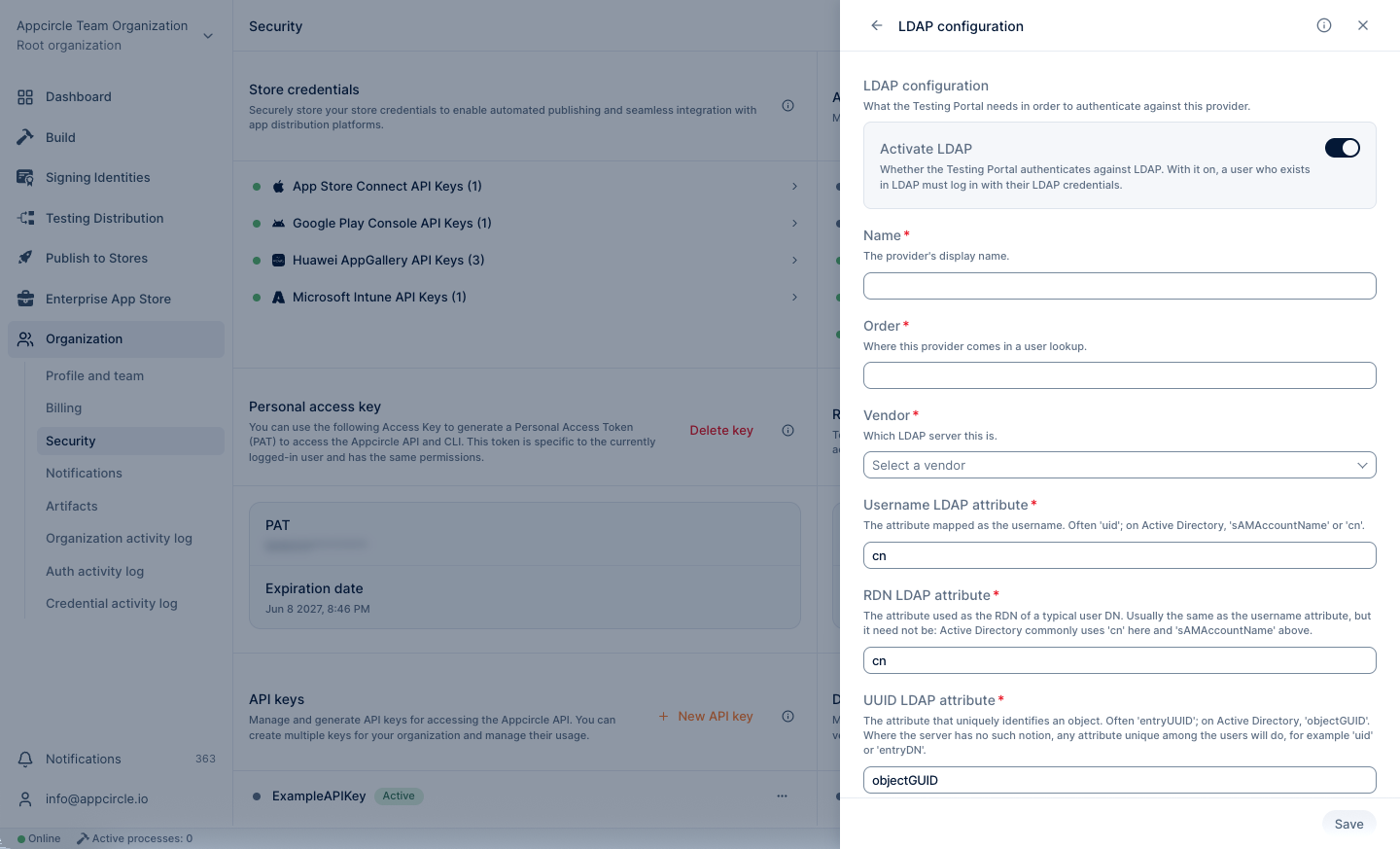
- Fill in the details of your LDAP Configurations.
- Once a configuration is created, select Testing Portal LDAP login again to manage it in the side panel.
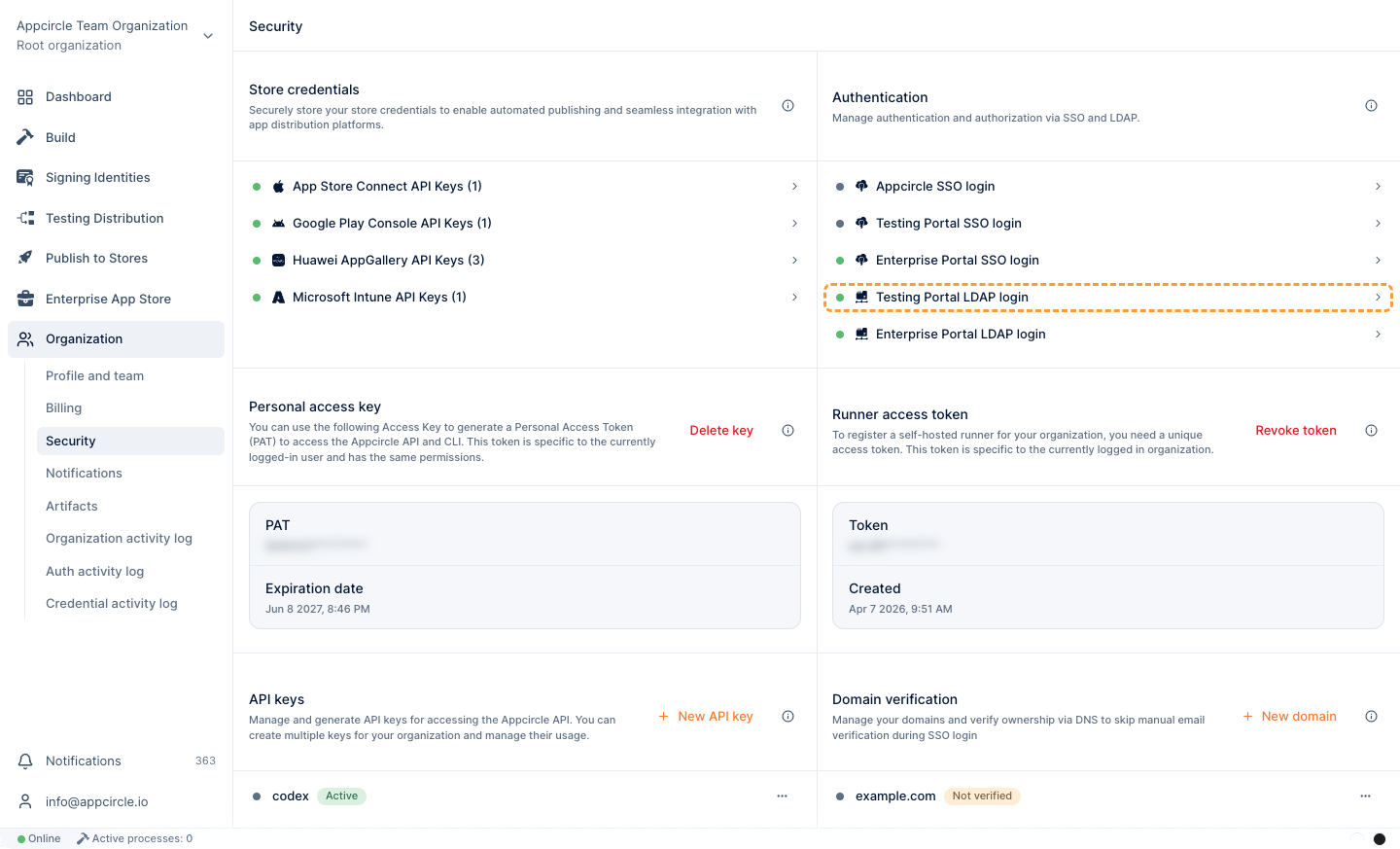
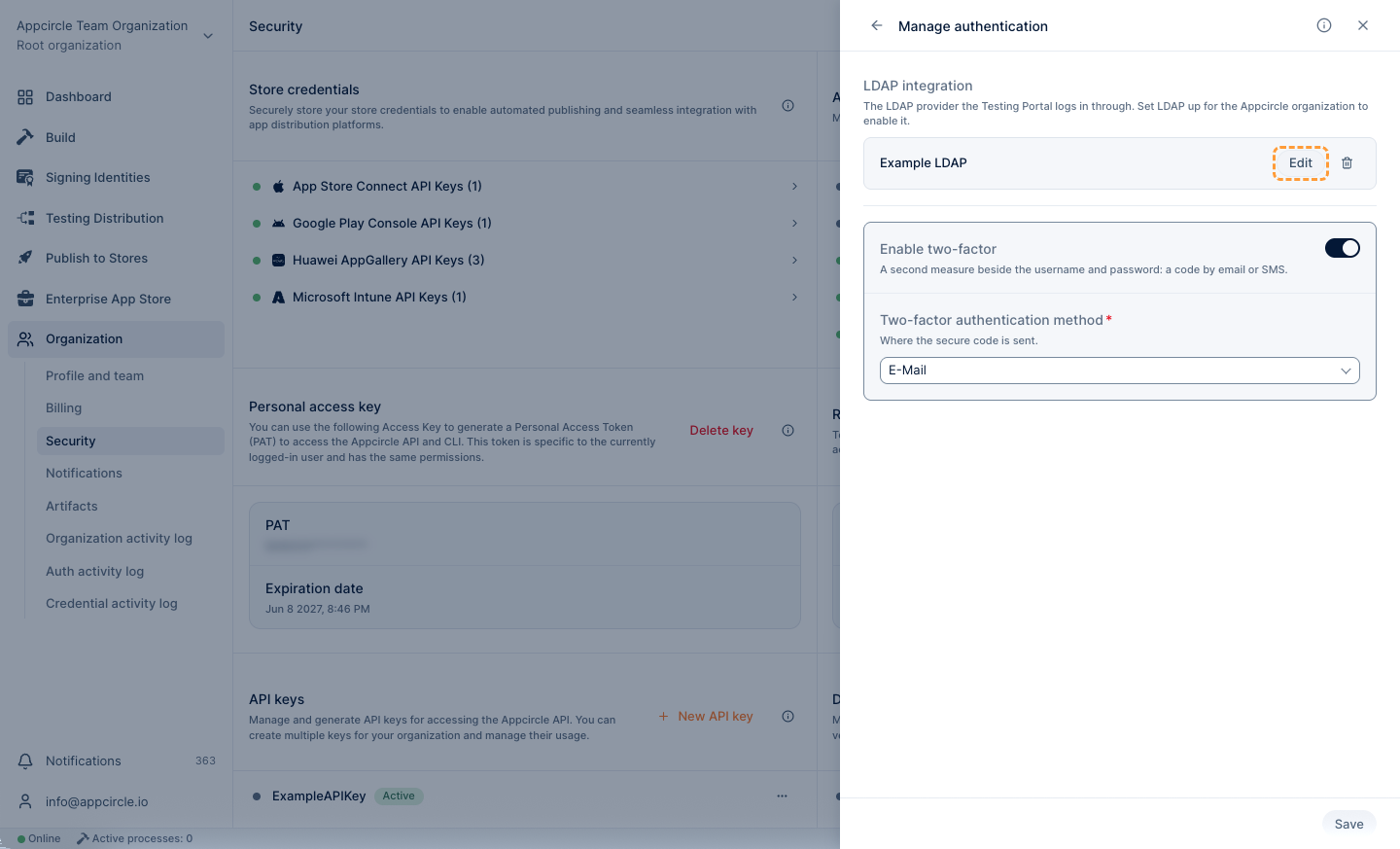
- To access the LDAP integration settings, select Testing Portal LDAP login under Authentication to open its side panel. Then click Manage Authentication button and select the "Edit" button of the existing LDAP provider.
- The "Order" field in your LDAP configuration determines the priority or sequence in which providers are utilized when conducting a user lookup. Providers are entities responsible for retrieving user information from LDAP servers. Specifying the order allows you to prioritize certain providers over others, ensuring efficient user lookup operations.
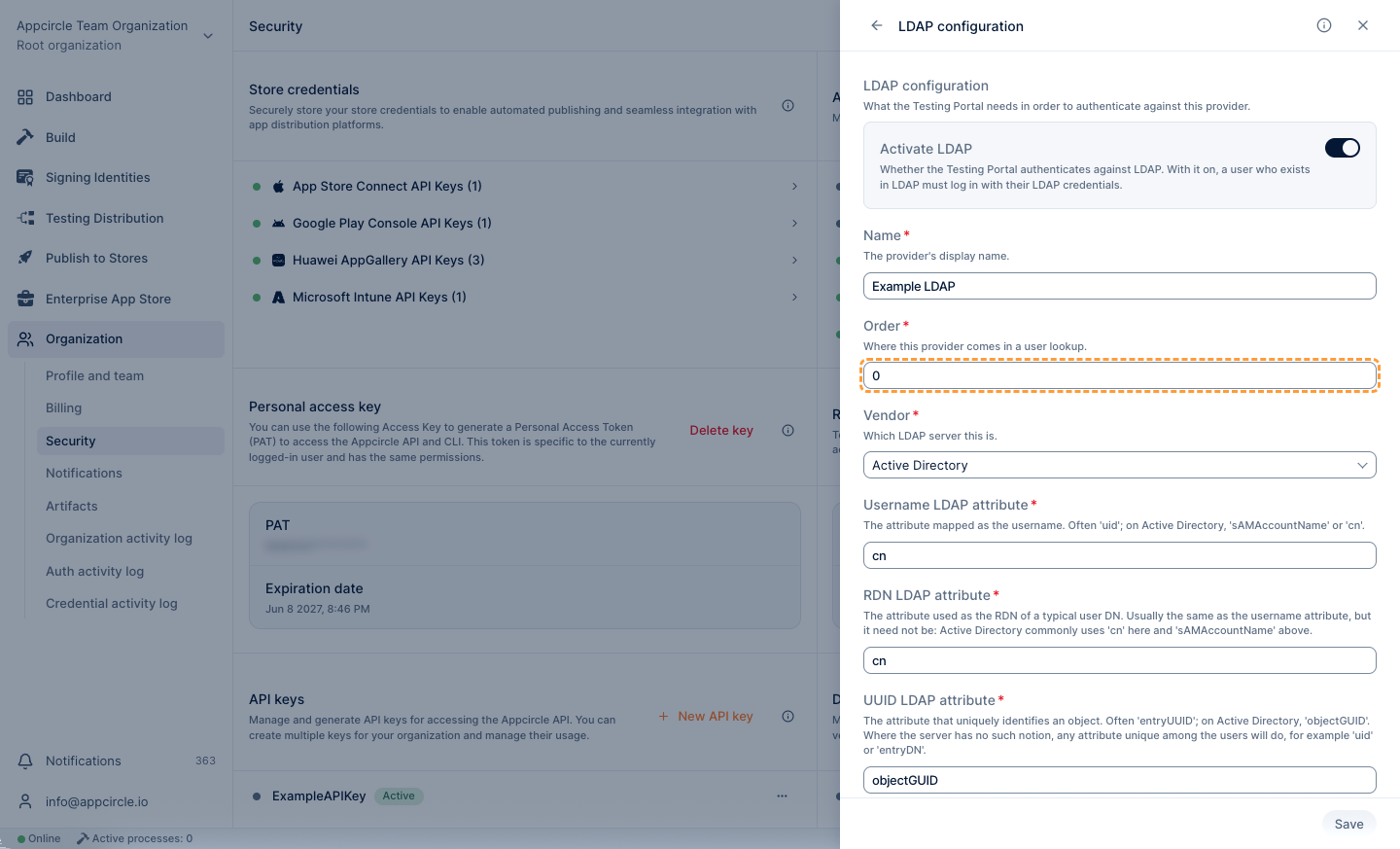
Provider A: Order: 1
Provider B: Order: 2
In this example, when conducting a user lookup, Appcircle will first attempt to retrieve information from "Provider A" before falling back to "Provider B".
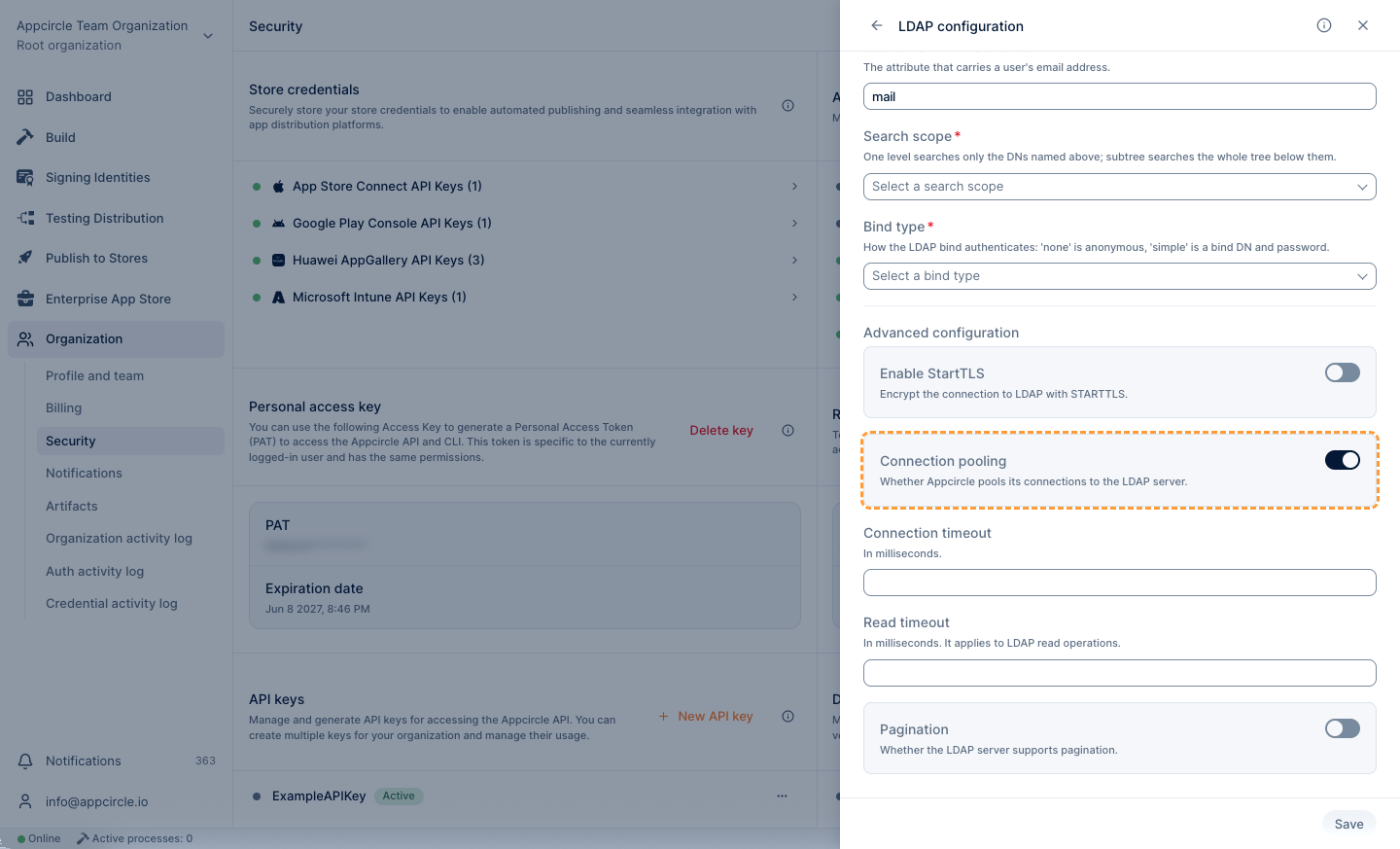
- The "Connection Pooling" option in your LDAP configuration determines whether Appcircle should utilize connection pooling for accessing the LDAP server.
- To enable Two Factor Authentication, open the Testing Portal LDAP login side panel and select the verification method.
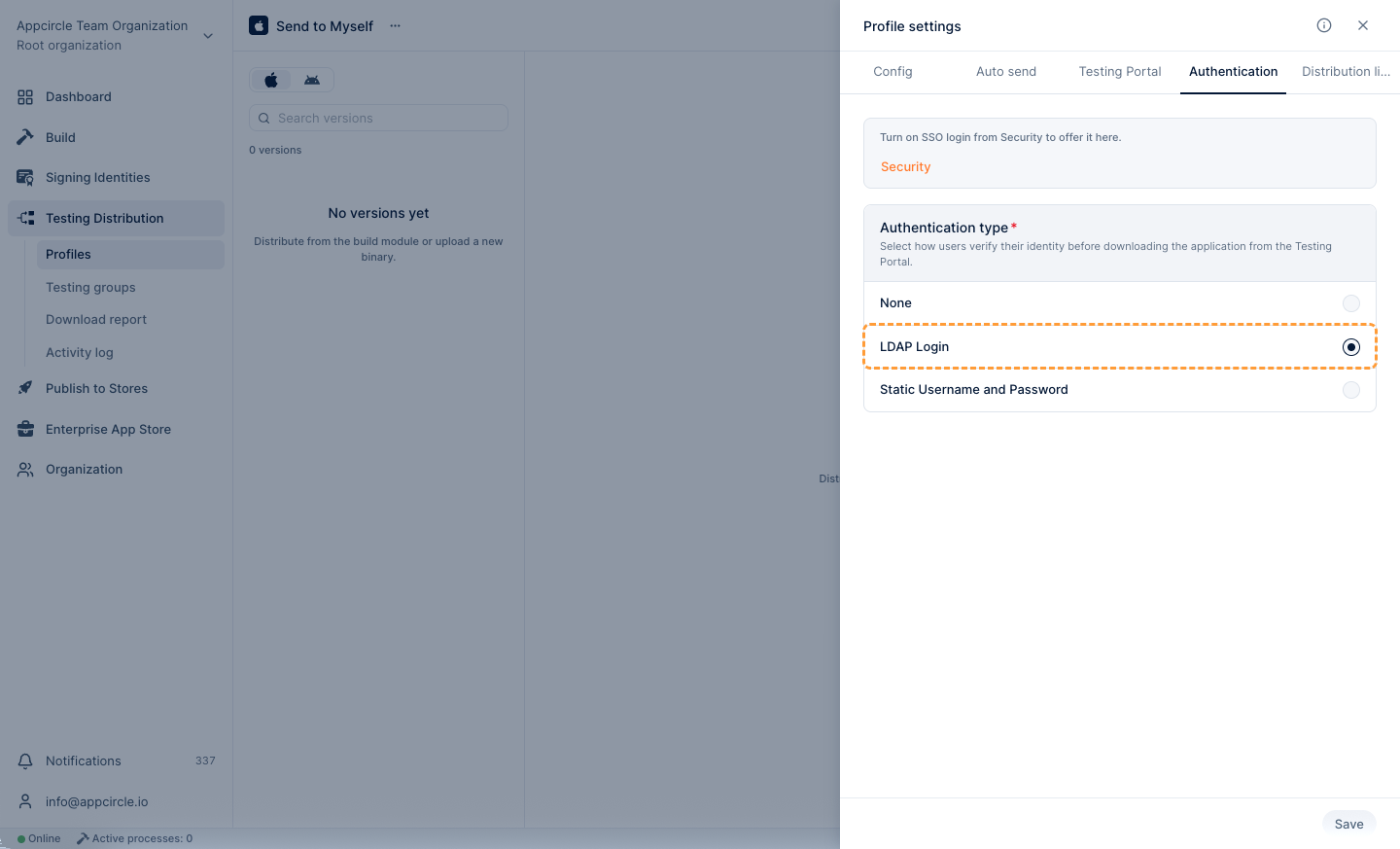
- To change the distribution authorization, go to Testing Distribution > Profiles and select your distribution profile. Open the ... menu next to the profile name and select Settings. Under the Authentication tab you should see LDAP Login. Toggle the LDAP Login to 'On'.
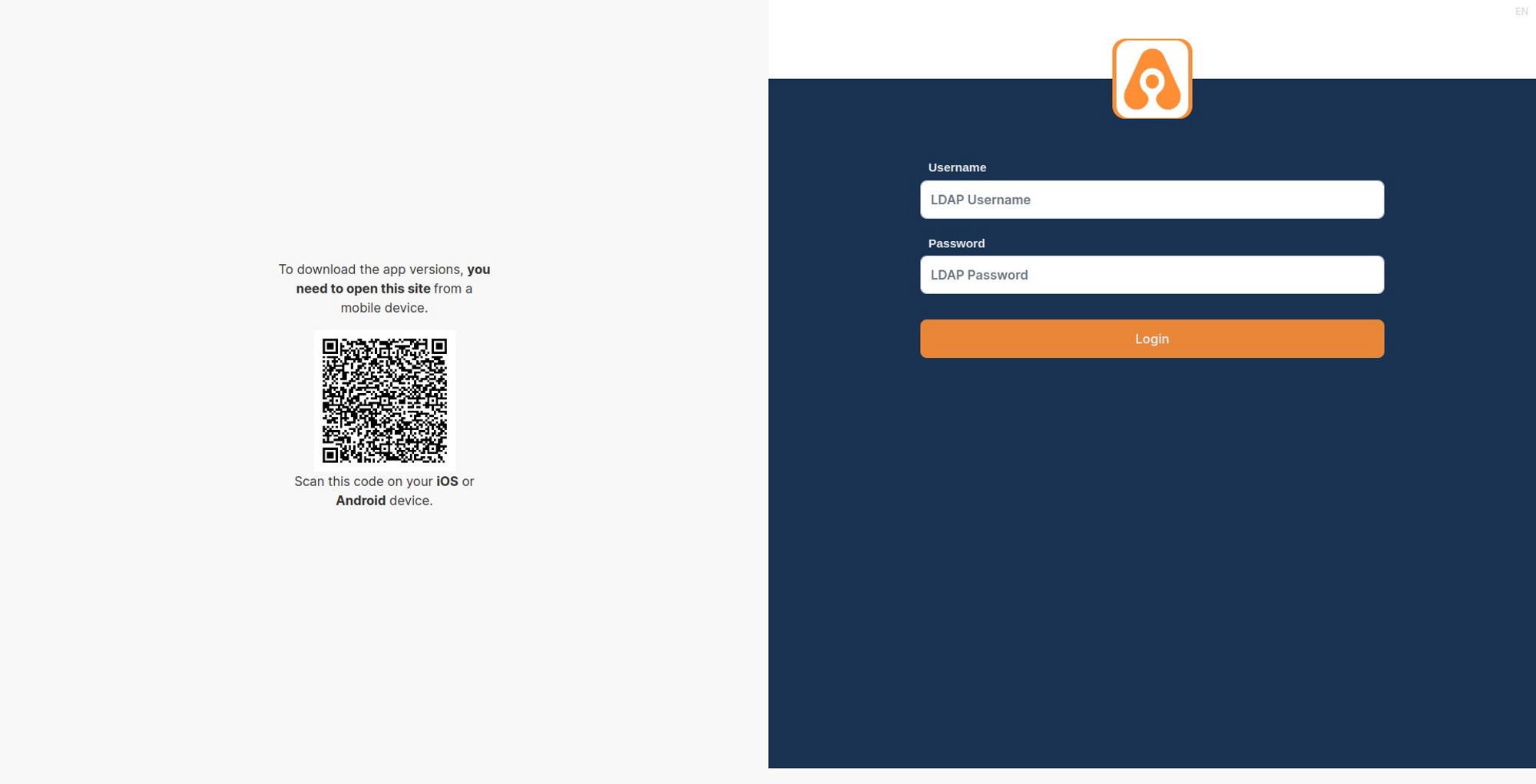
- After this step, it will be necessary to log in from the LDAP Login screen to access the distributed links.
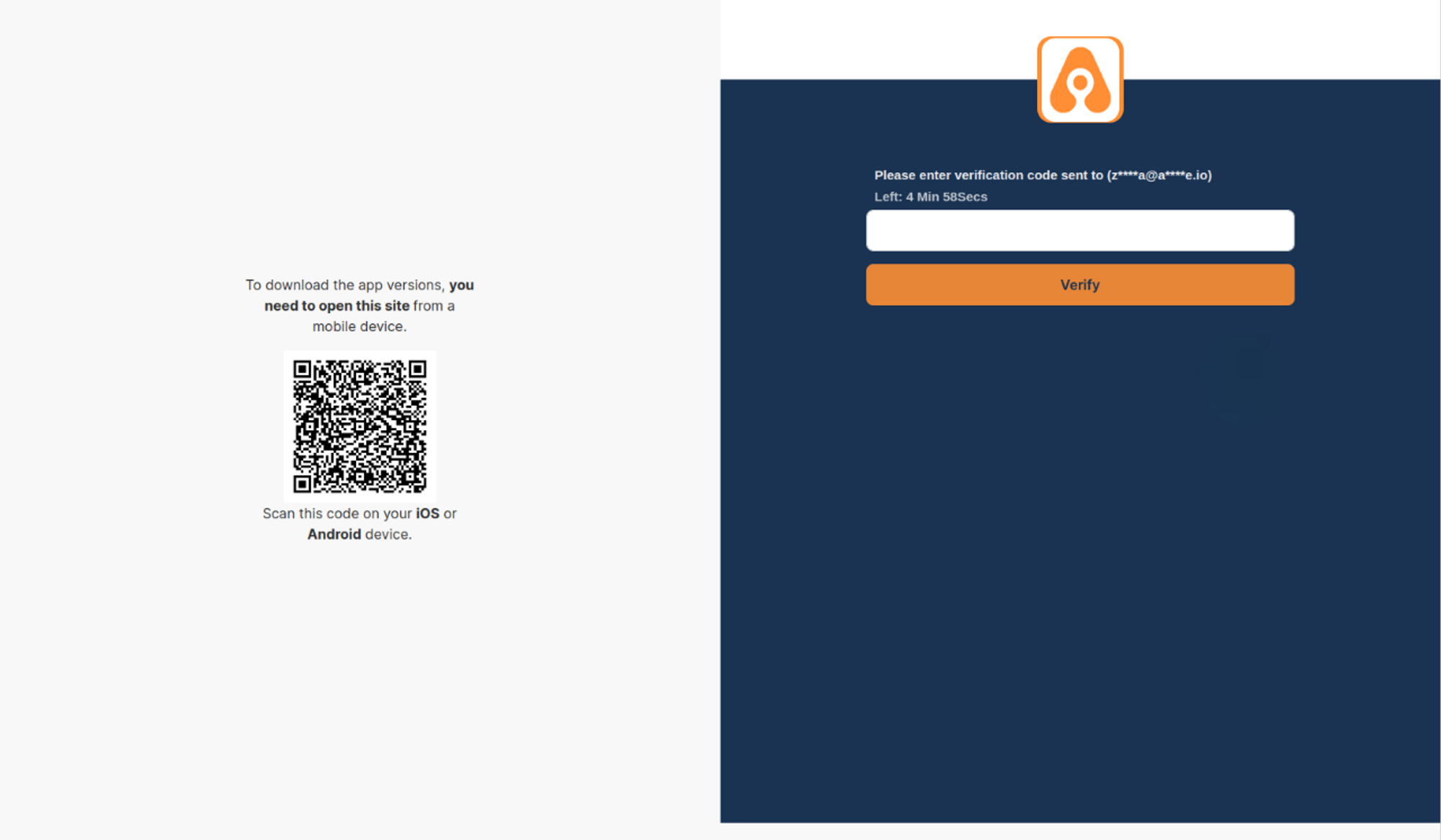
- If the Two Factor Authentication is enabled, you will need to verify your account.
- If the login is successful, the Testing Portal screen will appear.
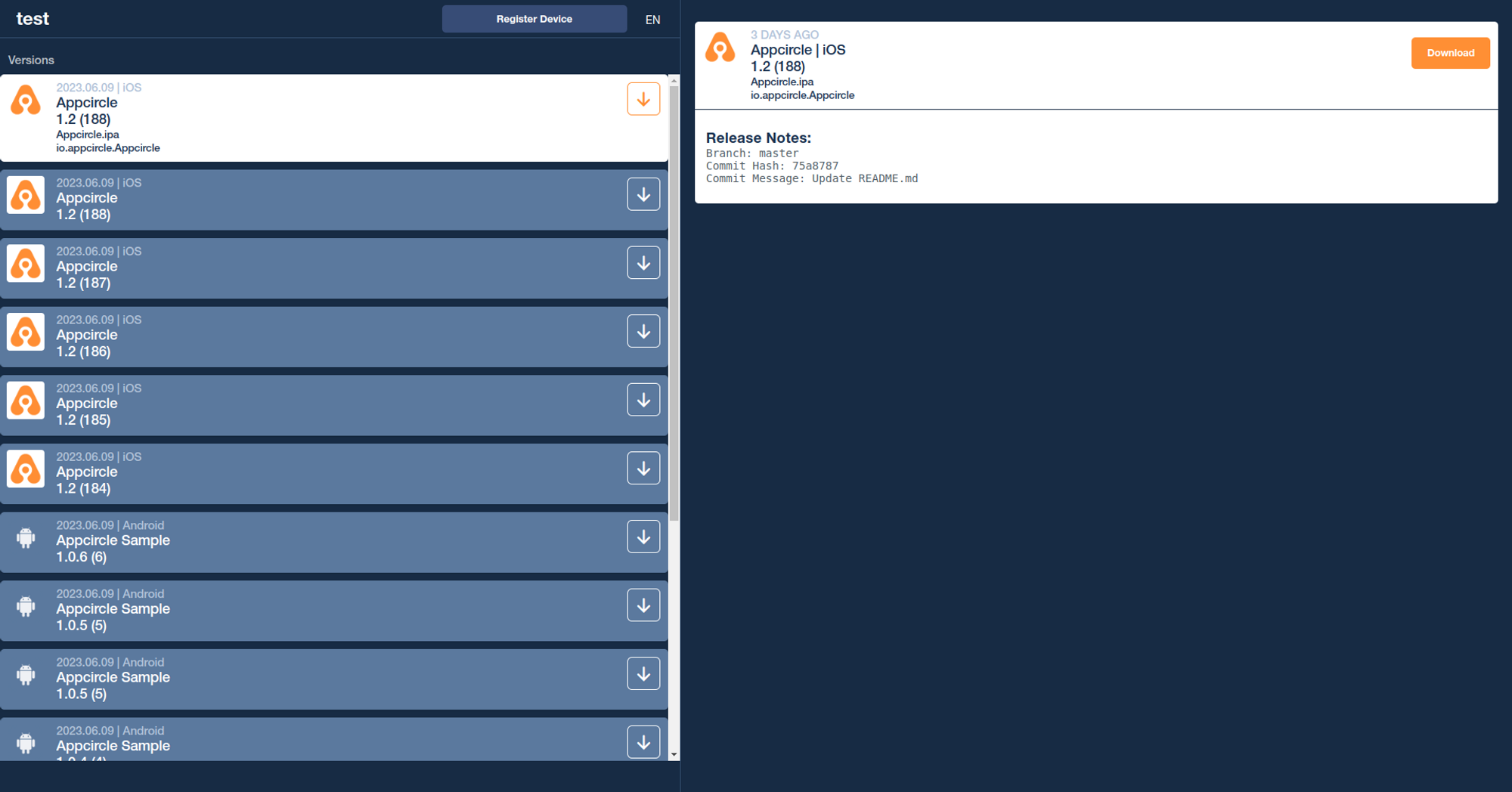
Create From Existing LDAP Configuration
Appcircle allows you to create a new SSO configuration based on an existing one, ensuring a smooth and efficient setup experience.
- Go to Organization > Security and find the Authentication section.
- Select Testing Portal LDAP login to open its side panel.
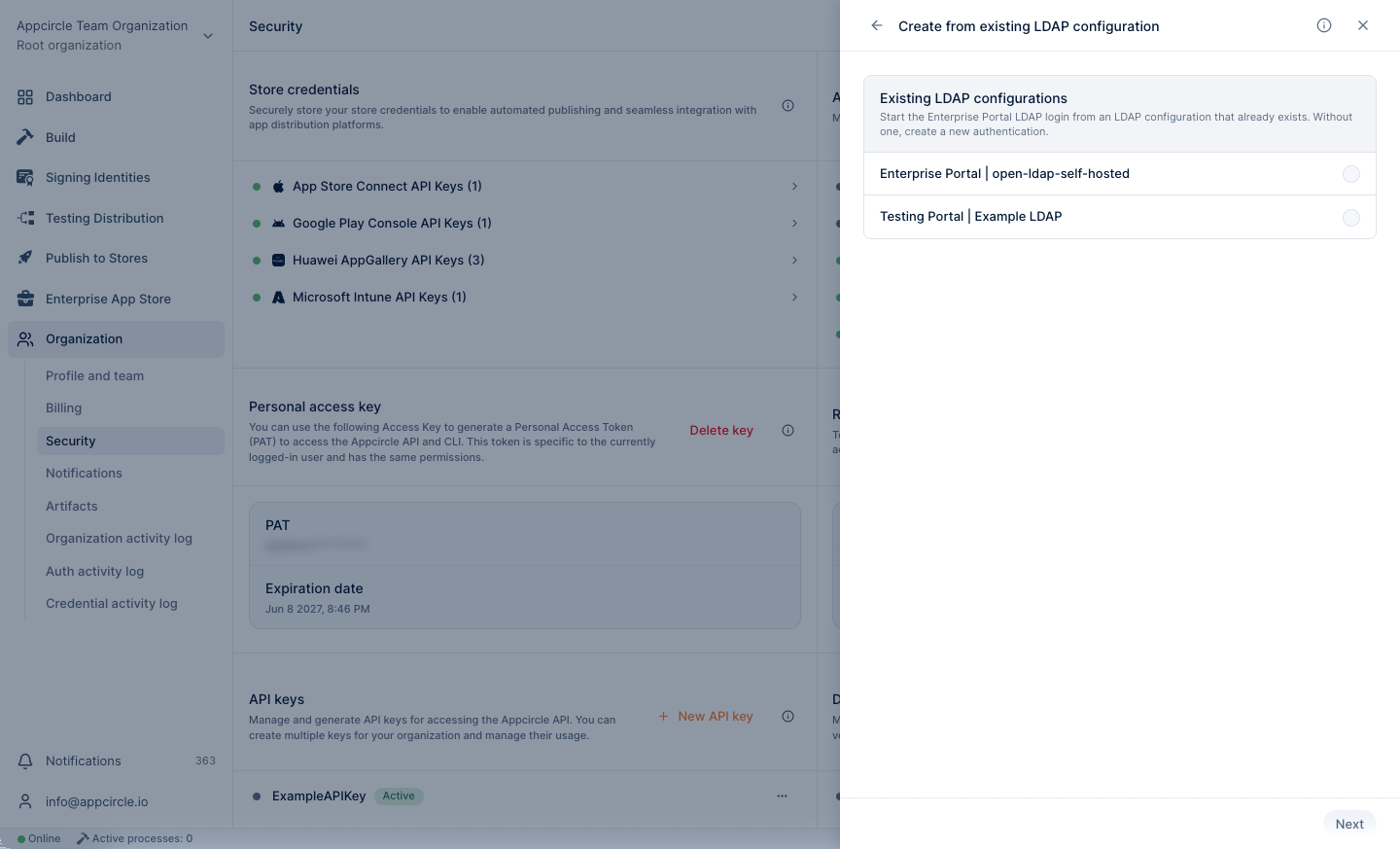
- Select the Create New Authentication and then select the Create From Existing Configuration.
Existing LDAP configurations will be listed on the screen. Select one and click Next to proceed.
- On the Create LDAP Configuration screen, fill in the Name and Credential fields (all other values are prefilled). Adjust any fields as needed, then click Save.
The LDAP authentication configuration for Testing Portal can be enabled or disabled by clicking the “Activate LDAP” toggle.
Deleting LDAP Login
- To delete, go to Organization > Security and select Testing Portal LDAP login under Authentication to open its side panel.
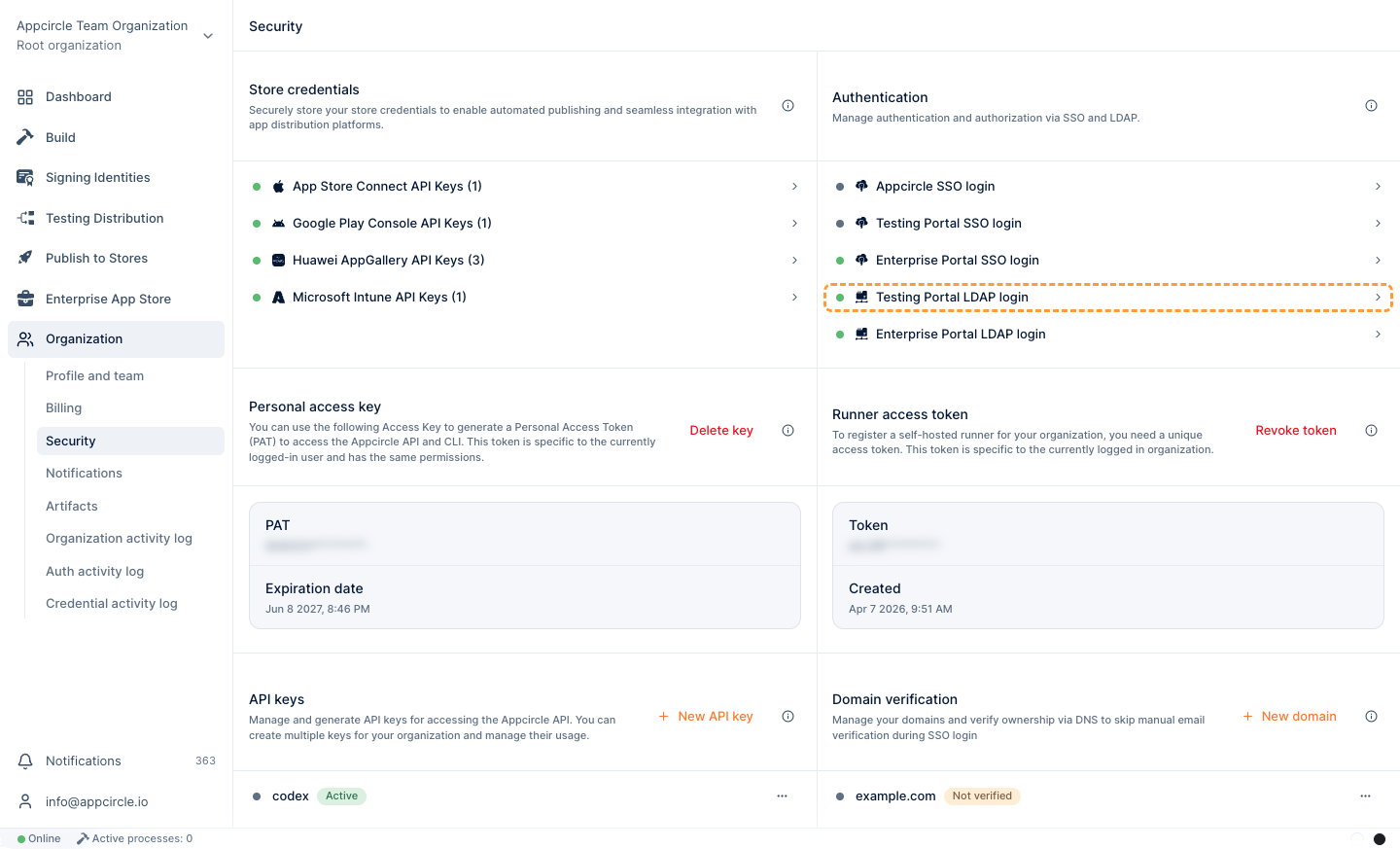
- Click the Remove button.
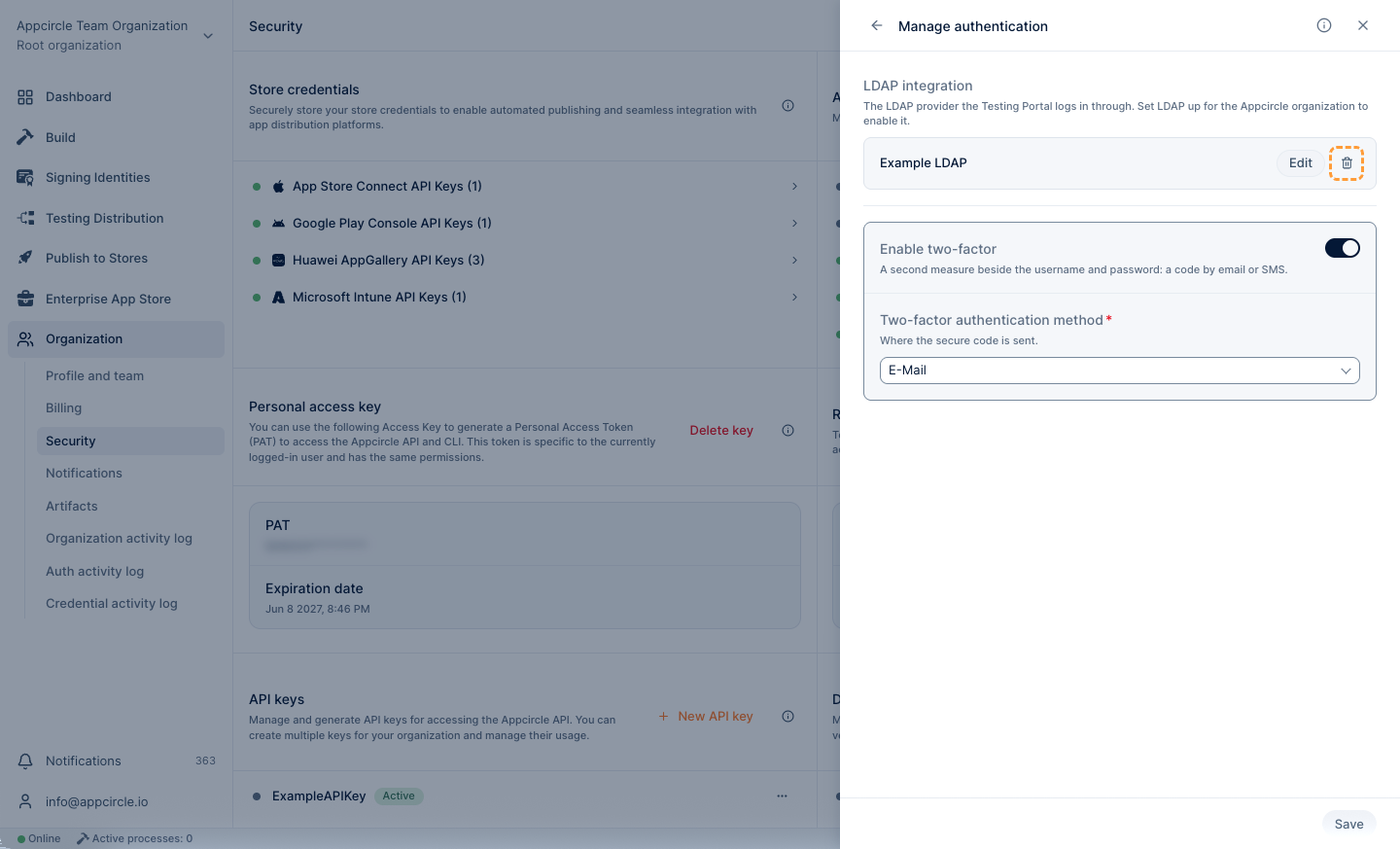
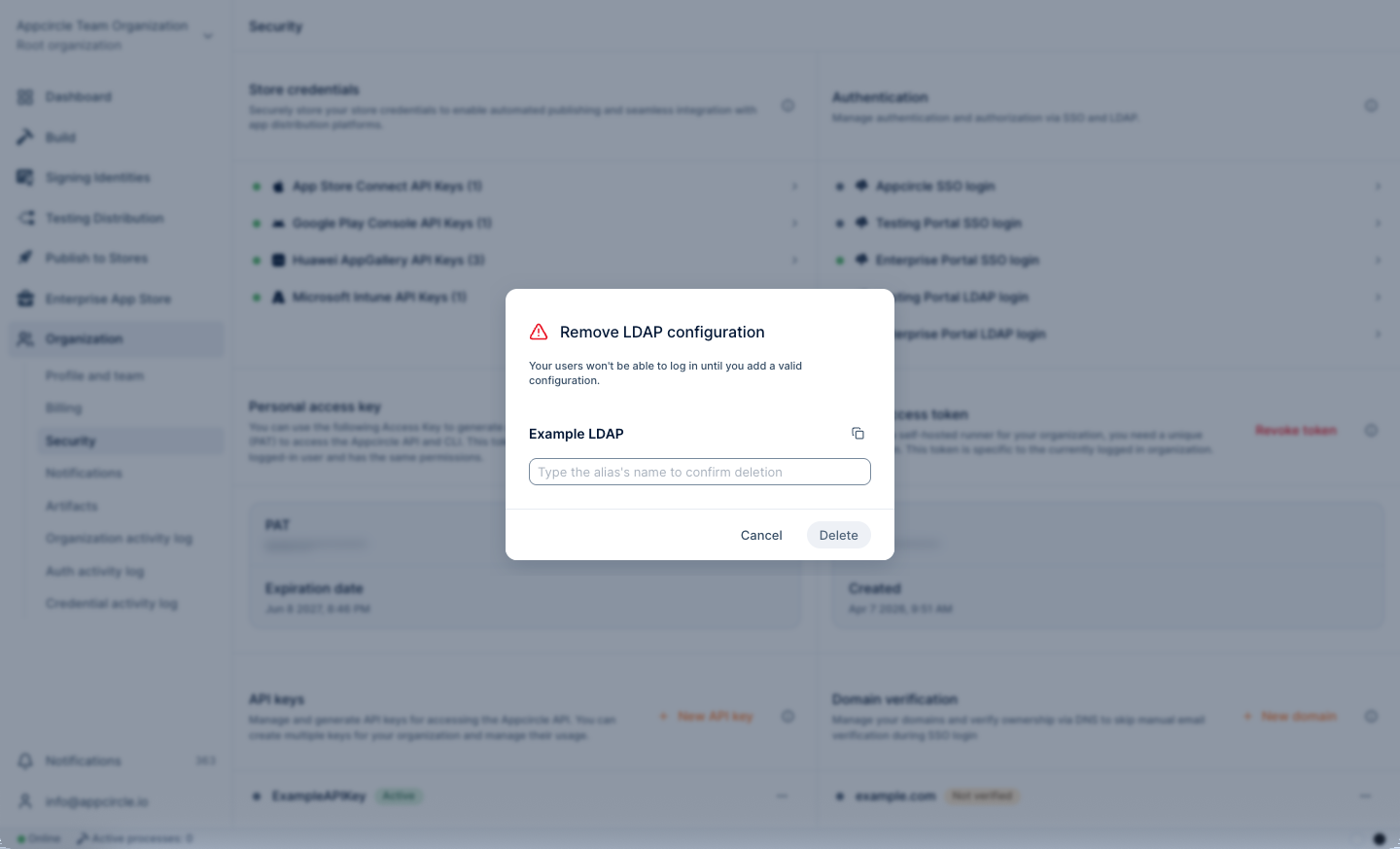
- Type the alias’s name to confirm deletion and click the Delete button.