Re-sign Binary (EAS)
Enterprise App Store Re-Sign & Auto-Resign enables re-signing and automatic re-signing of iOS and Android applications distributed via the Enterprise App Store.
This feature allows controlled updates to build and version numbers, signing identities, and store credentials, while providing a unified re-sign flow for both manual and automated scenarios.
This step requires a runner to work. This means that when the step runs, one of the runners in your organization will be used exclusively for this step.
If you don't have enough concurrency, your other Build and Publish operations will wait in the queue.
Appcircle requires a runner to re-sign binaries during both automatic and manual re-sign operations. Therefore, any re-sign operation you perform in this module will reduce the current build count in the billing section.
iOS Re-sign
Manual iOS re-sign allows you to re-sign an existing IPA using a different signing configuration without rebuilding the application.
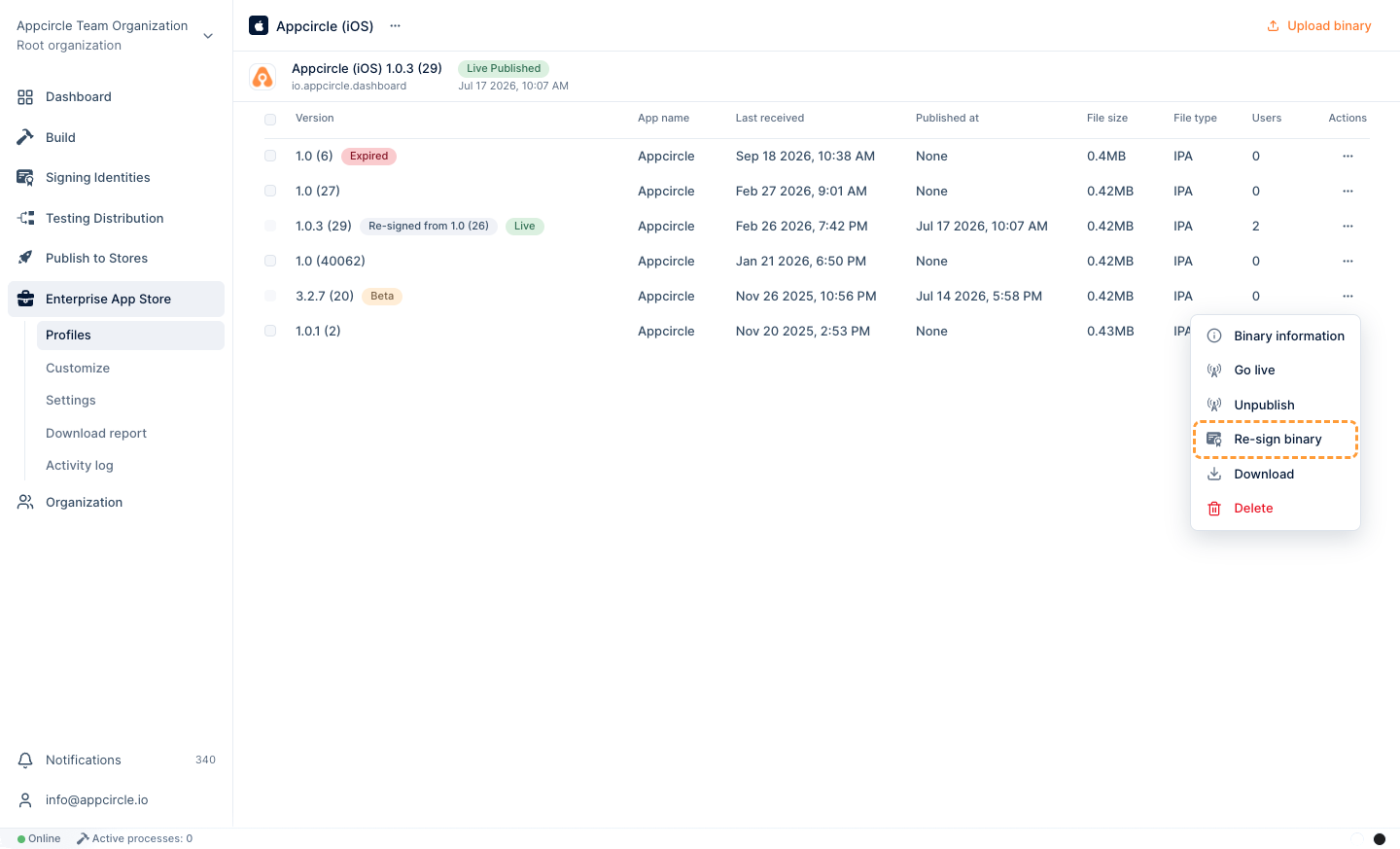
You can use manual re-sign to:
- Change the signing certificate or provisioning profile
- Update the bundle identifier to match the profile
- Modify the app display name
- Adjust version and build numbers before distribution
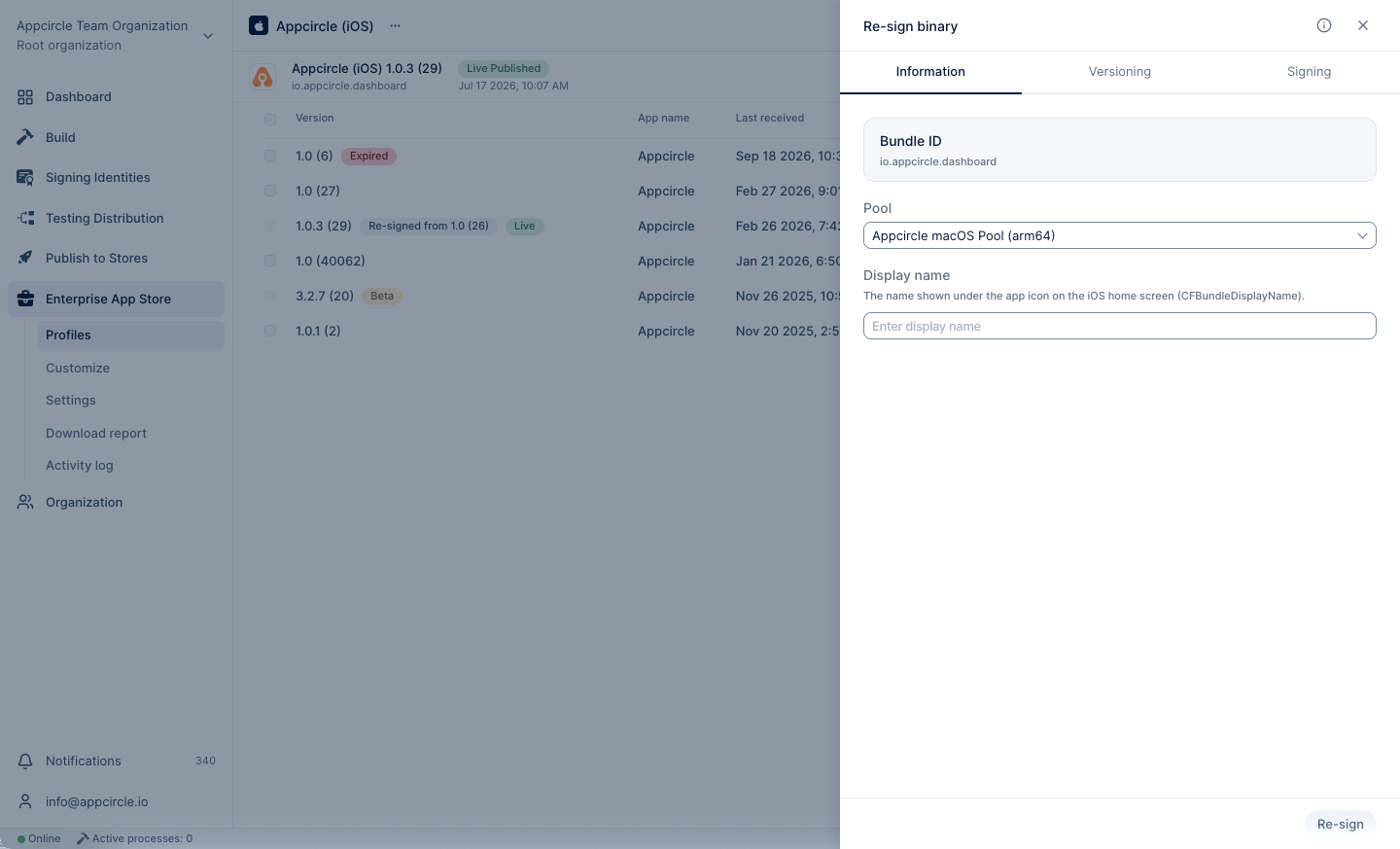
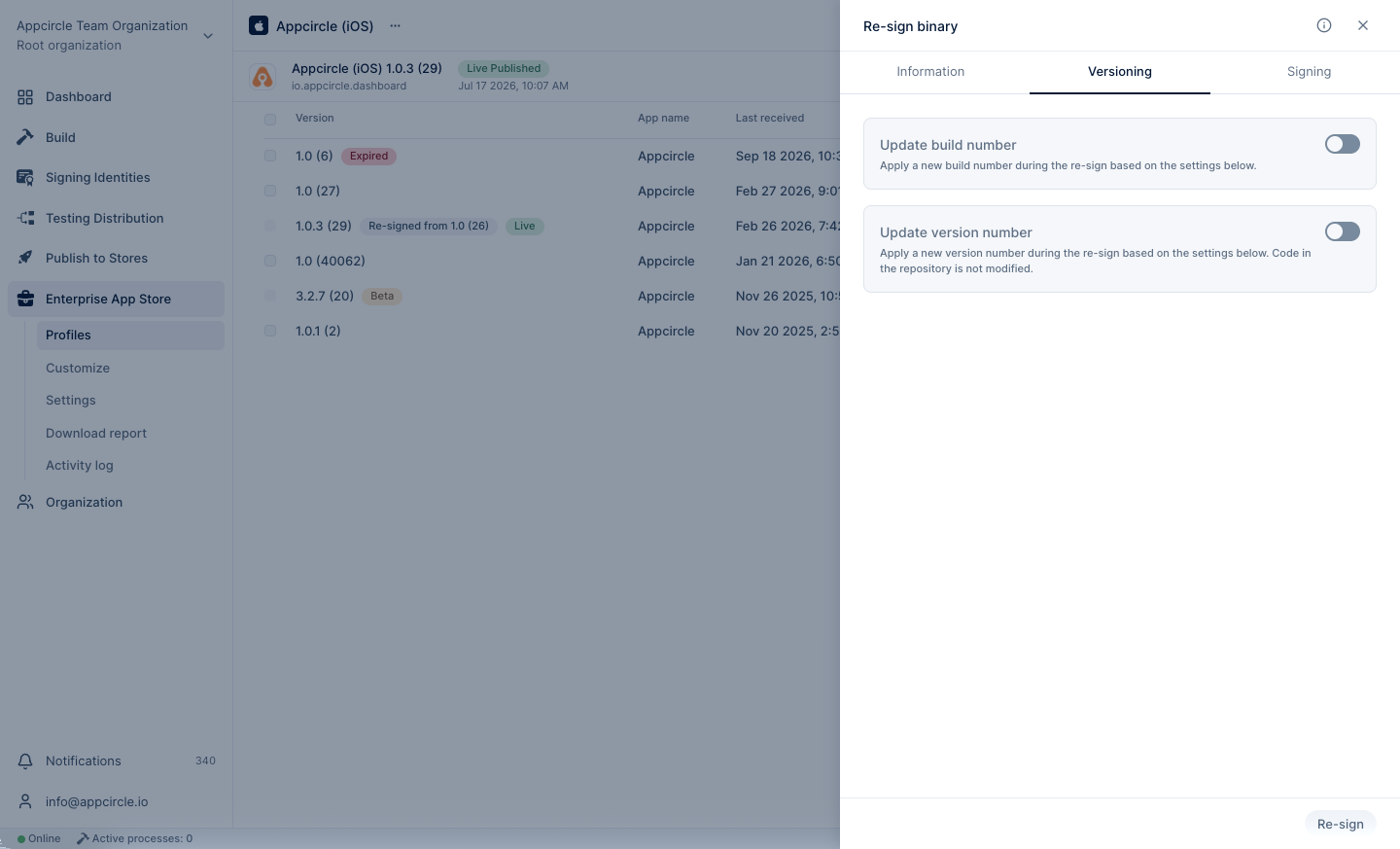
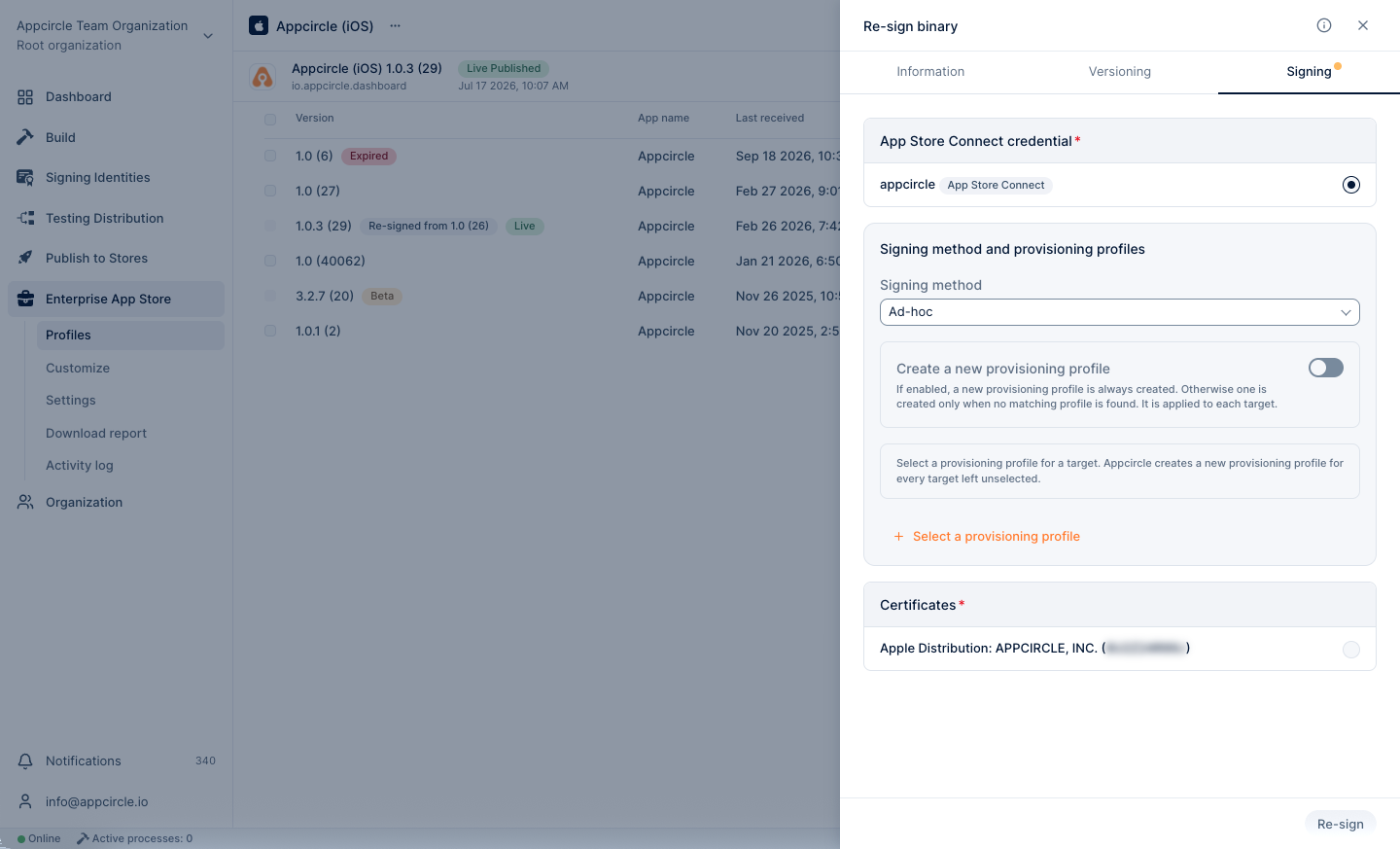
Manual re-sign operations are performed per app version and the resulting output is stored as a new re-signed artifact.
For detailed information about Manual iOS Re-sign configurations, please refer to the configuration section. The configuration structure for Manual and Auto Re-sign is the same. However, unlike Auto Re-sign, Manual Re-sign configurations must be reconfigured for each re-sign action.
Android Re-sign
Manual Android re-sign enables re-signing APK or AAB files using a different keystore configuration.
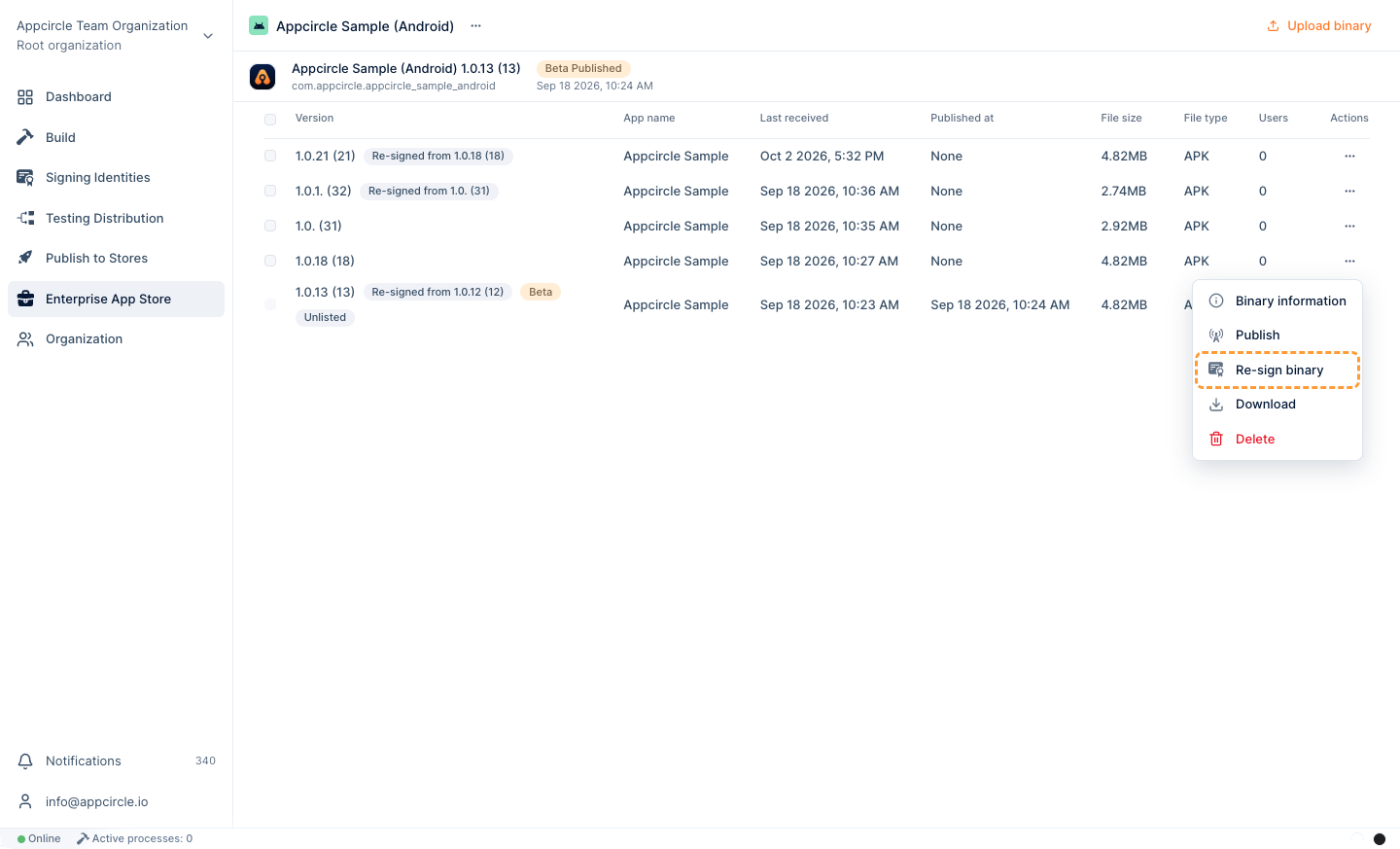
You can use manual re-sign to:
- Replace the signing keystore
- Update the package name to match the profile
- Modify version code and version name values
- Convert AAB files to APK if required for distribution
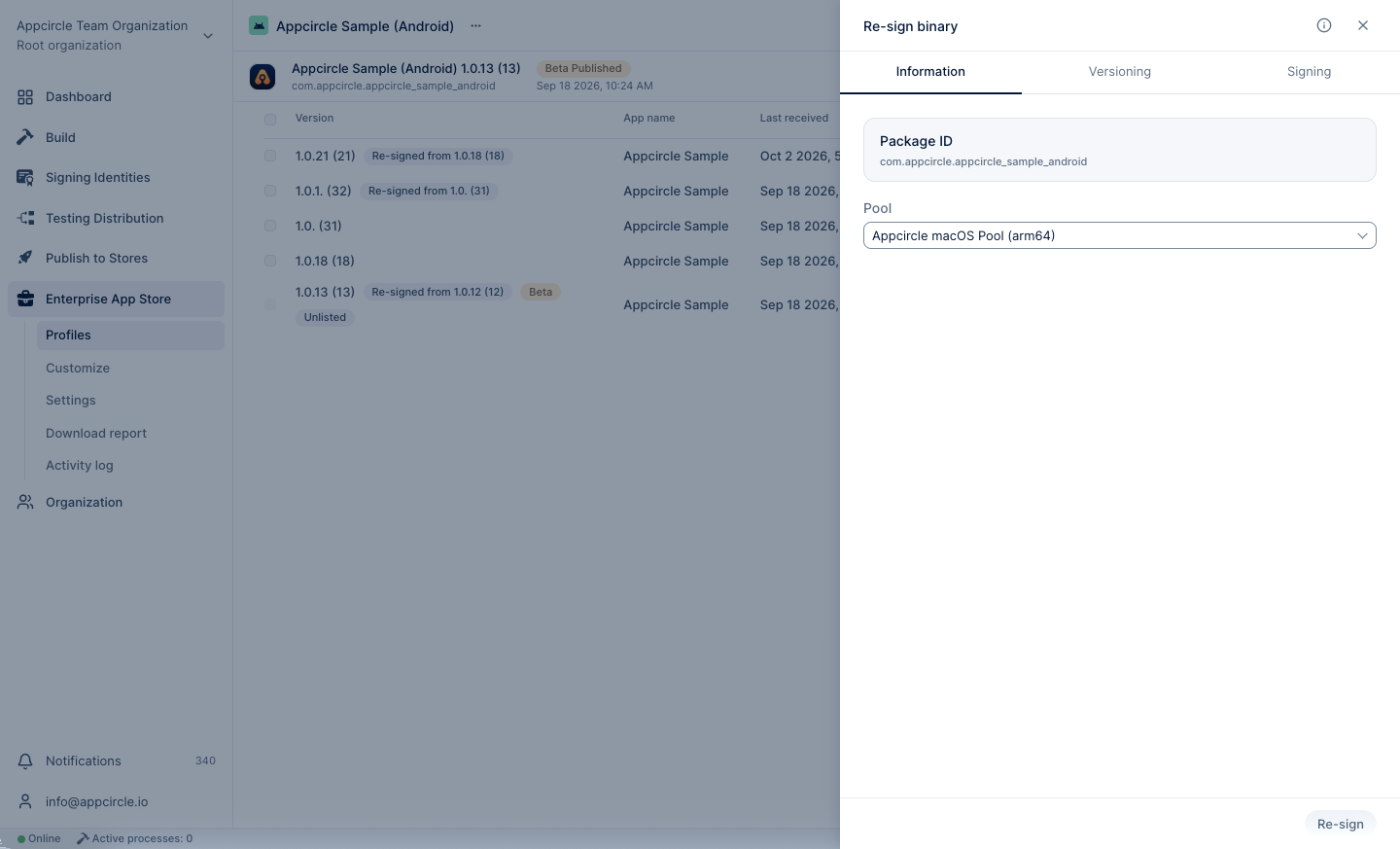
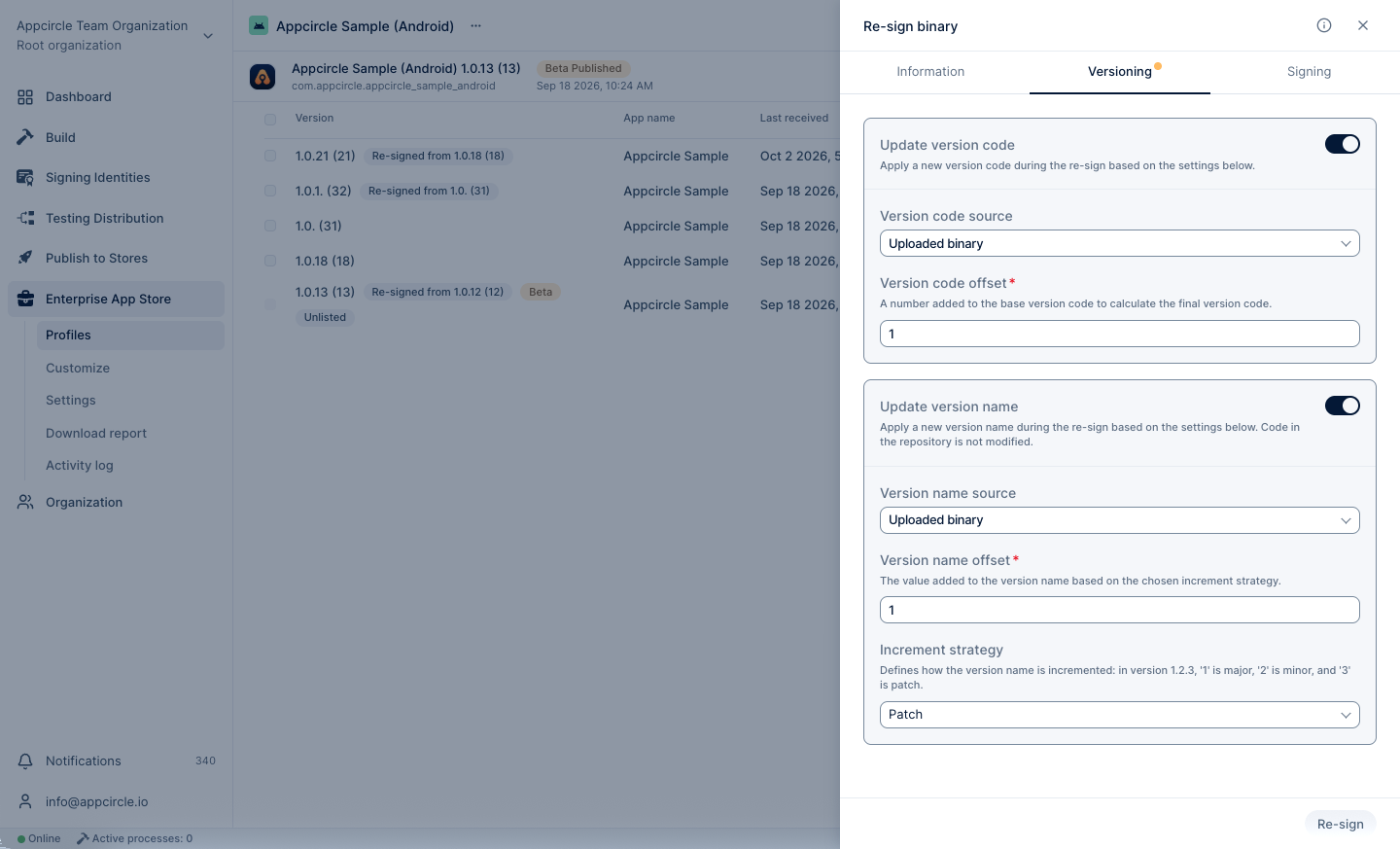
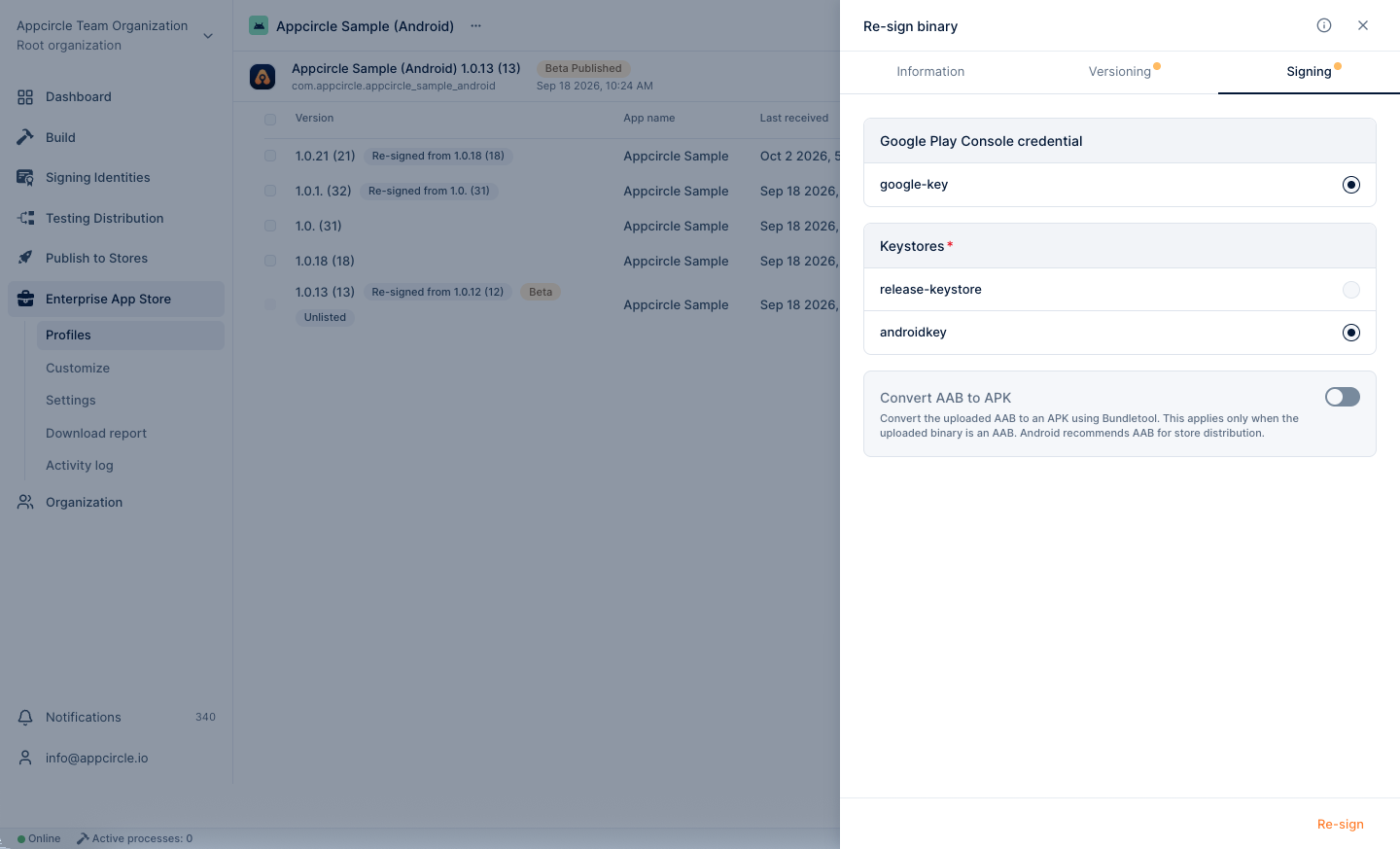
For detailed information about Manual Android Re-sign configurations, please refer to the configuration section. The configuration structure for Manual and Auto Re-sign is the same. However, unlike Auto Re-sign, Manual Re-sign configurations must be reconfigured for each re-sign action.
Auto Re-sign Configurations
Auto Re-sign enables Appcircle to automatically re-sign newly uploaded binaries based on predefined signing and versioning rules.
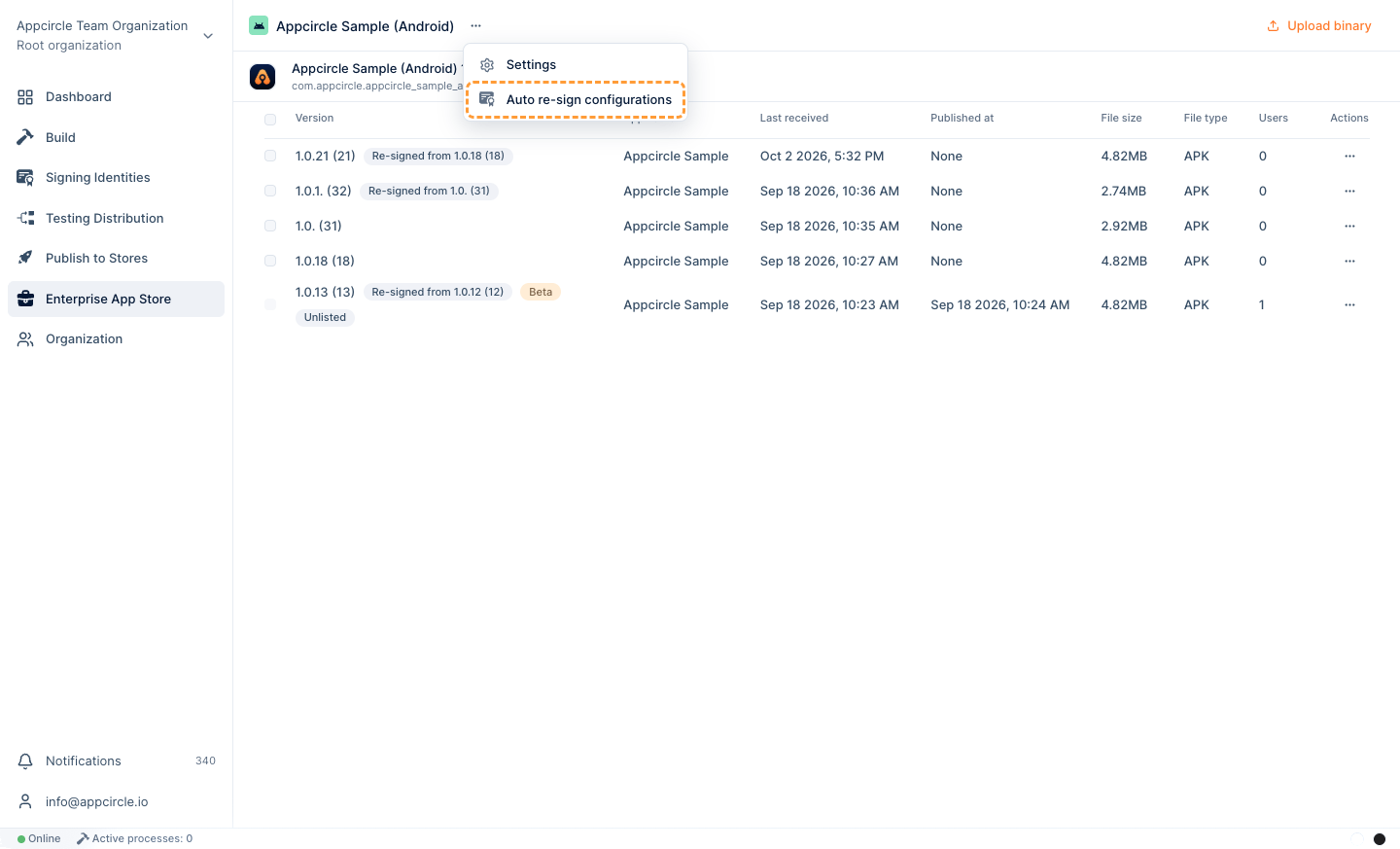
Before using this feature, you must first configure the Auto Re-sign settings for the relevant platform (iOS or Android), including identifier management, versioning strategy, and signing credentials.
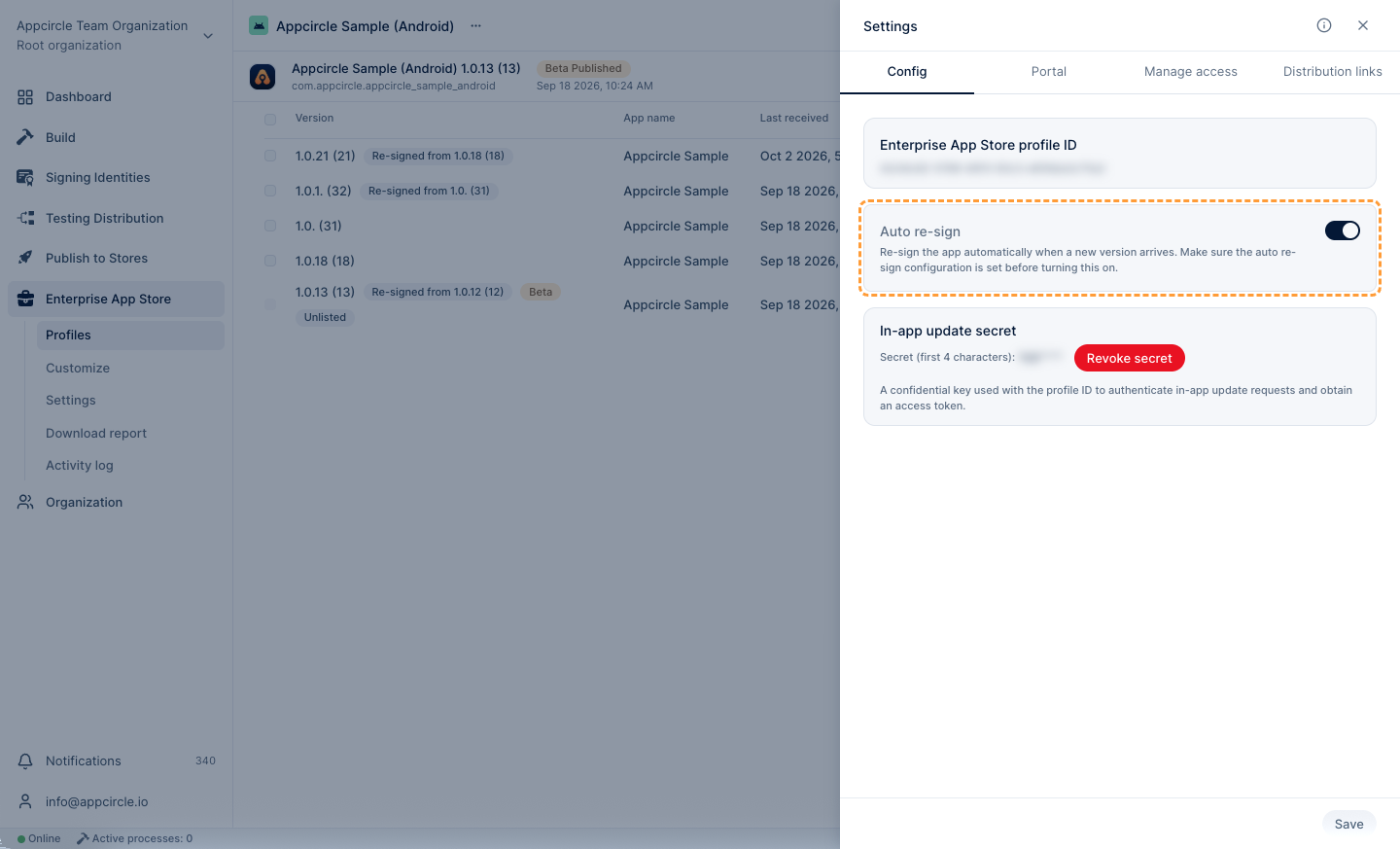
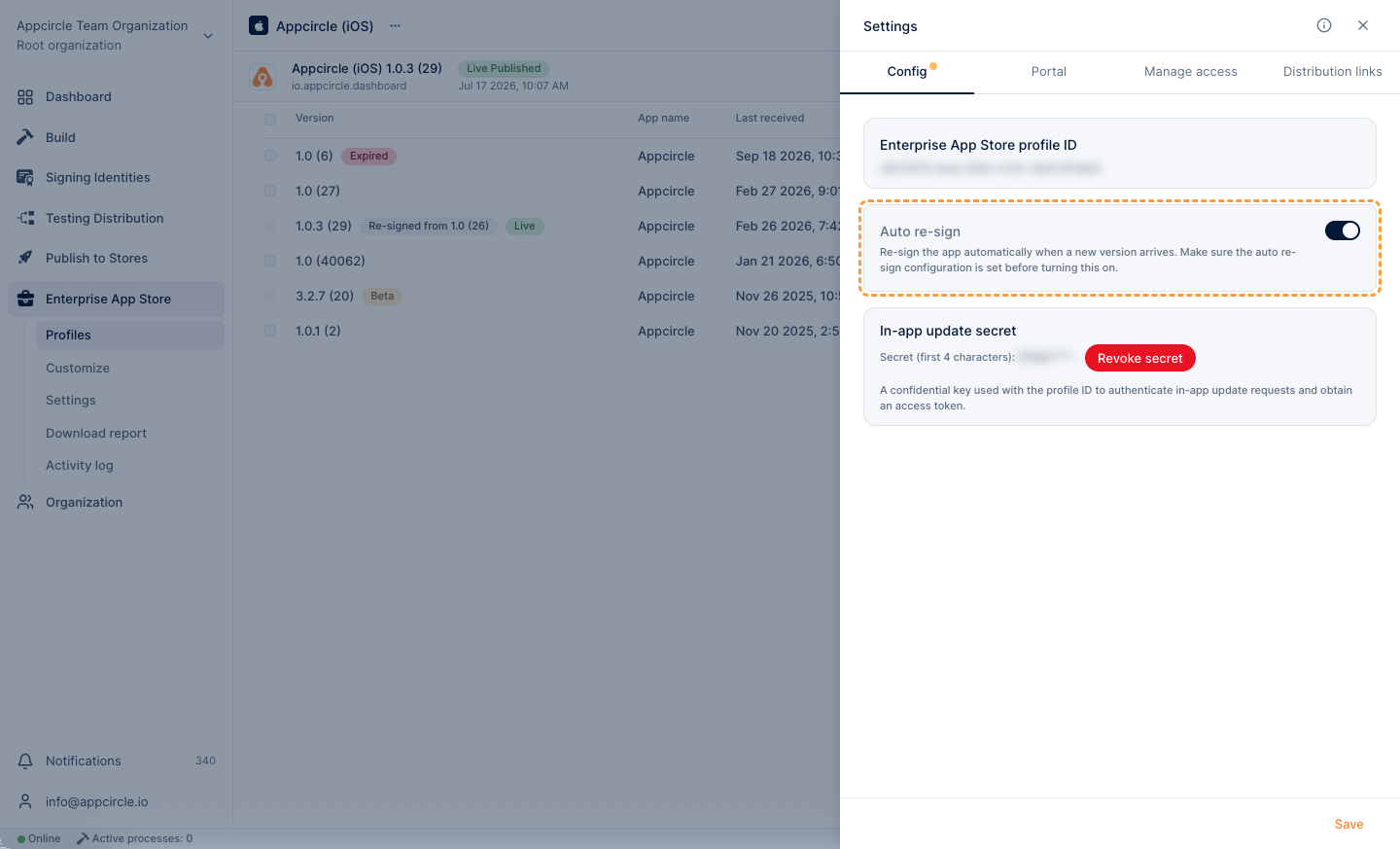
After completing the configuration, make sure to enable the Auto Re-sign option from the Enterprise App Store profile settings (... menu next to the profile name > Settings). Otherwise, newly uploaded binaries will not be re-signed automatically.
iOS Auto Re-sign
The functionality and configuration steps of Appcircle’s Auto Re-sign feature for the iOS platform are explained step-by-step below.
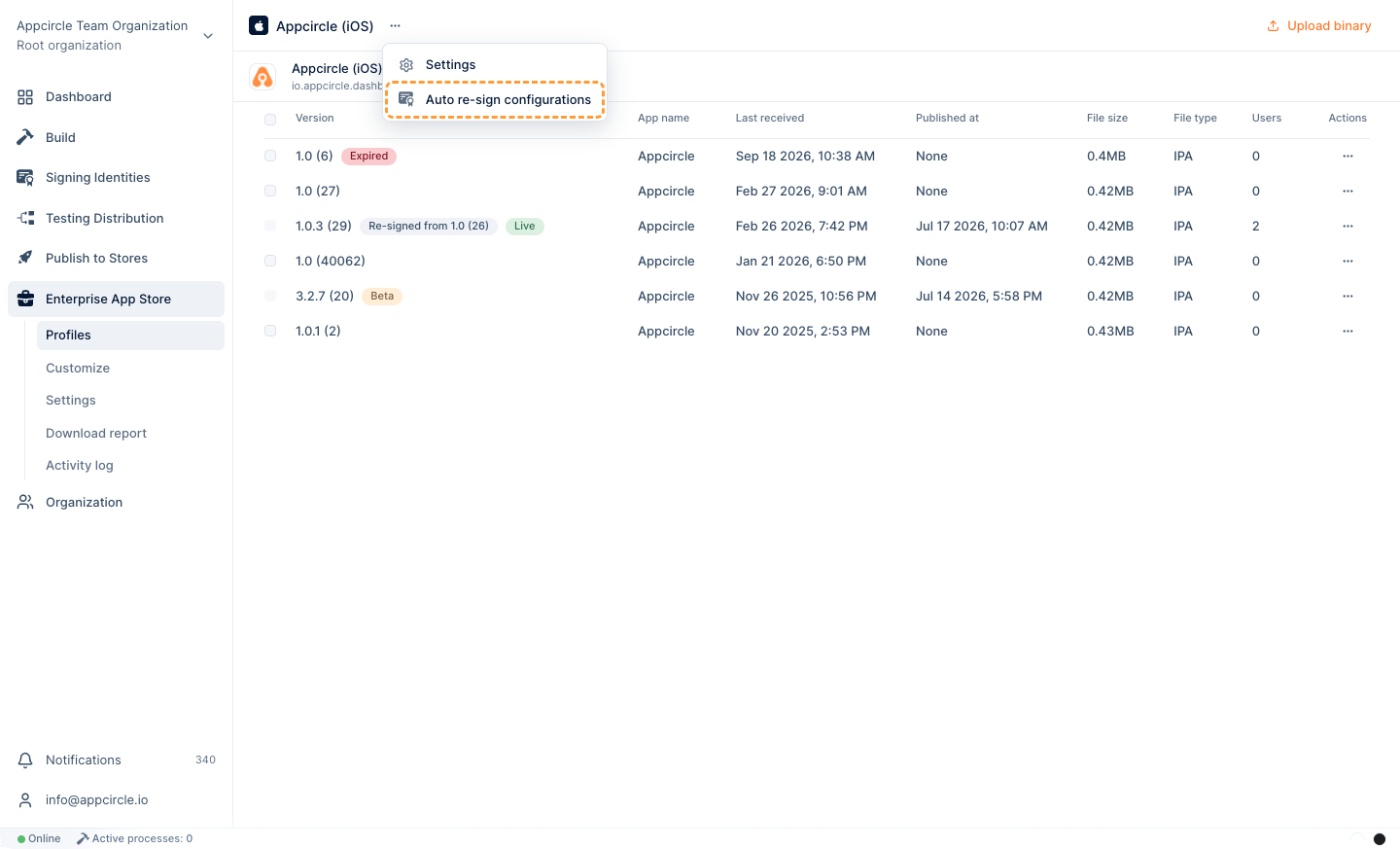
Information
From the Information tab under Auto Re-sign configuration, you can manage the application's bundle identifier and display name values.
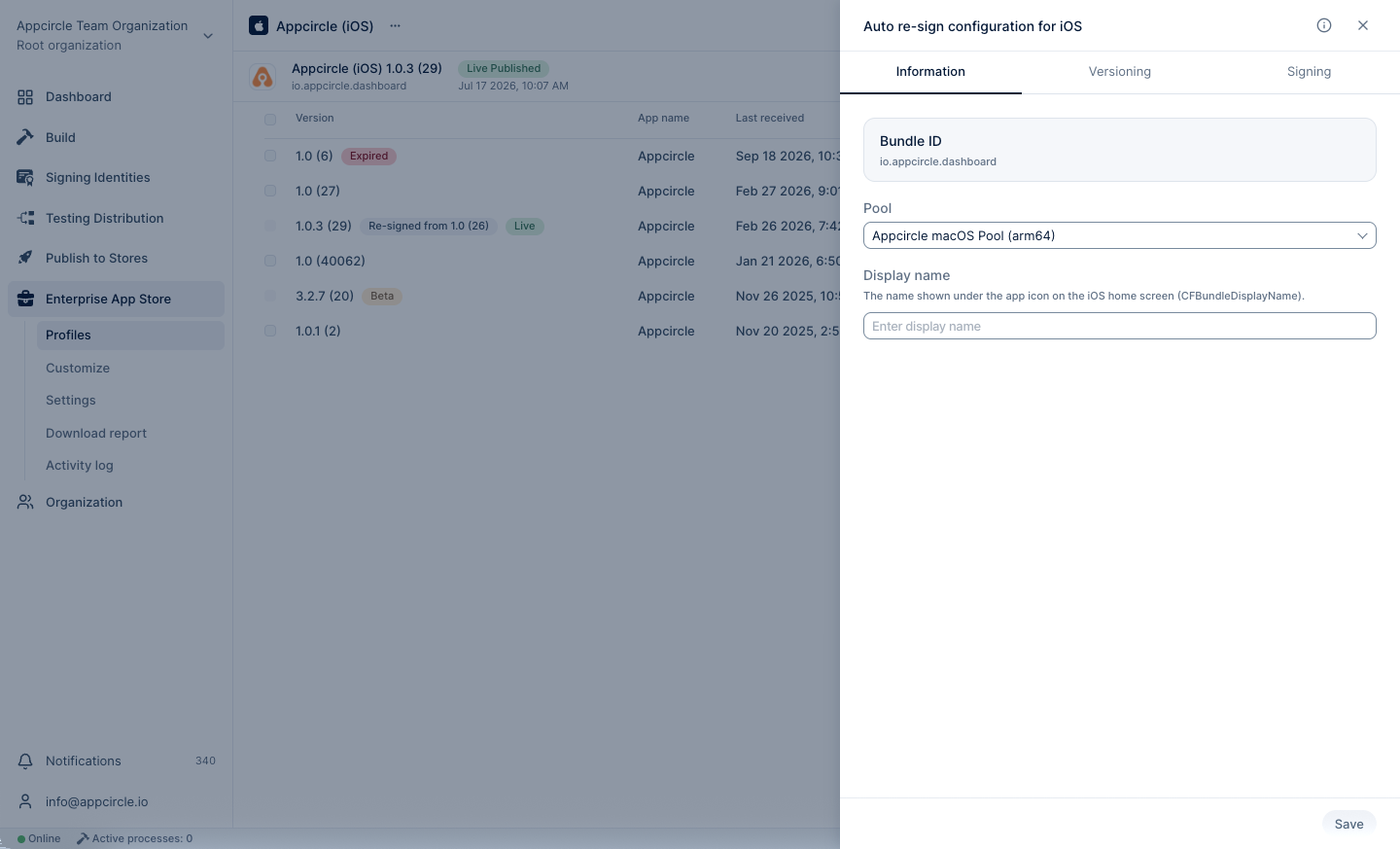
Bundle Identifier
Appcircle Publish profiles can accept binaries with different bundle identifiers. The binary defined for the profile serves as the reference for Auto Re-sign. When a binary with a different bundle identifier is uploaded, it is re-signed according to the bundle identifier of the profile. The bundle identifier of the resulting re-signed binary is updated to match the one associated with the profile.
⚠️ Note: Release flows cannot be initiated with a binary whose bundle identifier differs from that of the profile. For more information, please visit the Binary Management documentation.
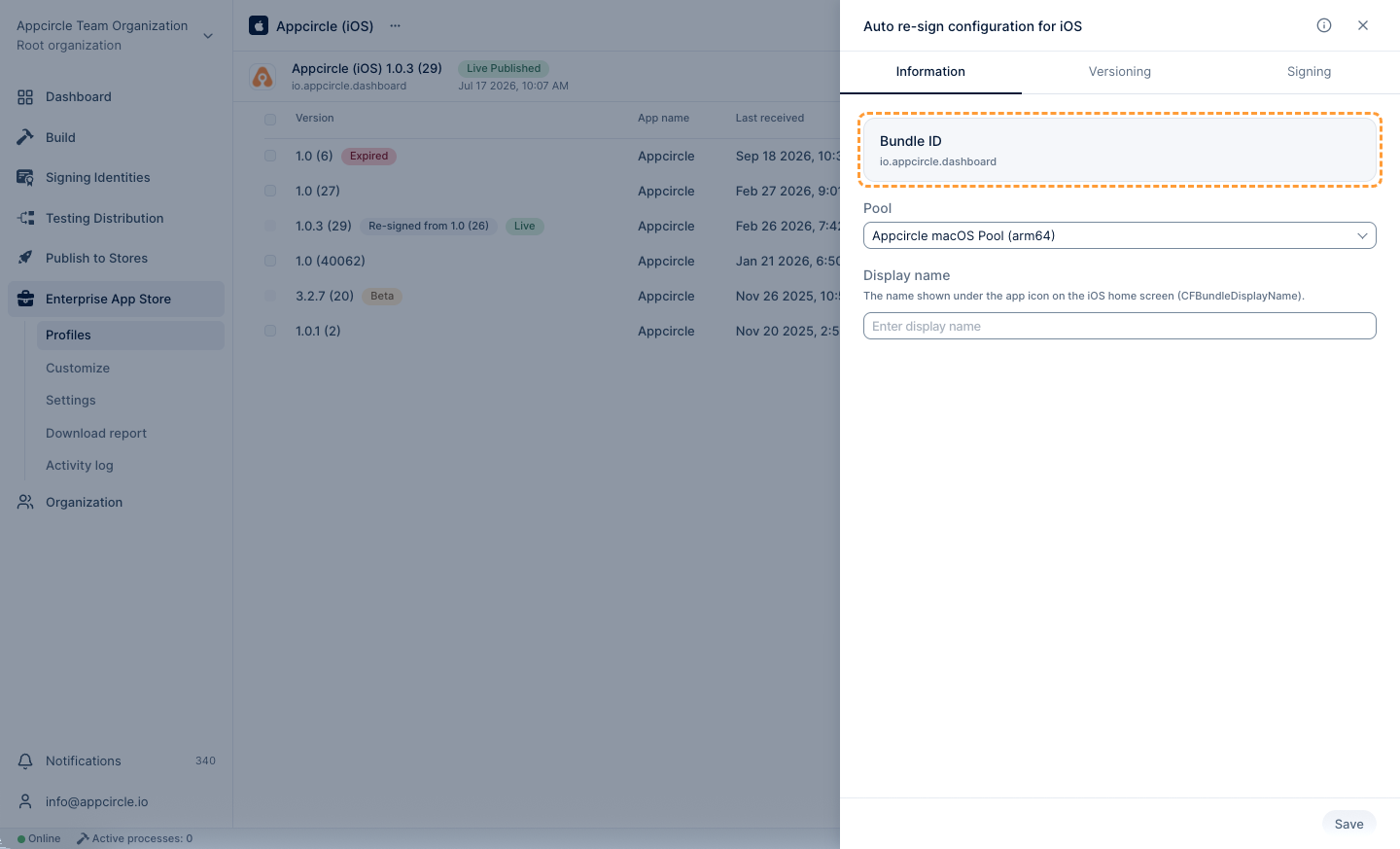
If the binary to be re-signed has multiple targets, each target bundle identifiers must be registered in your Apple Developer portal. Otherwise, you may encounter errors during the re-signing process.
Select a Pool
The Pool Selection field defines which organization pool will be used to execute the Auto Re-sign process.
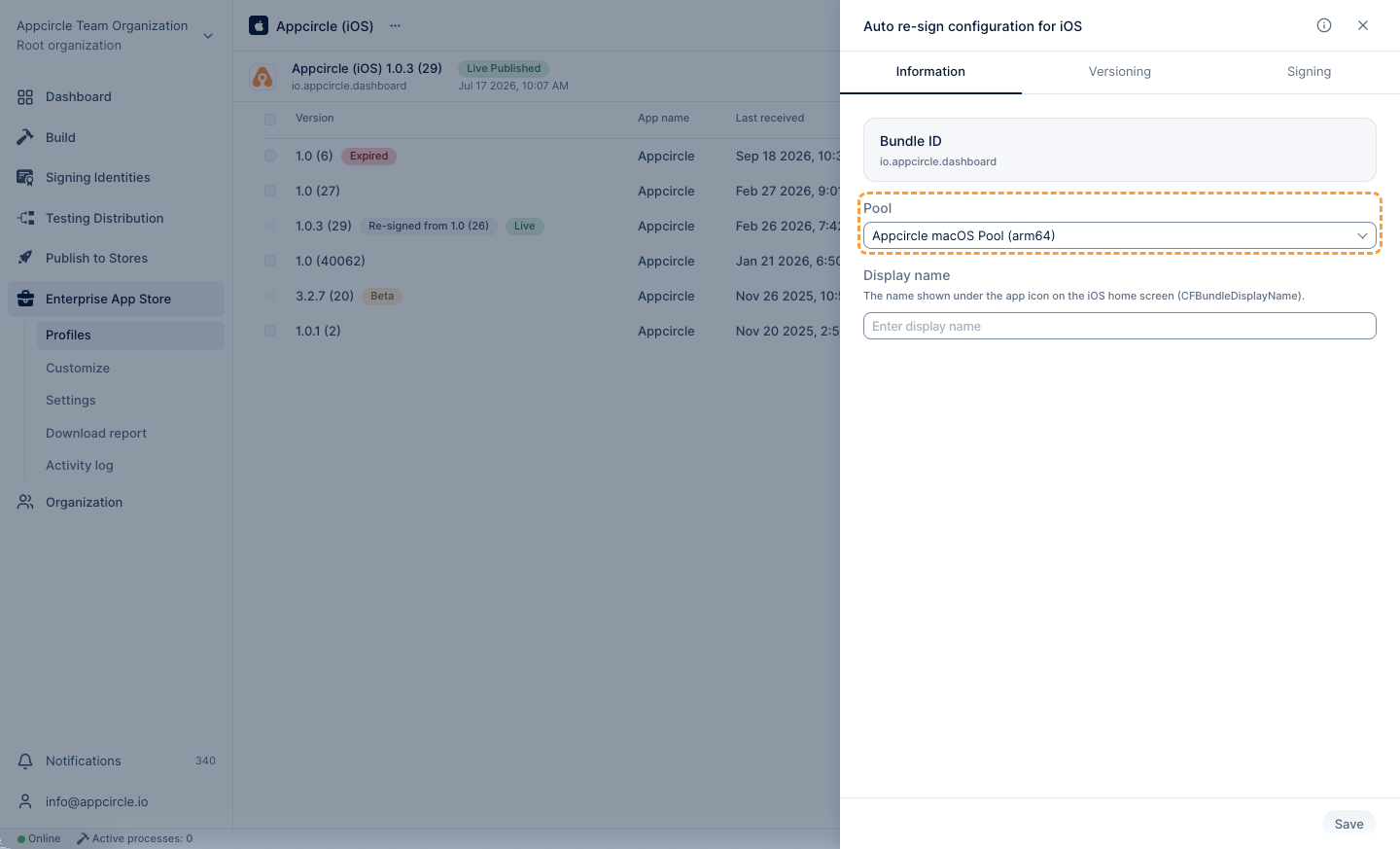
Auto Re-sign will not work if a pool is not selected.
If no pool is defined:
- The Auto Re-sign process will not start.
- Uploaded binaries will remain unsigned.
- No re-signed output will be generated for Publish profile.
Always ensure that a valid macOS pool is selected before saving the Auto Re-sign configuration.
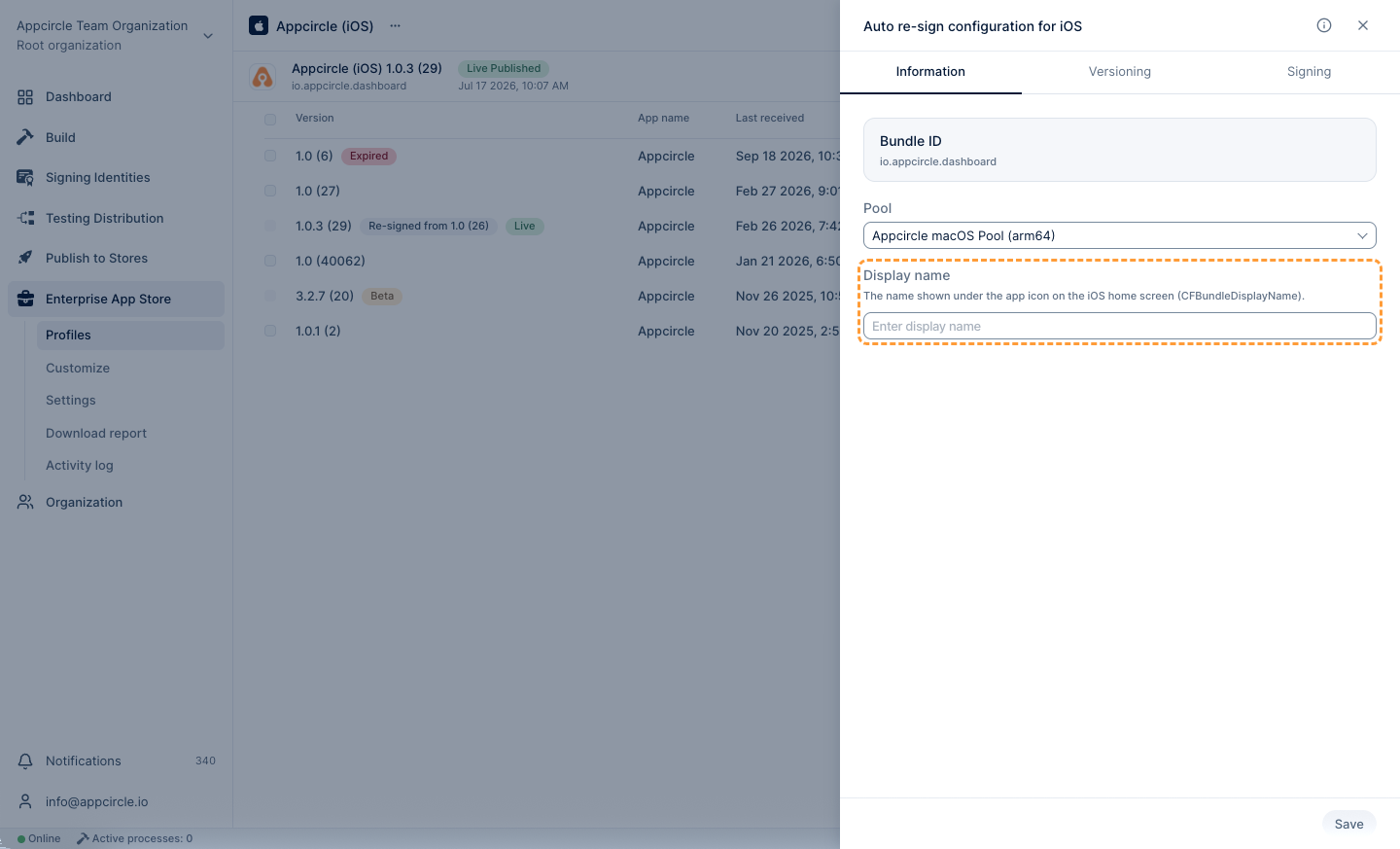
Display Name
With the Display Name parameter, you can change the visible name of the binary that will be re-signed. The re-signing process starts with the specified display name, and once completed, the CFBundleDisplayName value inside the binary is updated accordingly.
Versioning
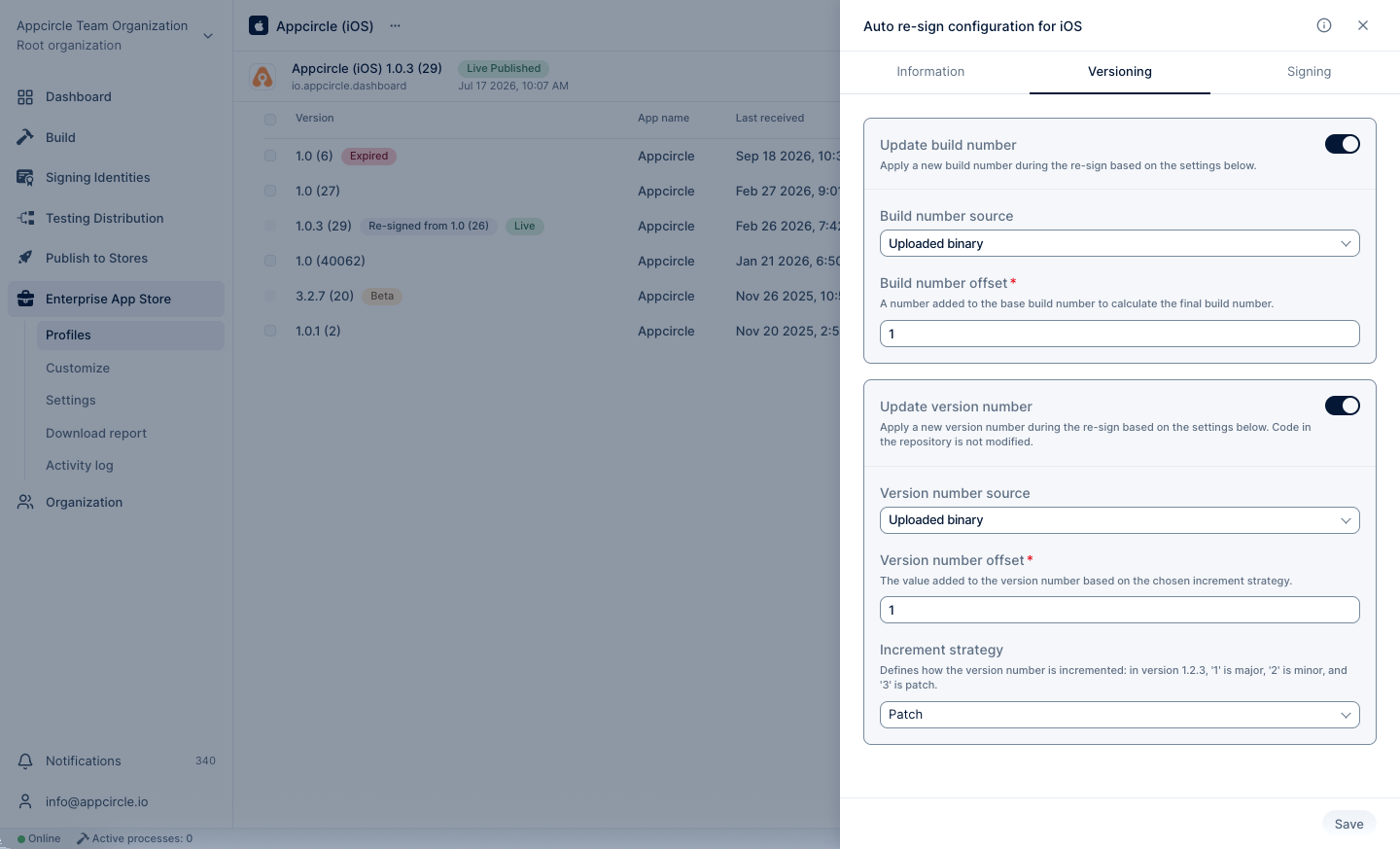
By utilizing the versioning capability of the Auto Re-sign feature, you can modify the version and build number of the incoming binary according to the defined strategy during the re-signing process, including pinning either value to an exact number using the Fixed source.
Update Build Number
With the Update Build Number feature, you can automatically increment the build number of the uploaded binary during the auto re-sign process using the specified offset value, or pin it to an exact value using the Fixed source. When this feature is enabled, a new build number will be generated based on the given offset (or set to the fixed value you provide) before the re-signing begins, and the binary will be signed with this updated build number.
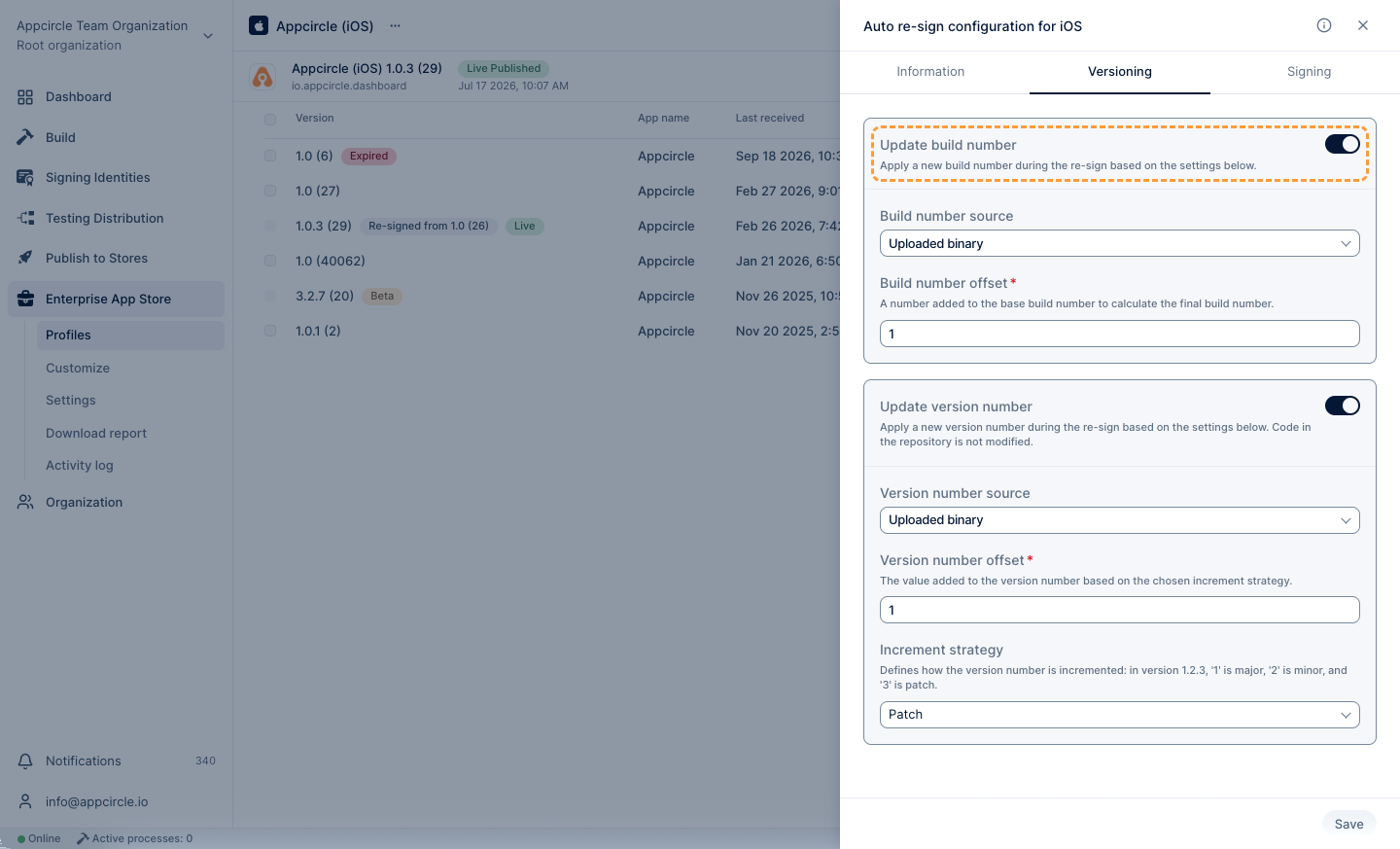
- Build Number Source: The defined base build number will be used for versioning during the re-signing process. Uploaded Binary and Fixed are available options.
- Uploaded Binary: The build number will be calculated from the most recent binary uploaded to Appcircle.
- Fixed: The binary will be signed with the exact build number you enter, without referencing the uploaded binary.
- Build Number: The offset value is a number to be added or subtracted from the build number source. This offset field only applies to the Uploaded Binary source.
⚠️ Note: When Build Number Source is set to Fixed, the offset field above is replaced with a Build Number text input. Enter the exact build number the binary should be signed with. This value must be provided whenever Update Build Number is enabled and the source is Fixed; leaving it empty will cause the re-signing process to fail.
Update Version Number
With the Update Version Number feature, you can automatically increment the version number of the uploaded binary during the auto re-sign process using the specified offset value, or pin it to an exact value using the Fixed source. When this feature is enabled, a new version number will be generated before the re-signing begins, based on the selected increment strategy and offset (or set to the fixed value you provide), and the binary will be signed with this updated version number.
- Version Number: The defined base version number will be used for versioning during the re-signing process. Uploaded Binary and Fixed are available options.
- Uploaded Binary: The version number will be calculated based on the most recently uploaded binary to Appcircle.
- Fixed: The binary will be signed with the exact version number you enter, without referencing the uploaded binary.
- Version Number: The offset value is a number to be added or subtracted from the version number source.
- Increment Strategy: You can increase the
major,minor, orpatchvalue of the version number.
⚠️ Note: When the Version Number source is set to Fixed, both the Offset and Increment Strategy controls above are hidden and replaced with a Version Number text input. Enter the exact version number the binary should be signed with. This value must be provided whenever Update Version Number is enabled and the source is Fixed; leaving it empty will cause the re-signing process to fail.
Signing
Appcircle requires valid certificate and provisioning profile to successfully perform the auto re-sign process. The re-signing begins using the associated certificates and provisioning profile..
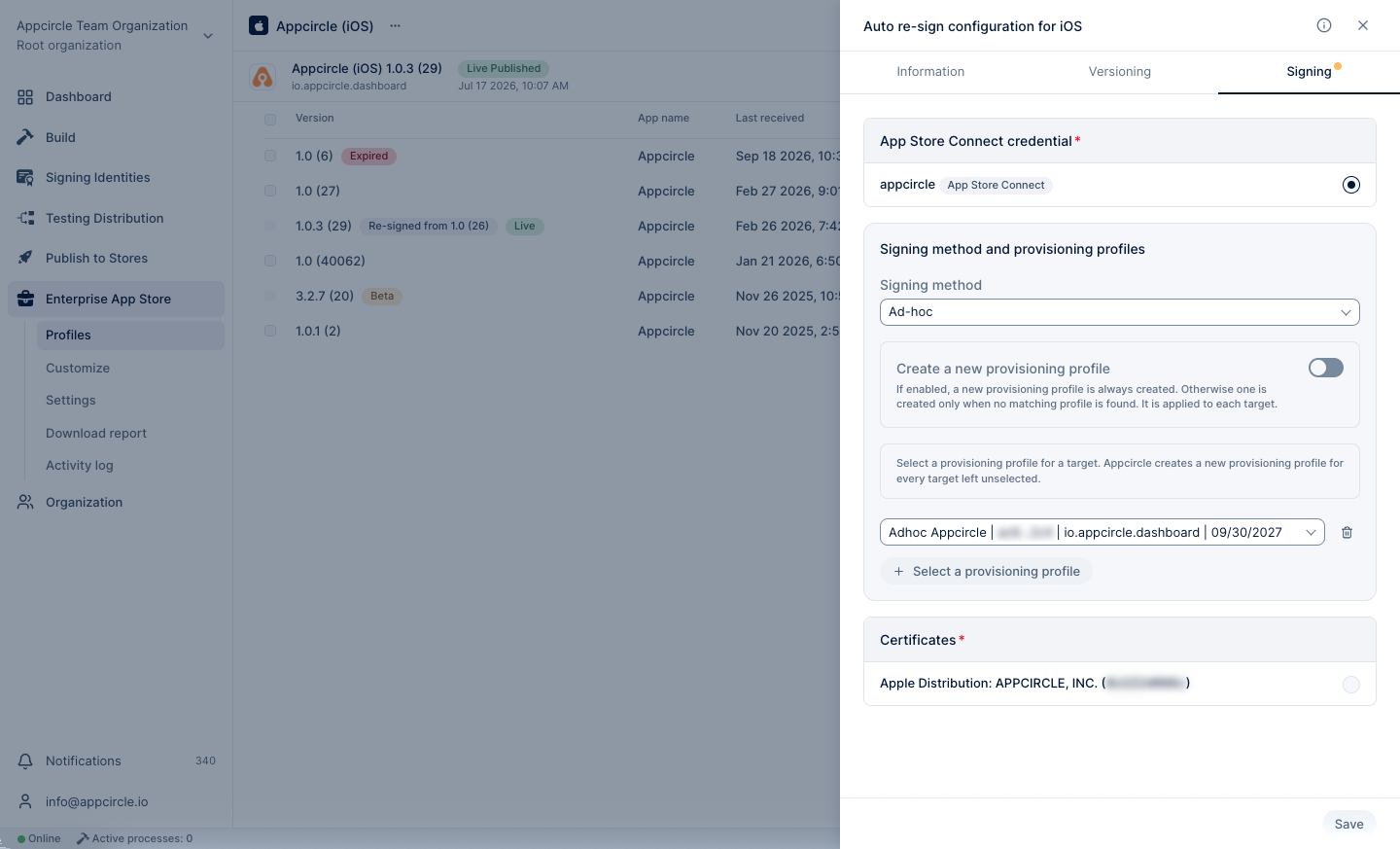
App Store Credential
Appcircle’s Auto Re-sign feature requires an App Store Connect credential for the signing process — it is used to download the necessary signing assets and manage provisioning profiles when re-signing the binary. Since Enterprise App Store's Build Number and Version Number sources (Uploaded Binary and Fixed) don't call out to the App Store, this credential is not used for versioning here; it's still required to complete the signing step below.
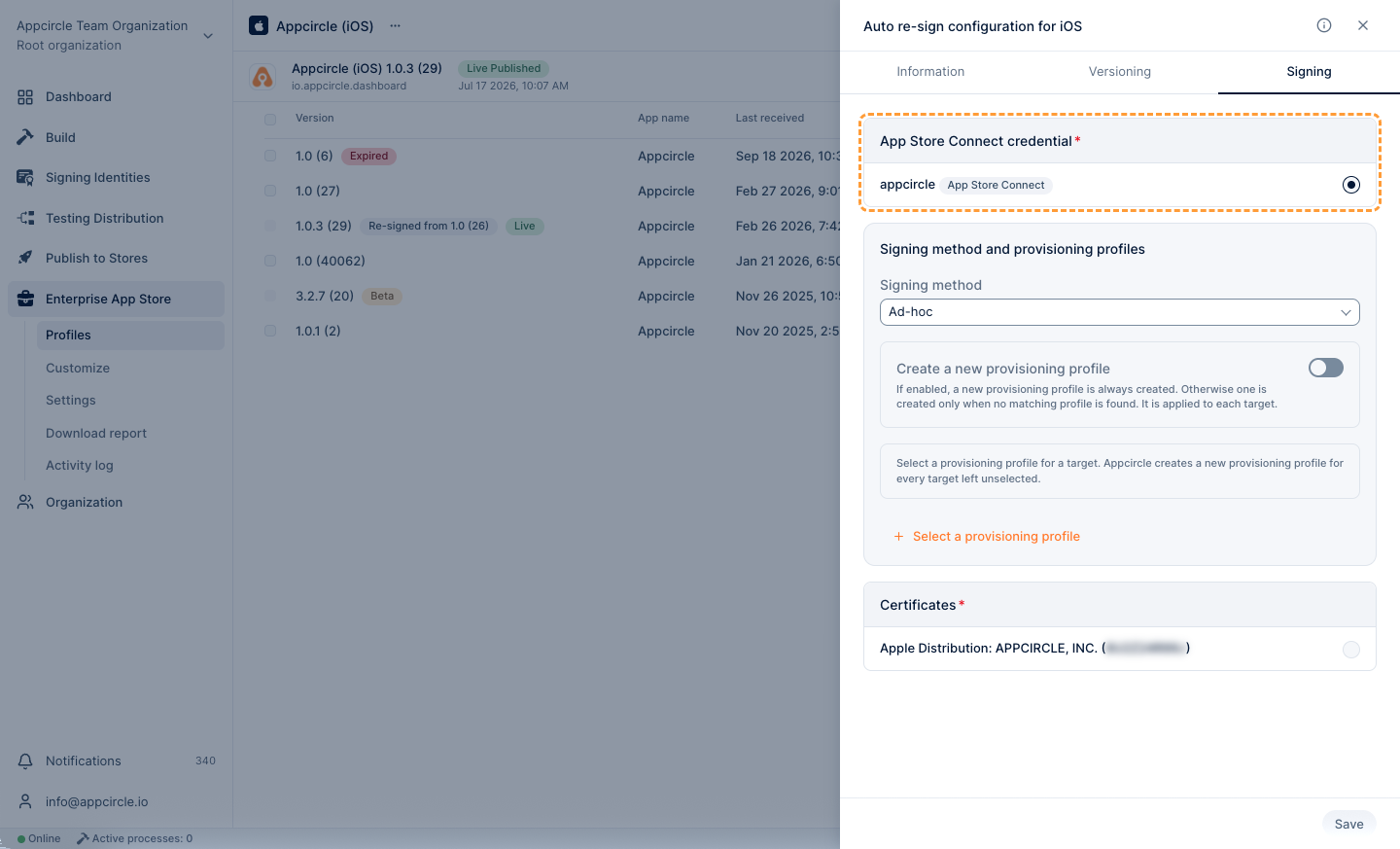
For more information, please visit the App Store Connect API Key documentation.
Signing Method
The Signing Method defines how Appcircle selects the provisioning profile during the re-signing process. This strategy determines whether Appcircle should use an existing provisioning profile. Selecting the appropriate signing strategy ensures compatibility with your target distribution method and proper signing of your binary.
For more information about these signing strategies, please visit the Apple Profiles documentation.
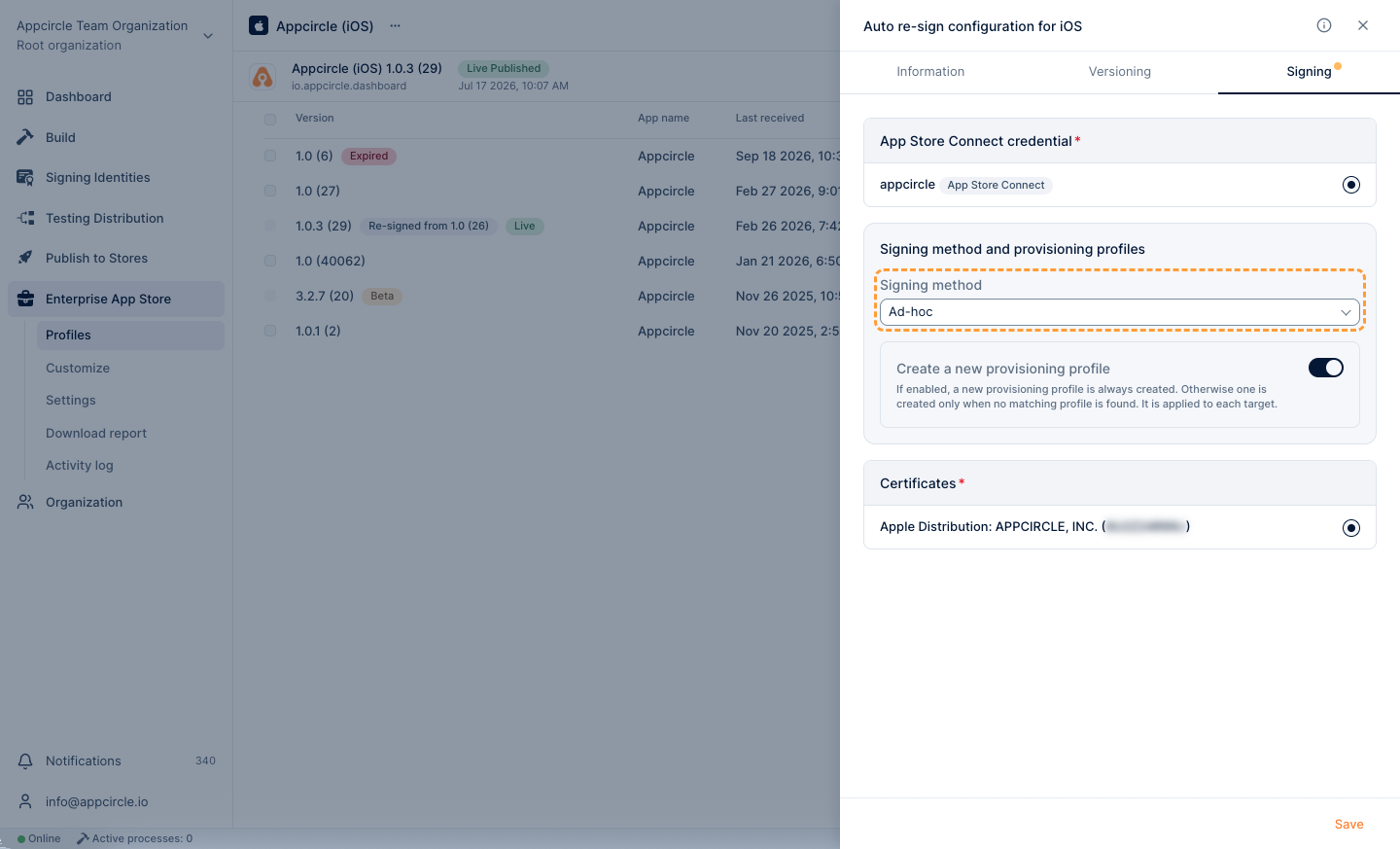
The Auto Re-sign feature also supports In-house signing. You can perform this by selecting an Enterprise API Key. However, please note that only In-house signing is allowed with an Enterprise Key—attempting to use it with any other signing method will result in an error.
Create a New Provision Profile
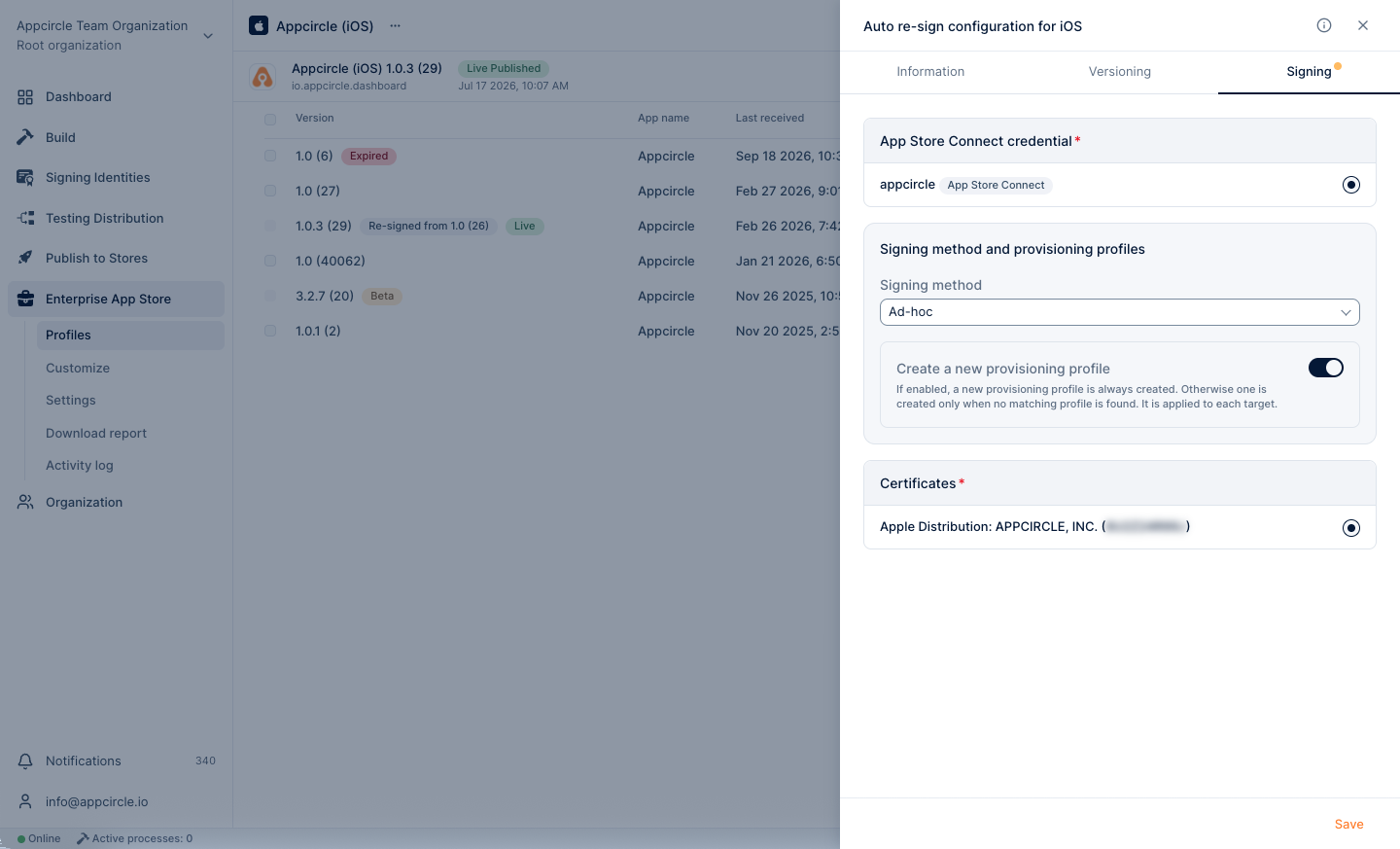
If the Create a New Provision Profile option is enabled, Appcircle generates a valid provisioning profile for signing using the Apple API Key selected in the profile settings and your Apple Developer account. If this option is disabled, Appcircle matches an existing valid provisioning profile from your Apple Developer portal for the signing process.
If you do not want to create the provisioning profile for signing, Appcircle will attempt to match a valid provisioning profile and use it for the signing process. When this option is disabled and a matching provisioning profile cannot be found, a new provisioning profile will be automatically created.
Using Existing Provisioning Profile
When using the Auto Re-sign feature, Appcircle also provides the option to select an existing provisioning profile. If the Create a New Provision Profile option is not enabled, the user can manually select a provisioning profile. To be selectable, the relevant profile must already be uploaded under Apple Profiles in the Signing Identity module.
For more information, please visit the Signing Identity Module and Apple Profiles documentations.
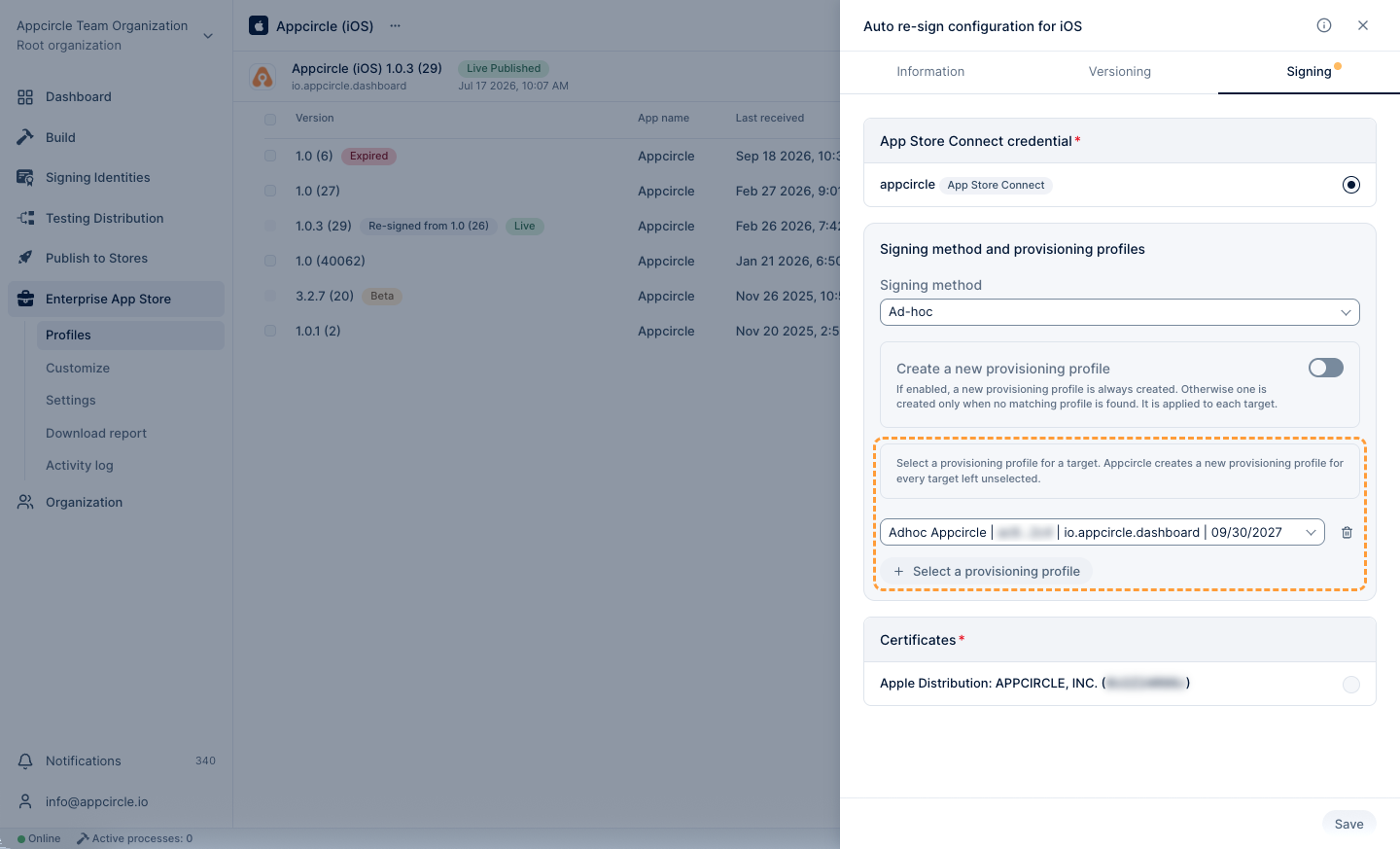
If no provisioning profile is selected, Appcircle will still attempt to match a provisioning profile using the selected App Store Credential. If the provisioning profile cannot be found in the Apple Developer portal, a new one will be generated.
For example, if the binary being signed has multiple targets and only one provisioning profile has been selected, Appcircle will try to find the related provisioning profiles for the other targets in the Apple Developer portal, and if they are not found, it will generate them.
Certificates
In addition to the selected signing strategy, Appcircle requires a corresponding certificate to perform the auto re-sign process. Therefore, make sure that your certificates are uploaded under the Apple Certificate section in the Appcircle Signing Identity module. The re-signing process will begin using the certificate you have selected.
For more information, please visit the Signing Identity Module and Apple Certificates documentations.
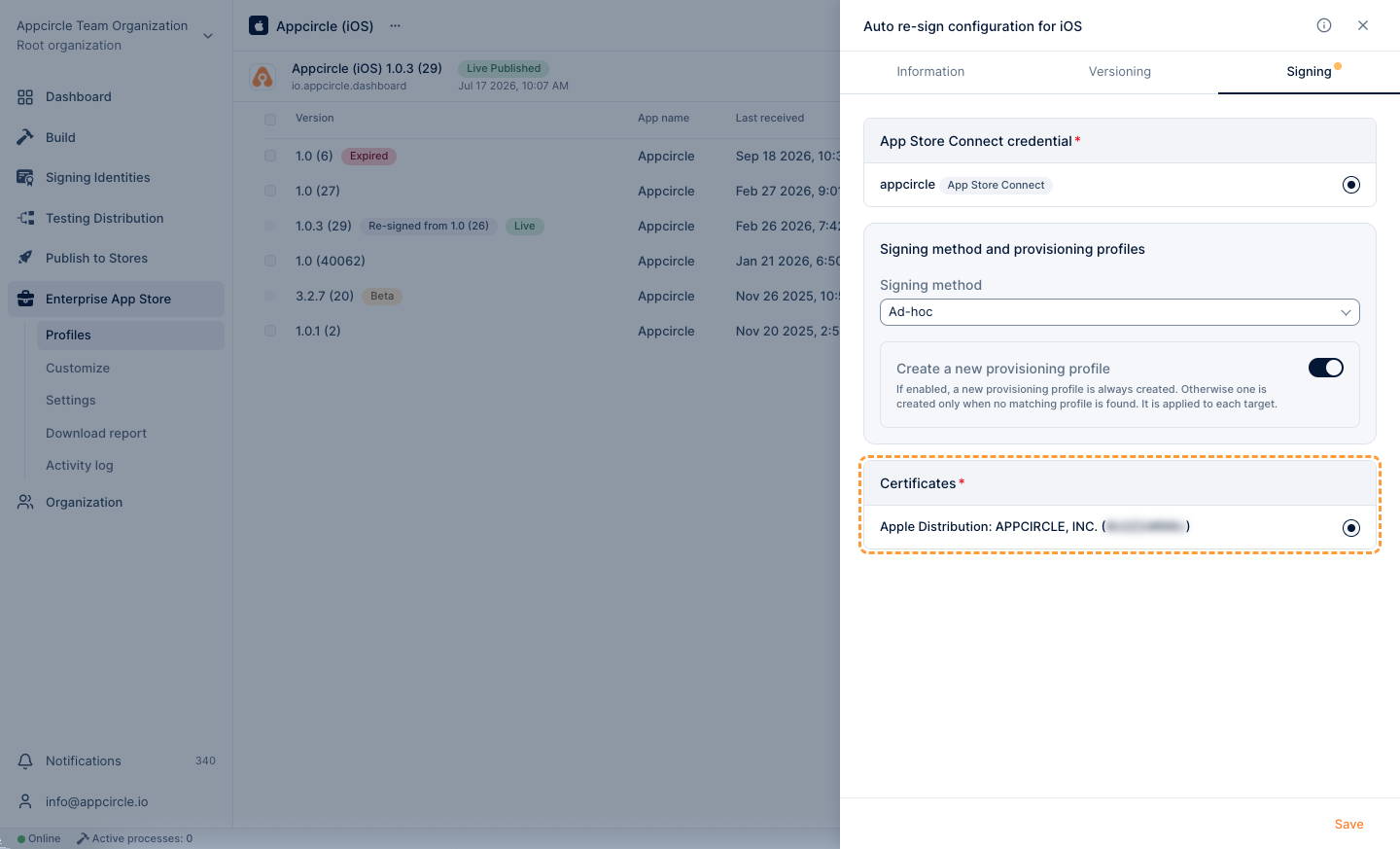
If you want to perform In-house signing using an Enterprise API Key, make sure that a compatible signing certificate is selected. Otherwise, Appcircle will not be able to verify the certificate and the signing process will fail.
Once you configure the Auto Re-sign settings, you must enable the Auto Re-sign feature from the Enterprise App Store profile settings (... menu next to the profile name > Settings). Otherwise, newly uploaded binaries will not be re-signed automatically.
Android Auto Re-sign
The functionality and configuration steps of Appcircle’s Auto Re-sign feature for the Android platform are explained step-by-step below.
Information
From the Information tab under Auto Re-sign configuration, you can manage the application's package identifier value.
Package Identifier
Appcircle Publish profiles can accept binaries with different package name. The binary defined for the profile serves as the reference for Auto Re-sign. When a binary with a different package name is uploaded, it is re-signed according to the package name of the profile. The package name of the resulting re-signed binary is updated to match the one associated with the profile.
⚠️ Note: Release flows cannot be initiated with a binary whose package name differs from that of the profile. For more information, please visit the Binary Management documentation.
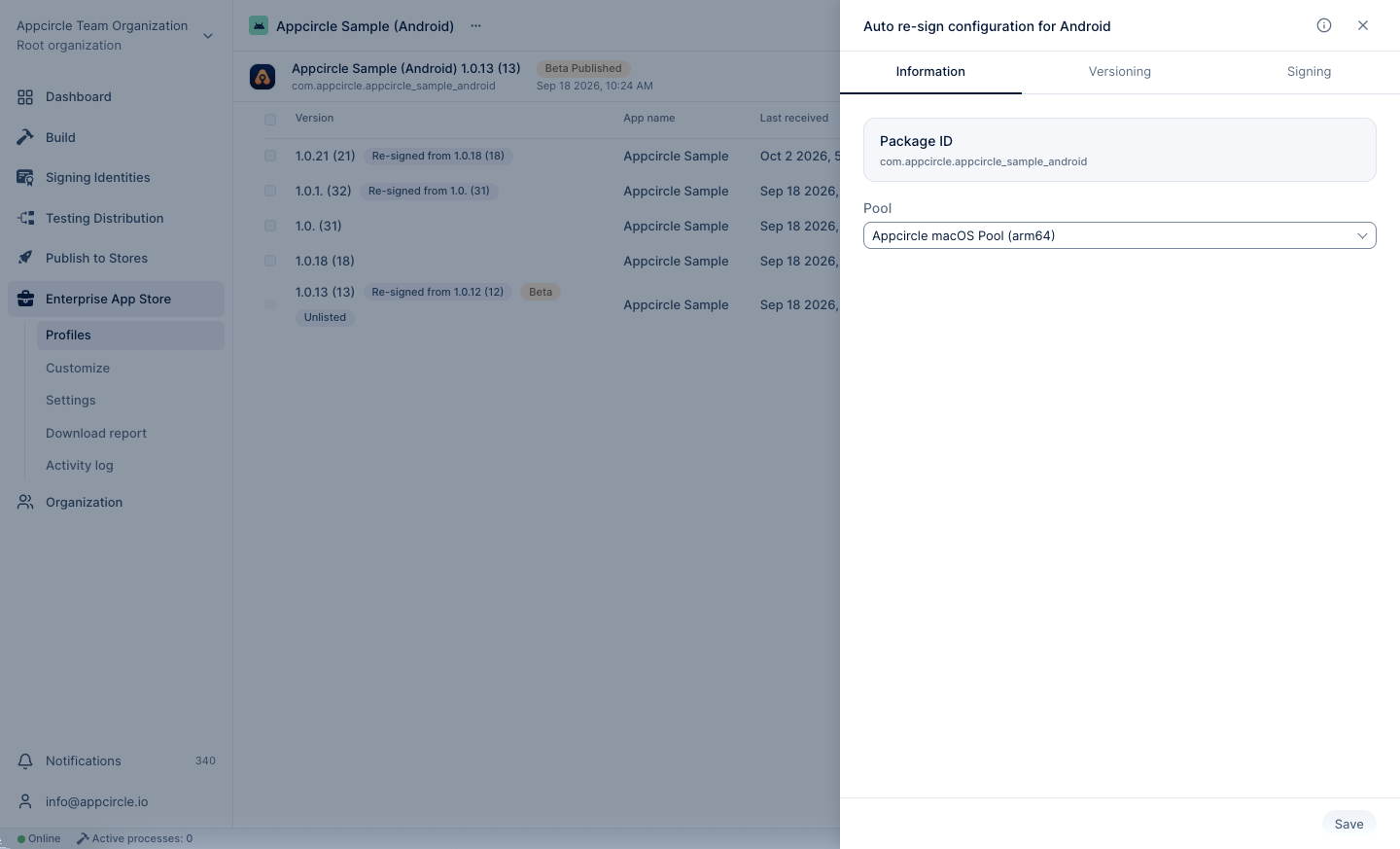
Select a Pool
The Pool Selection field defines which organization pool will be used to execute the Auto Re-sign process.
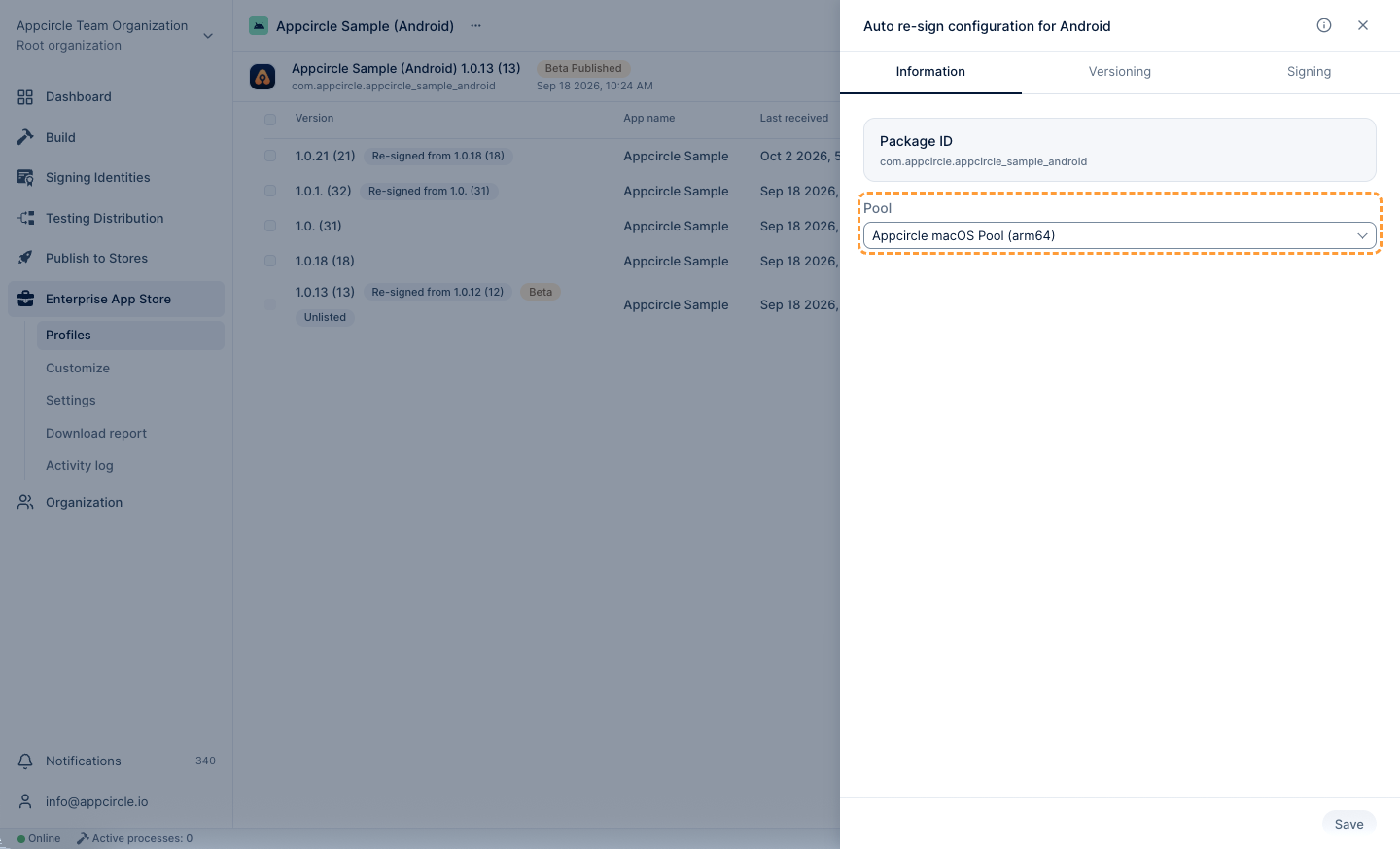
Auto Re-sign will not work if a pool is not selected.
If no pool is defined:
- The Auto Re-sign process will not start.
- Uploaded binaries will remain unsigned.
- No re-signed output will be generated for Publish profile.
Always ensure that a valid macOS pool is selected before saving the Auto Re-sign configuration.
Versioning
By utilizing the versioning capability of the Auto Re-sign feature, you can modify the version code and version name of the incoming binary according to the defined strategy during the re-signing process, including pinning either value to an exact number using the Fixed source.
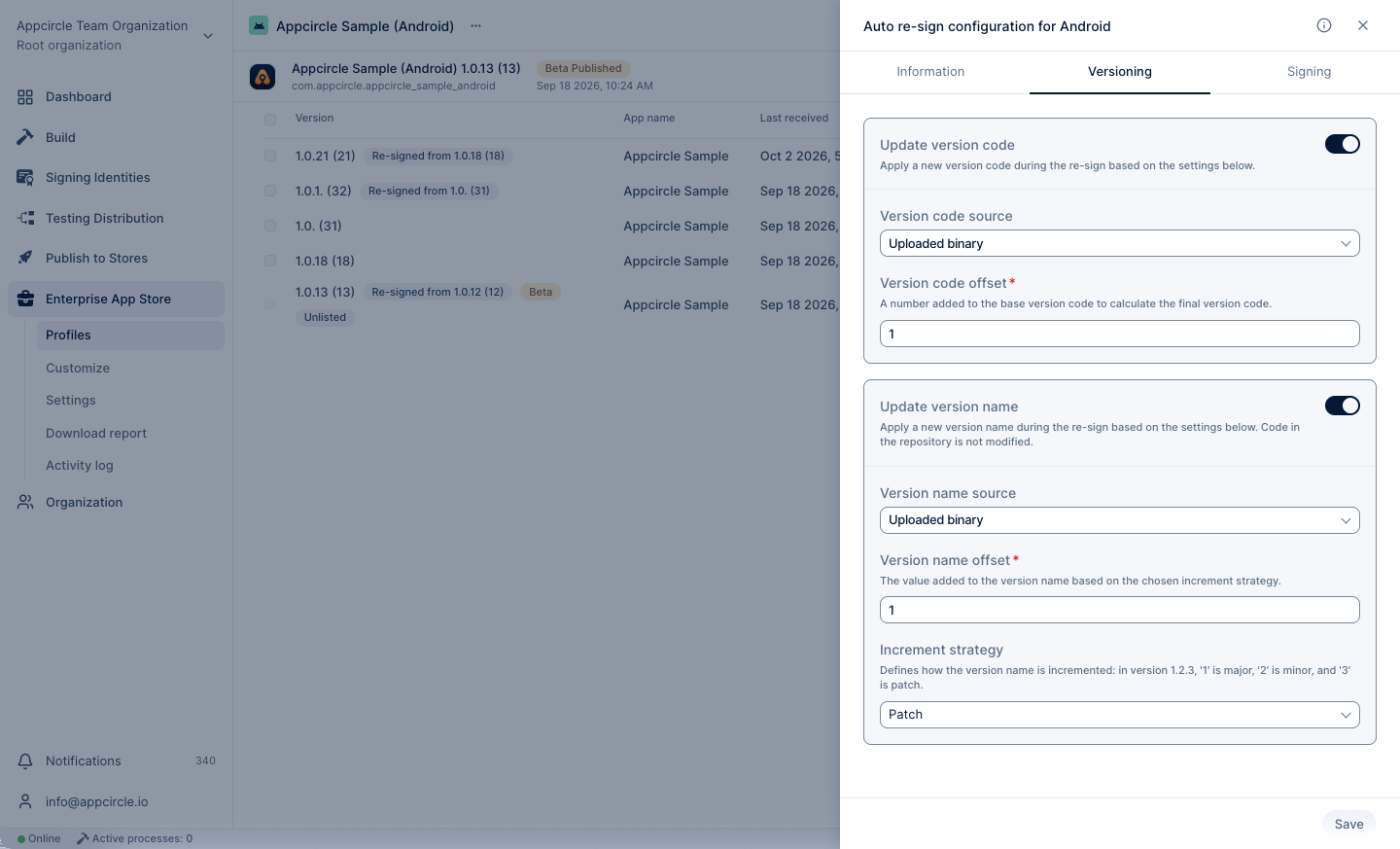
Update Version Code
With the Update Version Code feature, you can automatically increment the version code of the uploaded binary during the auto re-sign process using the specified offset value, or pin it to an exact value using the Fixed source. When this feature is enabled, a new version code will be generated based on the given offset (or set to the fixed value you provide) before the re-signing begins, and the binary will be signed with this updated version code.
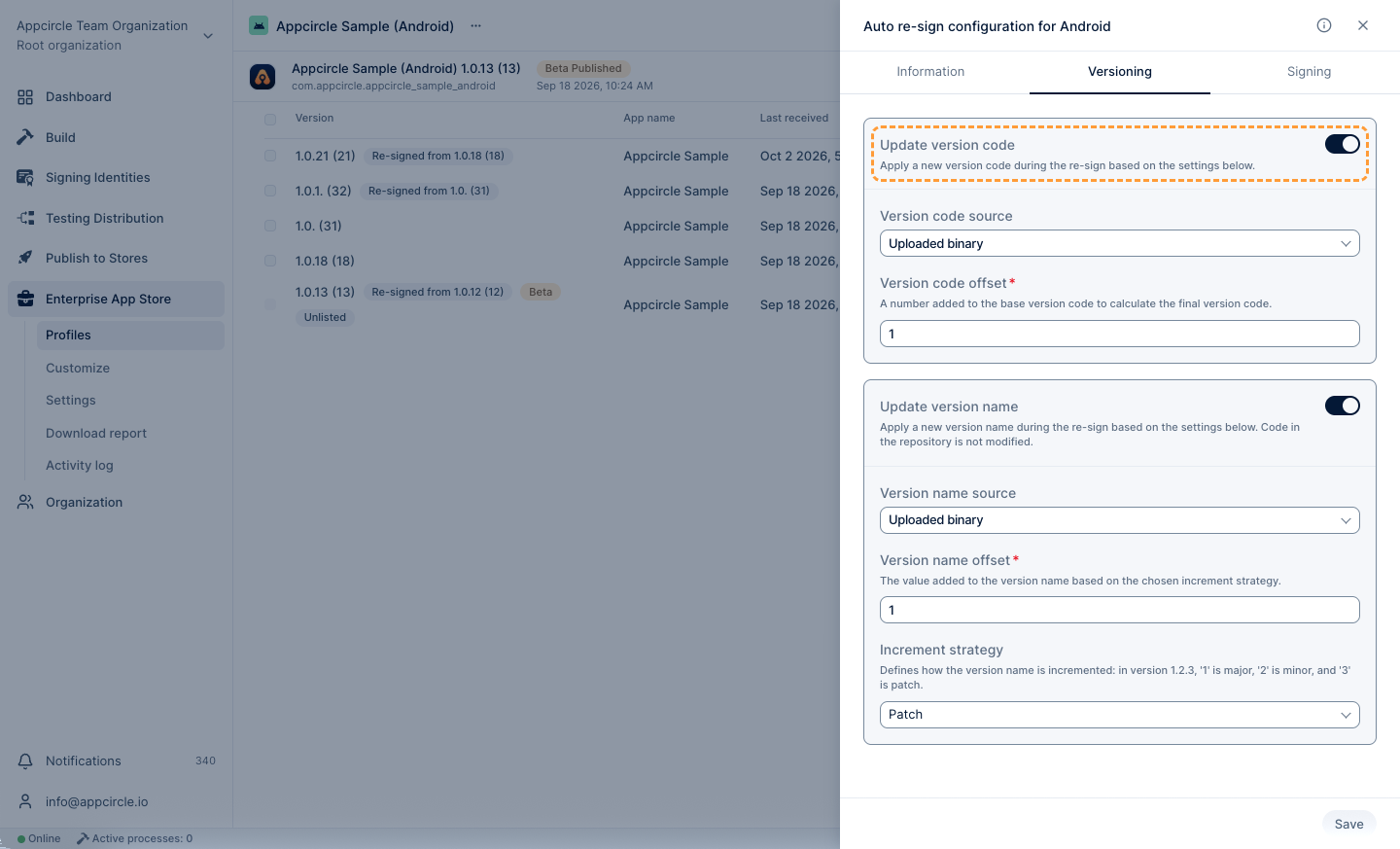
- Version Code Source: The defined base version code will be used for versioning during the re-signing process. Uploaded Binary and Fixed are available options.
- Uploaded Binary: The version code will be calculated from the most recent binary uploaded to Appcircle.
- Fixed: The binary will be signed with the exact version code you enter, without referencing the uploaded binary.
- Version Code Offset: The offset value is a number to be added or subtracted from the version code source. This offset field only applies to the Uploaded Binary source.
⚠️ Note: When Version Code Source is set to Fixed, the Version Code Offset field above is replaced with a Version Code text input. Enter the exact version code the binary should be signed with. This value must be provided whenever Update Version Code is enabled and the source is Fixed; leaving it empty will cause the re-signing process to fail.
Update Version Name
With the Update Version Name features, you can automatically increment the version name of the uploaded binary during the auto re-sign process using the specified offset value, or pin it to an exact value using the Fixed source. When this feature is enabled, a new version name will be generated before the re-signing begins, based on the selected increment strategy and offset (or set to the fixed value you provide), and the binary will be signed with this updated version name.
- Version Number/Version Name Source: The defined base version name will be used for versioning during the re-signing process. Uploaded Binary and Fixed are available options.
- Uploaded Binary: The version name will be calculated based on the most recently uploaded binary to Appcircle.
- Fixed: The binary will be signed with the exact version name you enter, without referencing the uploaded binary.
- Version Name Offset: The offset value is a number to be added or subtracted from the version name source.
- Increment Strategy: You can increase the
major,minor, orpatchvalue of the version name.
⚠️ Note: When the Version Number/Version Name source is set to Fixed, both the Version Name Offset and Increment Strategy controls above are hidden and replaced with a Version Name text input. Enter the exact version name the binary should be signed with. This value must be provided whenever Update Version Name is enabled and the source is Fixed; leaving it empty will cause the re-signing process to fail.
Signing
Appcircle requires a necessary Keystore to successfully perform the auto re-sign process. The re-signing begins using the associated keystore.
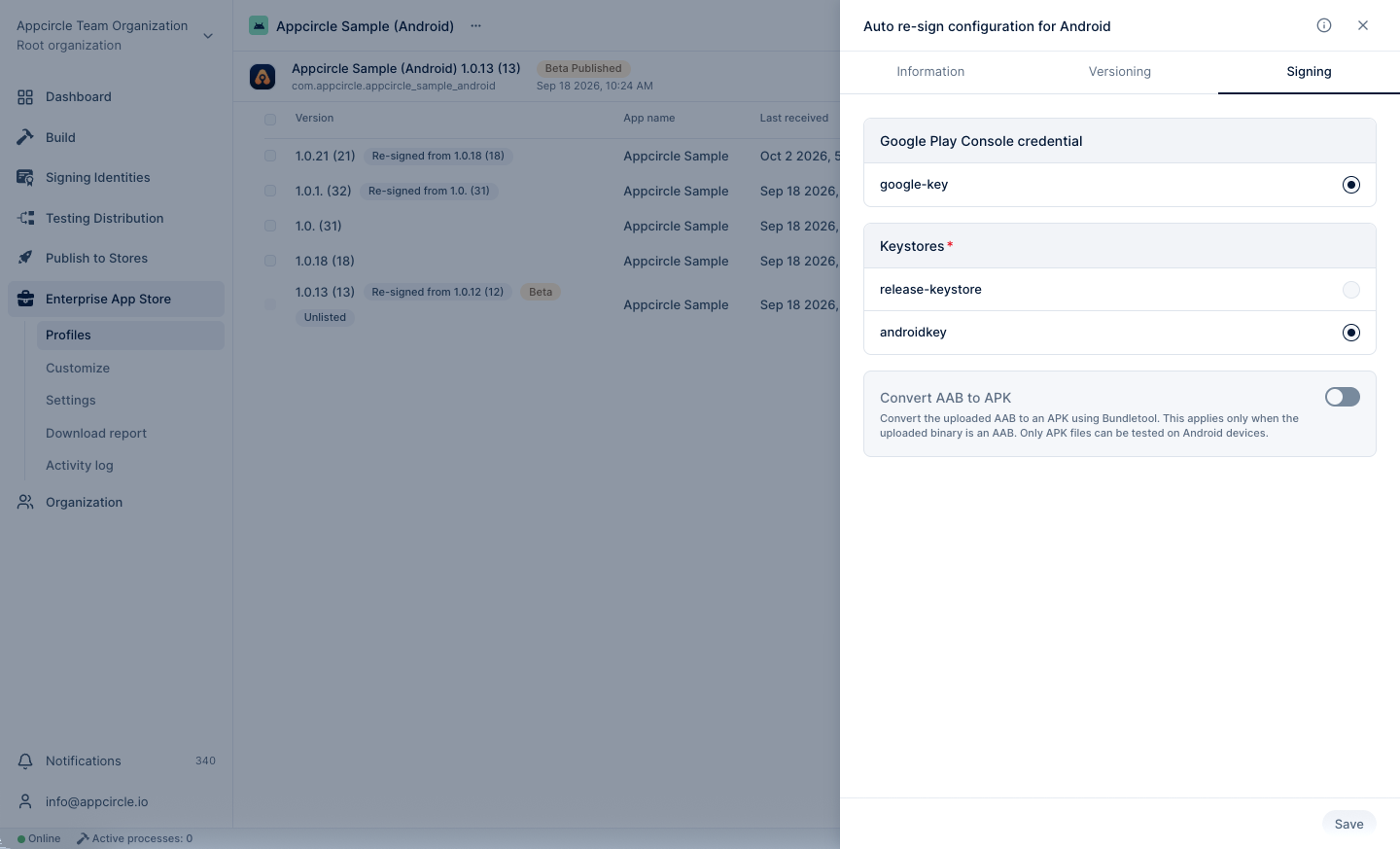
Keystores
The Keystores section is where you manage the signing credentials required for Android re-signing. To successfully perform the auto re-sign process, Appcircle needs access to a valid keystore. You must upload the keystore file, provide the necessary alias, and enter the key and store passwords within the Android Keystores section of the Signing Identity module. The re-signing will be executed using the selected keystore credentials.
For more information, please visit the Signing Identity Module and Android Keystores documentations.
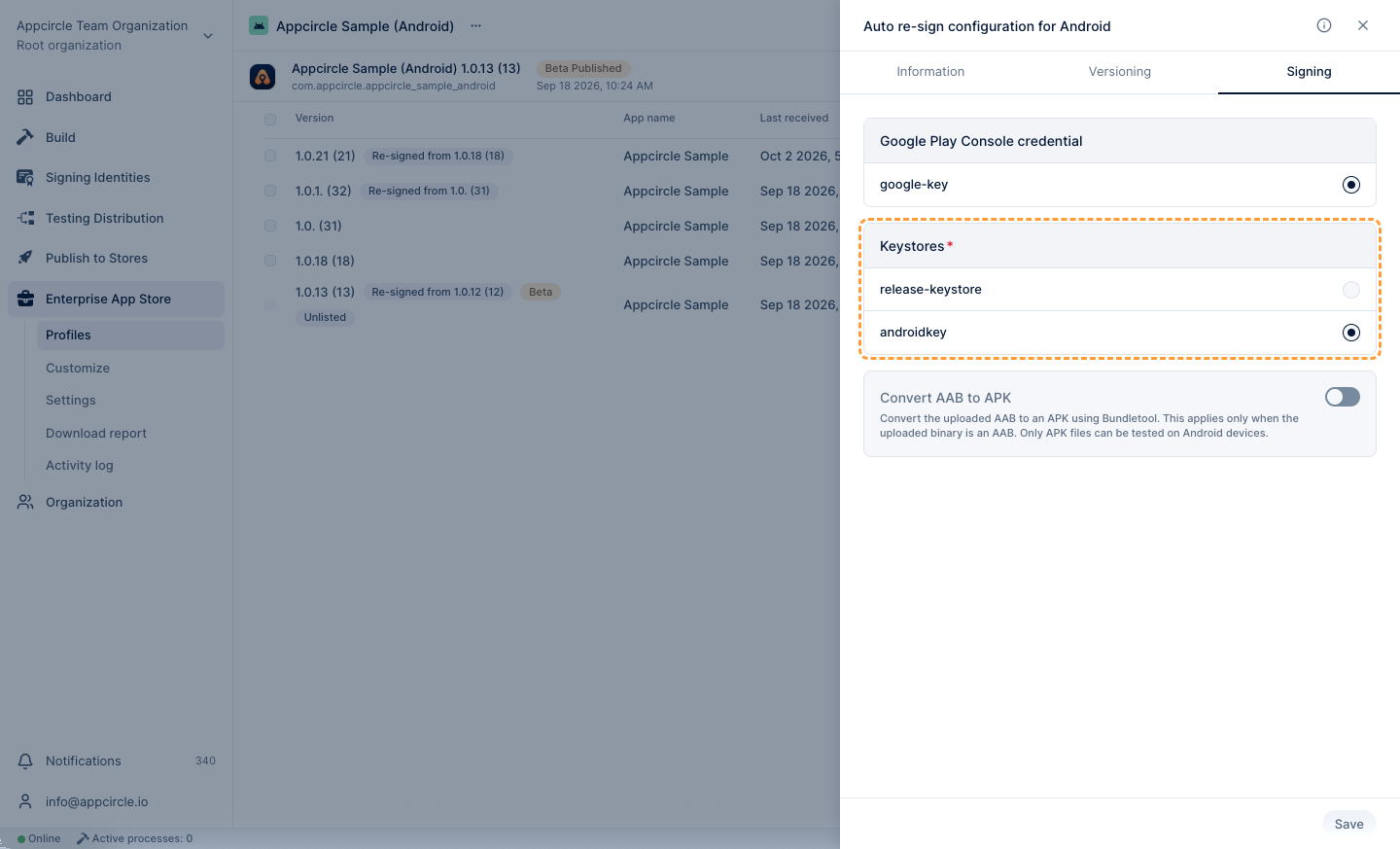
Convert AAB To APK
The Convert AAB to APK option allows you to automatically convert an Android App Bundle (AAB) file into an APK during the re-signing process. This is especially useful when your distribution channel requires an APK instead of an AAB. When enabled, Appcircle will handle the conversion and signing of the resulting APK seamlessly.
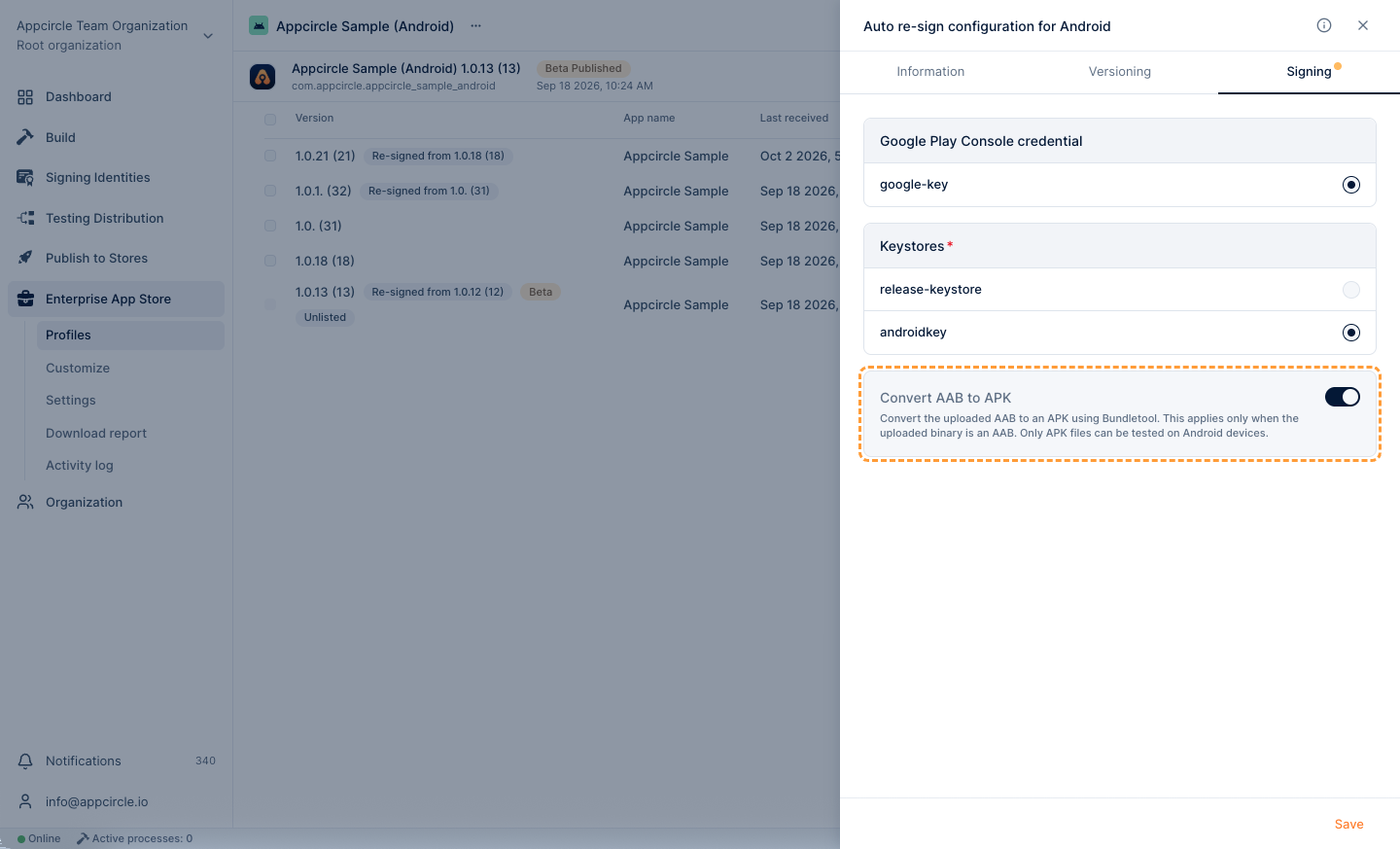
Once you configure the Auto Re-sign settings, you must enable the Auto Re-sign feature from the Enterprise App Store profile settings (... menu next to the profile name > Settings). Otherwise, newly uploaded binaries will not be re-signed automatically.