RBAC Authorization
1. Introduction
RBAC (Role-Based Access Control) authorization allows administrators to manually assign permissions to individual users within Appcircle. This method is particularly useful when specific users require customized access, or when organizations choose to control access internally without relying on external IdP integrations.
Prerequisites
Before you begin configuring SSO for Appcircle, ensure that you have the following prerequisites:
- An active Appcircle account with administrative privileges.
- A list of users who need specific permissions assigned or modified.
2. Managing Team Members and Their Permissions
Team Ownership
The creator of a team starts with the Owner role. The Owner role has full administrative privileges for the team and organization management such as adding/removing members or editing the organization details, while any new members can be assigned specific module-based read/write roles.
Each organization must have at least one Owner and each user must be an Owner of at least one organization.
Invite Users and Assign Roles
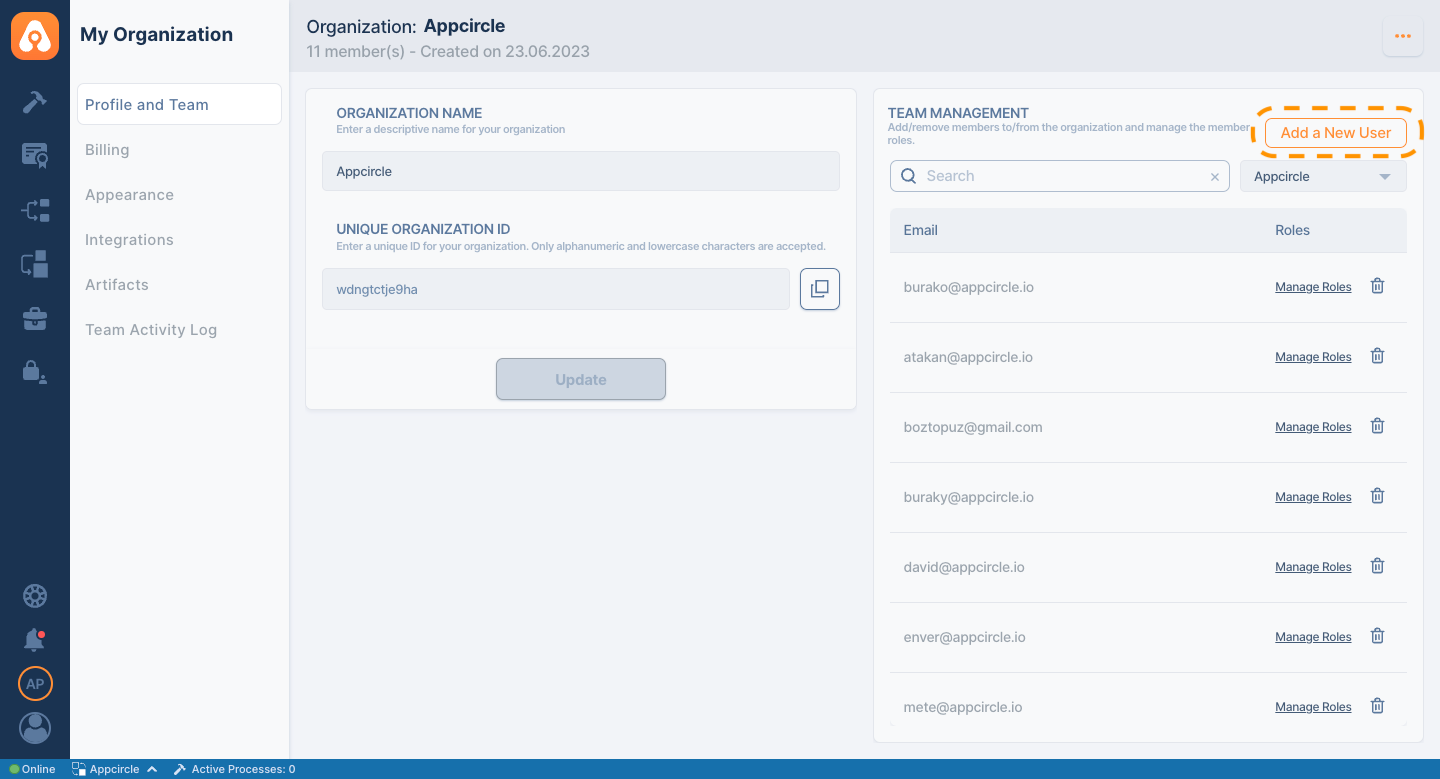
As an Owner, you can invite new users simply by entering their email address under the related field in Team Management and pressing the Add a New User button.
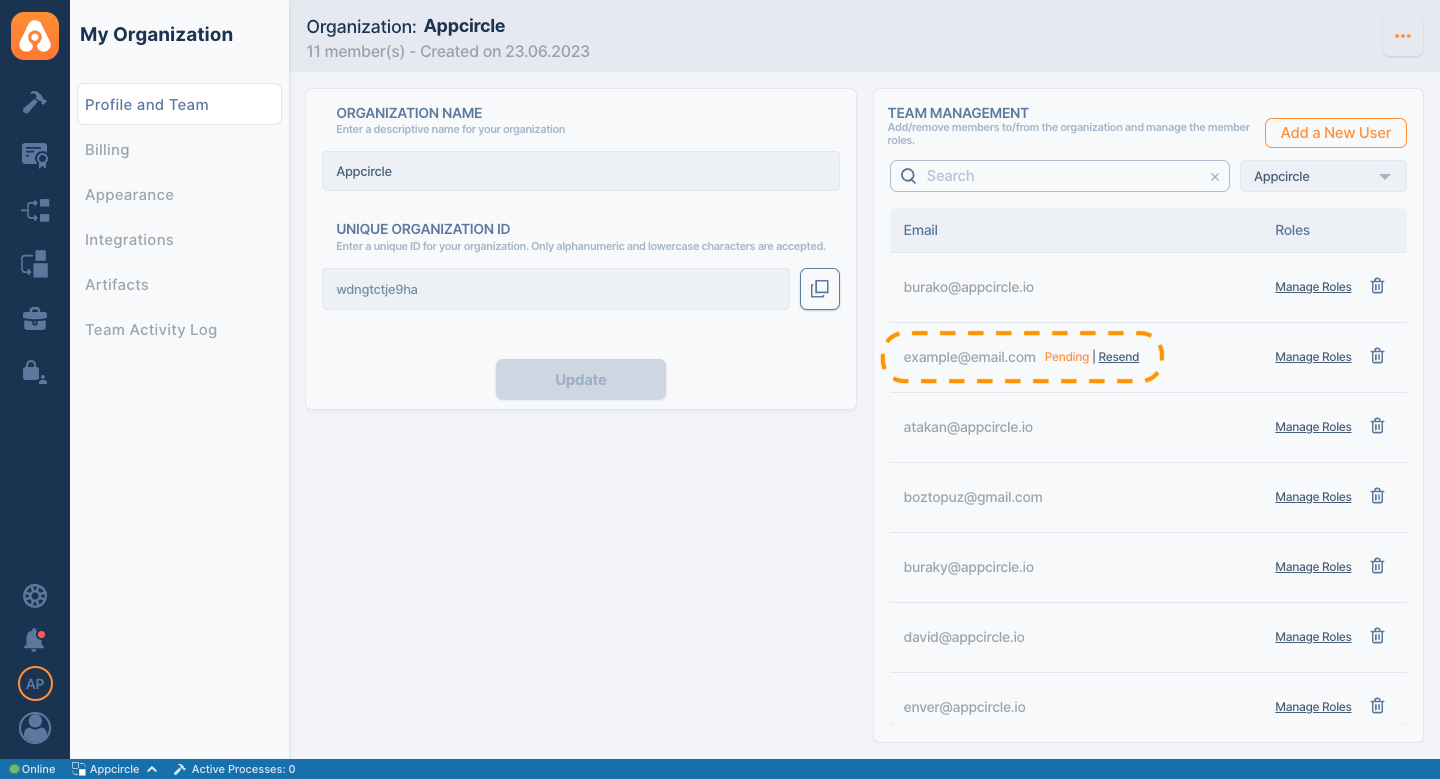
The user will be then shown in a Pending state until the invitation is accepted. At the same time, you can resend the invitation with the Resend option. You can also revoke a pending invite by pressing the delete button at the end of the row.
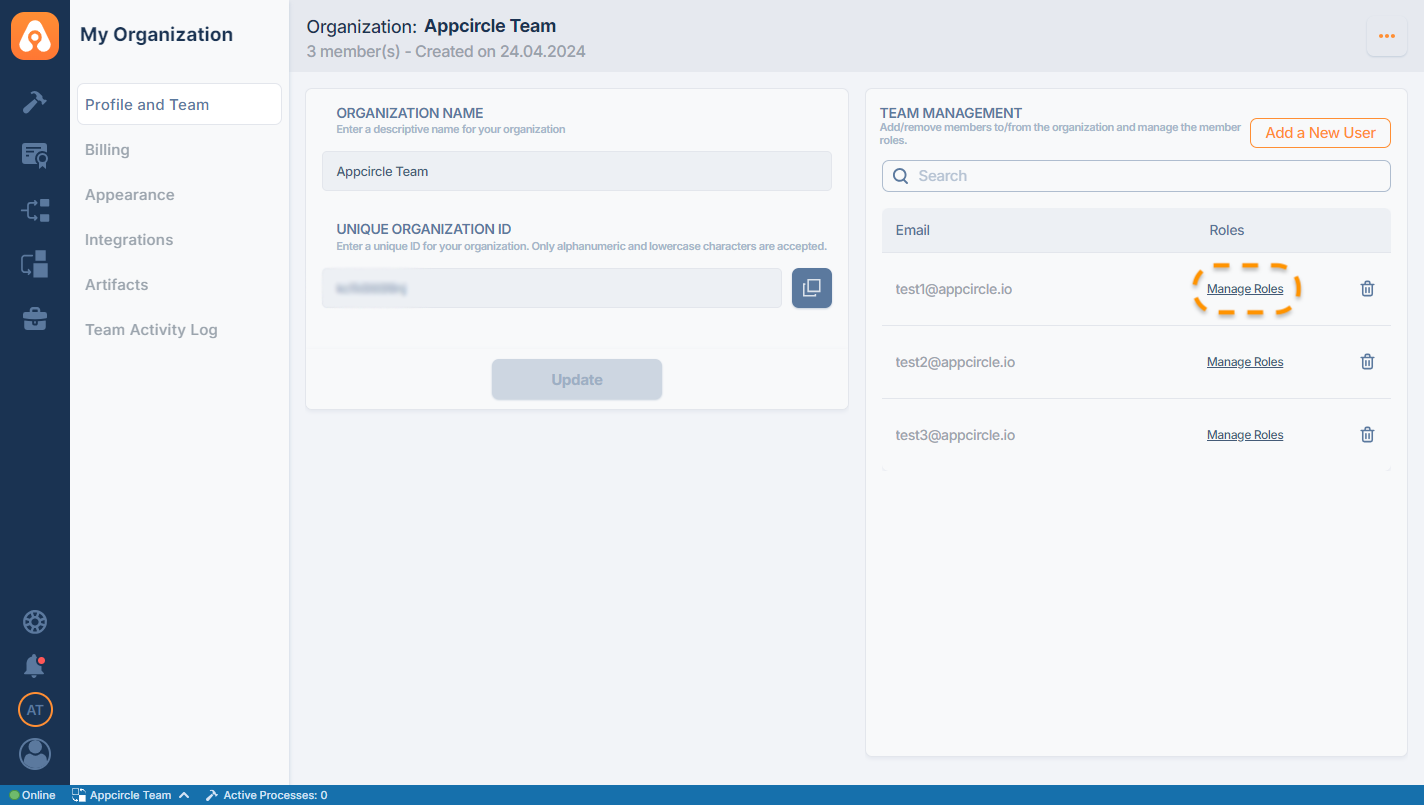
Once a user accepts an invite, it will be added to the team as a Member with read only access. You can change the role of any user, including yourself, with the Manage Roles button next to the user ID. You can also delete a user by pressing the delete button.
Within the opened modal, you can specifically adjust the user's roles across all modules on the right side.
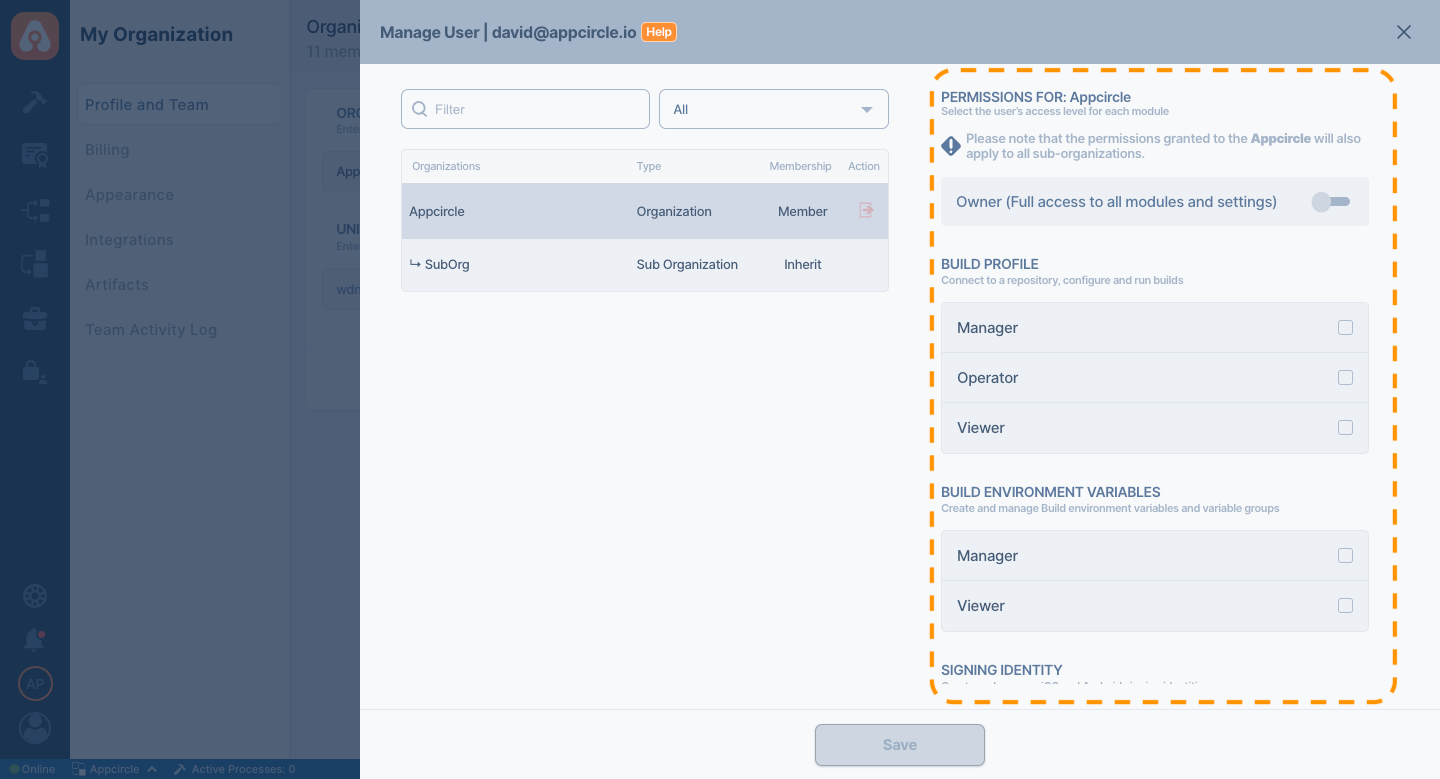
Additionally, the user's assigned organization and sub-organizations will be visible on the left side.
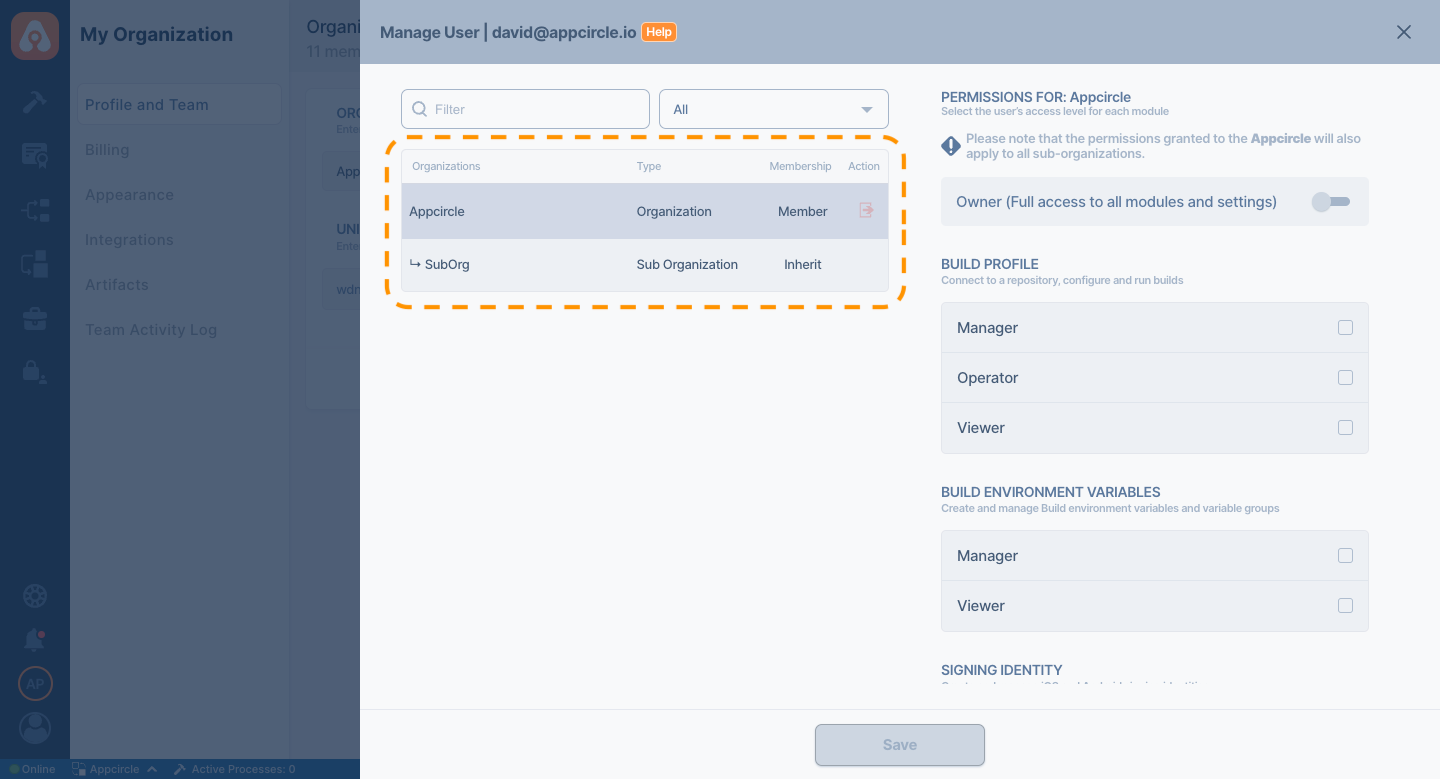
If a sub-organization is created within an organization, everyone in the root organization will be able to see this sub-organization. The roles for these users in the sub-organization will be inherited from the root organization, which is why their permissions will be listed as inherited.
If a user is directly added to the sub-organization, their role will be listed as Member instead of Inherited.
If you want a user to be part of only a specific sub-organization, invite them directly from within that sub-organization.
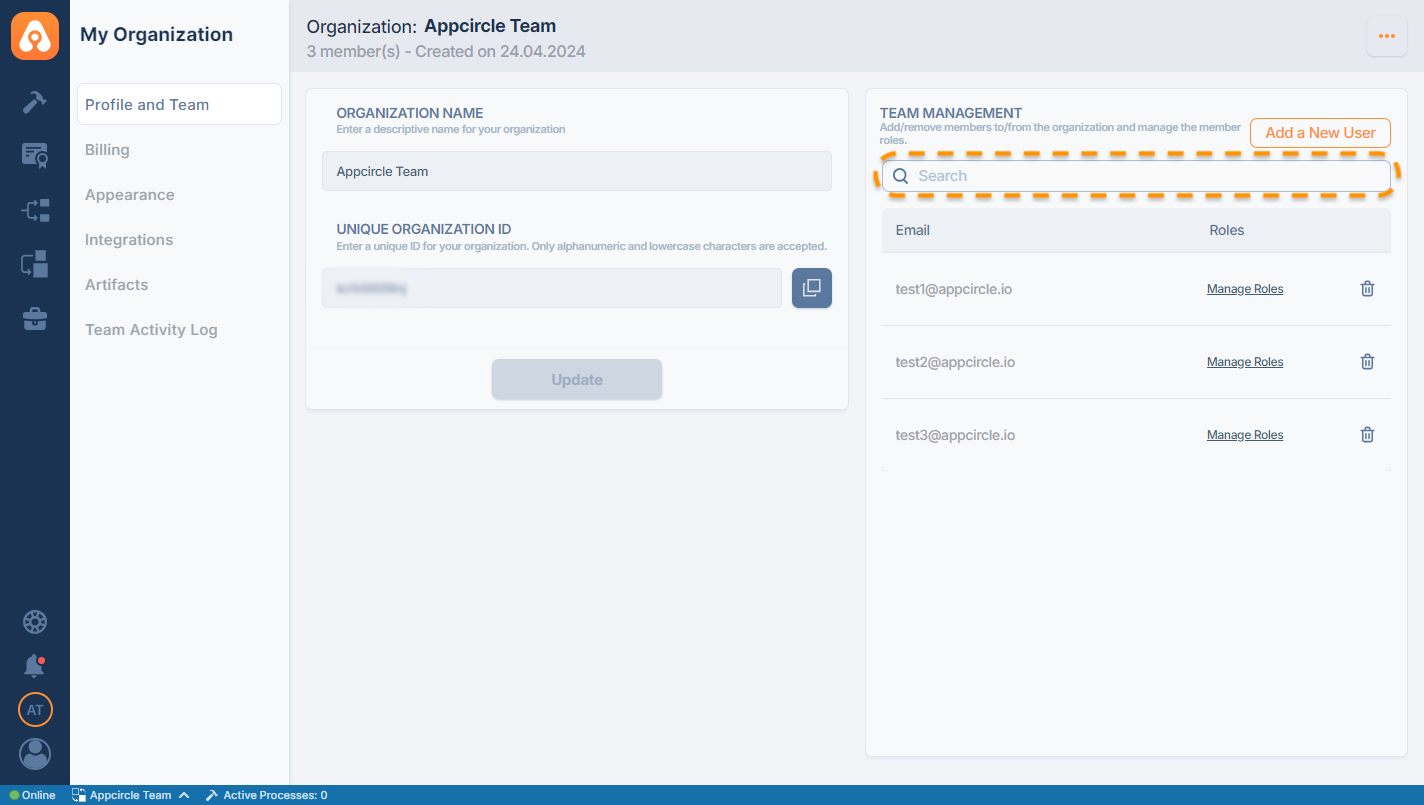
The search bar within the Team Management area allows you to efficiently manage and locate organization members by searching their email addresses to enhance visibility and streamline the management of both current and newly invited members.
3. Advanced Role Management
Team management with fine-grained roles and integration with enterprise identity systems are available in the enterprise plan. Please contact us for more information.
Once you click the "Manage Roles" button, you will be presented with a detailed selection of roles for each module.
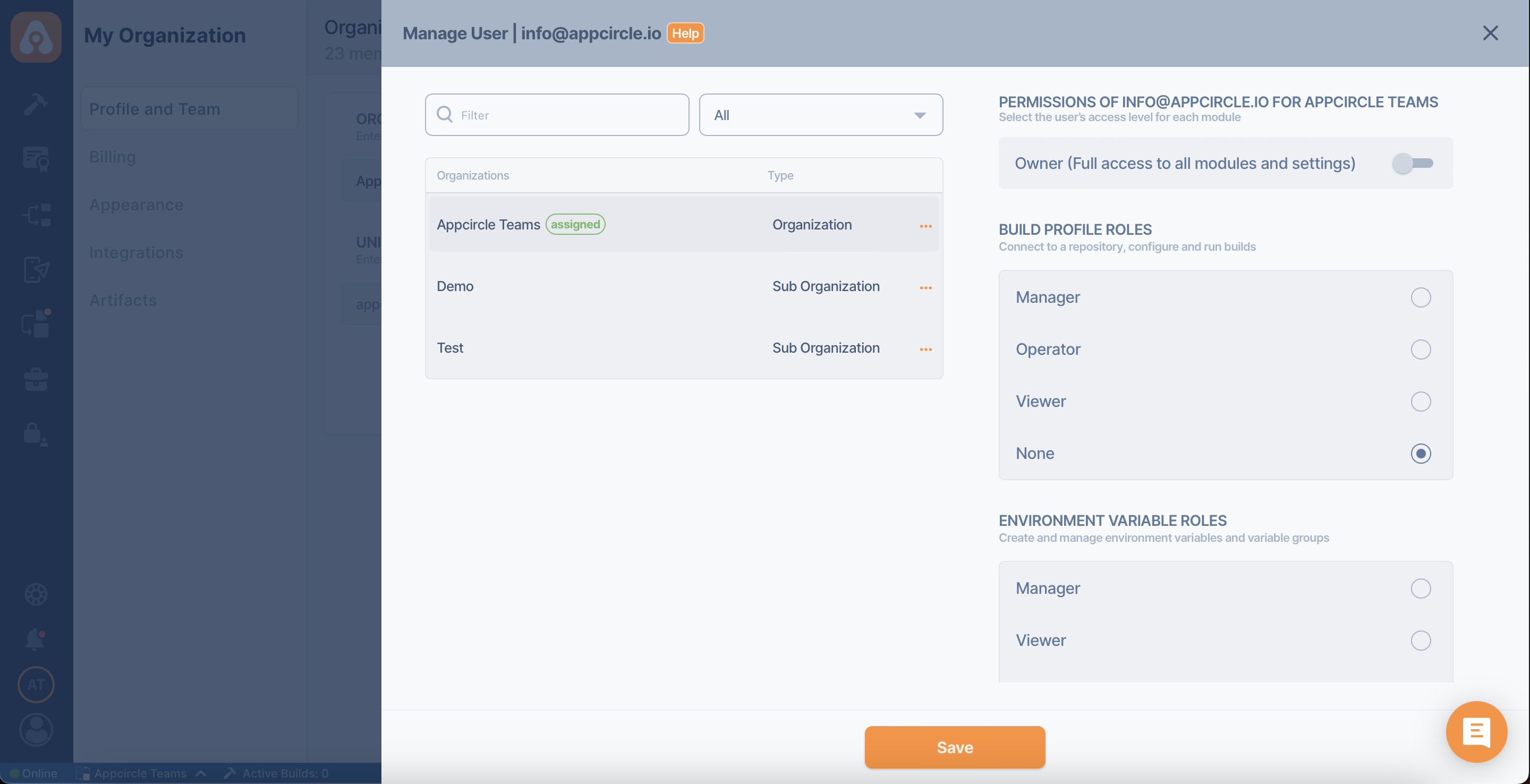
Here, you can assign the Owner role to a user for full access or you can select specific read or write roles for use cases like developers or testers or billing administrators.
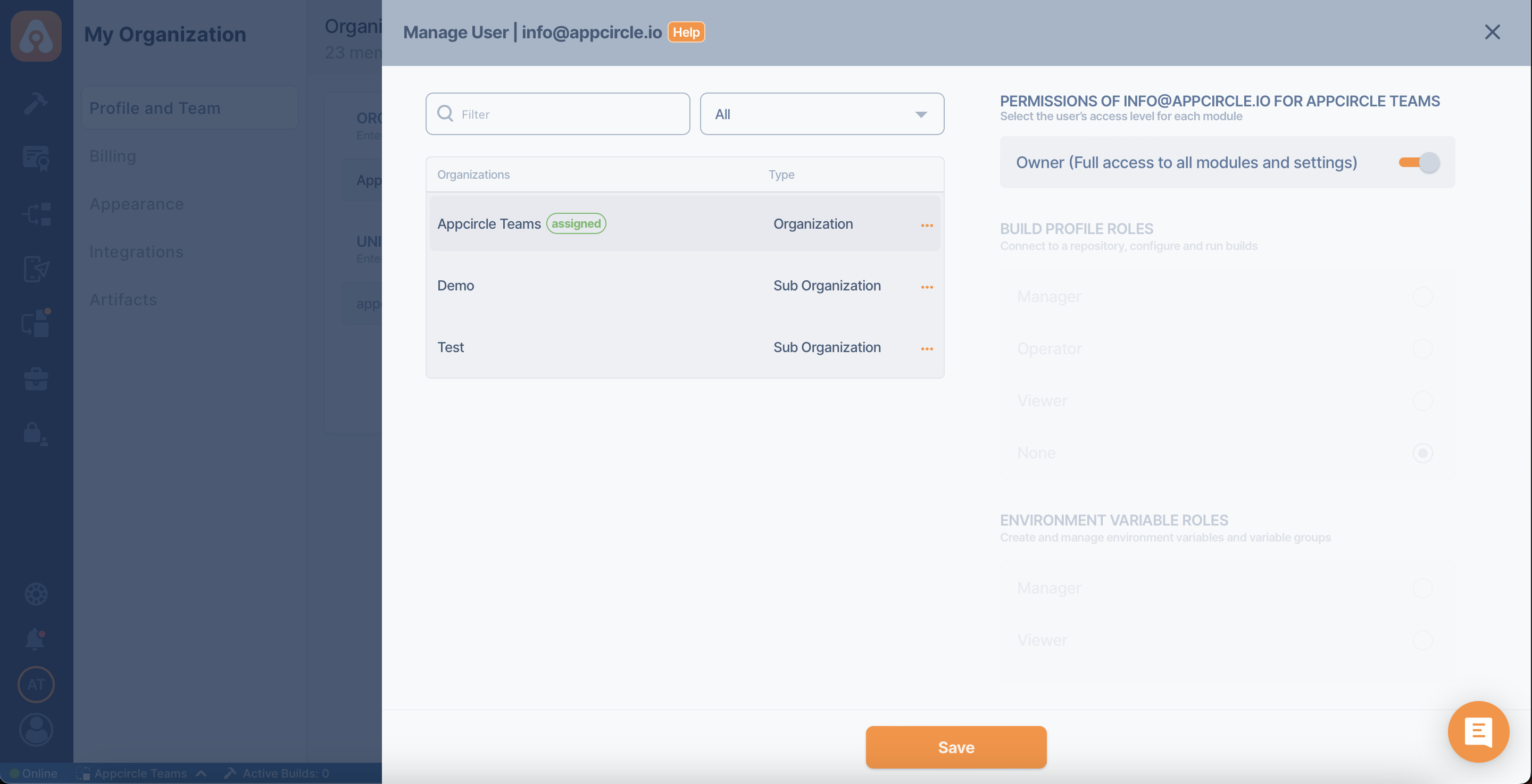
The "None" is a special type of permission that denotes that a user has no defined role or special permissions. If the user's permission is set to "None" in sub-organizations, the user's permission defaults from the organization.
For more information on the roles and permissions, please refer to the:
Role Management