Enterprise App Store Walkthrough
The Enterprise App Store lets you run your own private, branded app store for in-house iOS and Android apps. Your users sign in with your authentication method and install the apps they are allowed to see, while you control which version is live and who can access beta versions. Versions validated in Testing Distribution can be sent here with a single action.

Getting Started
This walkthrough follows the order in which an Enterprise App Store setup is usually done: configure the Enterprise Portal, add your first app, configure the app profile, publish a version to a channel, and track the results. The following sections describe each step.
Prerequisites for Using the Enterprise App Store Module
iOS: Signing for In-House Distribution
The Enterprise Portal can distribute .ipa files signed with one of the following:
- Enterprise (In-House) provisioning profile: Available to Apple Developer Enterprise Program members. Device UDIDs are not required, so it is the recommended option for distributing to a large internal audience. Users must trust the enterprise developer certificate on the device after installation.
- Ad Hoc provisioning profile: Every user's device UDID must be registered in your Apple Developer account and included in the provisioning profile. Apple limits Ad Hoc distribution to 100 devices per device type per membership year, so it is better suited to small internal teams.
Binaries signed for the App Store cannot be installed from the Enterprise Portal.
Apple does not allow apps signed with an Enterprise certificate to be distributed publicly. If you distribute enterprise-signed apps, set an authentication method for the Enterprise Portal (see Store Authentication). For the related terms, see the Apple Developer Enterprise Program License Agreement.
Android: Installing from Unknown Sources
Android apps can be signed with any keystore, but users must allow their browser to install unknown apps on their device. Android prompts for this permission the first time a user opens a downloaded .apk.
.aab is a store-only format and cannot be installed directly on a device. If your build produces an .aab, use Auto Re-sign with the Convert AAB to APK option so users receive an installable .apk. The first upload creates the profile and is not converted, so re-sign it manually or upload it again after you enable Auto Re-sign.
Enterprise Portal Setup Process
The Enterprise Portal is shared by all app profiles in your organization, so it is configured once, before publishing apps. Portal settings and customization are available only in the root organization. Sub-organizations can publish apps, and their published versions appear in the root organization's portal.
Configuring Portal Settings
Go to Enterprise App Store > Settings to configure the portal.
Store Authentication
Select how users sign in to the Enterprise Portal:
- None: Users enter the portal without credentials.
- Static Login: A single username and password for all users.
- SSO Login: Users sign in with your identity provider (Enterprise plans).
- LDAP Login: Users sign in with their LDAP credentials (Enterprise plans). Multiple LDAP connections and two-factor authentication (2FA) are supported.
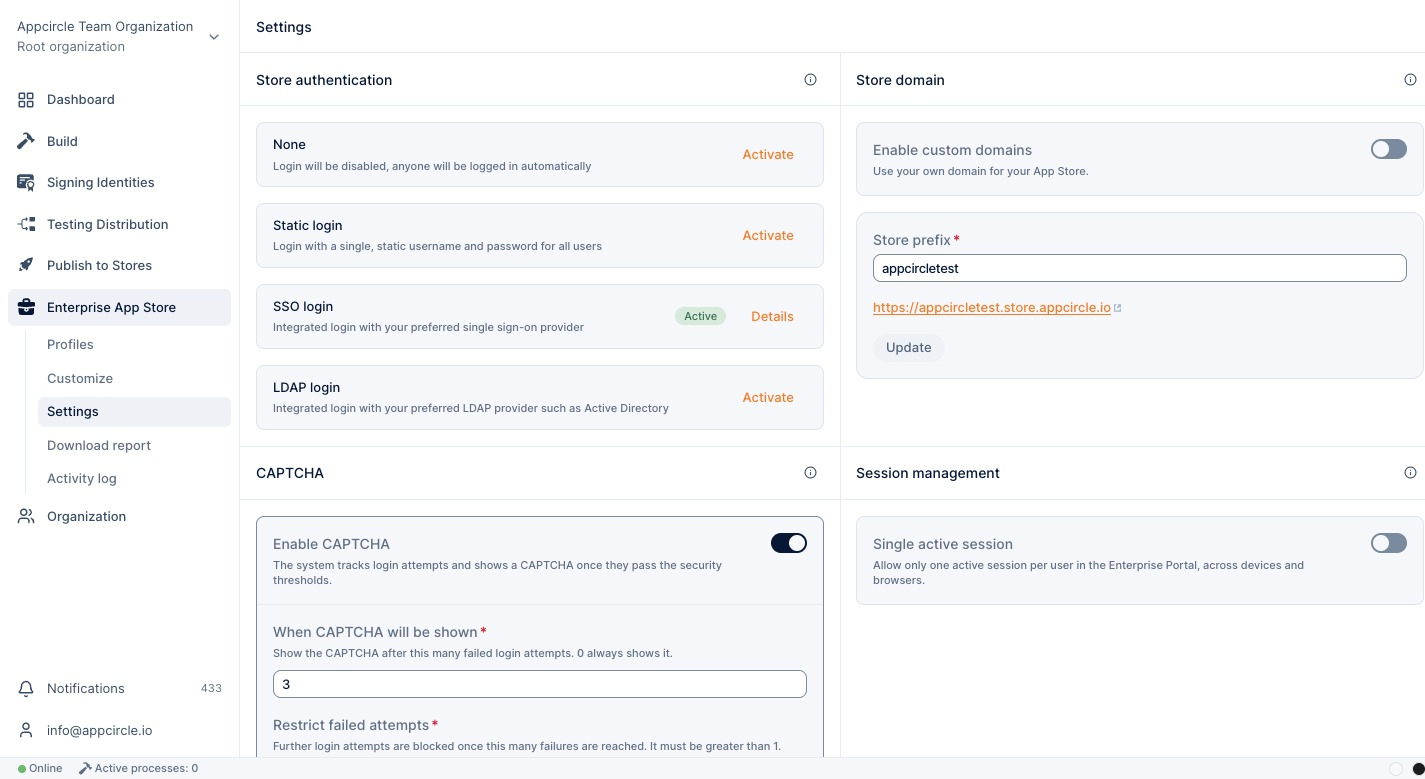
Only the organization owner or users with the Manage Enterprise Settings & Apps permission can change the login settings. Restricting beta access to specific users or groups requires SSO or LDAP (see Manage Access).
Store Domain
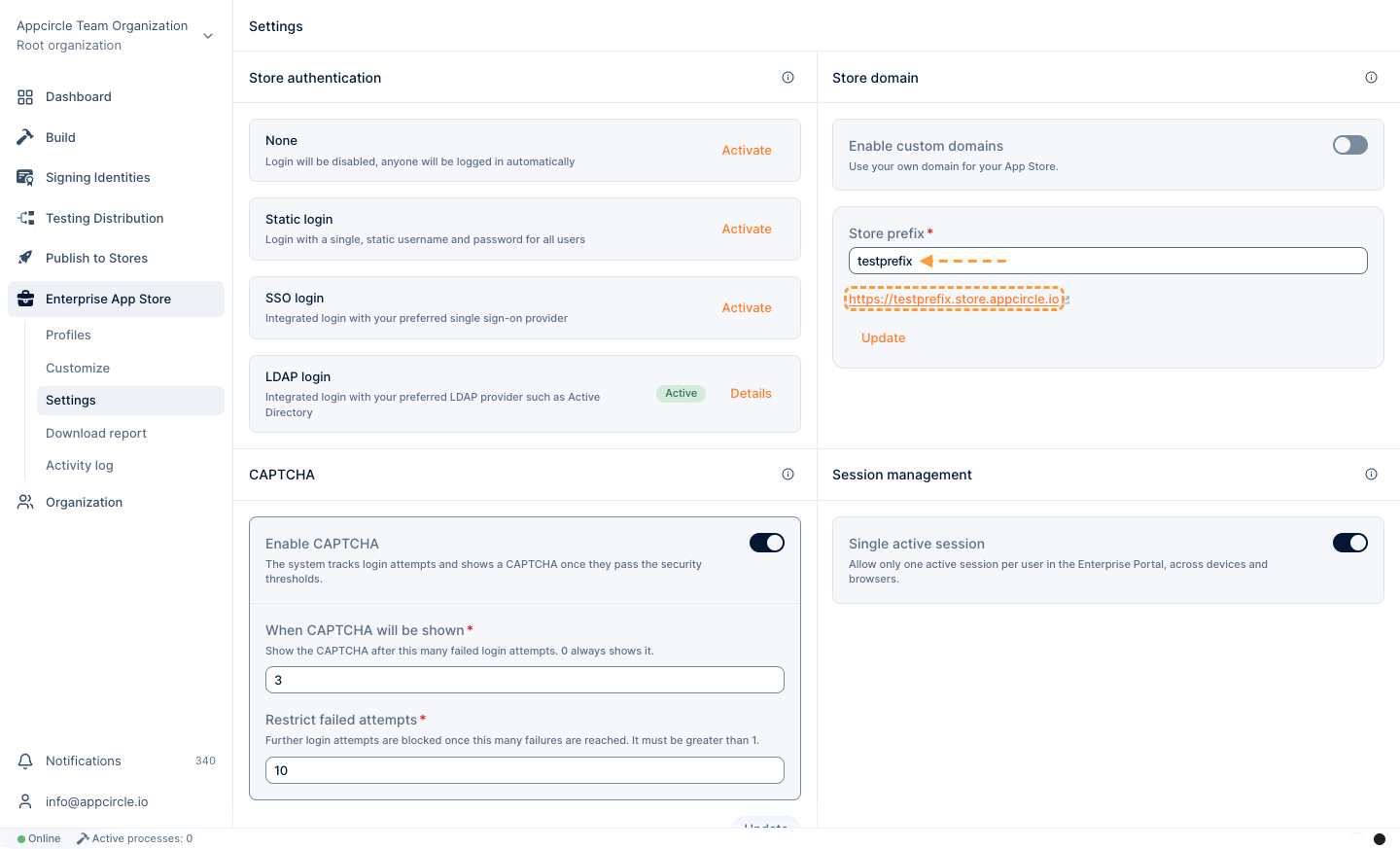
Set a store prefix to define your Enterprise Portal URL, then copy the URL to share it with your users. You can also use your own custom domain with a CNAME record and an SSL certificate exported as a .p12 or .pfx file.
CAPTCHA and Session Management
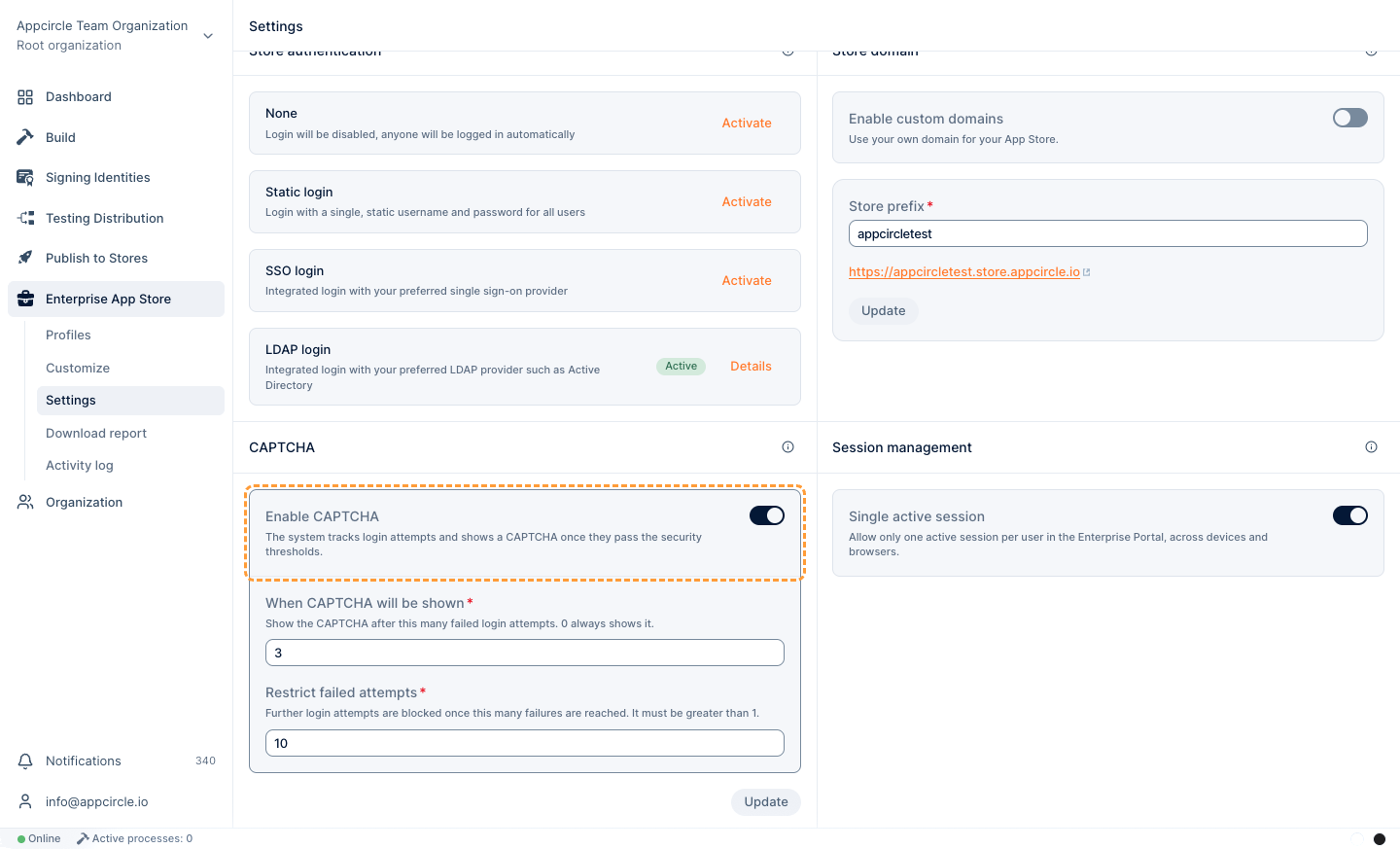
Protect the portal with a CAPTCHA after failed login attempts (Enterprise plans) and optionally limit each user to a single active session.
For all options, see Portal Settings.
Customizing the Portal
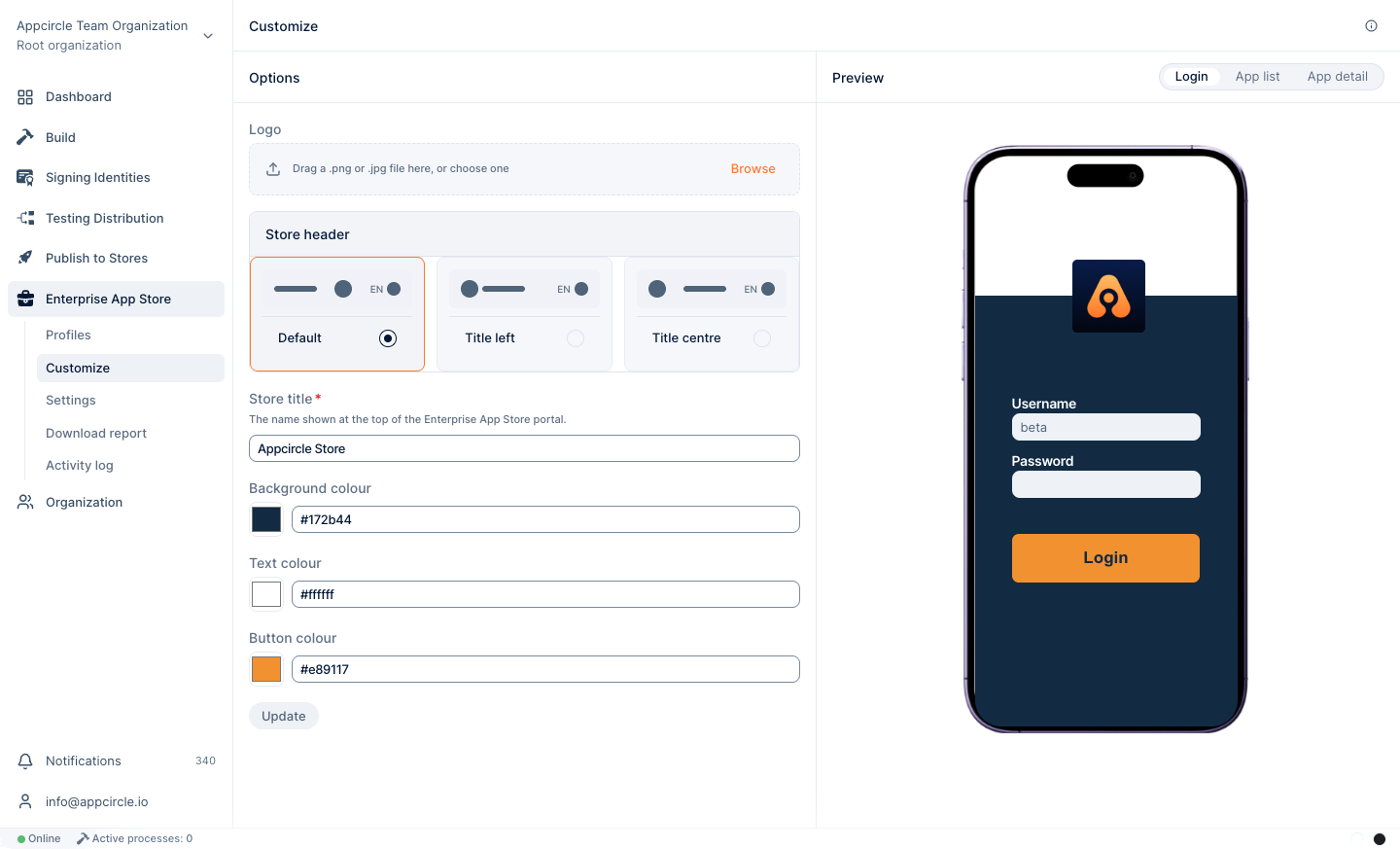
Go to Enterprise App Store > Customize to align the portal with your brand: logo, header layout, store title, and colors. The preview shows the login, app list, and app detail screens as you edit.
For details, see Portal Customization.
Adding Apps to the Enterprise App Store
Enterprise App Store profiles are created from binaries. When you upload a binary for a new app, a profile is created automatically and named after the app. Later uploads of the same app are added to that profile.
Enterprise App Store profiles cannot be named or renamed manually. The app name from the binary is used as the profile name.
Manual Binary Upload
For your first app, select Add a new app. When at least one profile exists, use the Upload binary button at the top right instead.
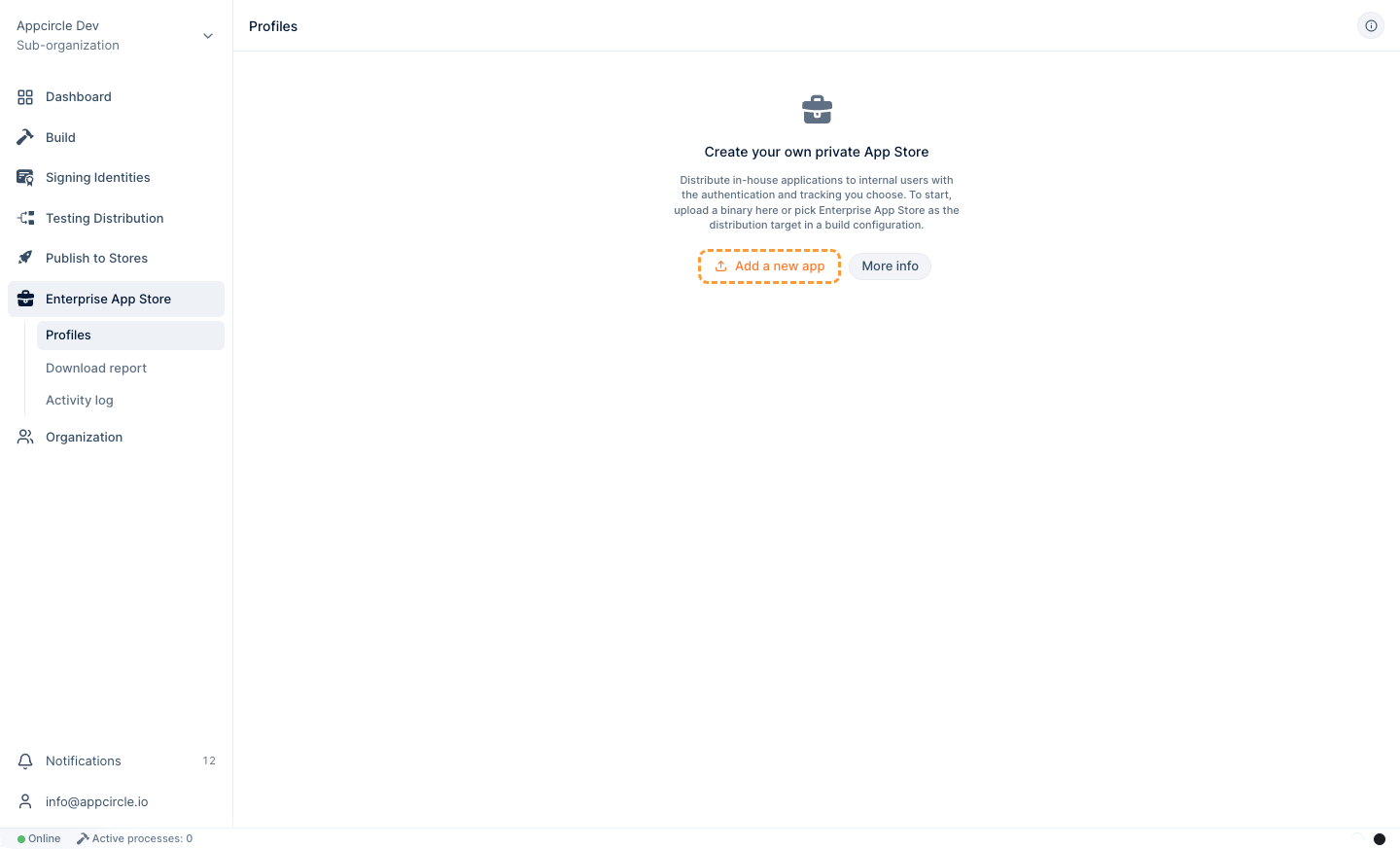
Choose your .ipa, .apk, or .aab file and click Upload.
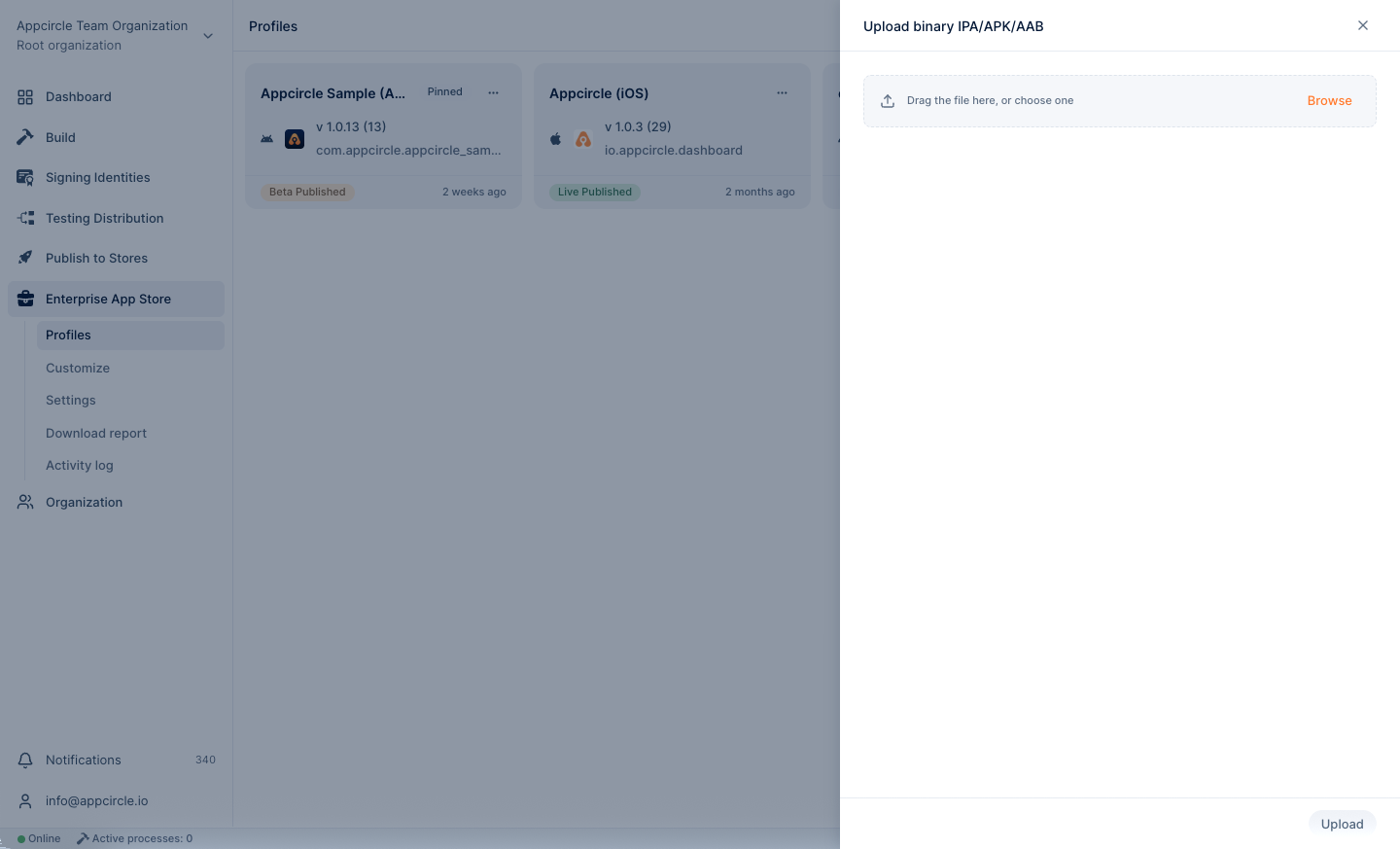
The bundle or package identifier must match the profile, and the version or build number must differ from the versions already in the profile.
Upload via Build Module
Every successful build can be sent to the Enterprise App Store automatically from the Distribution tab of the build configuration. See Distribution Configuration.
Upload via Testing Distribution Module
After a version has been validated by testers, select Send to Enterprise App Store from the version's ... menu in the Testing Distribution profile. See Testing Distribution.
Upload via Publish Module
Add the Send to Enterprise App Store step to your Publish flow.
Upload via Appcircle CLI & API
Upload from your existing CI with the Appcircle CLI. See Automating the Enterprise App Store with Appcircle CLI & API.
Version List and Version Details
Uploaded versions are listed in the profile with their channel and signing expiration status. For signing and build details of a version, see Binary Information.
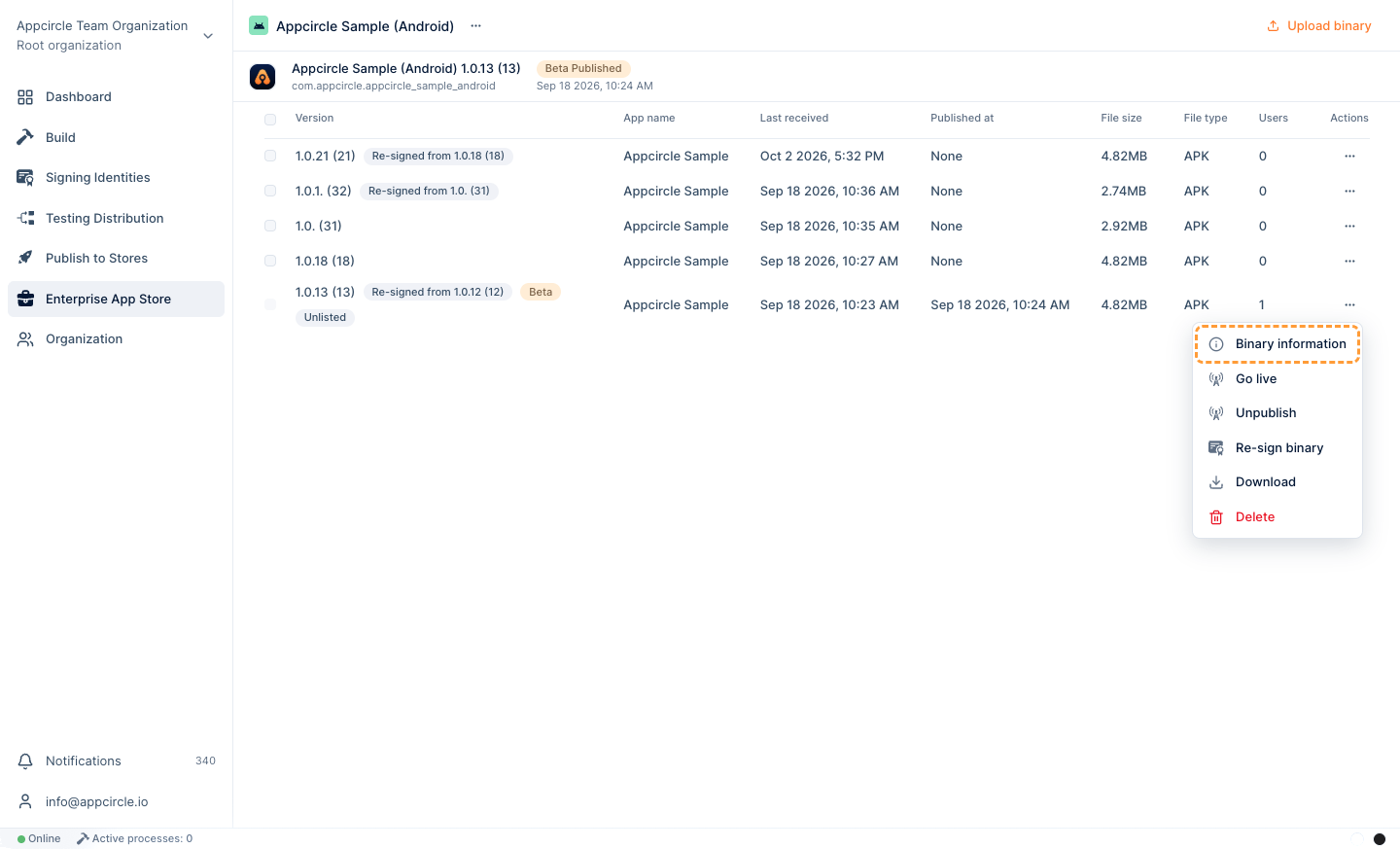
Configuring the App Profile
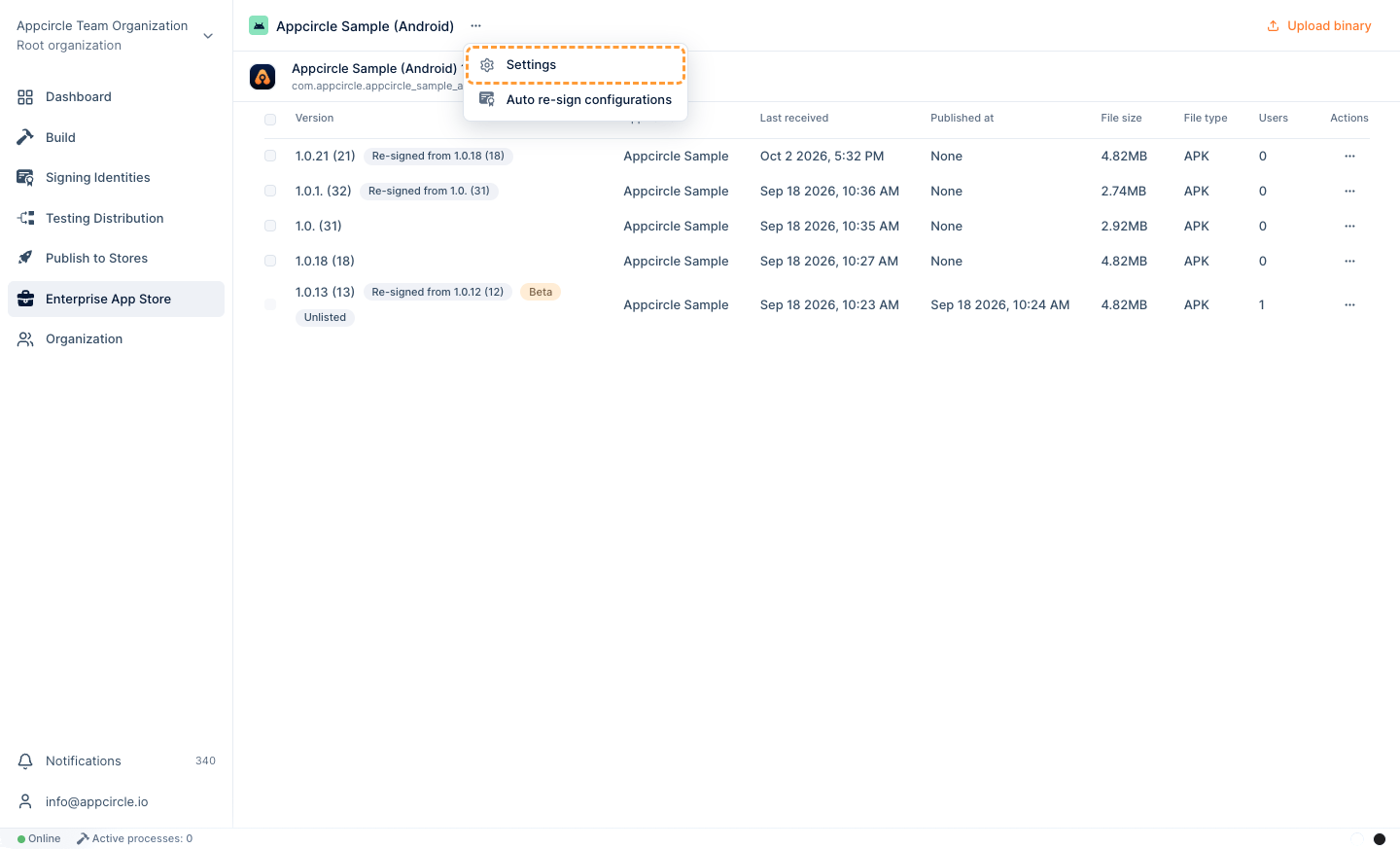
To open the profile settings, select Settings from the ... menu next to the profile name. The settings are grouped into the tabs described below.
Config
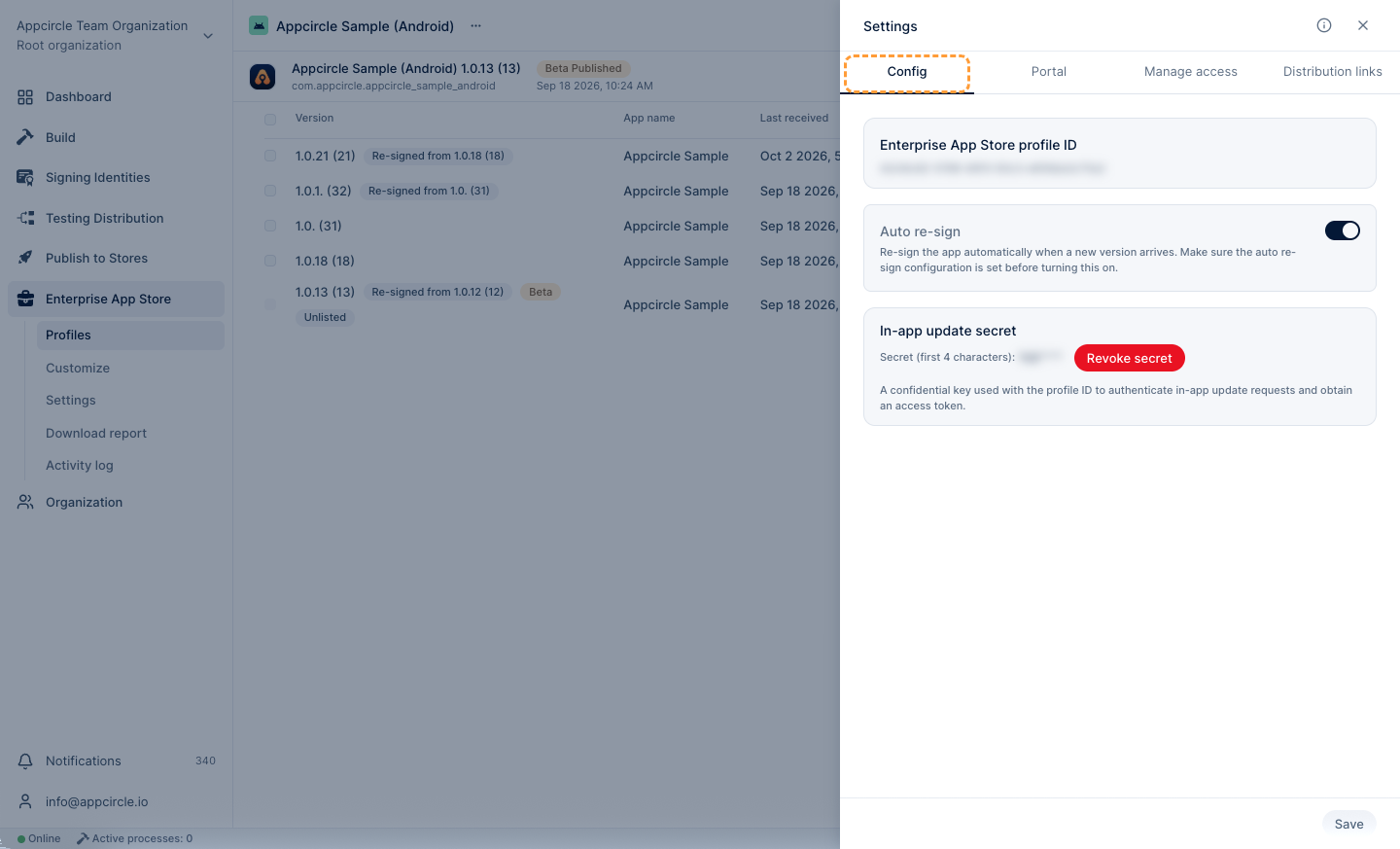
The Config tab shows the Enterprise App Store profile ID, which you need for the CLI, API, and in-app updates, and the In-App Update Secret, used to let your app check for and install new versions from inside the app. See In-App Updates.
Auto Re-sign
Auto Re-sign re-signs every new binary uploaded to the profile with the signing identity and versioning rules you define, so that, for example, a development-signed build can be distributed with your enterprise certificate. Select Auto Re-sign Configurations from the ... menu next to the profile name, configure iOS and/or Android, then enable Auto Re-sign in Settings > Config. Otherwise, new uploads are not re-signed.
The profile is created by the first upload, so the first binary is never auto re-signed. Only later uploads are. For example, the first .aab upload is not converted to .apk; re-sign it manually or upload it again after you enable Auto Re-sign.
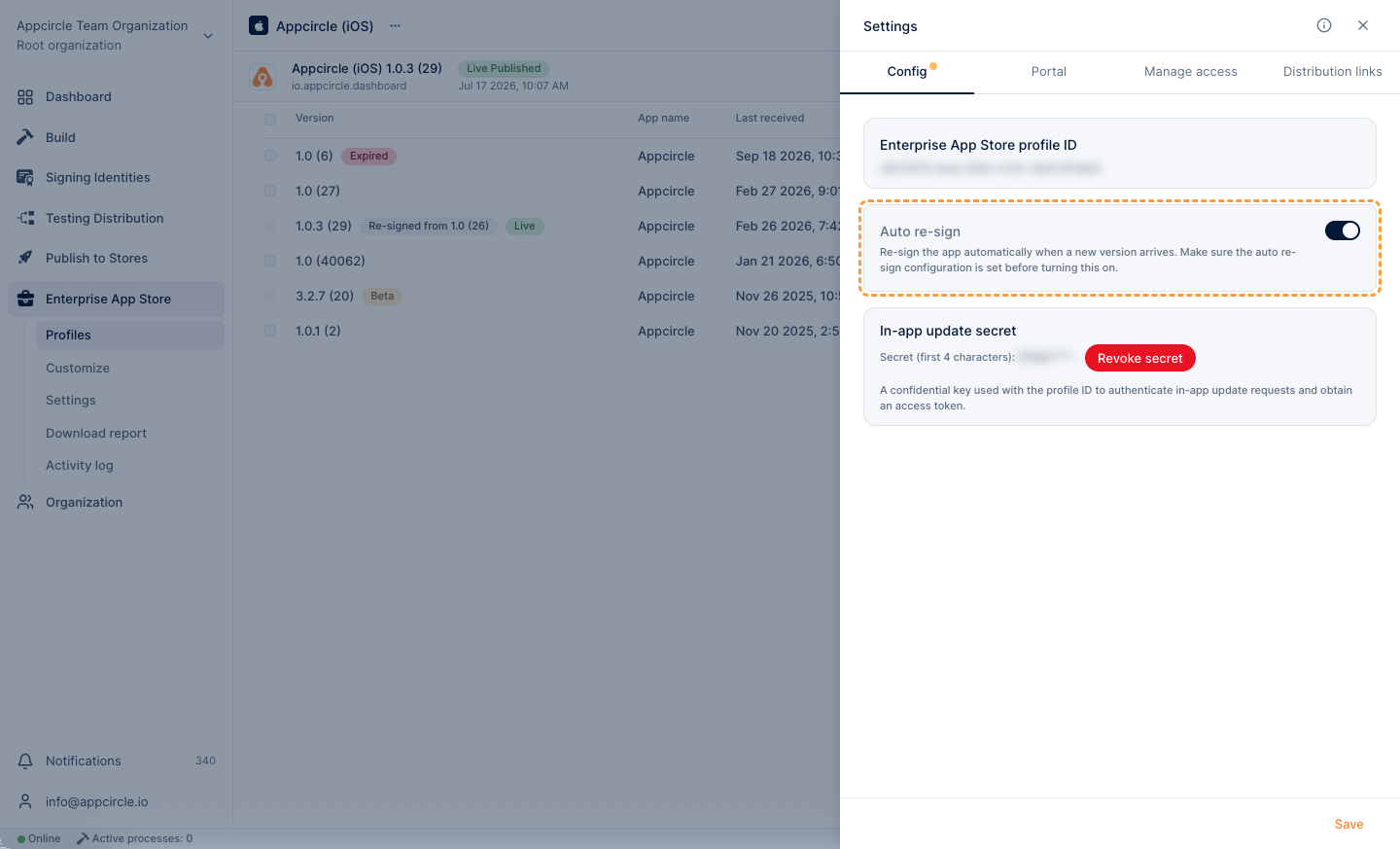
Auto Re-sign uses the certificates and keystores in Signing Identities. For requirements and all configuration options, see Re-sign Binary.
Portal
The Portal tab controls how the app is displayed on the Enterprise Portal.
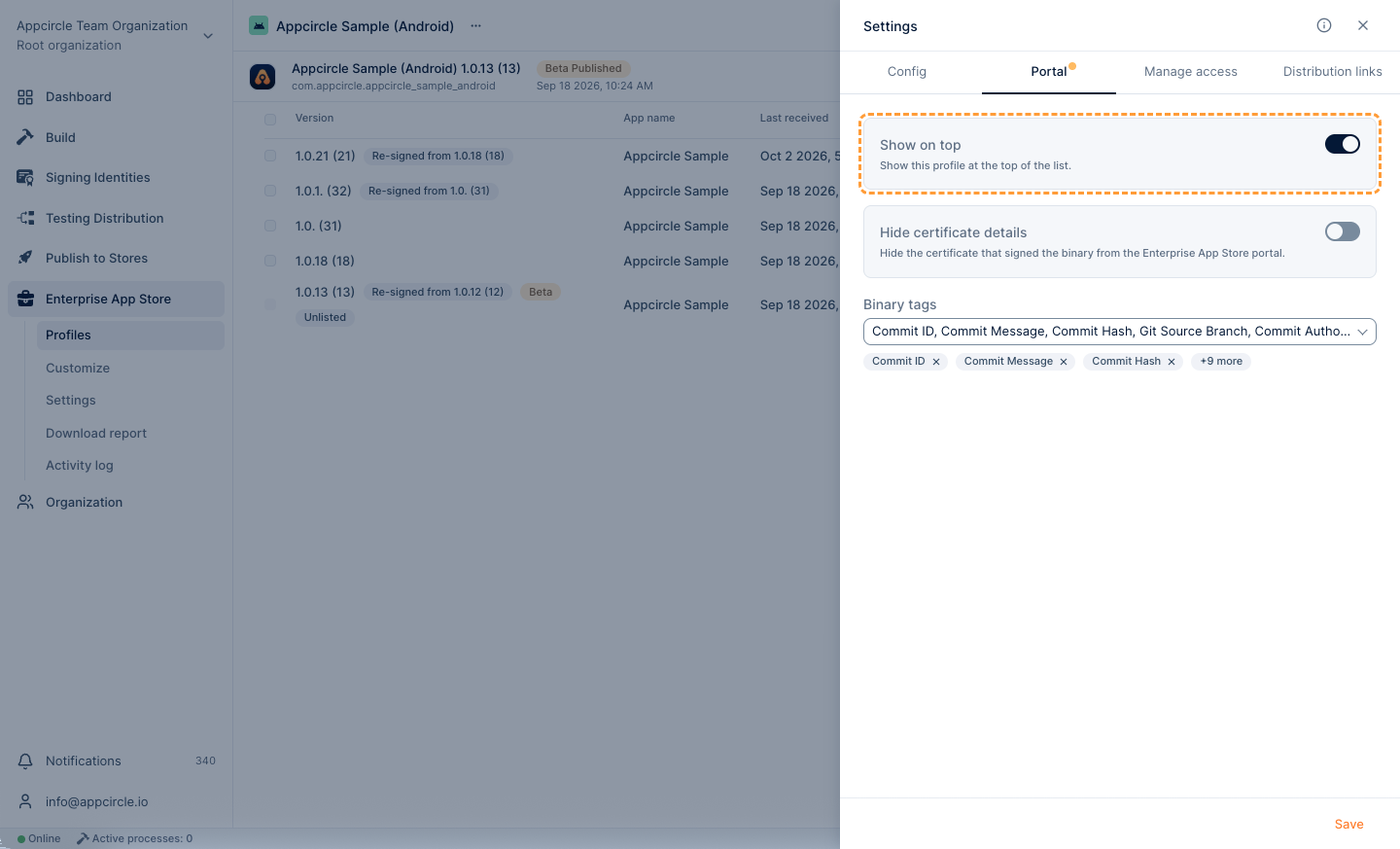
You can pin the app to the top of the list, hide certificate details, and show build metadata as binary tags. See Enterprise App Store Profile.
Manage Access
The Manage Access tab defines who can see the versions published to the Beta and Live channels. Enter user emails or the group names defined in your identity provider, pressing Tab after each entry.
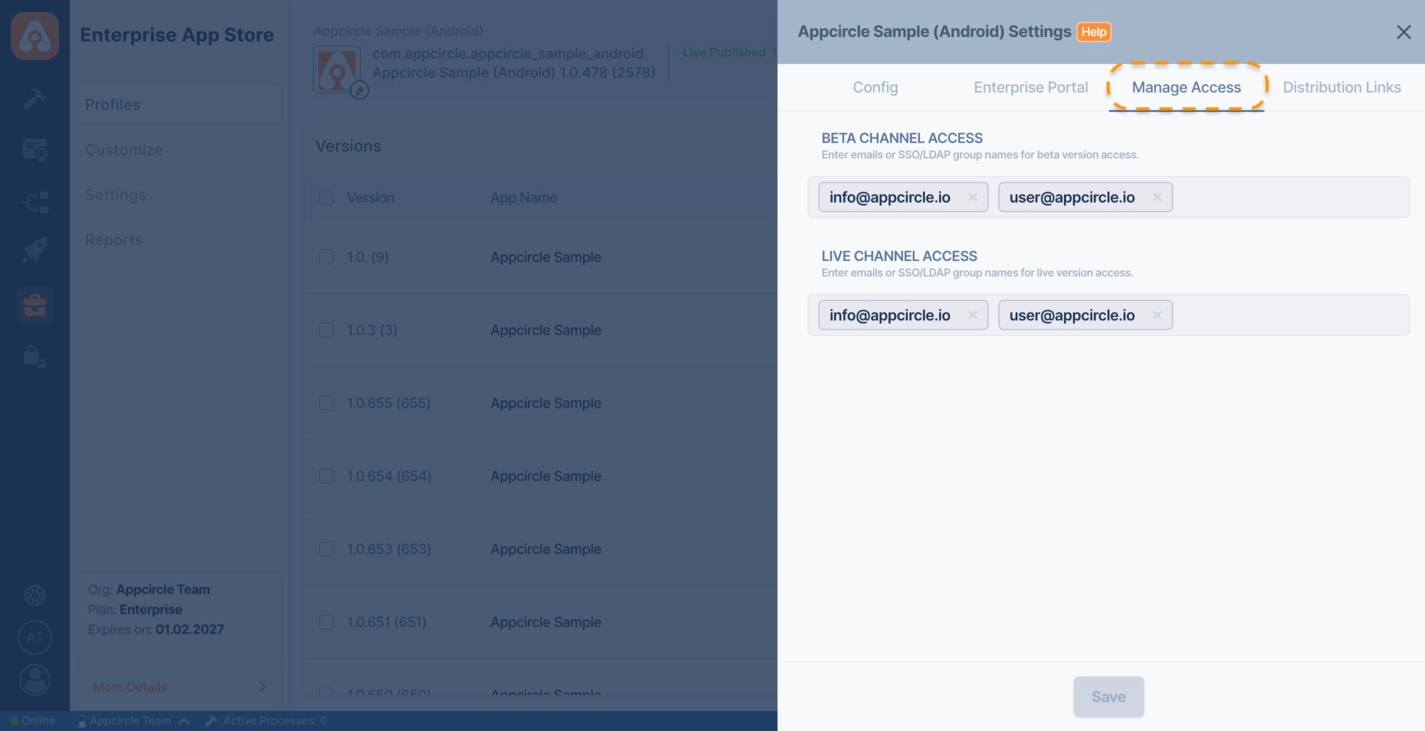
- If Beta channel access is not configured, beta versions are not visible to anyone.
- If Live channel access is not configured, live versions are visible to everyone who can sign in to the portal.
Manage Access requires SSO or LDAP authentication. For group-based access, see Store SSO Authorization.
Distribution Links
The Distribution links tab shows a direct link and a QR code for each channel that has a published version. Use them to send users straight to the app.
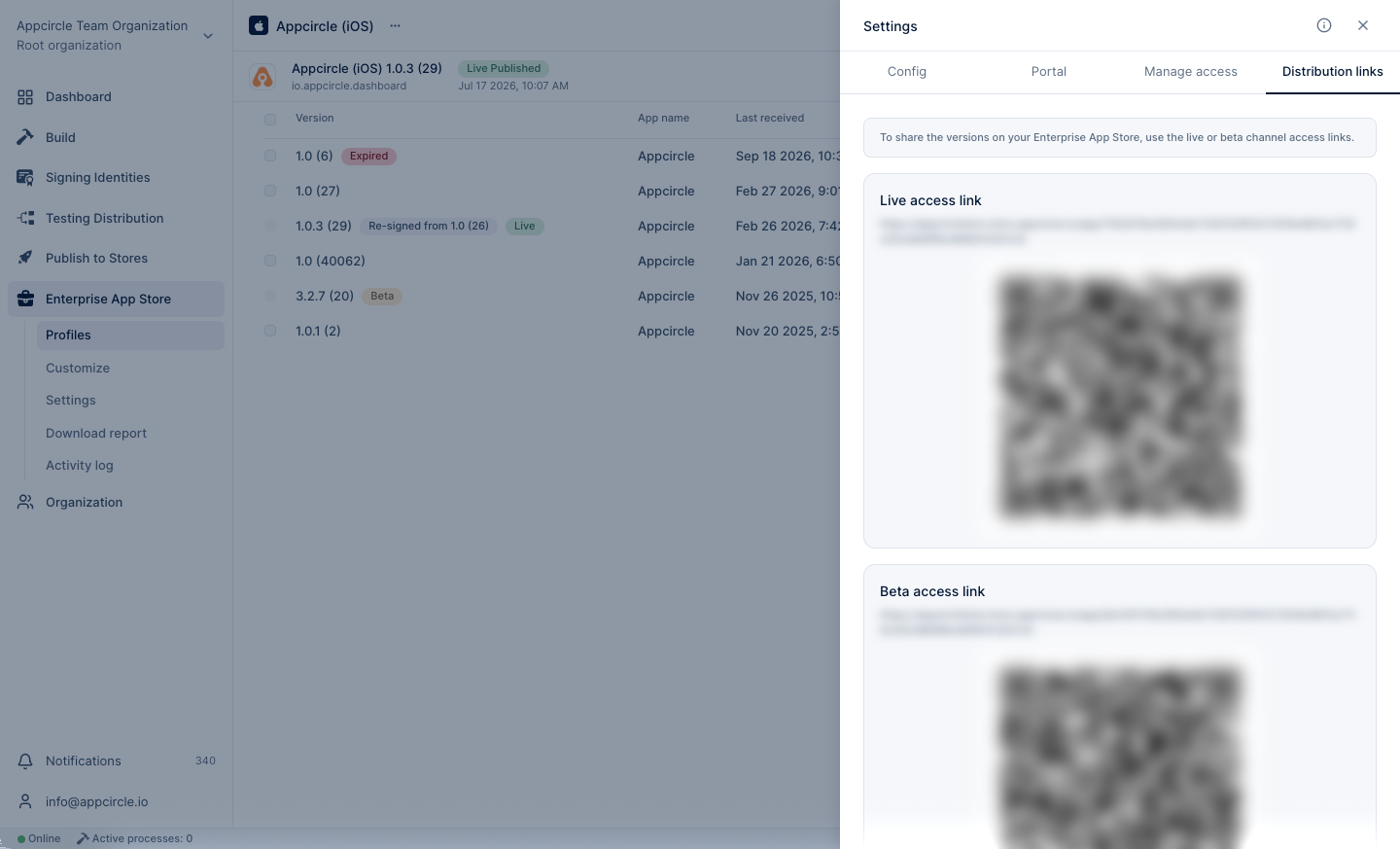
Always share the original link from this tab. A redirected URL copied from the browser may stop working when the published version changes.
Publishing to Channels
Beta and Live Channels
Each profile has two channels:
- Beta: For trialing a new version with a limited audience before rolling it out to everyone.
- Live: The production channel that all permitted users see.
Only one version can be in each channel at a time. Publishing a new version to a channel replaces the previous one.
Publishing a Version
- Select Publish from the version's ... menu.
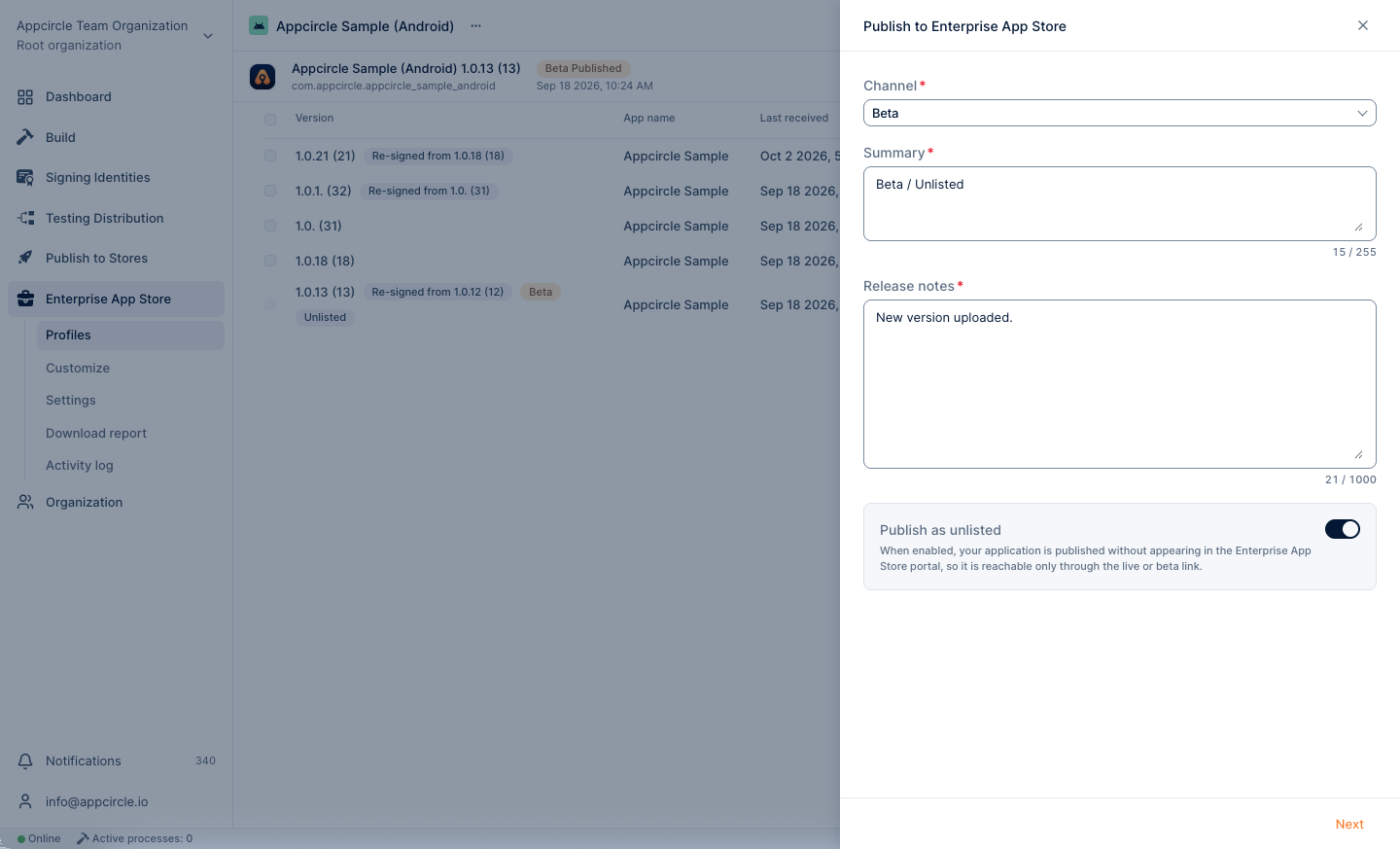
- Select the Beta or Live channel, and enter a summary and release notes.
- Click Next, review the details on the Preview and publish screen, and click Publish.
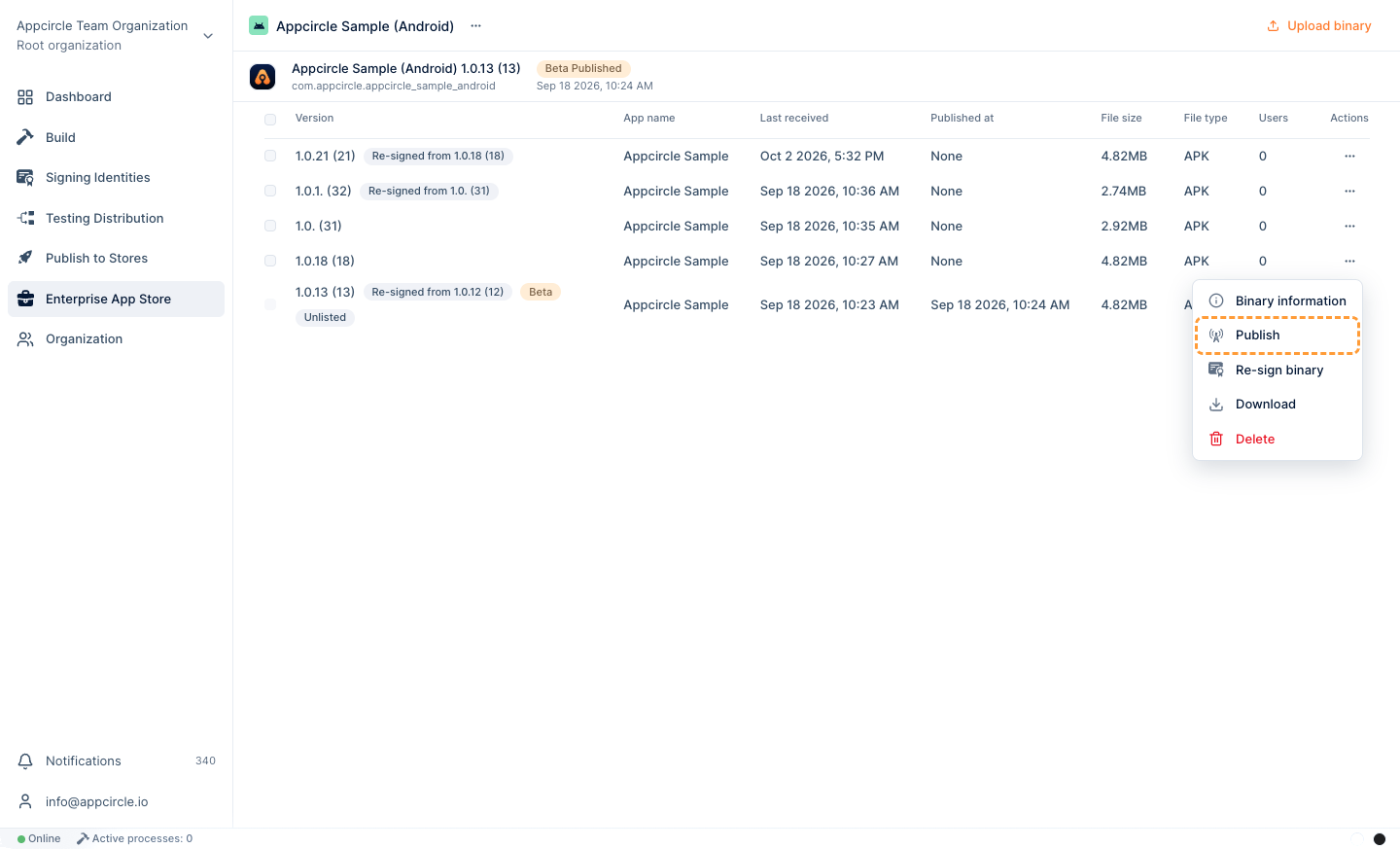
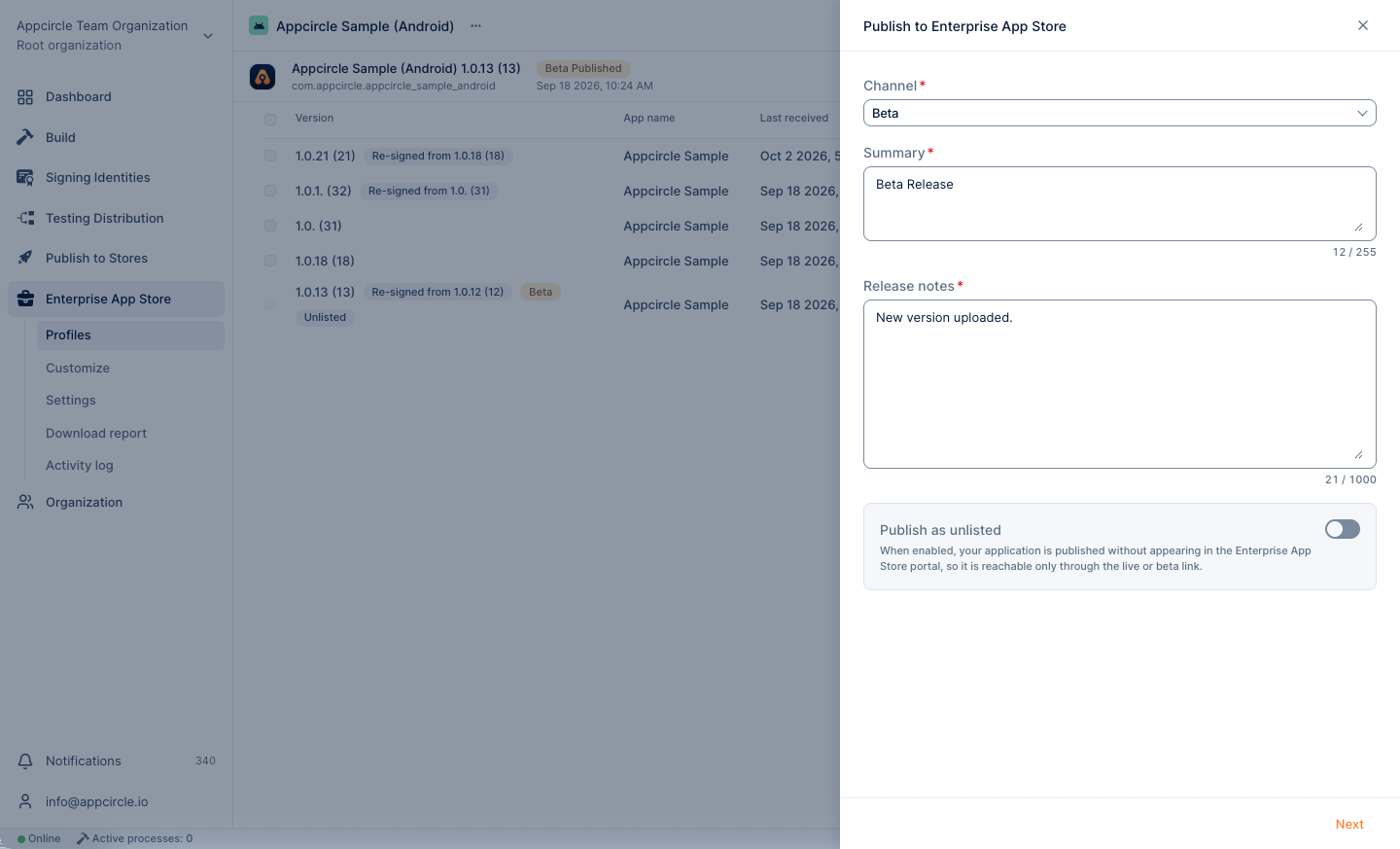
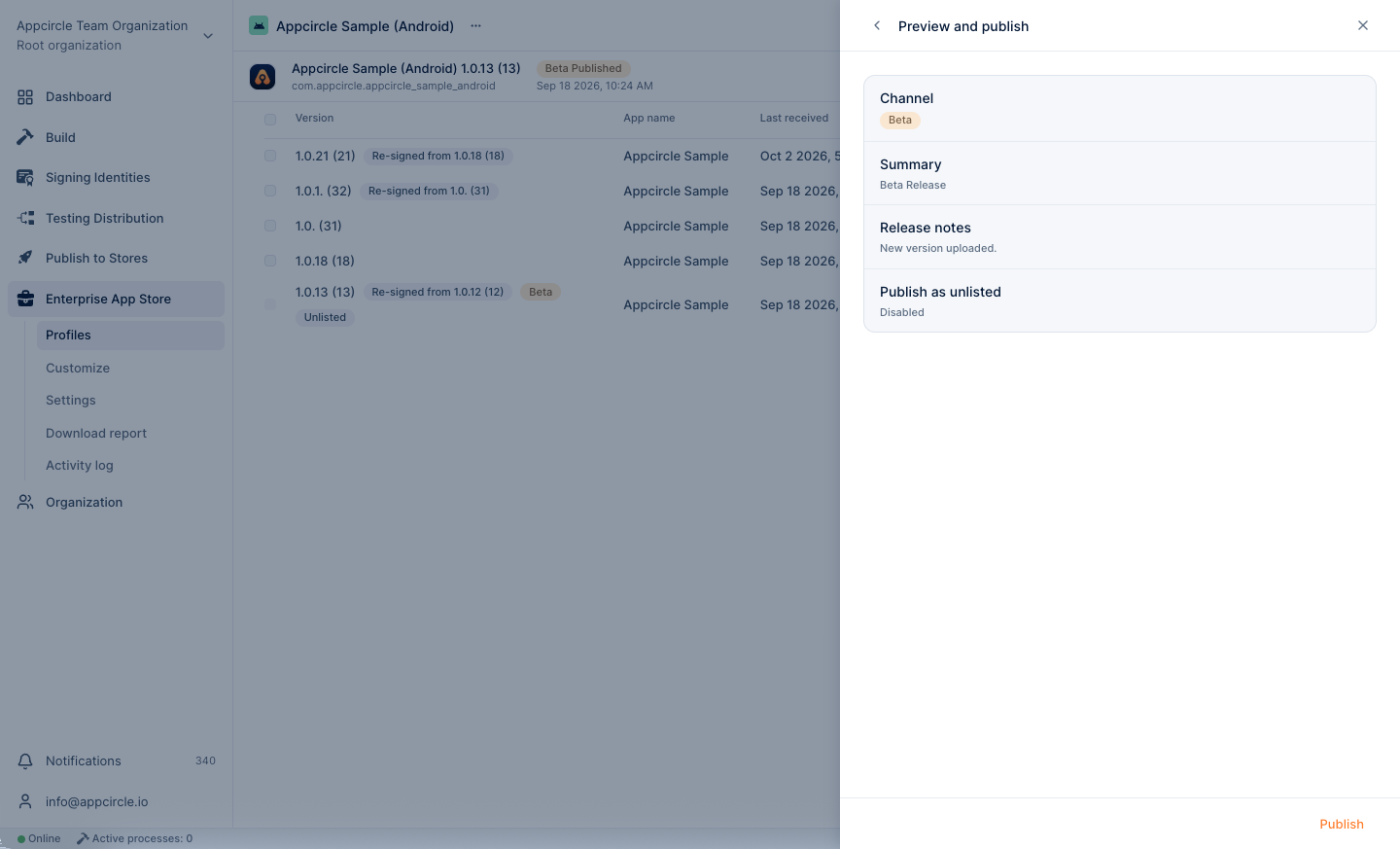
To promote a beta version to production, select Go Live from its ... menu, or publish it again with the Live channel selected.
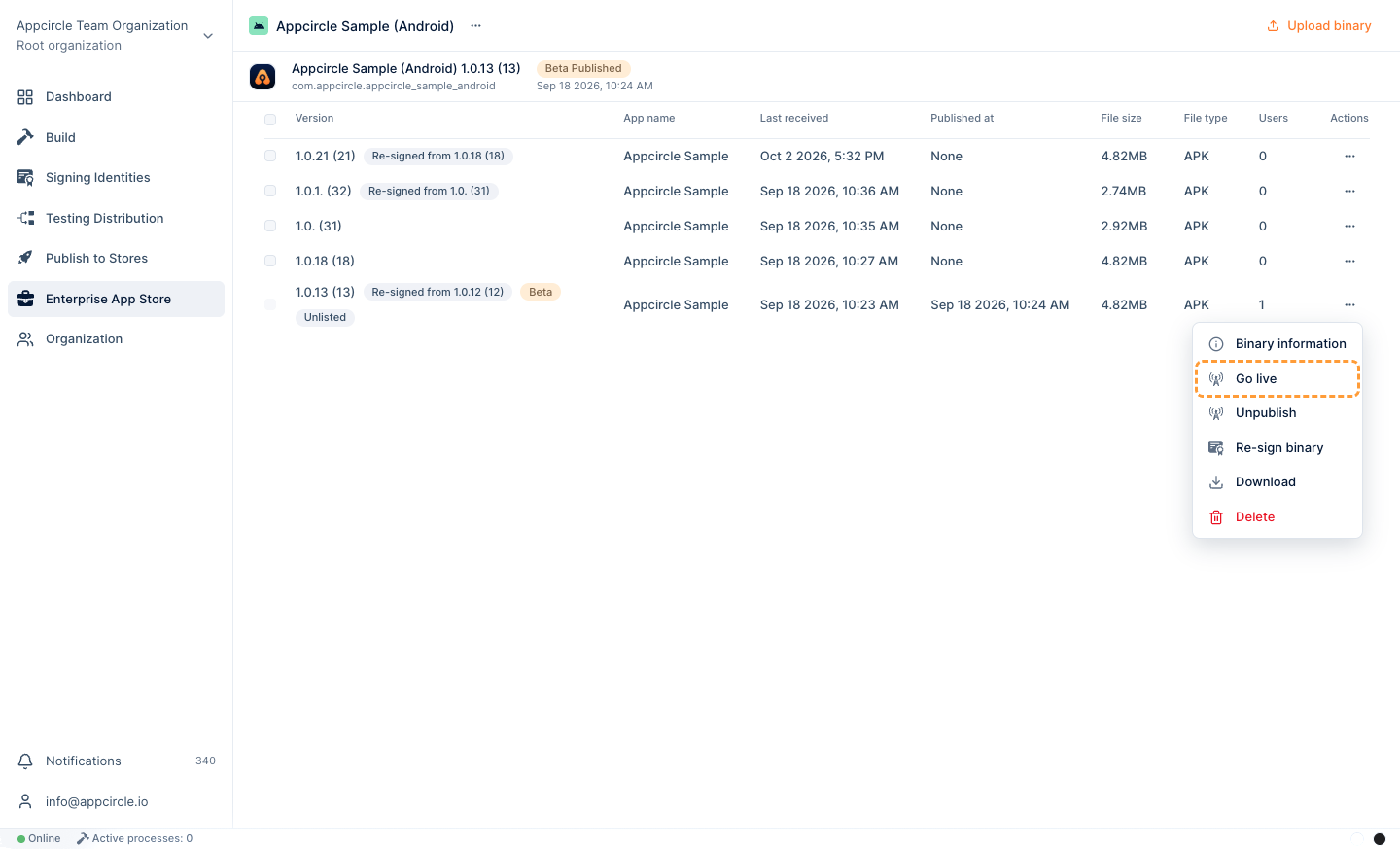
A version whose signing certificate or keystore has expired cannot be published. If a published version expires, it can no longer be downloaded from Appcircle or the Enterprise Portal.
Publish as Unlisted
Enable the Publish as Unlisted toggle while publishing to keep the version out of the portal's app list. It is then reachable only through its link in the Distribution Links tab, using the portal's authentication method. Unlisted versions are marked with an Unlisted tag in the profile.
Unpublishing a Version
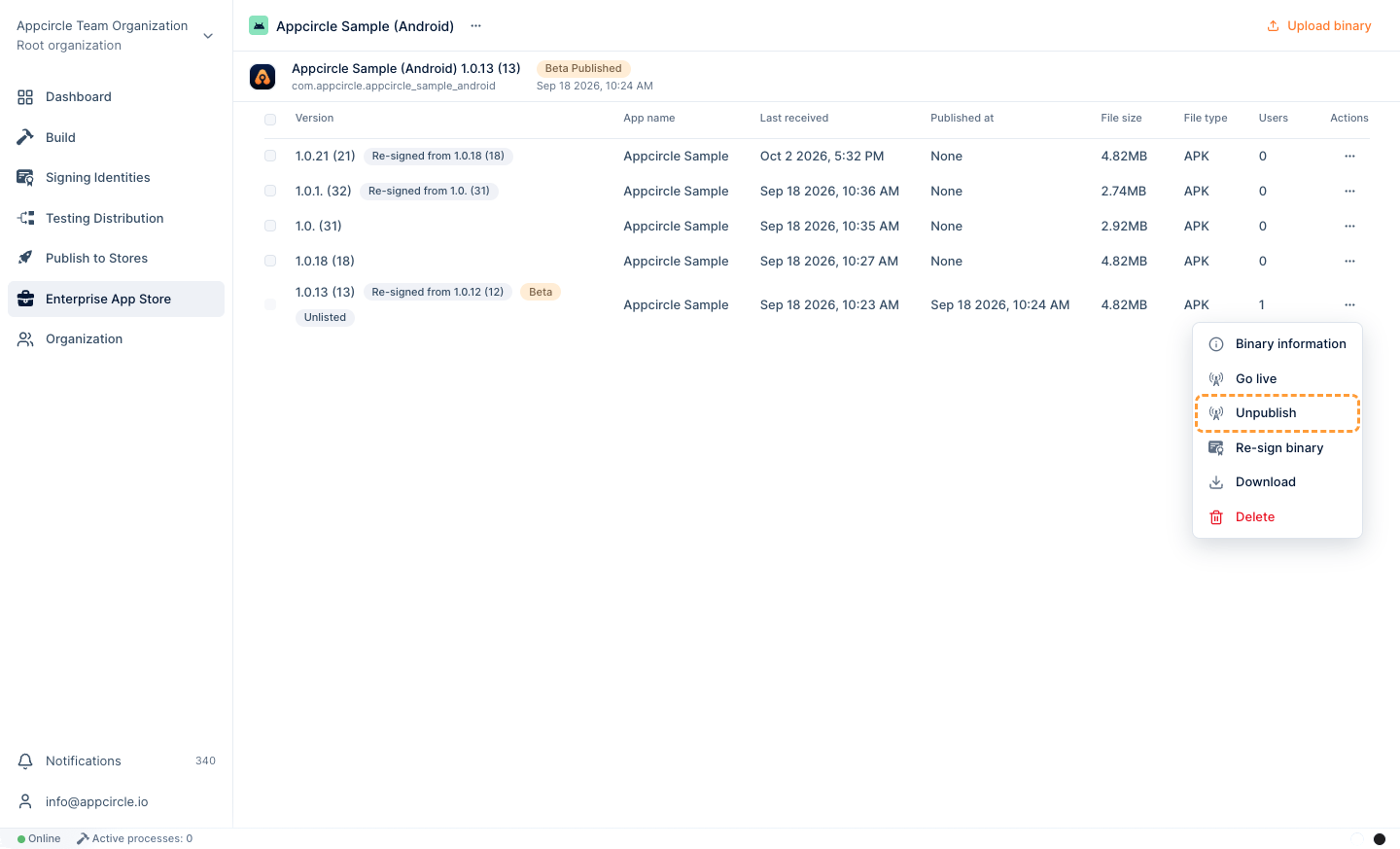
Select Unpublish from the version's ... menu to remove it from its channel. A published version must be unpublished before it can be deleted.
Notifications
- Team notifications: Notify your team on Slack, Microsoft Teams, or email when a new version is uploaded, deployed, or shared on the Enterprise App Store. See Notifications.
- Expiration notifications: Get notified before the signing certificate or keystore of a published version expires.
User Experience: Enterprise Portal
Login
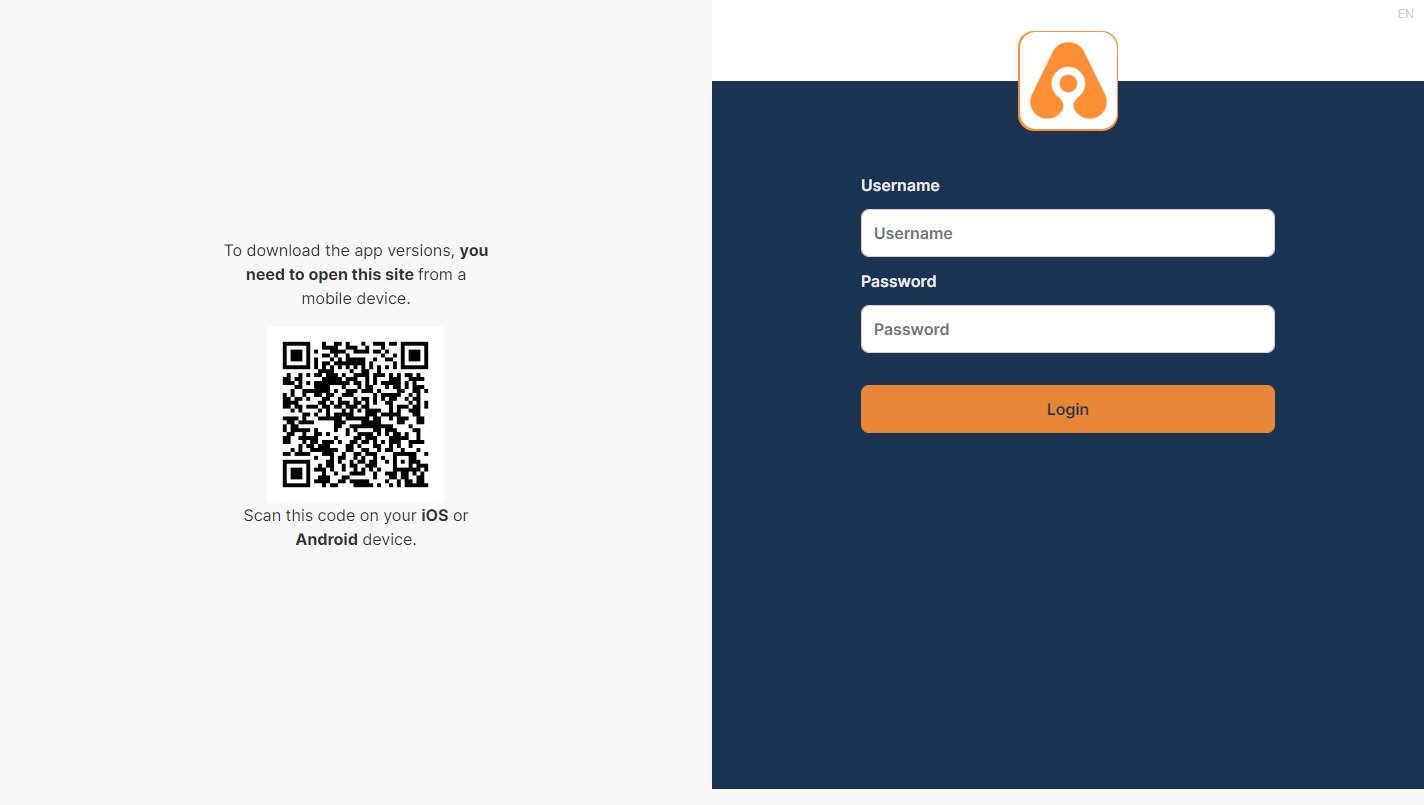
Users open the portal URL or a distribution link and sign in with the portal's authentication method. Cookies must be enabled in the browser.
App List and App Details
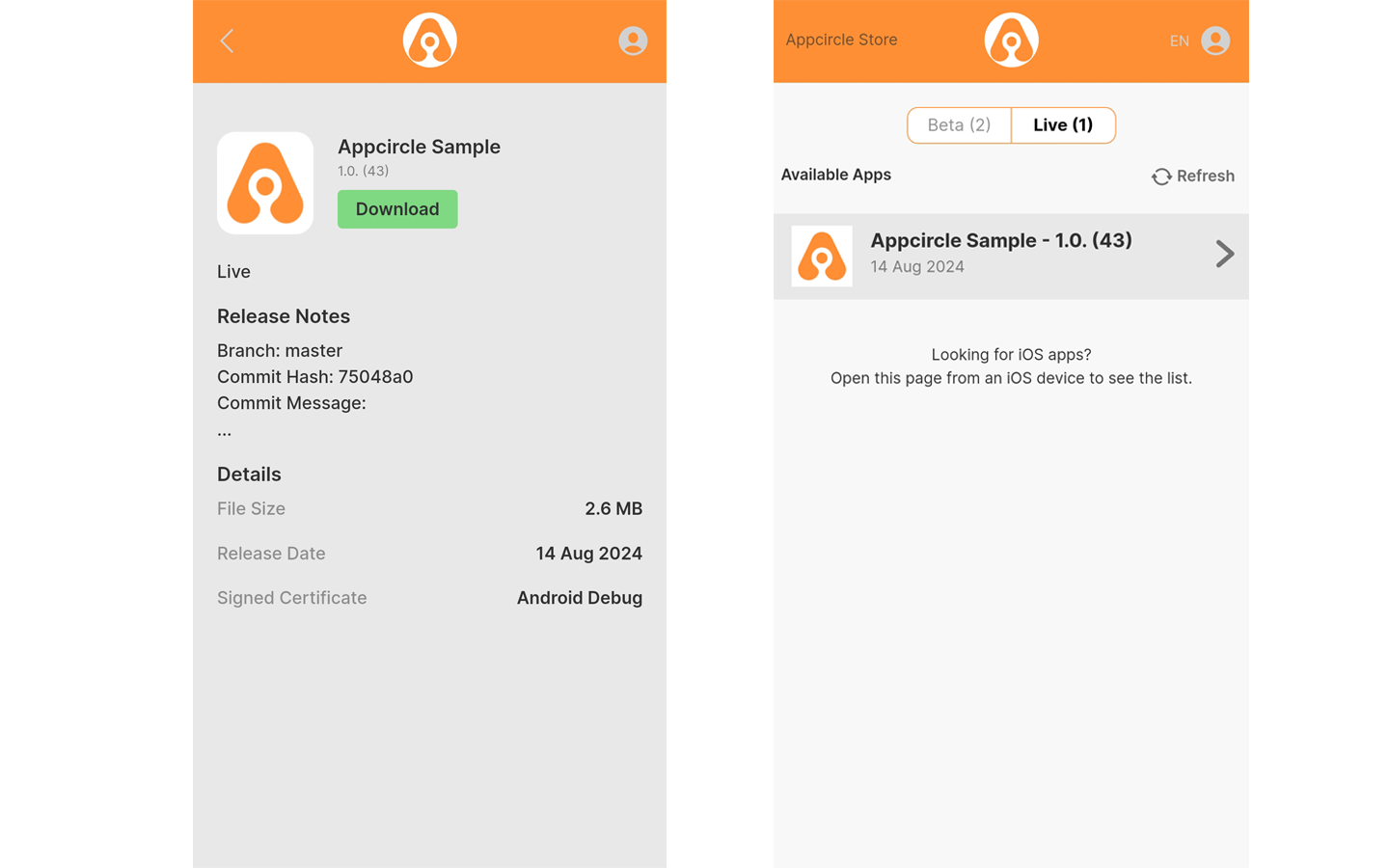
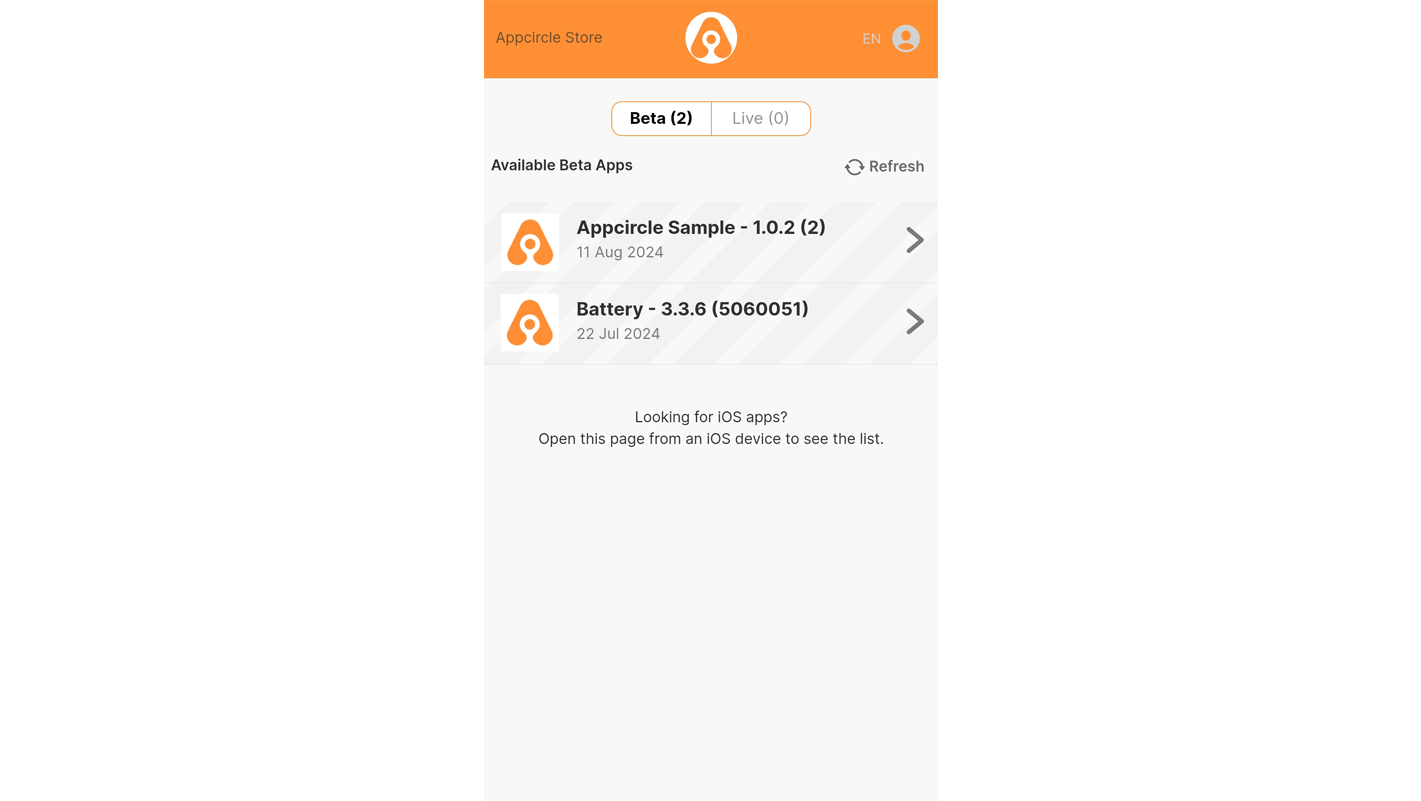
After signing in, users see the apps available to them with their channel. Users with Beta access see both Beta and Live versions, while other users see only Live versions. Selecting an app shows its details, release notes, size, and binary tags.
Installing on iOS and Android
- iOS: Open the portal in a browser on the device and tap Install. For enterprise-signed apps, go to Settings > General > VPN & Device Management and trust the developer certificate before opening the app.
- Android: Tap Download, open the
.apk, and allow installing unknown apps for the browser when prompted.
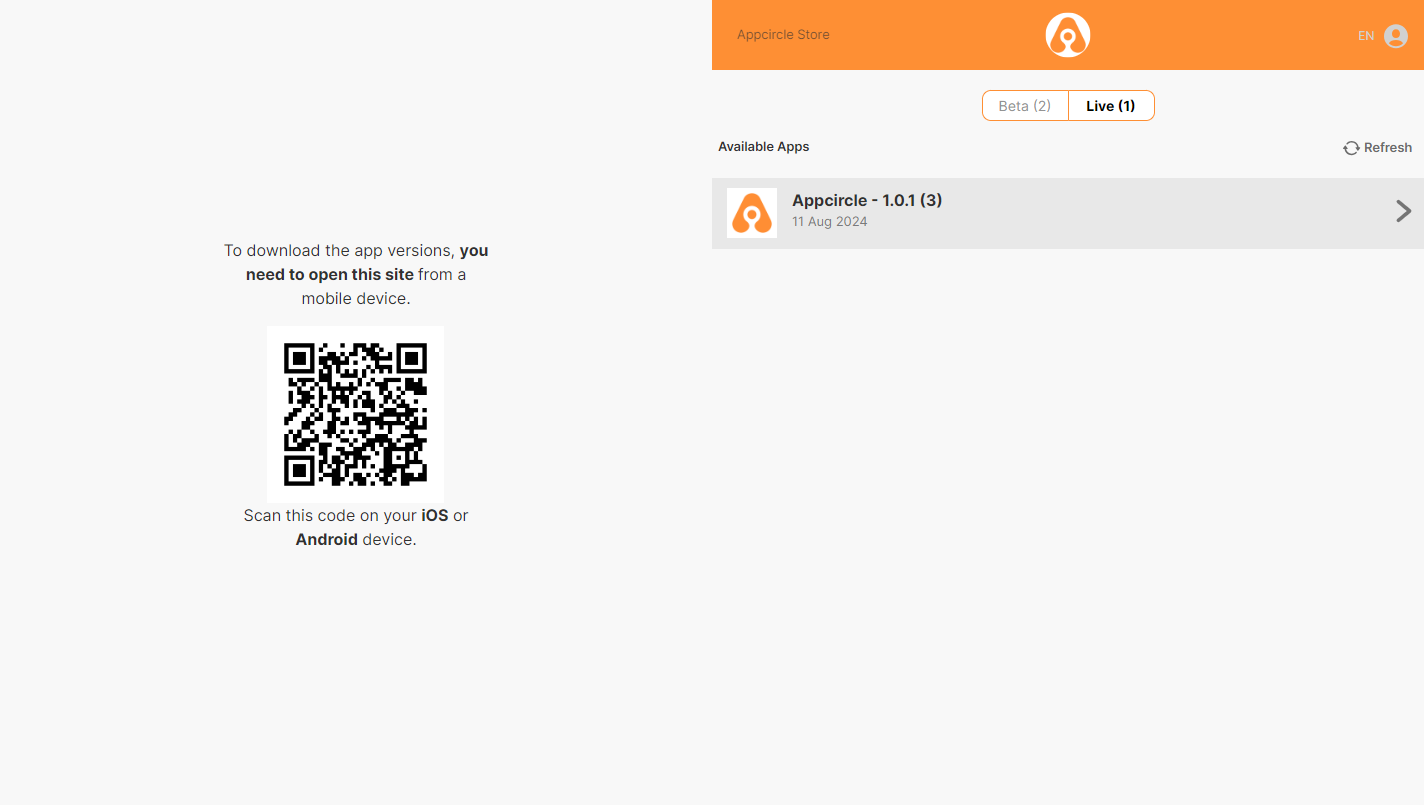
.ipa files can only be installed from an iOS device and .apk files from an Android device. On desktop, the portal shows a QR code to open the page on a mobile device.
For more information, see Enterprise Portal.
Tracking and Reporting
Download Report
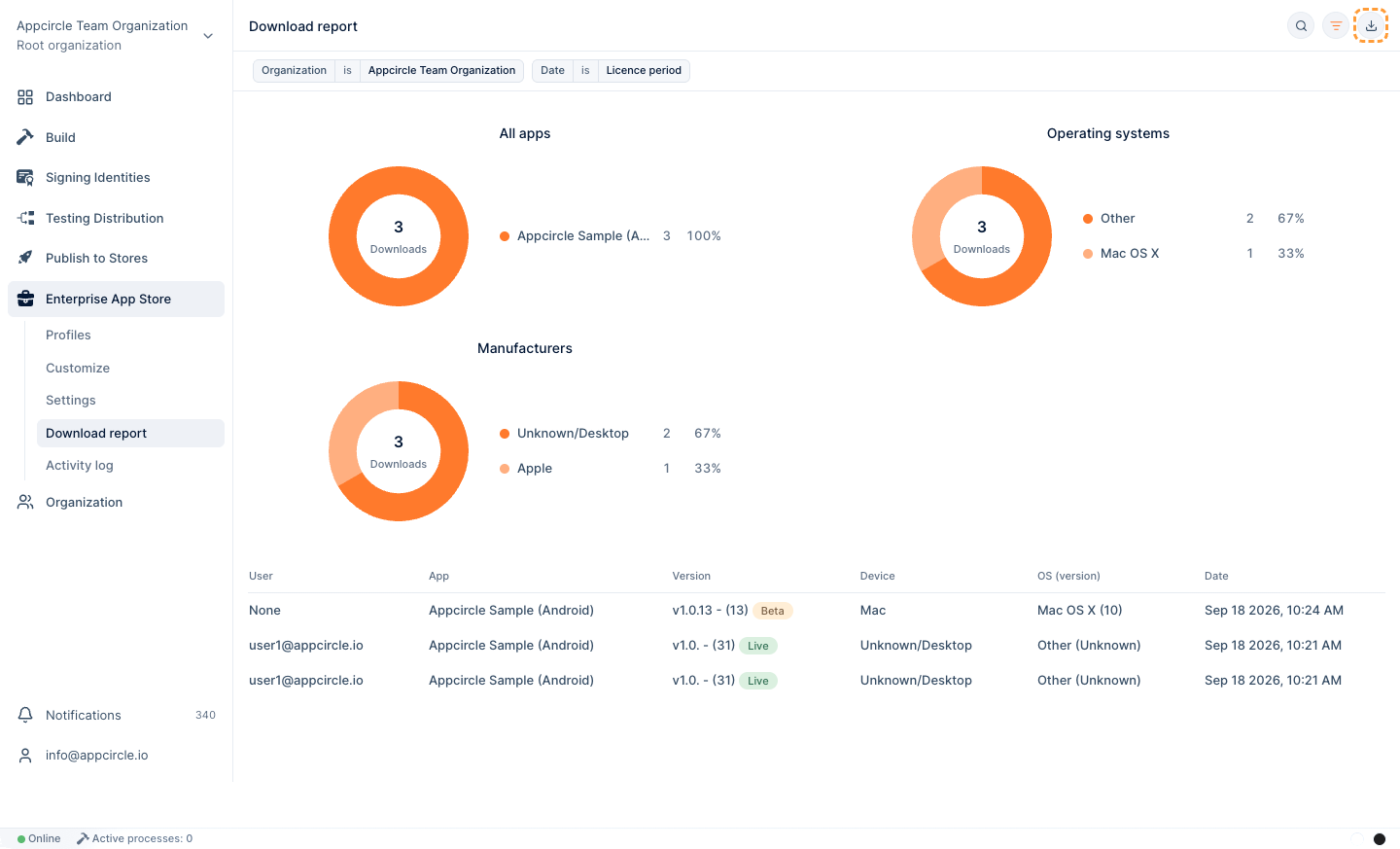
Go to Enterprise App Store > Download report to see who downloaded which version and on which device, filter the results, and export them as CSV.
See Portal Reports.
Activity Log
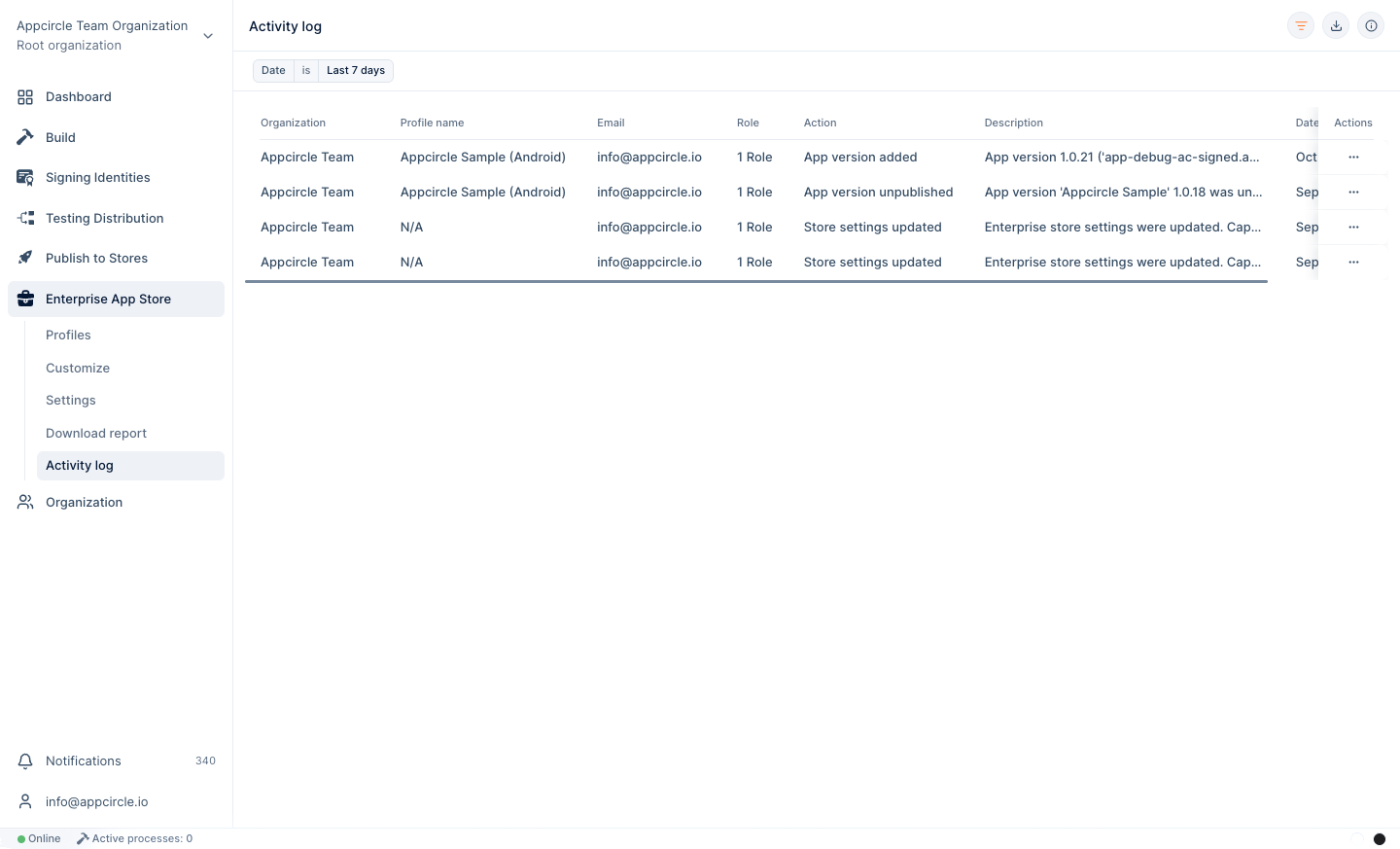
The Activity Log records profile, version, and portal setting changes for auditing.
Automating the Enterprise App Store with Appcircle CLI & API
If you build outside Appcircle, upload binaries from your existing CI with the Appcircle CLI.
npm install -g @appcircle/cli
appcircle login personal-access-key --secret "$AC_PERSONAL_ACCESS_KEY"

# Upload a new version to an existing profile
appcircle enterprise-app-store version upload-for-profile \
  --entProfileId "$ENT_APP_STORE_PROFILE_ID" \
  --app ./build/app-release.apk

# Or upload and create the profile if it does not exist yet
appcircle enterprise-app-store version upload-without-profile \
  --app ./build/app-release.apk
The profile ID is shown in the Config tab of the profile settings. Ready-to-use plugins for other CI tools are available in the Appcircle Marketplace. For direct REST access, see the Appcircle API.
FAQ
Why can't I upload a new version to an existing profile?
The bundle or package identifier of the binary must match the profile, and its version or build number must differ from the versions already in the profile. Increase the build number or version code and upload again.
Why can't users see the version I published to Beta?
Beta versions are visible only to the users and groups listed under Beta channel access in Manage Access. If no Beta access is configured, nobody can see beta versions.
Why can't a user install the iOS app?
With an Ad Hoc provisioning profile, the user's device UDID must be registered in your Apple Developer account and included in the provisioning profile used to sign the binary. With an Enterprise profile, the user must trust the developer certificate in the device settings after installation. Apps signed for the App Store cannot be installed from the portal.
Why can't I delete a version?
A version published to the Beta or Live channel cannot be deleted. Unpublish it first.
Why can't I see the Settings and Customize sections?
Portal settings and customization are available only in the root organization. Switch to the root organization to configure the Enterprise Portal.
Further Support and Resources
Enterprise App Store Enterprise App Store Profile Portal Settings Enterprise PortalNeed help?
Get help from Appcircle's support team, or see how others are using Appcircle by joining our Slack Channel.
