App Rollout Information
App Rollout Information allows you to configure and manage rollout strategies for Android releases published to Google Play Console. You can define how a release is distributed across users by selecting either a manual or automatic rollout strategy for a selected release track.
This configuration is managed directly from the binary actions menu under the Android Publish section.
To open the App Rollout Information:
- Go to the Publish to Stores > Android Publish screen.
- Find the uploaded binary in the version list.
- Open the action menu (
...) next to the binary. - Click App Rollout Information.
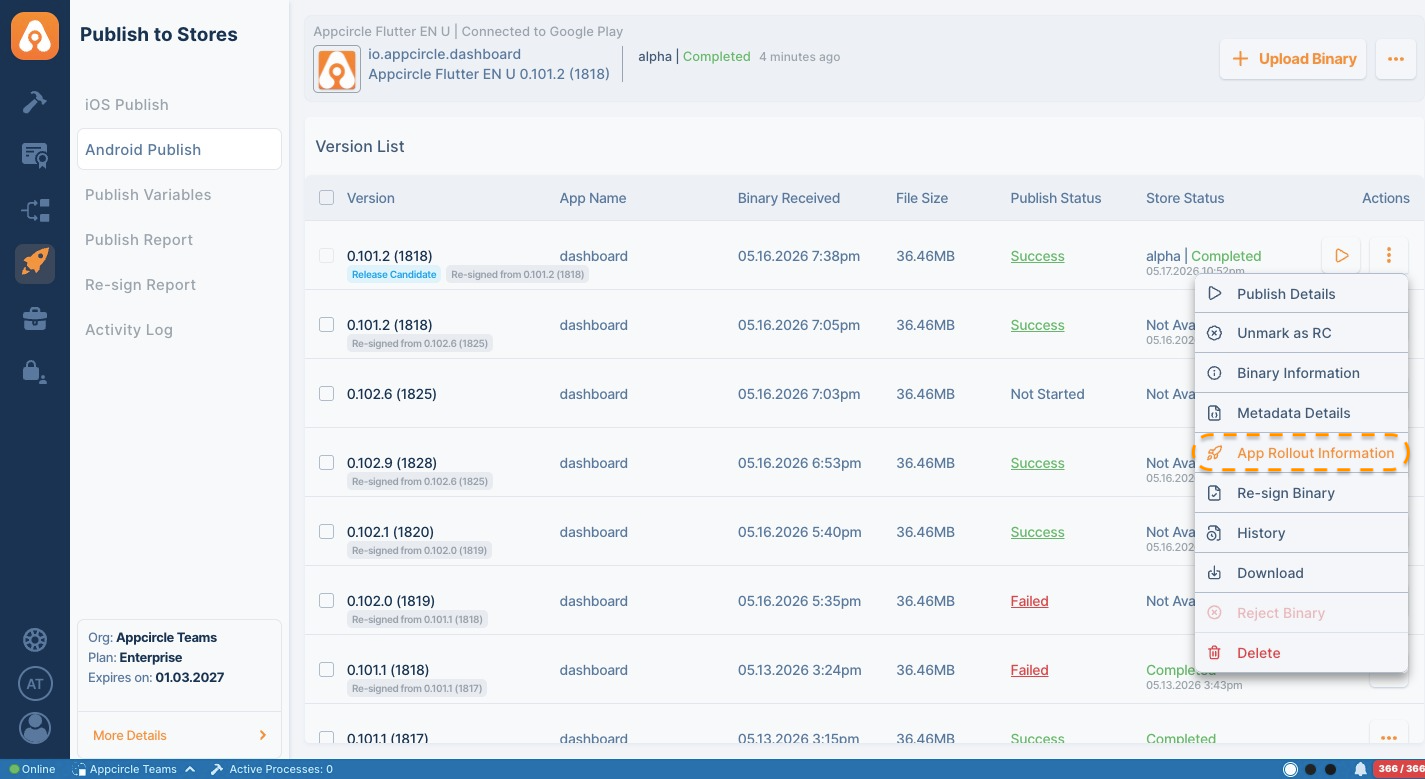
App Rollout Information button is only available to edit when the store status for the selected app is set to In Progress.
Prerequisite Publish Flow Steps
Track Selection
Rollout settings are configured separately for each Google Play track.
Available tracks are retrieved from Google Play Console and displayed in the screen. When you switch to a different track, the rollout information updates automatically based on the selected track.
A valid Google Play API configuration is required to retrieve and manage rollout information.
Rollout Types
Appcircle supports two rollout strategies:
- Manual Rollout
- Automatic Rollout
Only one rollout type can be active at a time.
Manual Rollout
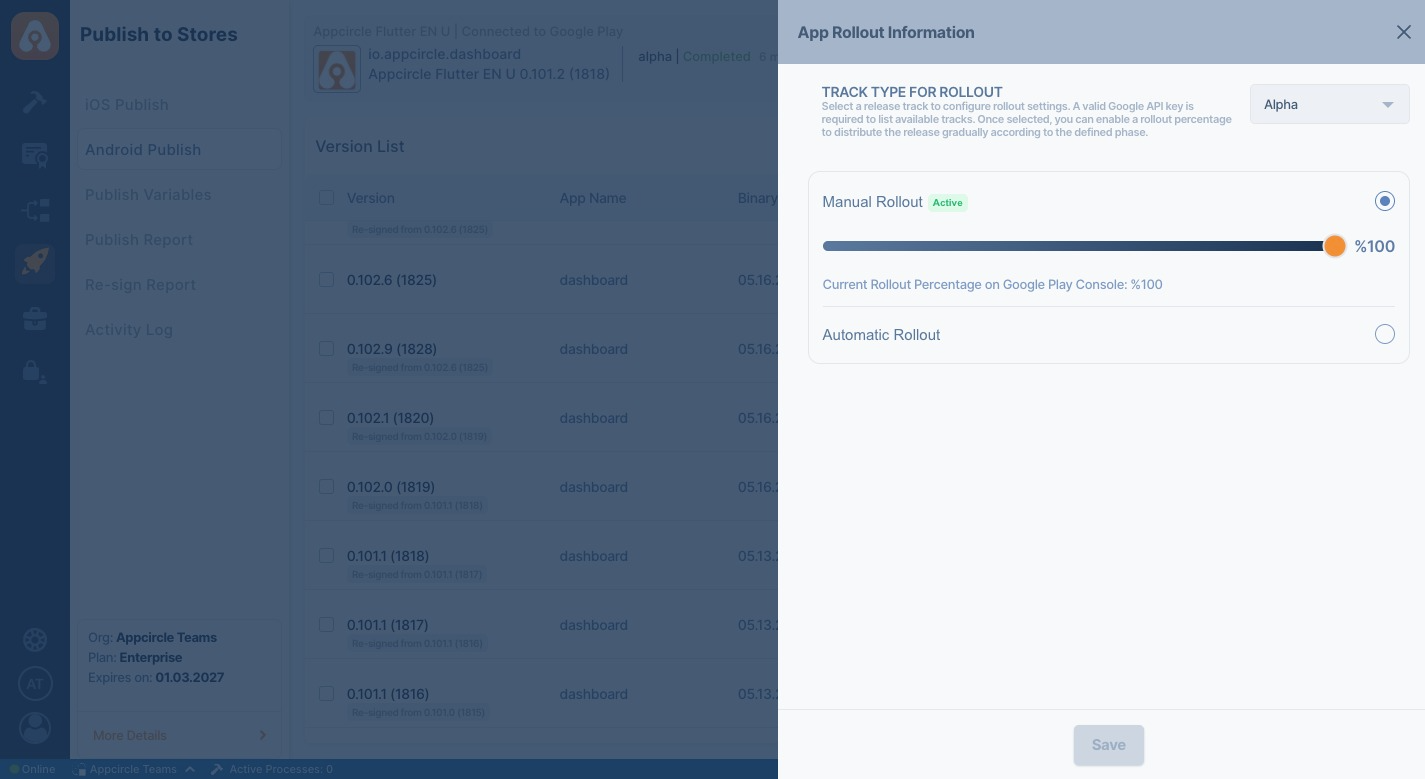
Manual Rollout allows you to directly control the release percentage using the rollout slider.
You can:
- Define the rollout percentage manually.
- Increase the rollout percentage gradually.
- View the current rollout percentage retrieved from Google Play Console.
Manual Rollout Rules
- The rollout percentage cannot be lower than the existing percentage already distributed on Google Play Console.
- If the release already has an active rollout percentage, the slider starts from that value.
- Switching from Automatic Rollout to Manual Rollout automatically applies the latest automatic rollout percentage to the manual rollout slider.
Automatic Rollout
Automatic Rollout allows you to define rollout percentages for multiple days in advance.
The rollout progresses automatically according to the configured daily percentages.
Switching from Manual Rollout to Automatic Rollout will increase the current rollout percentage by 1.
Automatic Rollout Rules
- Day percentages cannot be lower than the percentage of the previous day but they can be the same percentage.
- Existing rollout percentages from Google Play Console are used as the minimum allowed values.
- If rollout progression has already reached a specific day, previous days become locked in the UI.
- If any day is configured as
100%, the following days are disabled automatically.
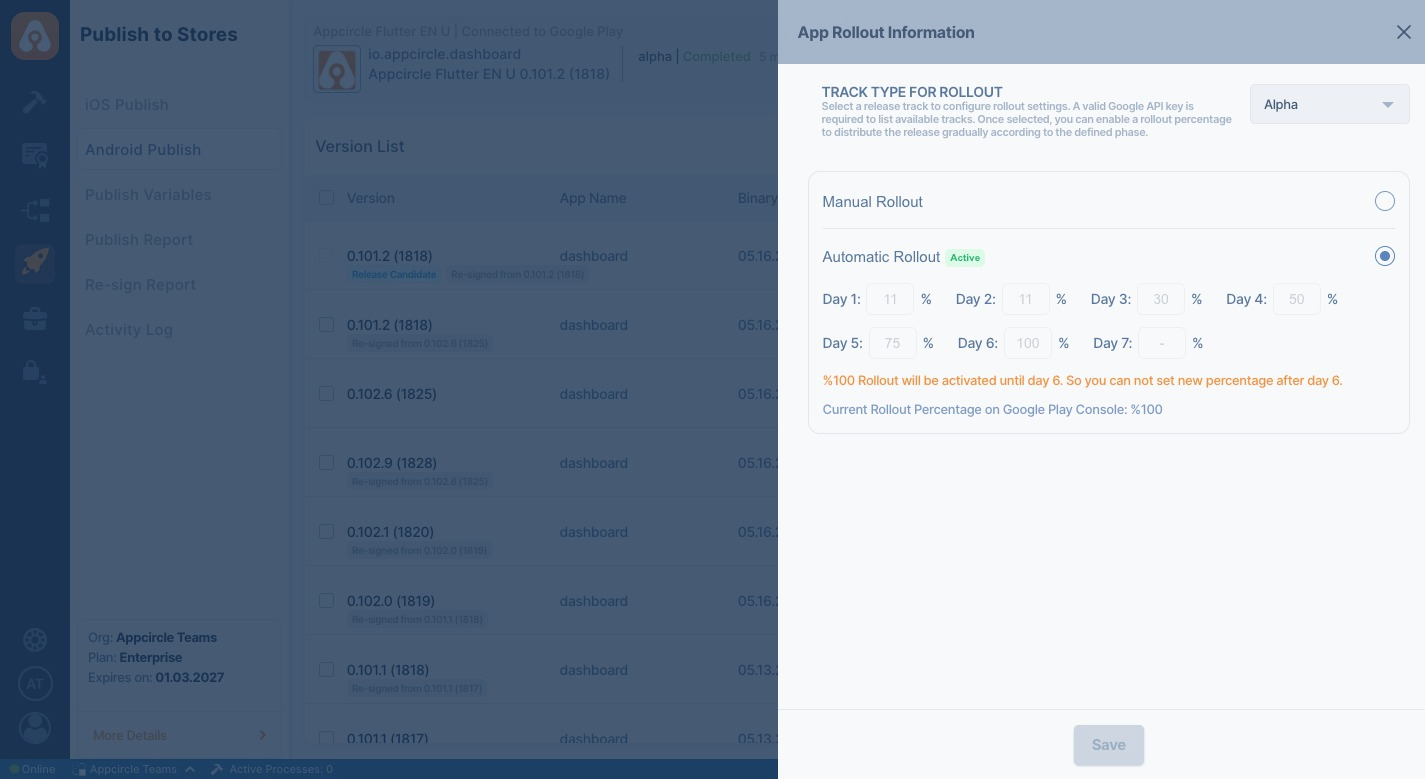
Please note that once the Rollout option is set to Automatic, the step for first day will trigger instantly.
Switching from Manual to Automatic Rollout
When switching from Manual Rollout to Automatic Rollout:
- The current manual rollout percentage becomes the Day 1 value.
- Remaining days can only be configured with percentages equal to or greater than the previous day.
Example:
If the current manual rollout percentage is 60%:
- Day 1 is automatically set to
60% - Day 2 and later days cannot be lower than
60% - If Day 2 is set to
100%, the remaining days are disabled
Rollout information is synchronized directly from Google Play Console when the modal is opened.
The displayed rollout percentages always reflect the latest state available on Google Play Console.