Re-sign Binary
The Re-sign Binary feature in Appcircle allows you to re-sign both iOS and Android application binaries. For iOS applications, you can use new provisioning profiles or modify the app's entitlements, which is useful for adjusting the app’s capabilities or updating its distribution settings without requiring a new build. For Android applications, you can re-sign your binaries with a new keystore, allowing you to update the app's signing credentials crucial for app distribution and updates.
This feature streamlines the process of updating app distribution and security settings, ensuring that your applications can be quickly adapted to meet changing requirements or distribution strategies.
This step requires a runner to work. This means that when the step runs, one of the runners in your organization will be used exclusively for this step.
If you don't have enough concurrency, your other Build and Publish operations will wait in the queue.
Appcircle requires a runner to re-sign binaries during both automatic and manual re-sign operations. Therefore, any re-sign operation you perform in this module will reduce the current build count in the billing section.
Re-sign iOS Binary
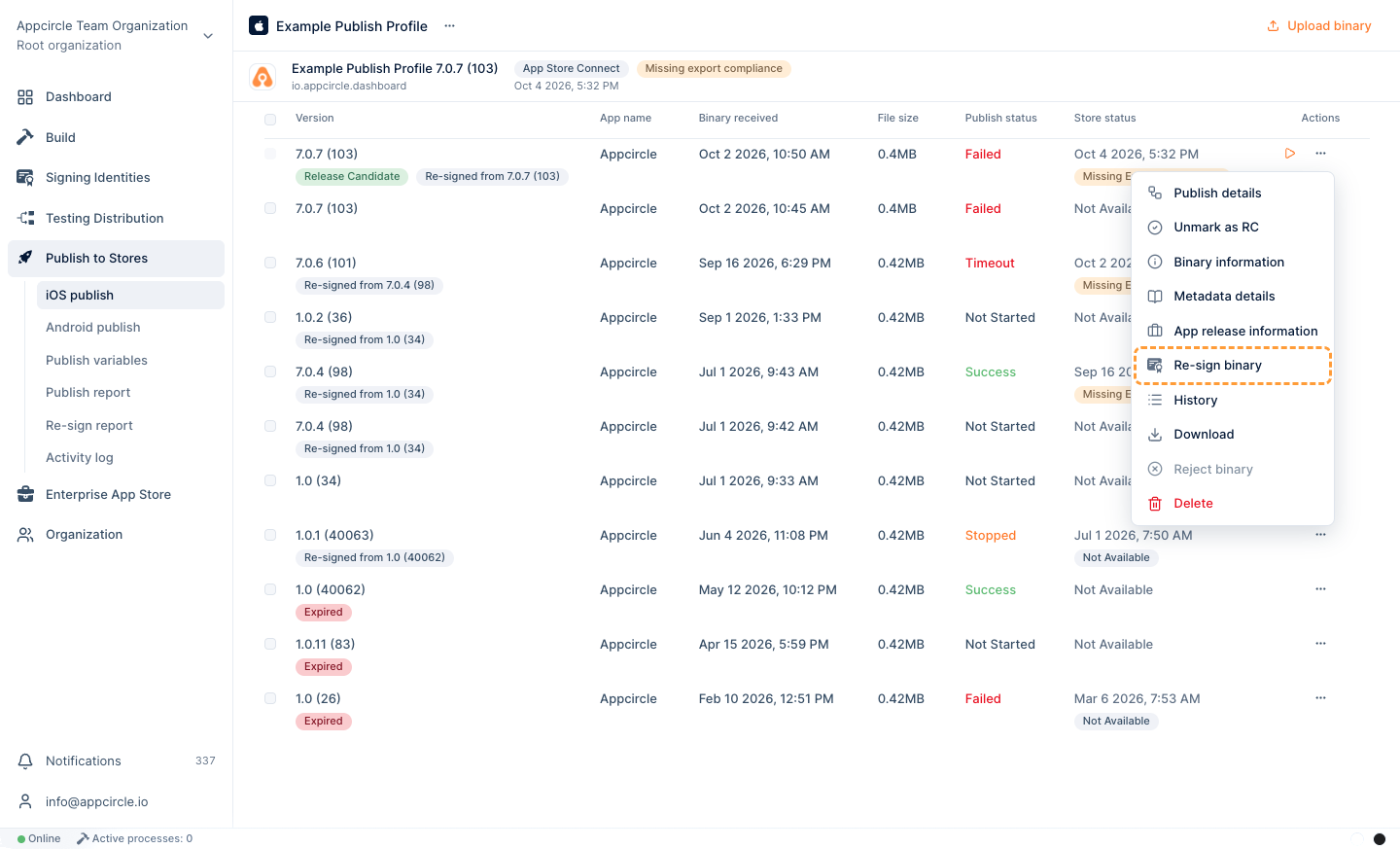
When you need to distribute an iOS application to different environments (like QA, staging, or production) or need to change the app’s entitlements, the Re-sign Binary feature simplifies this process. You can resign an app binary with a new provisioning profile that matches the intended distribution certificate.
Fields and Options
The functionality and configuration steps of Appcircle’s Re-sign feature for the iOS platform are explained step-by-step below.
Information
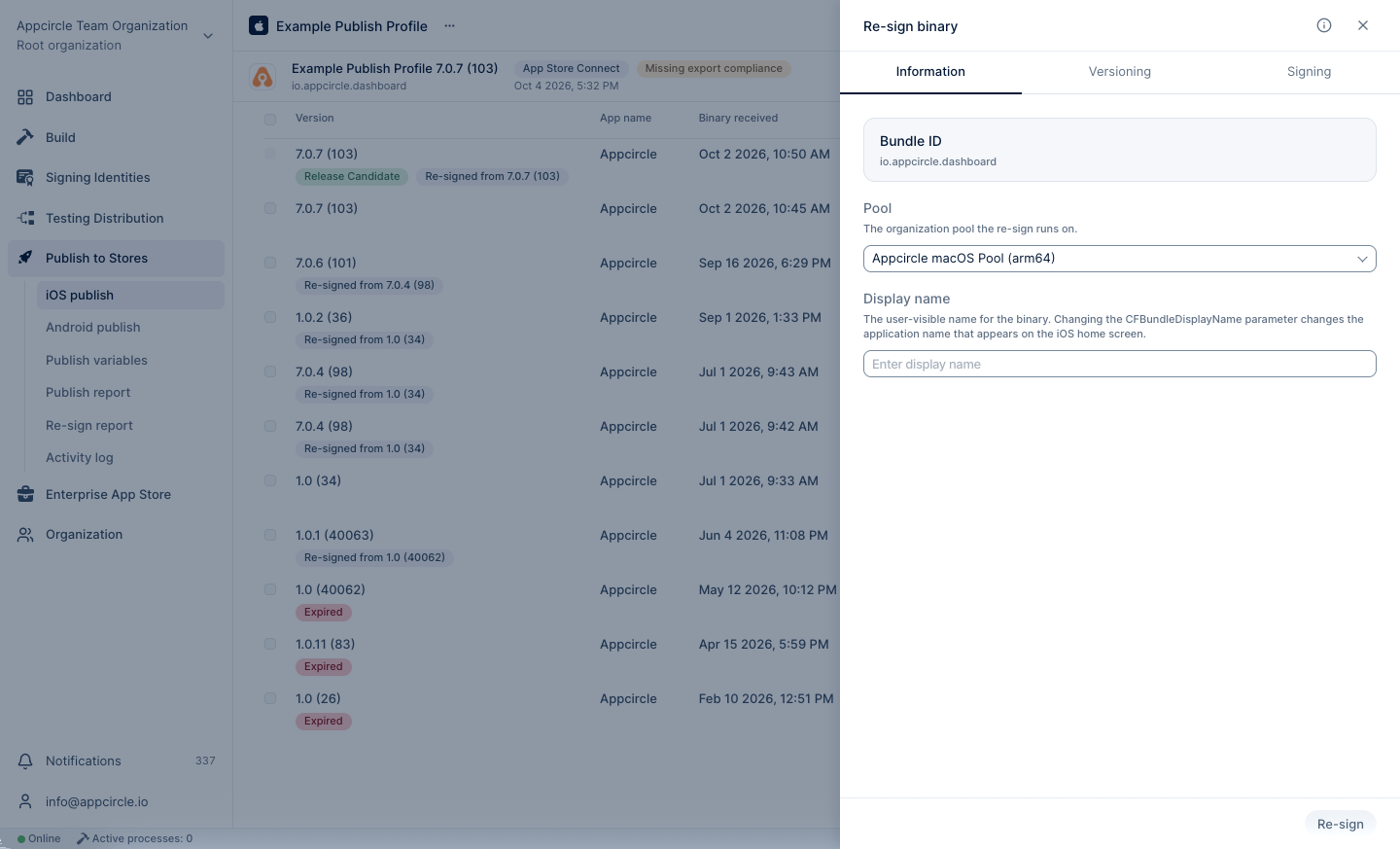
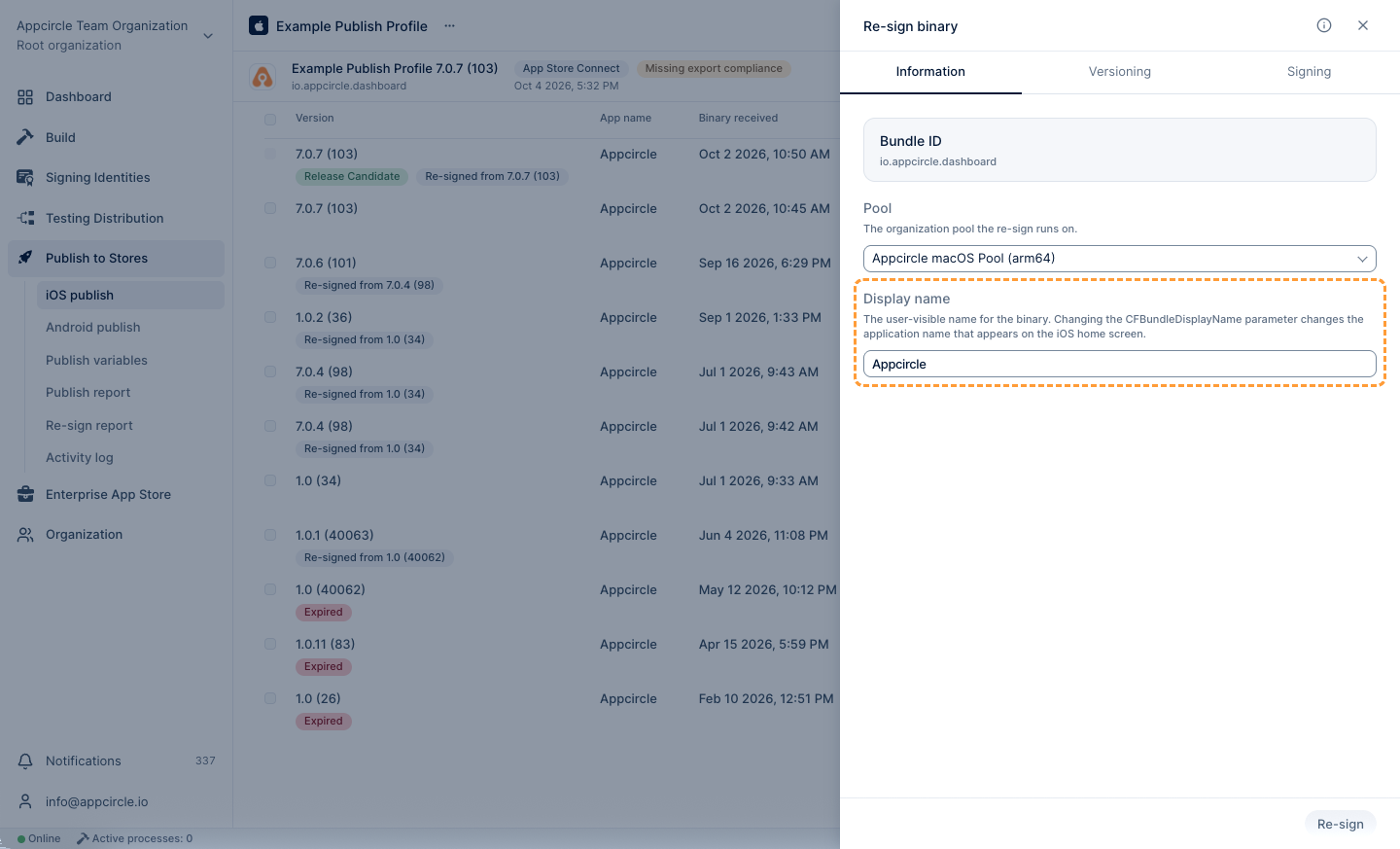
From the Information tab under Re-sign configuration, you can manage the application's bundle identifier and display name values.
Bundle Identifier
Appcircle Publish profiles can accept binaries with different bundle identifiers. The binary defined for the profile serves as the reference for Re-sign. When a binary with a different bundle identifier is uploaded, it is re-signed according to the bundle identifier of the profile. The bundle identifier of the resulting re-signed binary is updated to match the one associated with the profile.
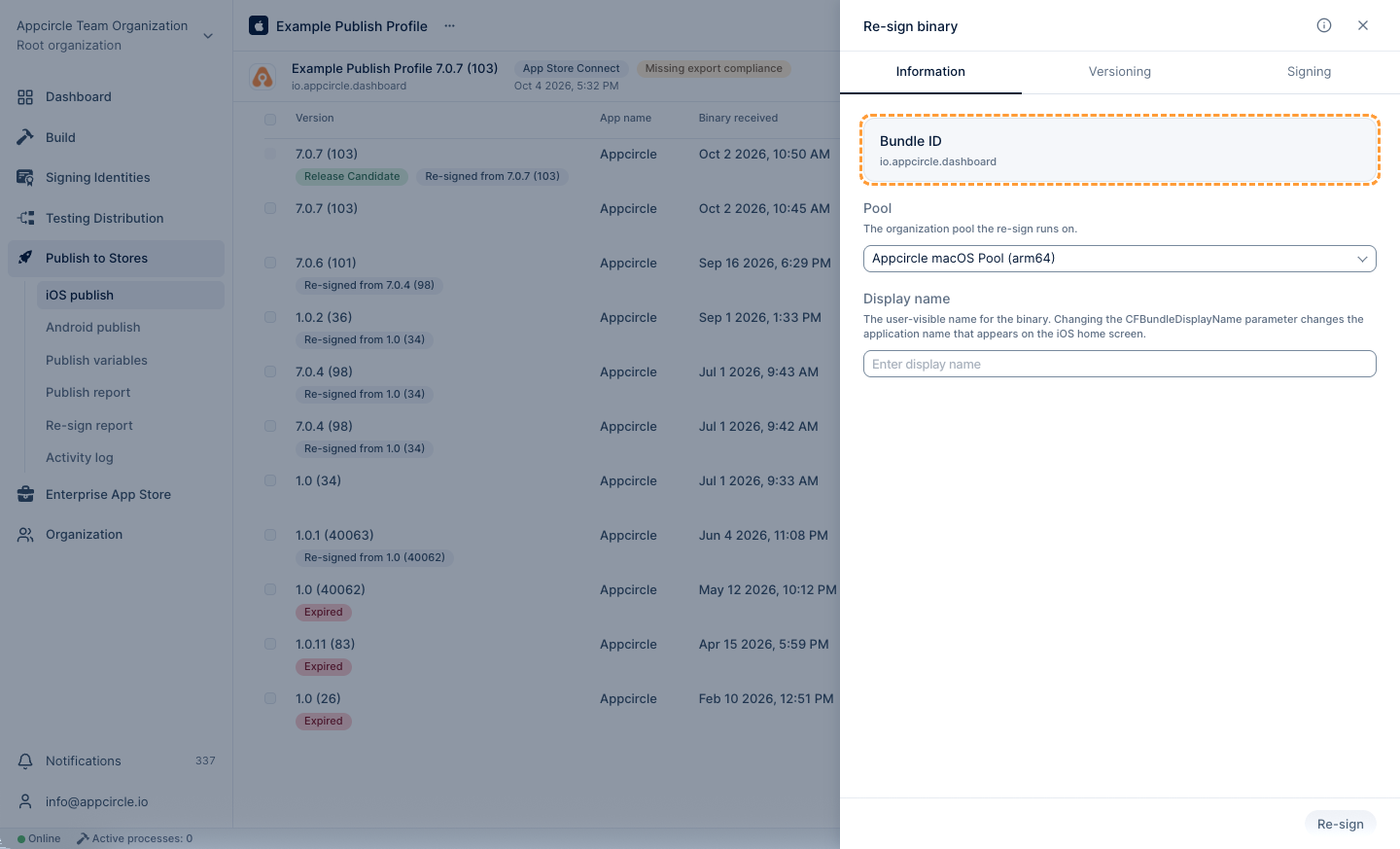
⚠️ Note: Release flows cannot be initiated with a binary whose bundle identifier differs from that of the profile. For more information, please visit the Binary Management documentation.
If the binary to be re-signed has multiple targets, each target bundle identifiers must be registered in your Apple Developer portal. Otherwise, you may encounter errors during the re-signing process.
Select a Pool
The Pool Selection field defines which organization pool will be used to execute the Re-sign process.
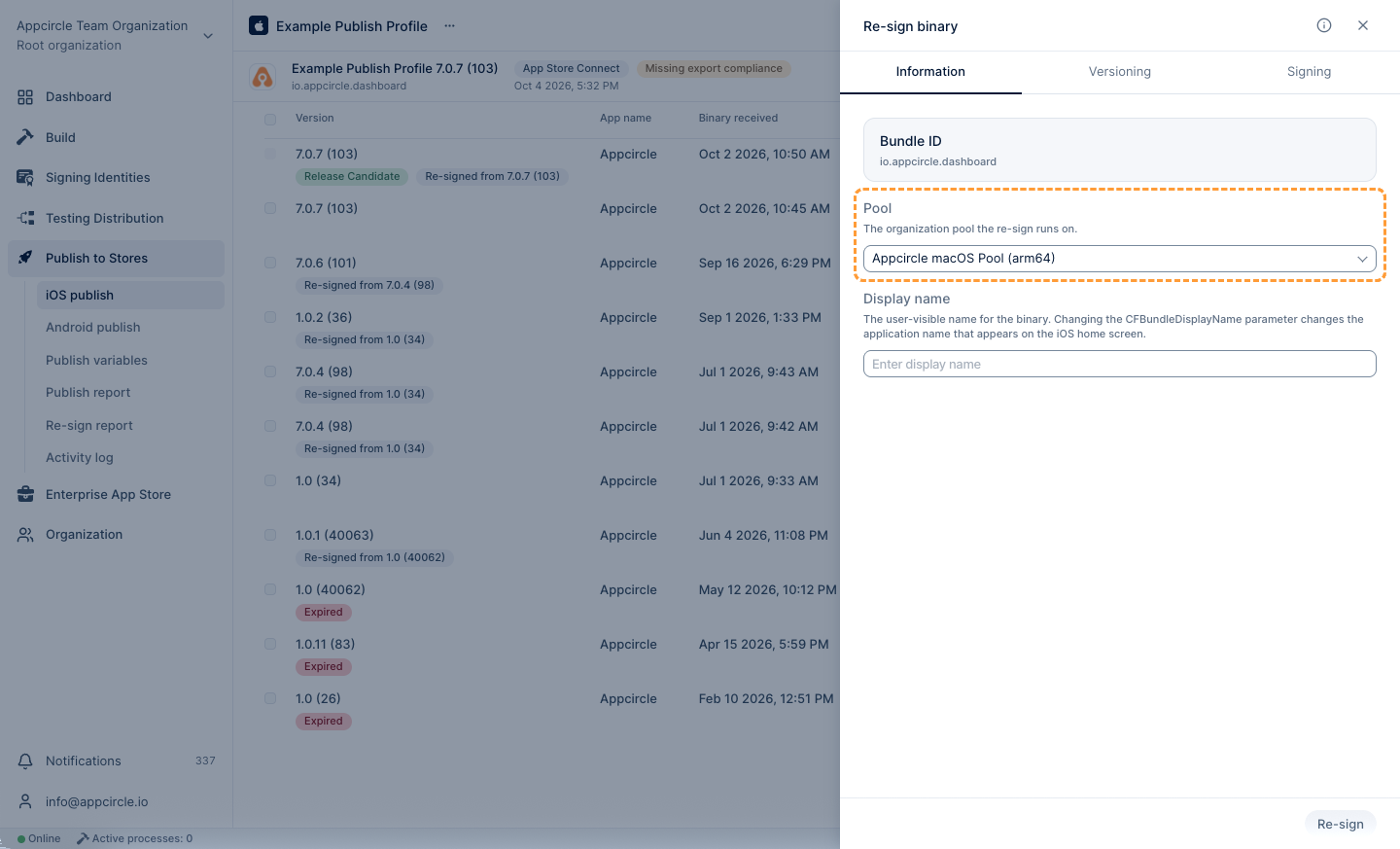
Re-sign will not work if a pool is not selected.
If no pool is defined:
- The Re-sign process will not start.
- Selected binaries will remain unsigned.
- No re-signed output will be generated for Publish profile.
Always ensure that a valid macOS pool is selected before saving the Re-sign configuration.
Display Name
With the Display Name parameter, you can change the visible name of the binary that will be re-signed. The re-signing process starts with the specified display name, and once completed, the CFBundleDisplayName value inside the binary is updated accordingly.
Versioning
By utilizing the versioning capability of the Re-sign feature, you can modify the version and build number of the selected binary according to the defined strategy during the re-signing process. In addition to calculating a value from the App Store, TestFlight, or a previously uploaded binary, you can also pin the version or build number to an exact value using the Fixed source.
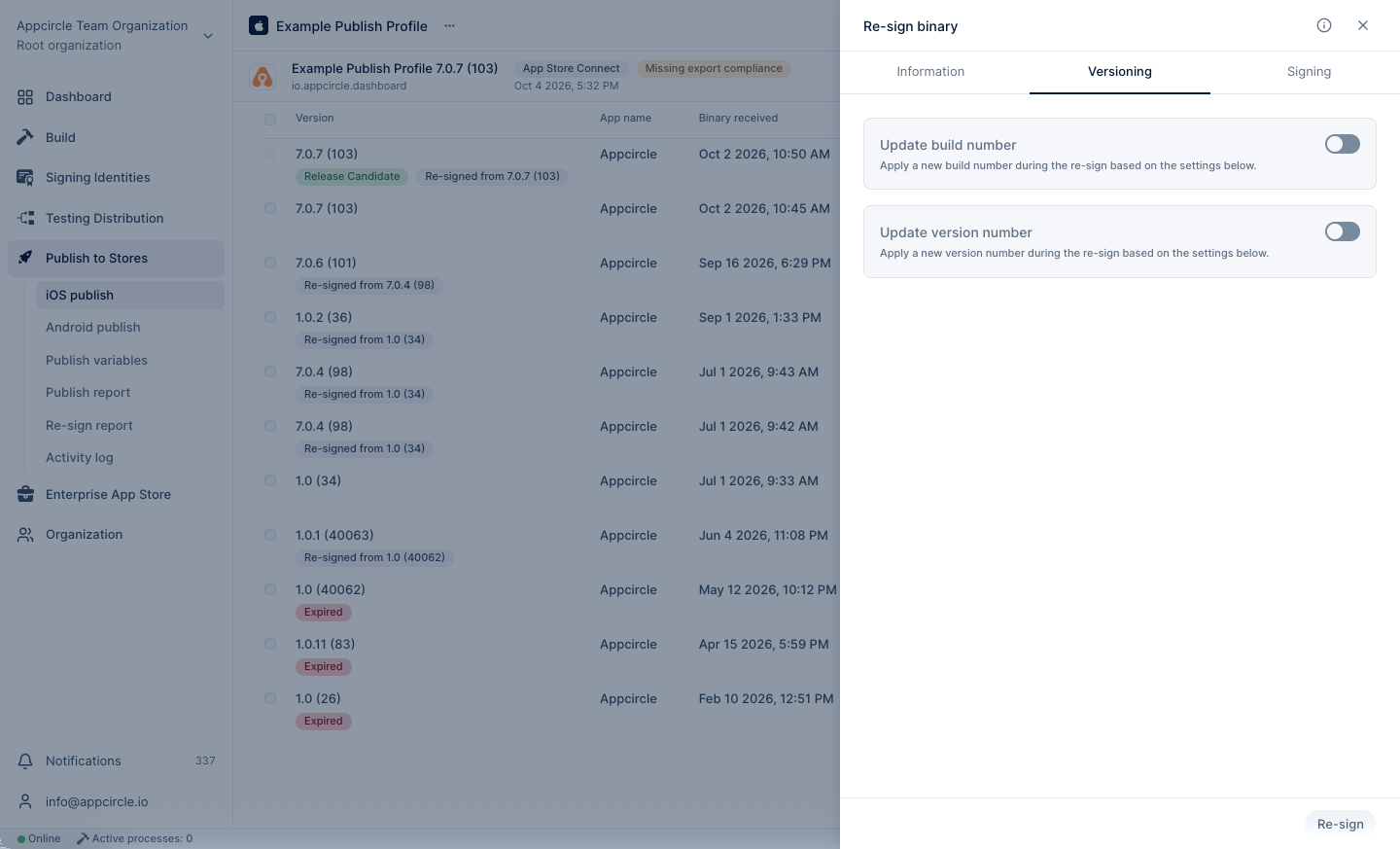
Update Build Number
With the Update Build Number feature, you can automatically increment the build number of the selected binary during the re-sign process using the specified offset value, or pin it to an exact value using the Fixed source. When this feature is enabled, a new build number will be generated based on the given offset (or set to the fixed value you provide) before the re-signing begins, and the binary will be signed with this updated build number.
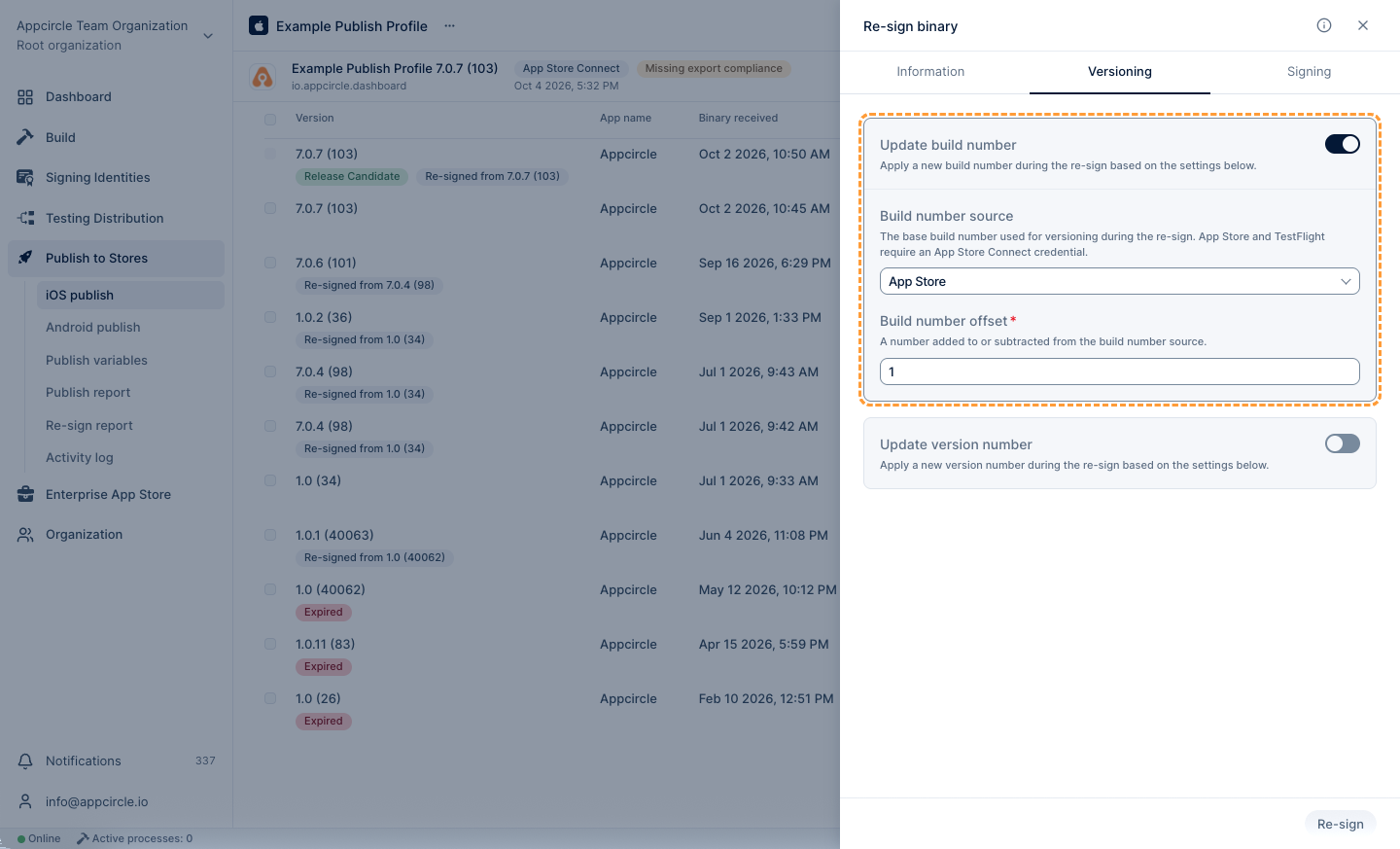
- Build Number Source: The defined base build number will be used for versioning during the re-signing process. App Store, TestFlight, Uploaded Binary, and Fixed are available options.
- App Store: The build number will be calculated based on the latest live version available on the Apple App Store.
- TestFlight: The build number will be determined by referencing the latest version available on TestFlight.
- Uploaded Binary: The build number or version code will be calculated from the most recent binary uploaded to Appcircle.
- Fixed: The binary will be signed with the exact build number you enter, without referencing the App Store, TestFlight, or any previously uploaded binary.
- Build Number: The offset value is a number to be added or subtracted from the build number source. This offset field only applies to the App Store, TestFlight, and Uploaded Binary sources.
⚠️ Note: When Build Number Source is set to Fixed, the offset field above is replaced with a Build Number text input. Enter the exact build number the binary should be signed with. This value must be provided whenever Update Build Number is enabled and the source is Fixed; leaving it empty will cause the re-signing process to fail.
Update Version Number
With the Update Version Number feature, you can automatically increment the version number of the selected binary during the re-sign process using the specified offset value, or pin it to an exact value using the Fixed source. When this feature is enabled, a new version number will be generated before the re-signing begins, based on the selected increment strategy and offset (or set to the fixed value you provide), and the binary will be signed with this updated version number.
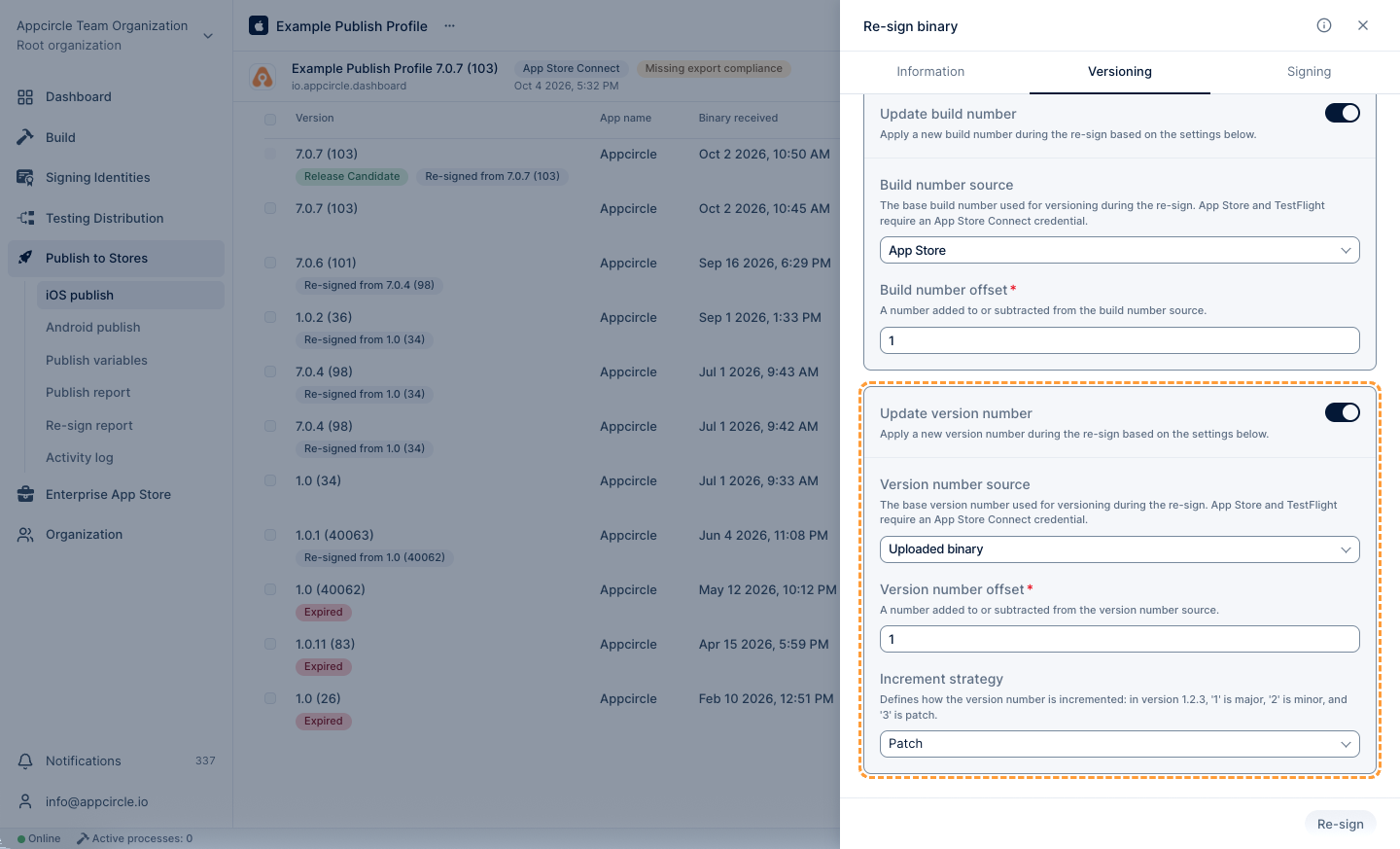
- Version Number: The defined base version number will be used for versioning during the re-signing process. App Store, TestFlight, Uploaded Binary, and Fixed are available options
- App Store: The version number will be calculated by referencing the latest live version available on the Apple App Store.
- TestFlight: The version number will be determined based on the latest version available on TestFlight.
- Uploaded Binary: The version number or version name will be calculated based on the most recently uploaded binary to Appcircle.
- Fixed: The binary will be signed with the exact version number you enter, without referencing the App Store, TestFlight, or any previously uploaded binary.
- Version Number: The offset value is a number to be added or subtracted from the version number source.
- Increment Strategy: You can increase the
major,minor, orpatchvalue of the version number.
⚠️ Note: When Version Number Source is set to Fixed, both the Offset and Increment Strategy controls above are hidden and replaced with a Version Number text input. Enter the exact version number the binary should be signed with. This value must be provided whenever Update Version Number is enabled and the source is Fixed; leaving it empty will cause the re-signing process to fail.
Within the Re-sign feature configuration, if any store-based option is selected for versioning, it is mandatory to select an appropriate API key to retrieve the version information. If you do not want to perform versioning using the store, please select the Uploaded Binary or Fixed option instead.
For more information, please visit the Credentials documentation.
Signing
Appcircle requires valid certificate and provisioning profile to successfully perform the re-sign process. The re-signing begins using the associated certificates and provisioning profile.
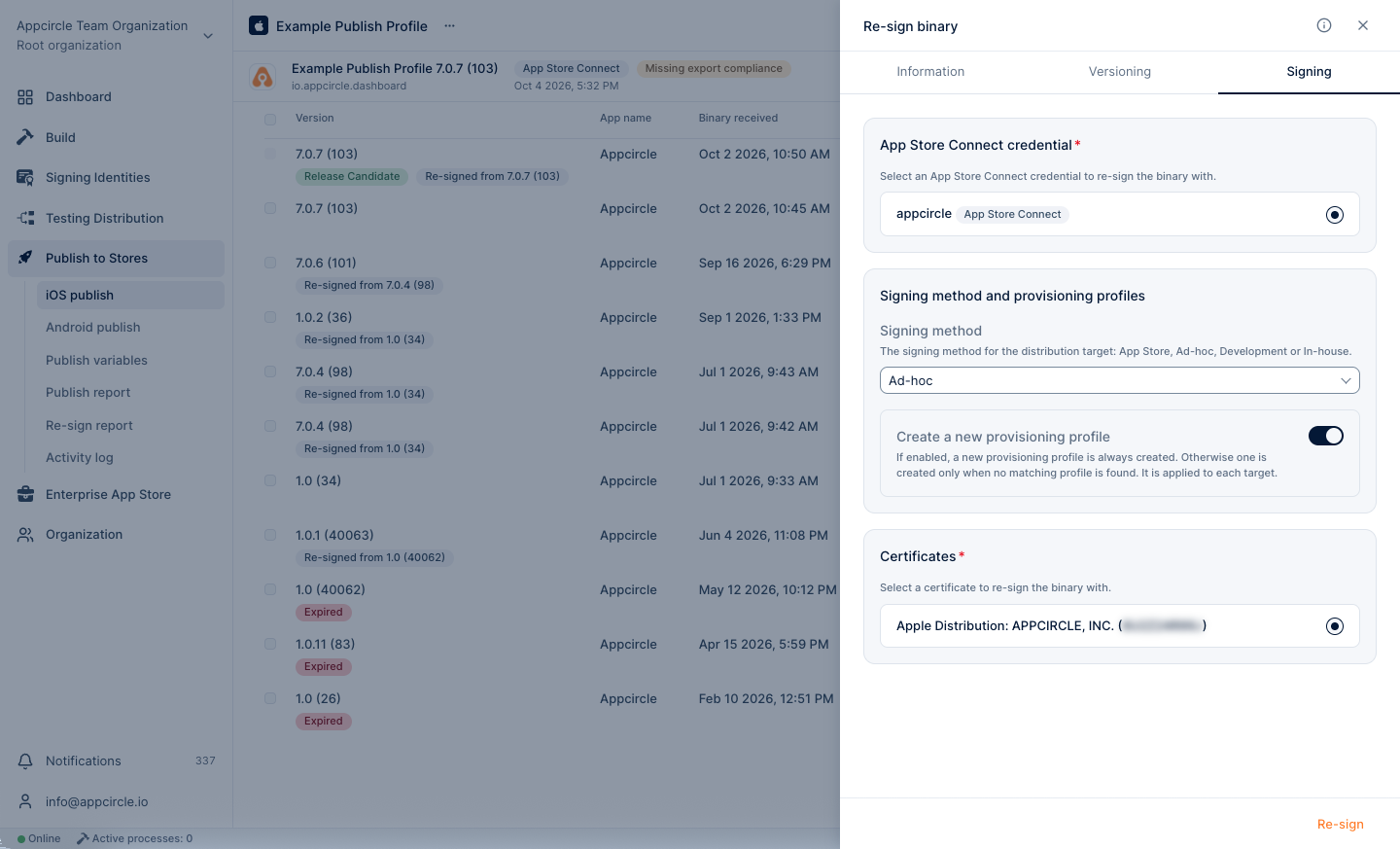
App Store Credential
Appcircle’s Re-sign feature requires an App Store Connect credential. Therefore, selecting a credential is mandatory for both versioning and signing processes. This credential is used to download the necessary signing assets and retrieve version-related information when versioning is configured to use App Store data.
For more information, please visit the App Store Connect API Key documentation.
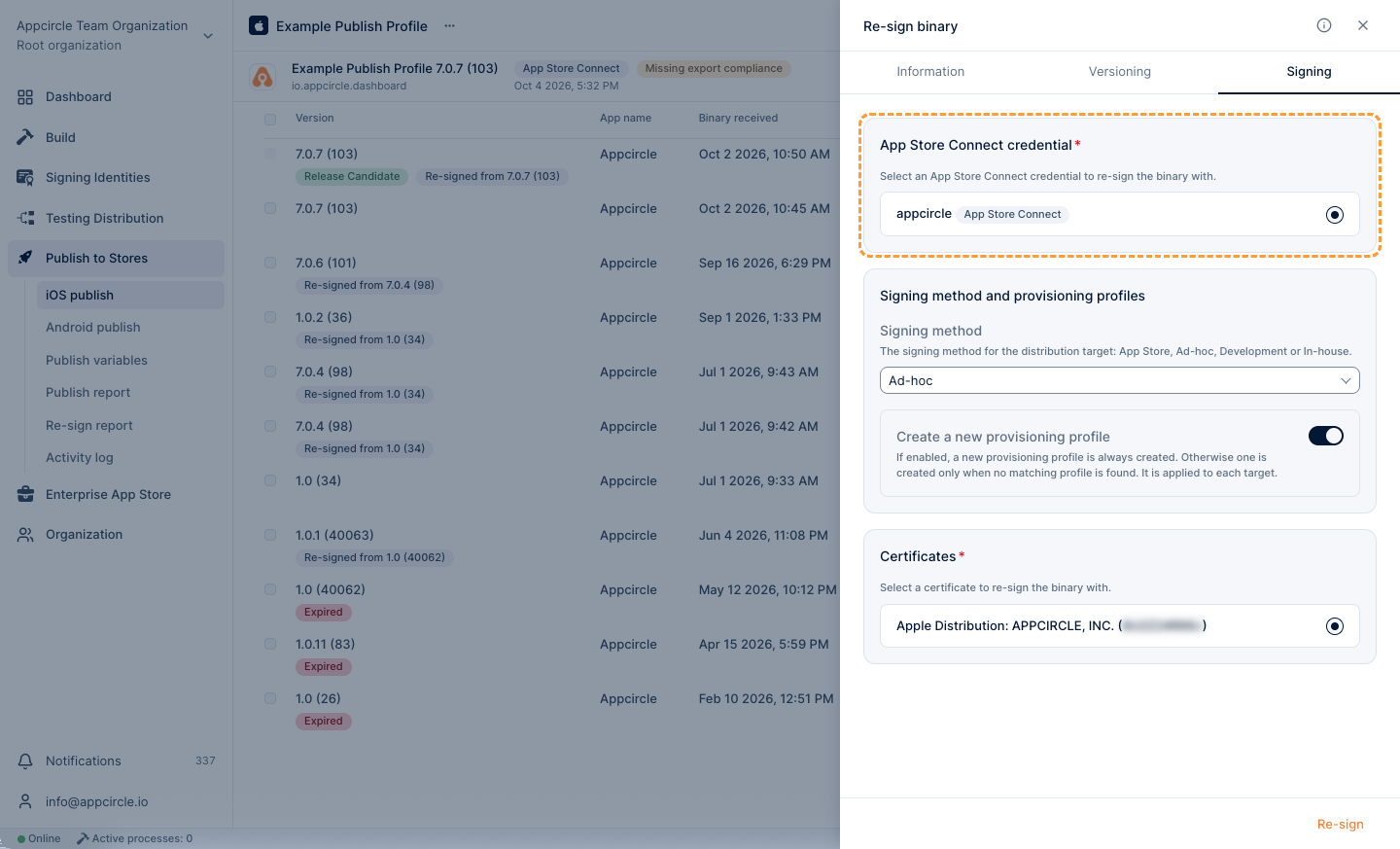
Signing Method
The Signing Method defines how Appcircle selects the provisioning profile during the re-signing process. This strategy determines whether Appcircle should use an existing provisioning profile. Selecting the appropriate signing strategy ensures compatibility with your target distribution method and proper signing of your binary.
For more information about these signing strategies, please visit the Apple Profiles documentation.
The Re-sign feature also supports In-house signing. You can perform this by selecting an Enterprise API Key. However, please note that only In-house signing is allowed with an Enterprise Key—attempting to use it with any other signing method will result in an error.
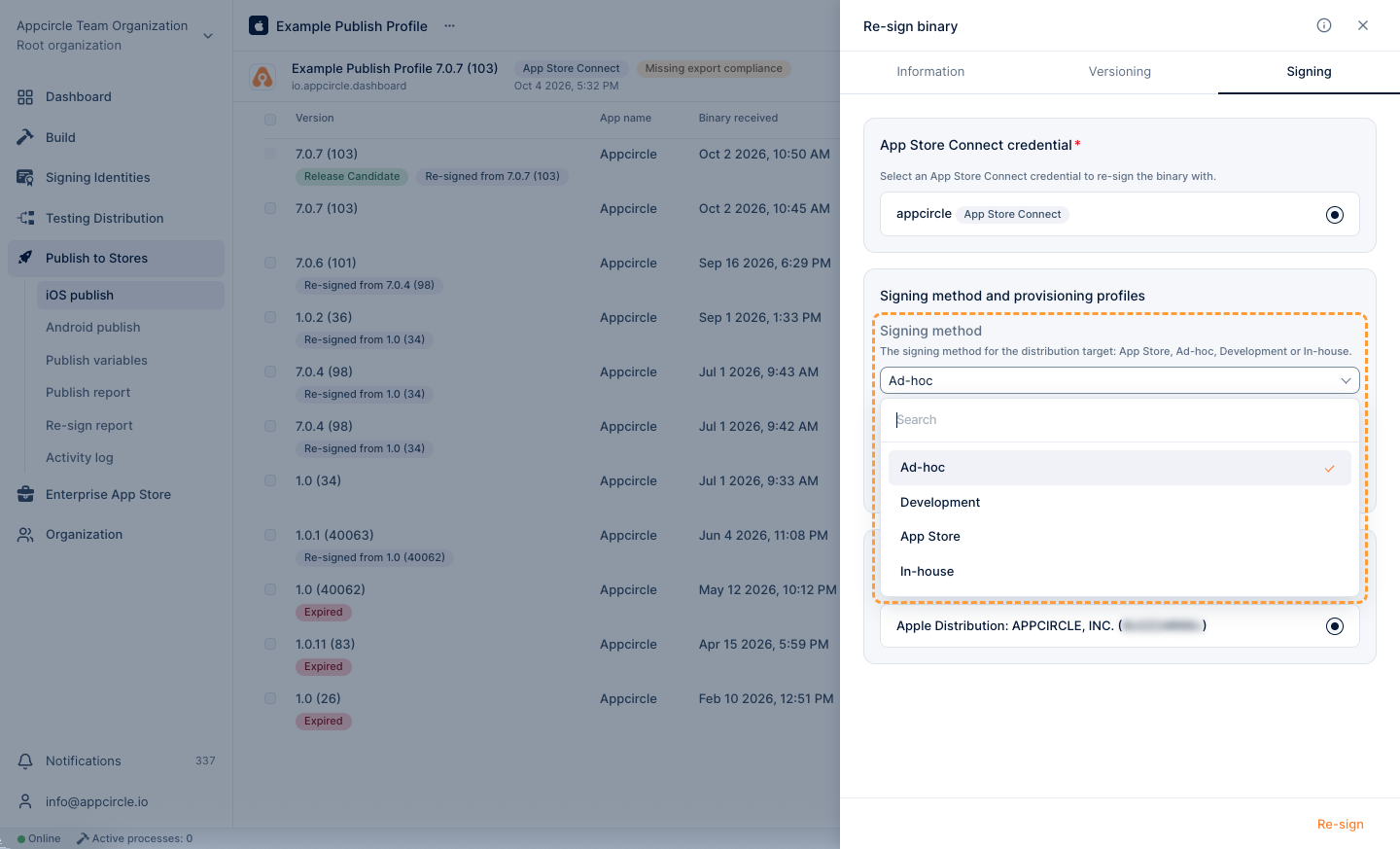
Create a New Provision Profile
If the Create a New Provision Profile option is enabled, Appcircle generates a valid provisioning profile for signing using the Apple API Key selected in the profile settings and your Apple Developer account. If this option is disabled, Appcircle matches an existing valid provisioning profile from your Apple Developer portal for the signing process.
If you do not want to create the provisioning profile for signing, Appcircle will attempt to match a valid provisioning profile and use it for the signing process. When this option is disabled and a matching provisioning profile cannot be found, a new provisioning profile will be automatically created.
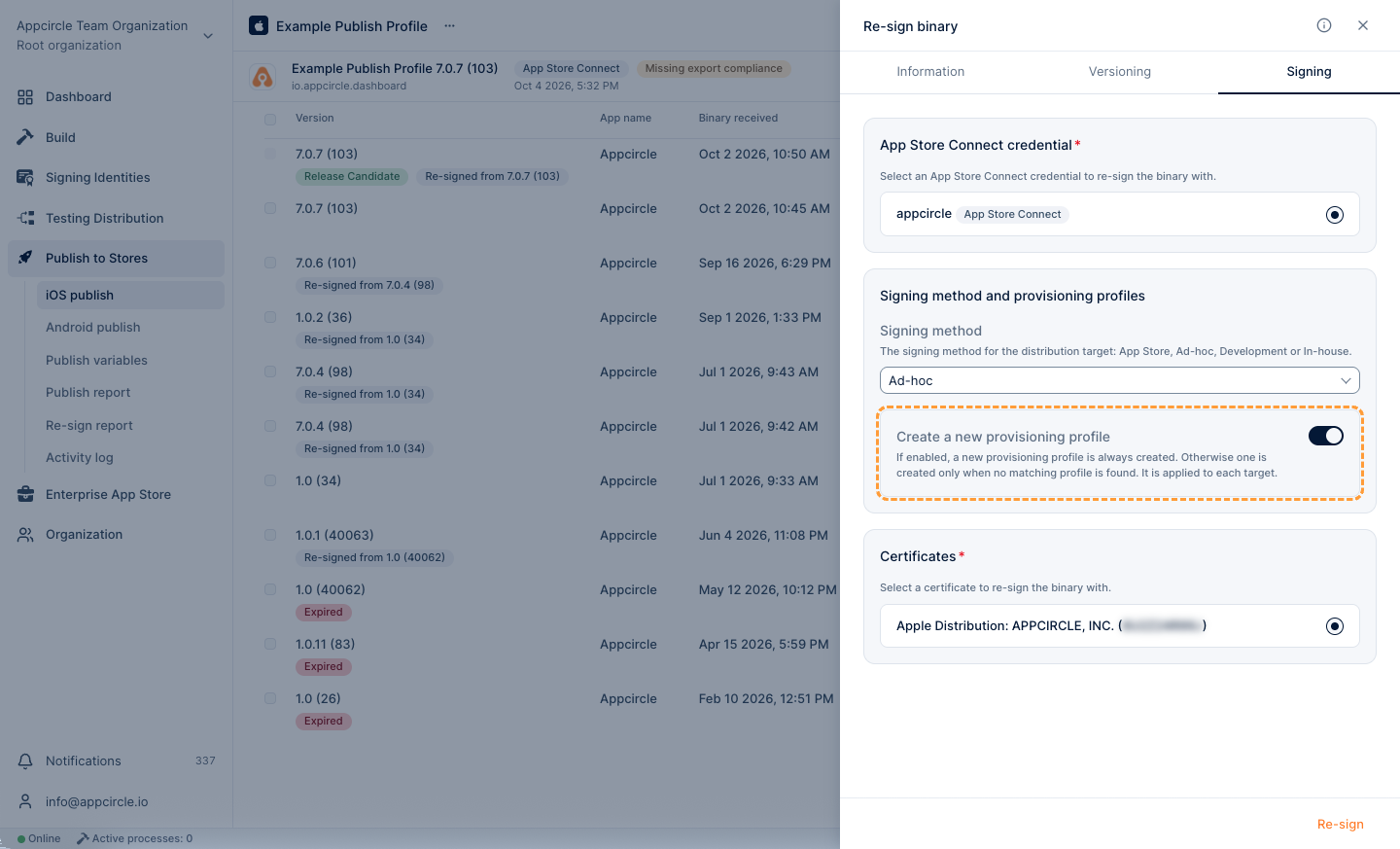
Using Existing Provisioning Profile
When using the Re-sign feature, Appcircle also provides the option to select an existing provisioning profile. If the Create a New Provision Profile option is not enabled, the user can manually select a provisioning profile. To be selectable, the relevant profile must already be uploaded under Apple Profiles in the Signing Identity module.
For more information, please visit the Signing Identity Module and Apple Profiles documentations.
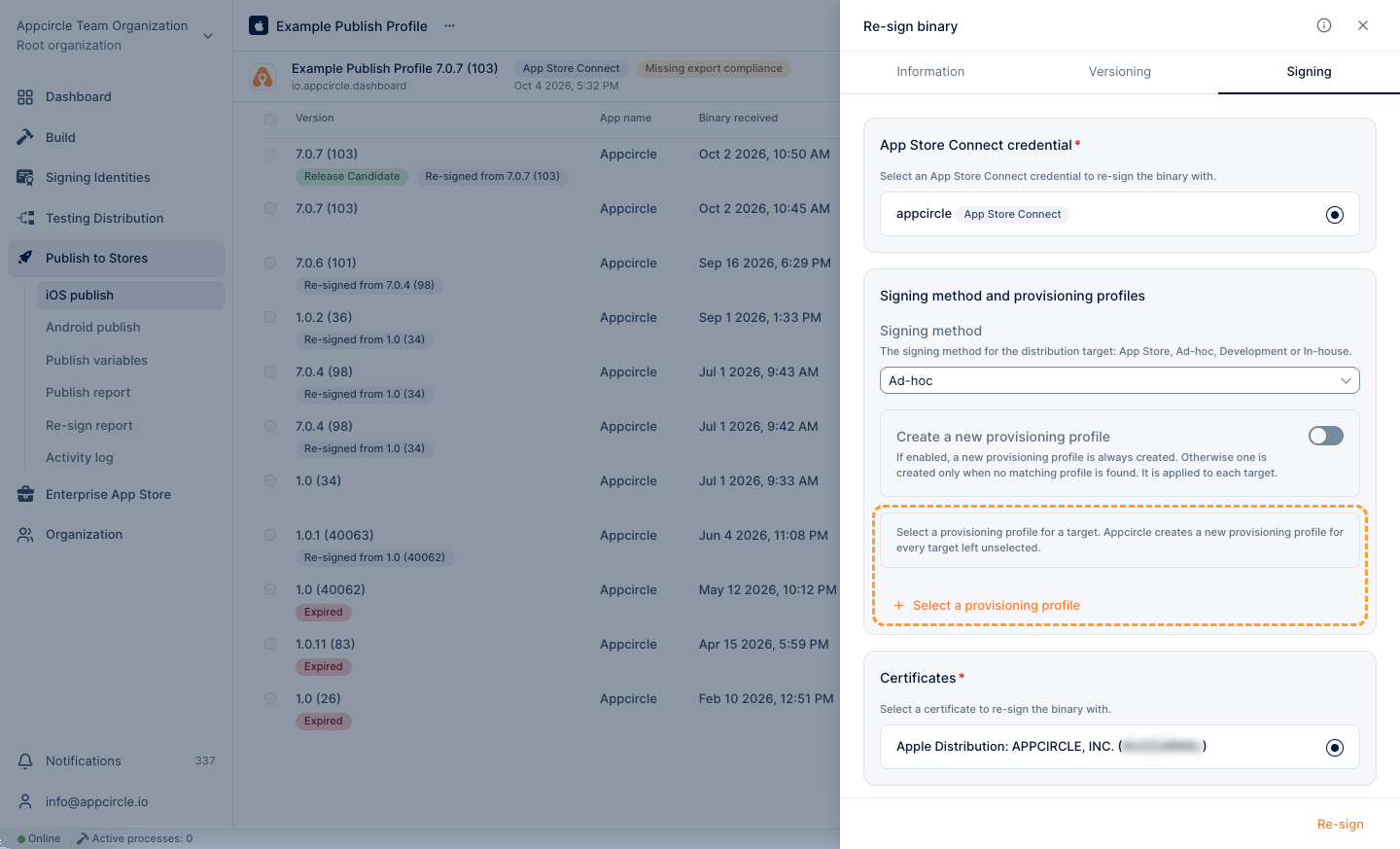
Appcircle’s manual re-sign binary feature allows you to sign binaries for multiple targets. If you wish to use an existing provision for this, Appcircle requires two inputs. One of these inputs contains the bundle identifier of the target to be signed, while the other is used to select which provision will be used to sign that target. Appcircle processes the selected bundle identifiers for signing based on the provided inputs.
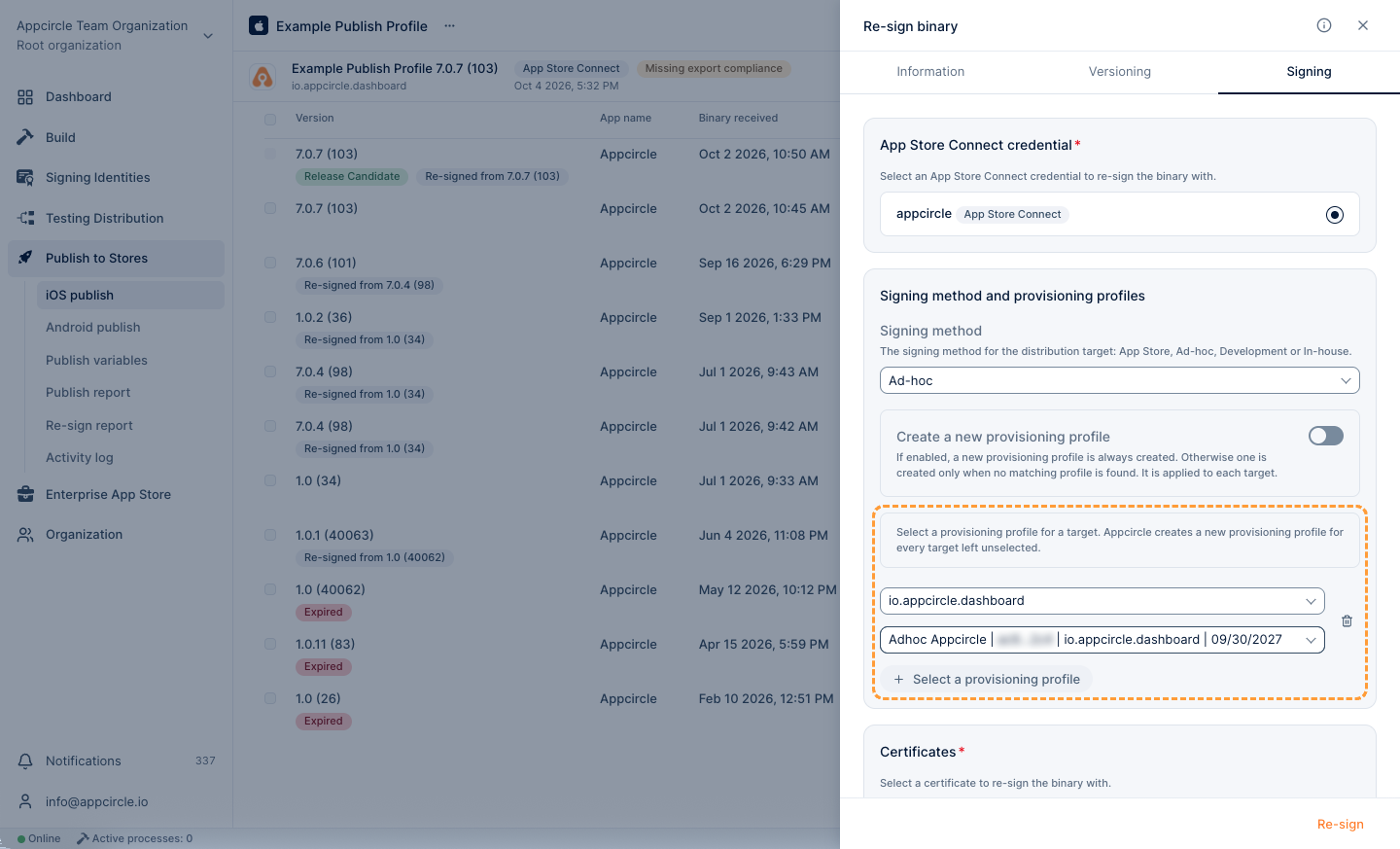
If no provisioning profile is selected, Appcircle will still attempt to match a provisioning profile using the selected App Store Credential. If the provisioning profile cannot be found in the Apple Developer portal, a new one will be generated.
For example, if the binary being signed has multiple targets and only one provisioning profile has been selected, Appcircle will try to find the related provisioning profiles for the other targets in the Apple Developer portal, and if they are not found, it will generate them.
Certificates
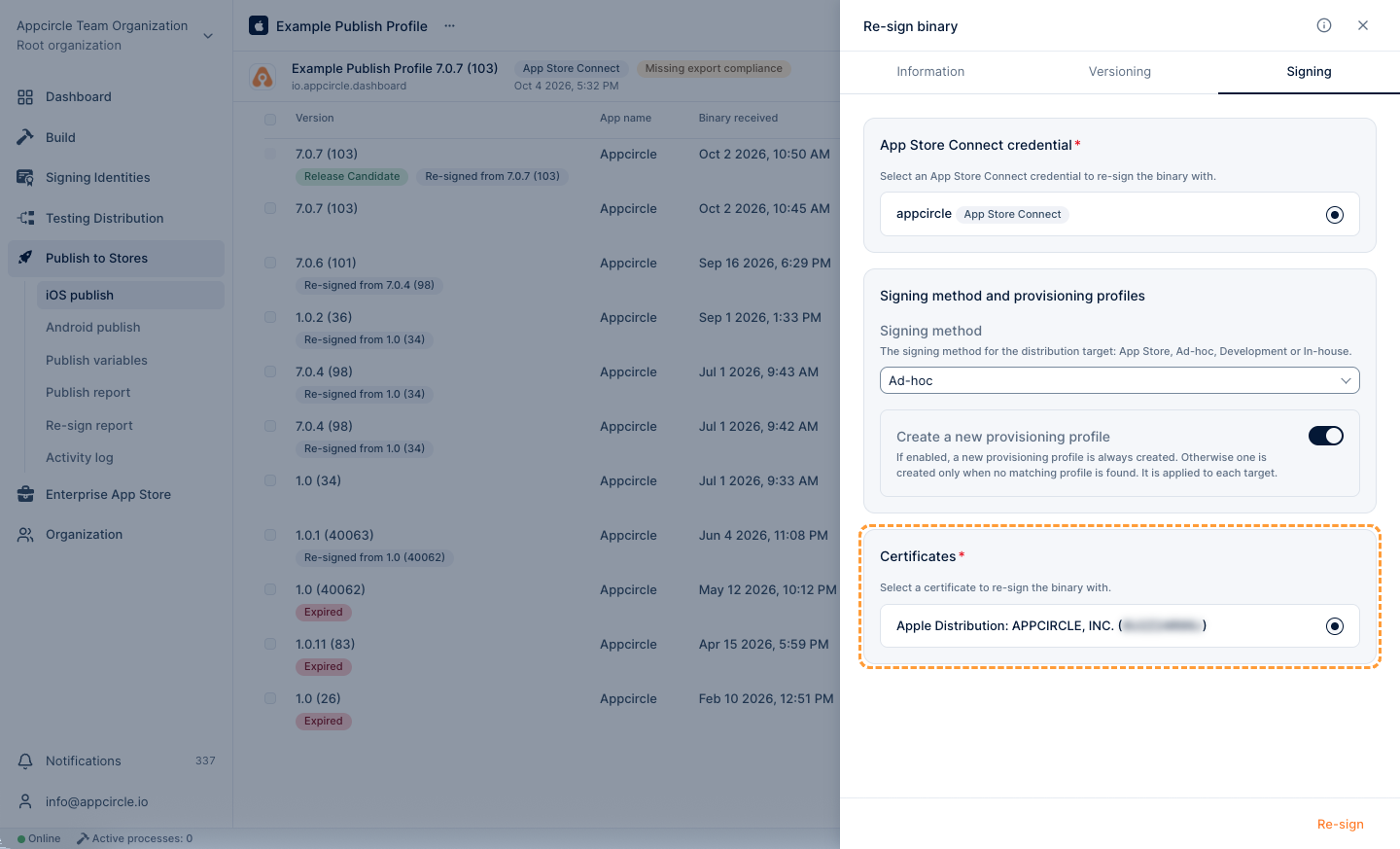
In addition to the selected signing strategy, Appcircle requires a corresponding certificate to perform the re-sign process. Therefore, make sure that your certificates are uploaded under the Apple Certificate section in the Appcircle Signing Identity module. The re-signing process will begin using the certificate you have selected.
For more information, please visit the Signing Identity Module and Apple Certificates documentations.
If you want to perform In-house signing using an Enterprise API Key, make sure that a compatible signing certificate is selected. Otherwise, Appcircle will not be able to verify the certificate and the signing process will fail.
Resigning Process
To re-sign a binary, follow these steps:
- Select the Version: Choose the version of your app you wish to resign from the version table of your publish profile in the Publish to Stores module.
- Configure Re-signing Options: Open the ... menu on the version row, select Re-sign binary, and configure the necessary fields such as the provisioning profile, entitlements, and other settings.
- Re-sign the Binary: After configuring, click the Re-sign button to re-sign the binary. This process will create a new package with the updated provisioning profile and entitlements.
Post-Resignation
Once the binary is resigned, a new package is automatically created to reflect the changes. This ensures that any distribution or testing utilizes the most current setup without requiring a complete rebuild.
The newly created package can then be distributed or tested according to your publish flow requirements. This update ensures that your application conforms to the necessary provisioning and entitlement specifications for different environments, such as development, staging, or production, without additional build steps.
This feature streamlines the application update process by allowing for quick adjustments to the app's configurations, significantly reducing the time and resources needed for separate build cycles.
Re-sign Android Binary
Re-signing an Android binary allows you to apply a new keystore to your application after the initial build. This is useful for updating the signing configuration or switching to a different keystore as needed without needing to rebuild the app.
Fields and Options
The functionality and configuration steps of Appcircle’s Re-sign feature for the Android platform are explained step-by-step below.
Information
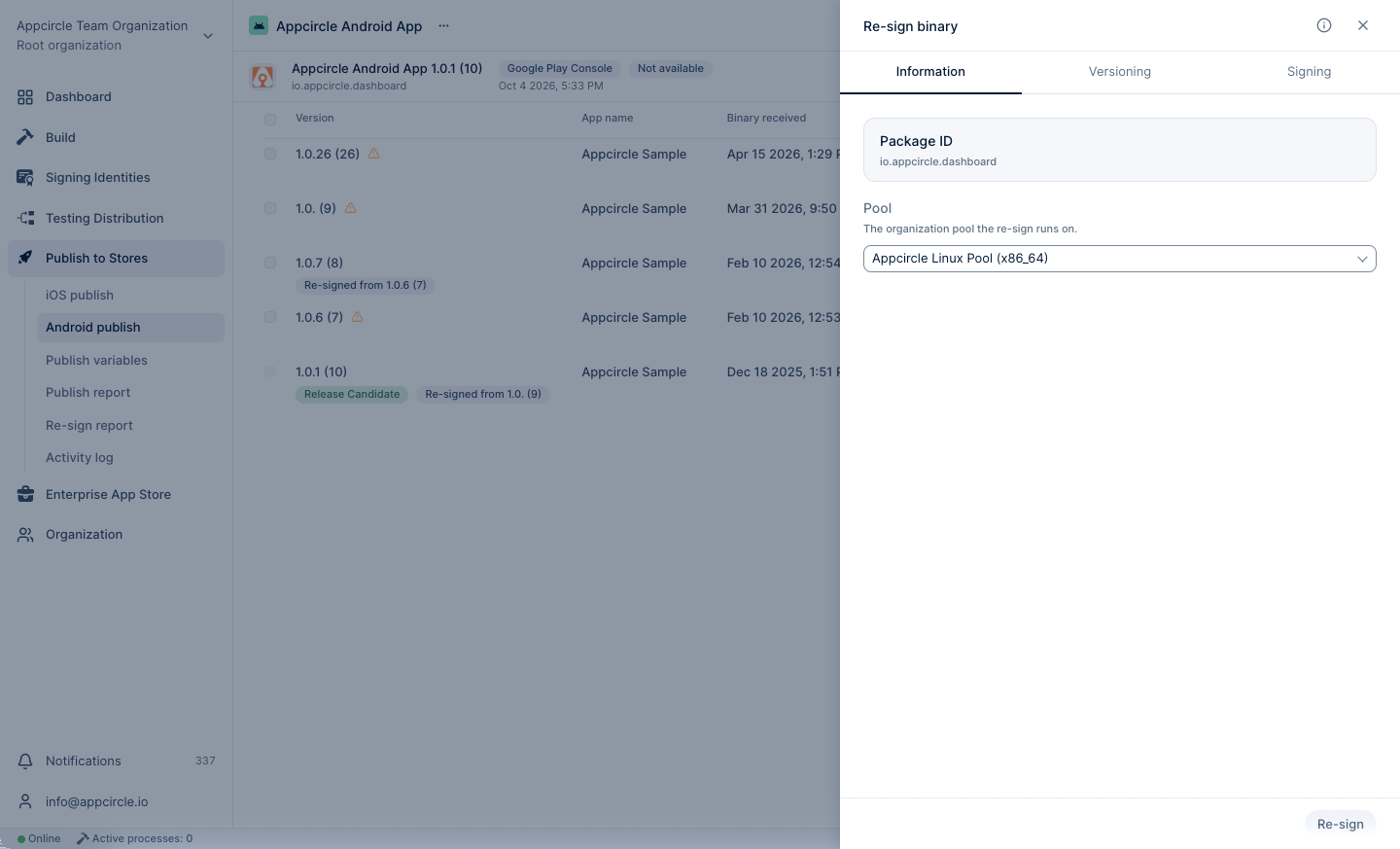
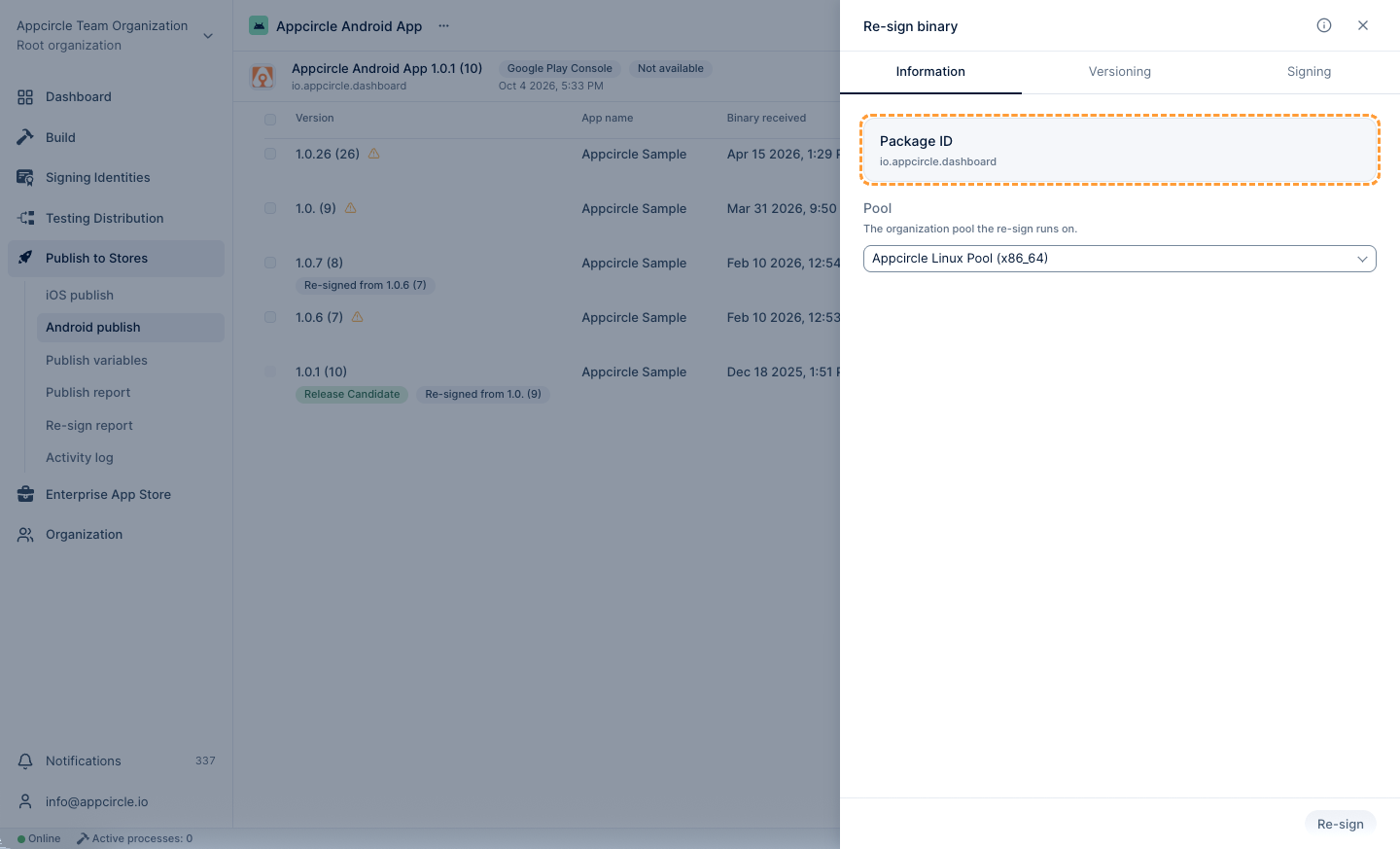
From the Information tab under Re-sign configuration, you can manage the application's package identifier value.
Package Identifier
Appcircle Publish profiles can accept binaries with different package name. The binary defined for the profile serves as the reference for Re-sign. When a binary with a different package name is selected, it is re-signed according to the package name of the profile. The package name of the resulting re-signed binary is updated to match the one associated with the profile.
⚠️ Note: Release flows cannot be initiated with a binary whose package name differs from that of the profile. For more information, please visit the Binary Management documentation.
Select a Pool
The Pool Selection field defines which organization pool will be used to execute the Re-sign process.
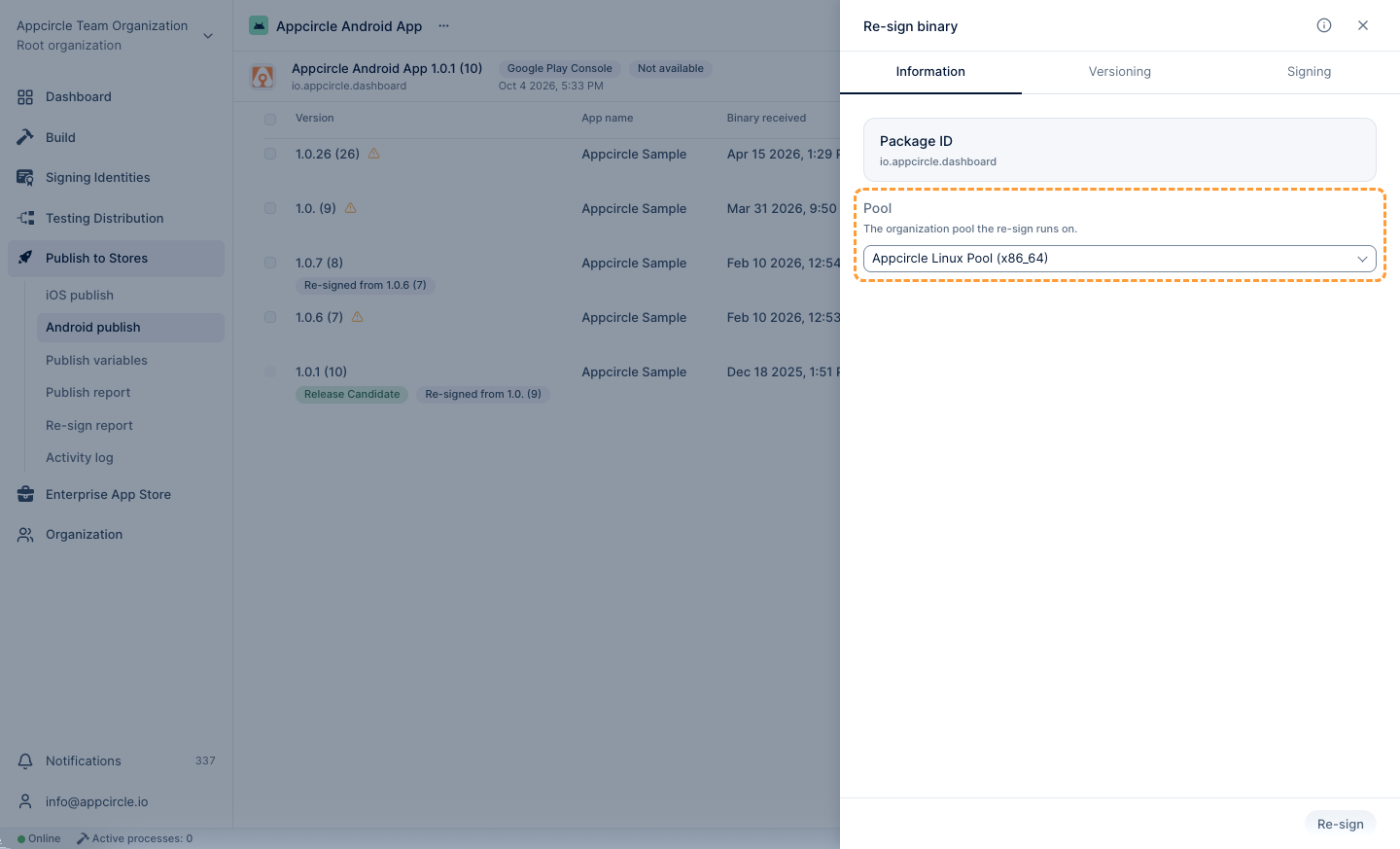
Re-sign will not work if a pool is not selected.
If no pool is defined:
- The Re-sign process will not start.
- Selected binaries will remain unsigned.
- No re-signed output will be generated for Publish profile.
Always ensure that a valid macOS pool is selected before saving the Re-sign configuration.
Versioning
By utilizing the versioning capability of the Re-sign feature, you can modify the version code and version name of the selected binary according to the defined strategy during the re-signing process. In addition to calculating a value from Google Play or a previously uploaded binary, you can also pin the version code or version name to an exact value using the Fixed source.
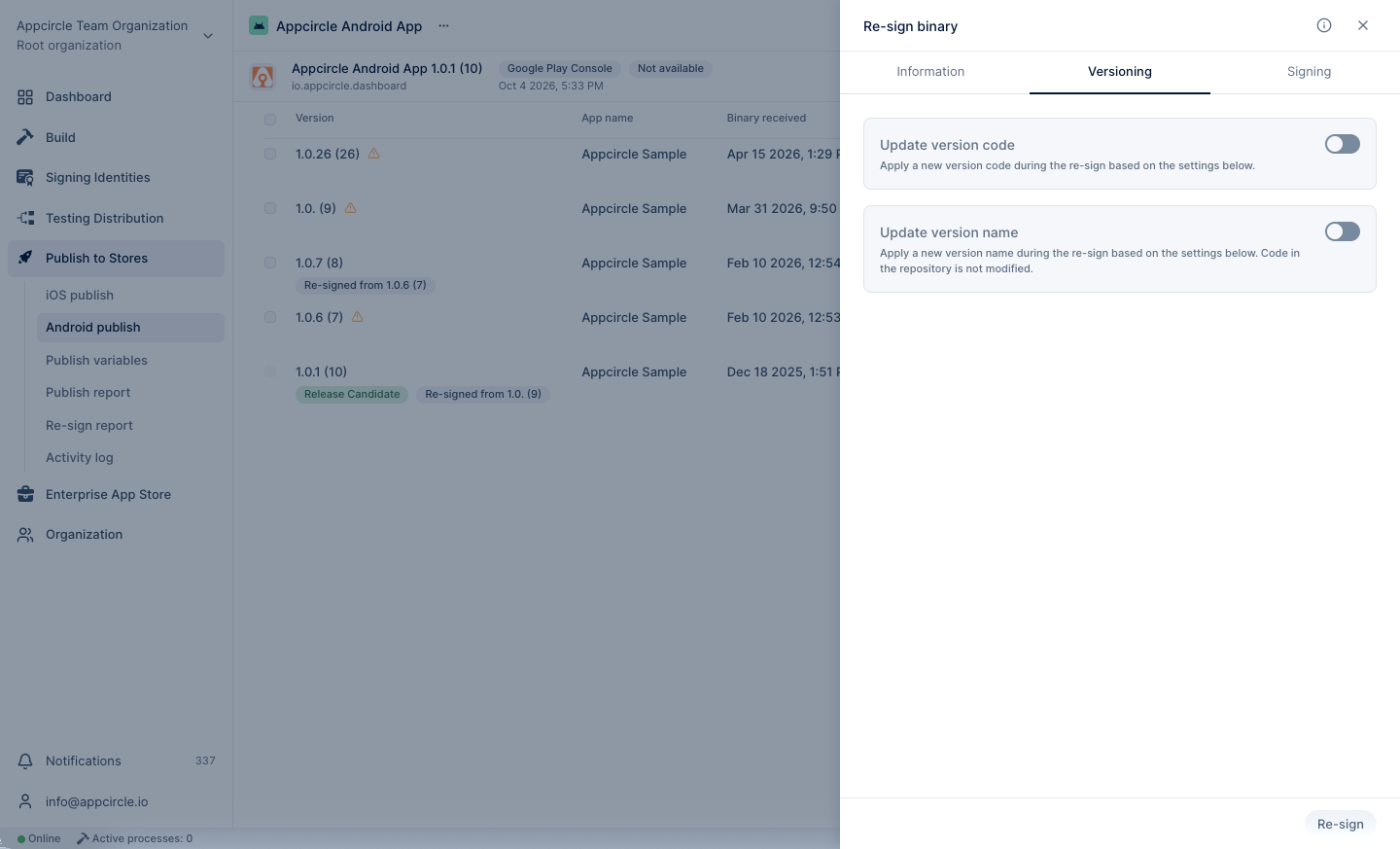
Update Version Code
With the Update Version Code feature, you can automatically increment the version code of the selected binary during the re-sign process using the specified offset value, or pin it to an exact value using the Fixed source. When this feature is enabled, a new version code will be generated based on the given offset (or set to the fixed value you provide) before the re-signing begins, and the binary will be signed with this updated version code.
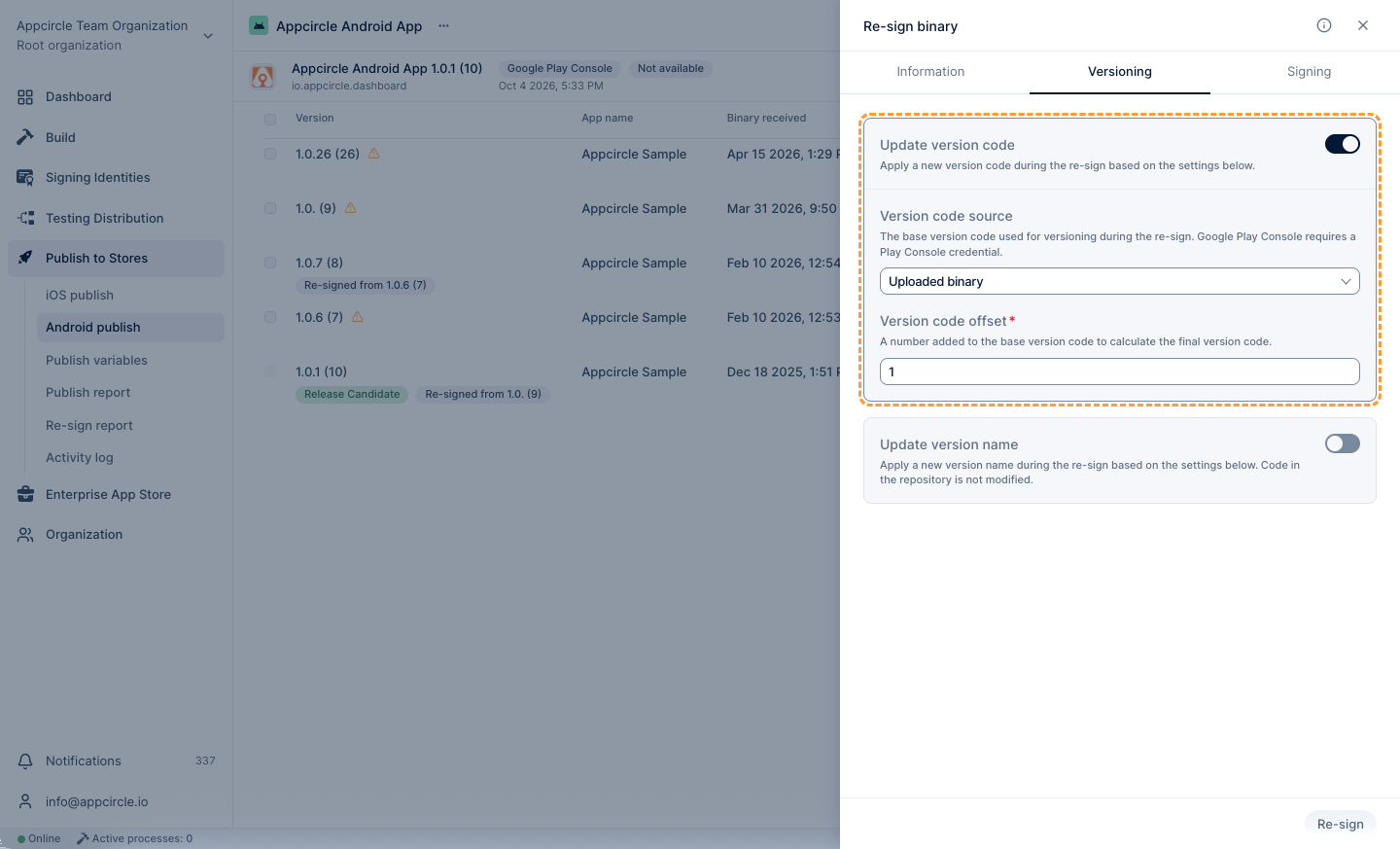
- Version Code Source: The defined base version code will be used for versioning during the re-signing process. Google Play, Uploaded Binary, and Fixed are available options.
- Google Play: The version code will be set by referencing the latest live version on Google Play Console.
- Uploaded Binary: The version code will be calculated from the most recent binary uploaded to Appcircle.
- Fixed: The binary will be signed with the exact version code you enter, without referencing Google Play or any previously uploaded binary.
- Version Code Offset: The offset value is a number to be added or subtracted from the version code source. This offset field only applies to the Google Play and Uploaded Binary sources.
⚠️ Note: When Version Code Source is set to Fixed, the Version Code Offset field above is replaced with a Version Code text input. Enter the exact version code the binary should be signed with. This value must be provided whenever Update Version Code is enabled and the source is Fixed; leaving it empty will cause the re-signing process to fail.
Update Version Name
With the Update Version Name features, you can automatically increment the version name of the selected binary during the re-sign process using the specified offset value, or pin it to an exact value using the Fixed source. When this feature is enabled, a new version name will be generated before the re-signing begins, based on the selected increment strategy and offset (or set to the fixed value you provide), and the binary will be signed with this updated version name.
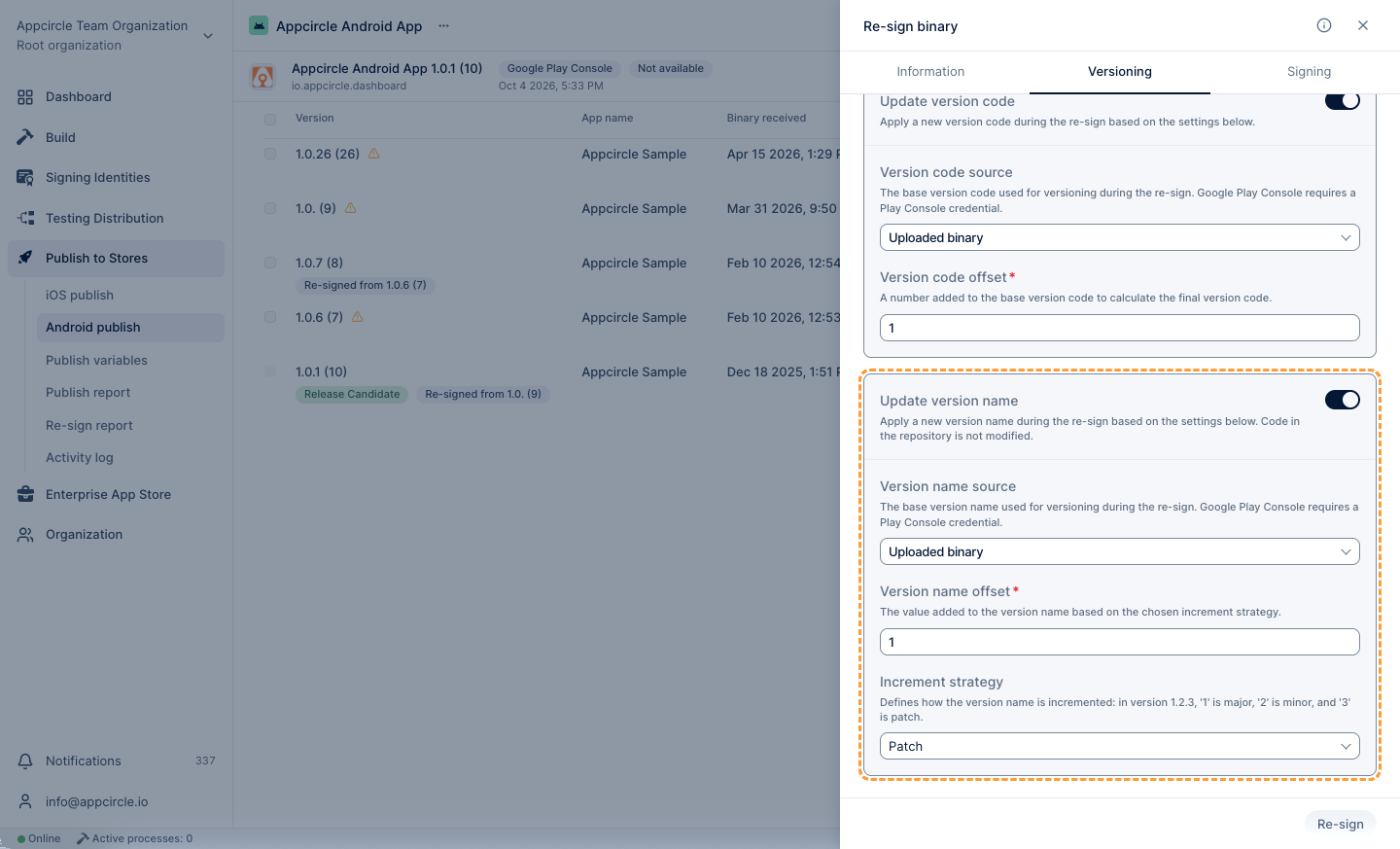
- Version Number/Version Name Source: The defined base version name will be used for versioning during the re-signing process. Google Play, Uploaded Binary, and Fixed are available options
- Google Play(Android): The version name will be set by referencing the latest live version on Google Play Console.
- Uploaded Binary: The version name will be calculated based on the most recently uploaded binary to Appcircle.
- Fixed: The binary will be signed with the exact version name you enter, without referencing Google Play or any previously uploaded binary.
- Version Name Offset: The offset value is a number to be added or subtracted from the version name source.
- Increment Strategy: You can increase the
major,minor, orpatchvalue of the version name.
⚠️ Note: When Version Number/Version Name Source is set to Fixed, both the Version Name Offset and Increment Strategy controls above are hidden and replaced with a Version Name text input. Enter the exact version name the binary should be signed with. This value must be provided whenever Update Version Name is enabled and the source is Fixed; leaving it empty will cause the re-signing process to fail.
Within the Auto Re-sign feature configuration, if any store-based option is selected for versioning, it is mandatory to select an appropriate API key to retrieve the version information. If you do not want to perform versioning using the store, please select the Uploaded Binary or Fixed option instead.
For more information, please visit the Credentials documentation.
Signing
Appcircle requires a necessary Keystore to successfully perform the re-sign process. The re-signing begins using the associated keystore.
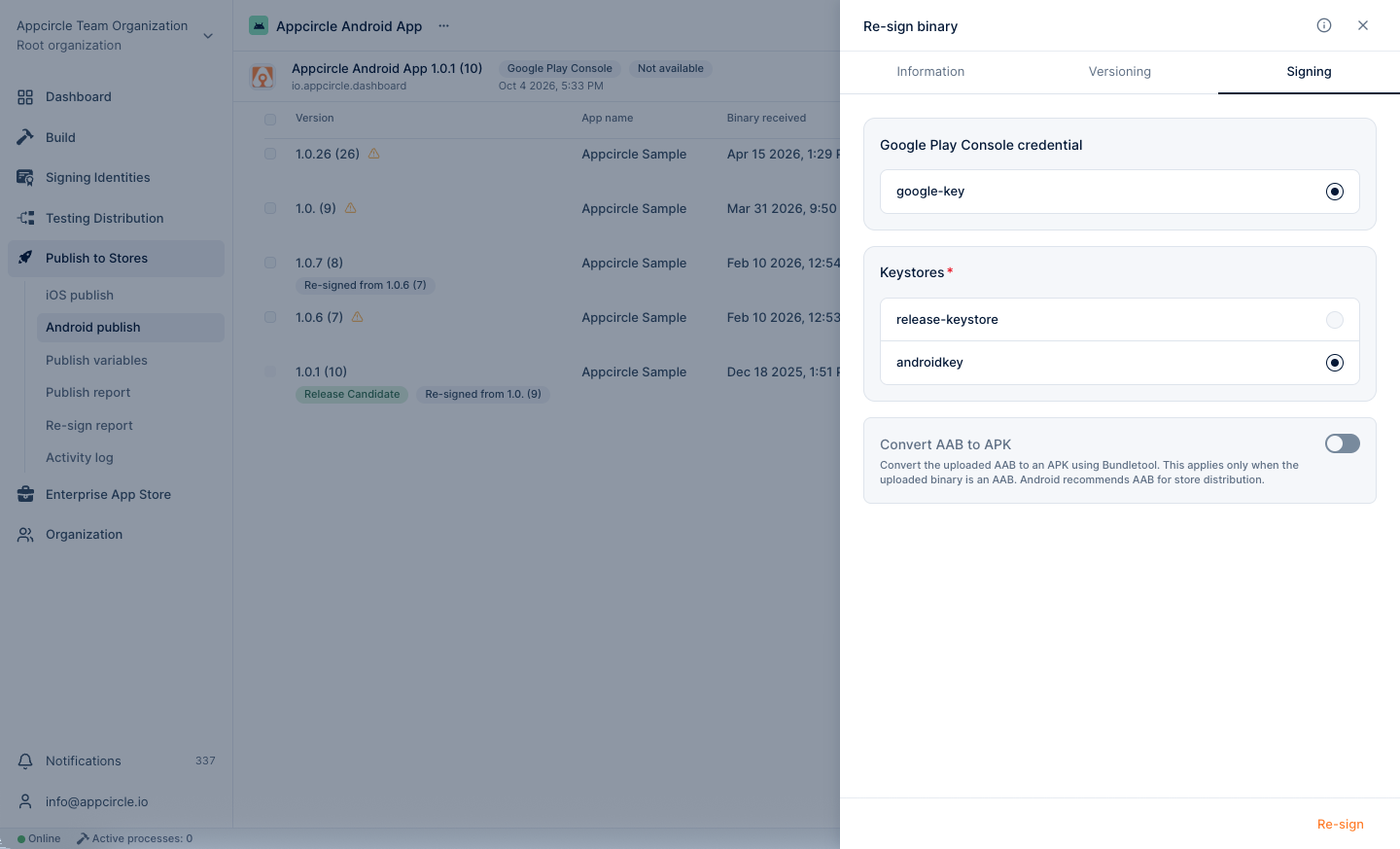
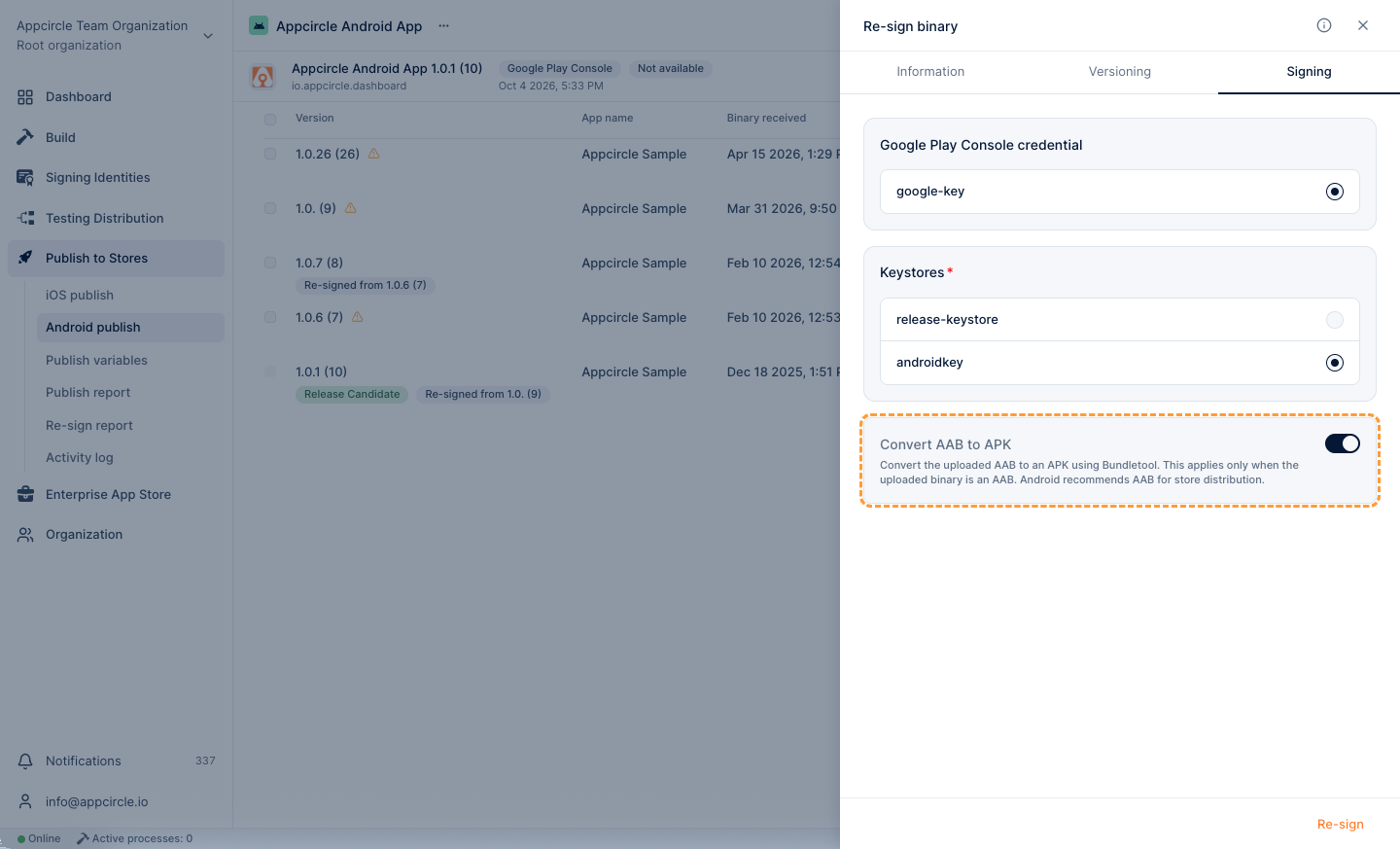
Google Play Console Credential
A Google Play Console credential is only required if versioning is configured to use store-based data. When versioning is set to retrieve version information from the Google Play Console, an API key must be provided to access live version details during the re-signing process.
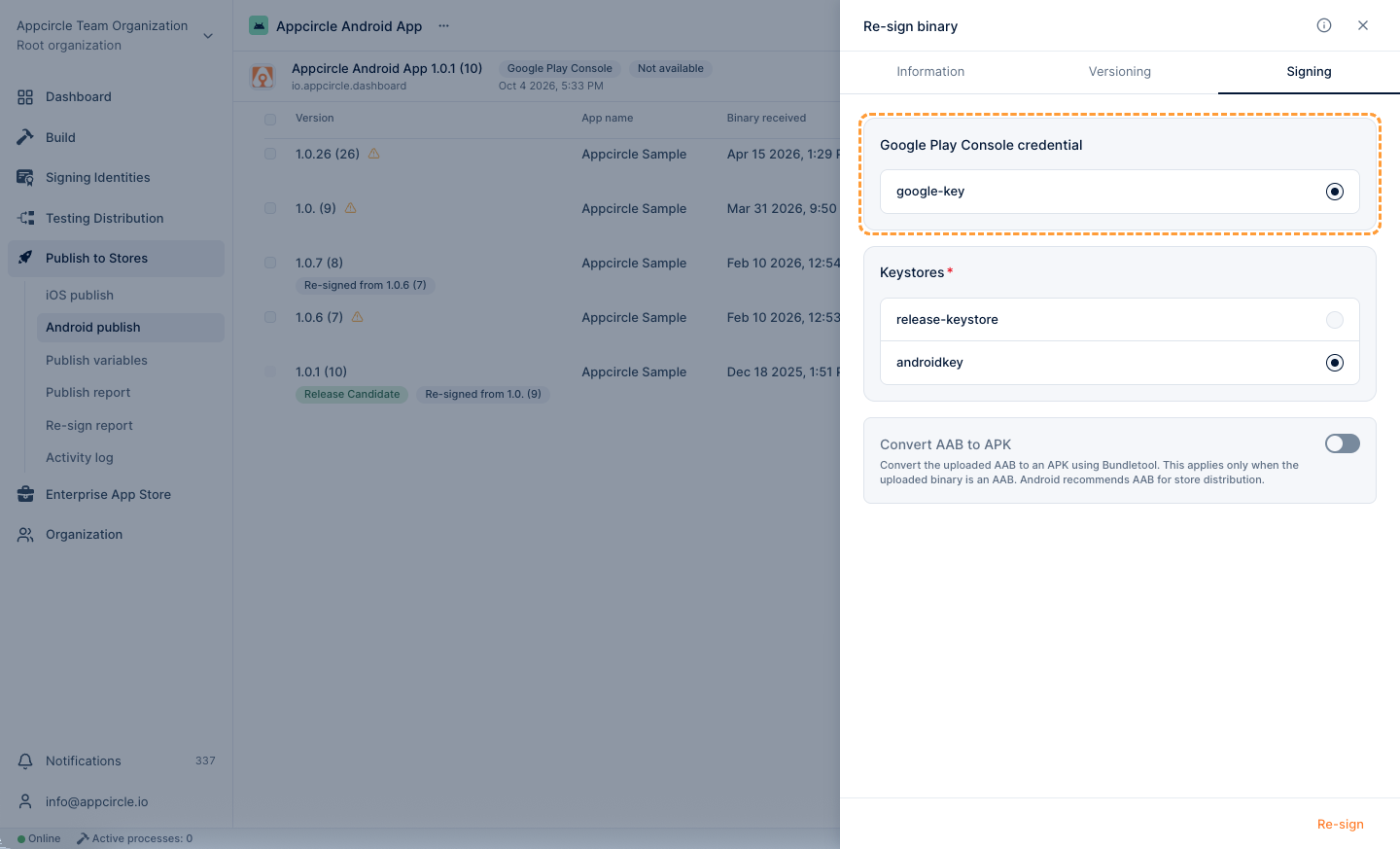
Keystores
The Keystores section is where you manage the signing credentials required for Android re-signing. To successfully perform the re-sign process, Appcircle needs access to a valid keystore. You must upload the keystore file, provide the necessary alias, and enter the key and store passwords within the Android Keystores section of the Signing Identity module. The re-signing will be executed using the selected keystore credentials.
For more information, please visit the Signing Identity Module and Android Keystores documentations.
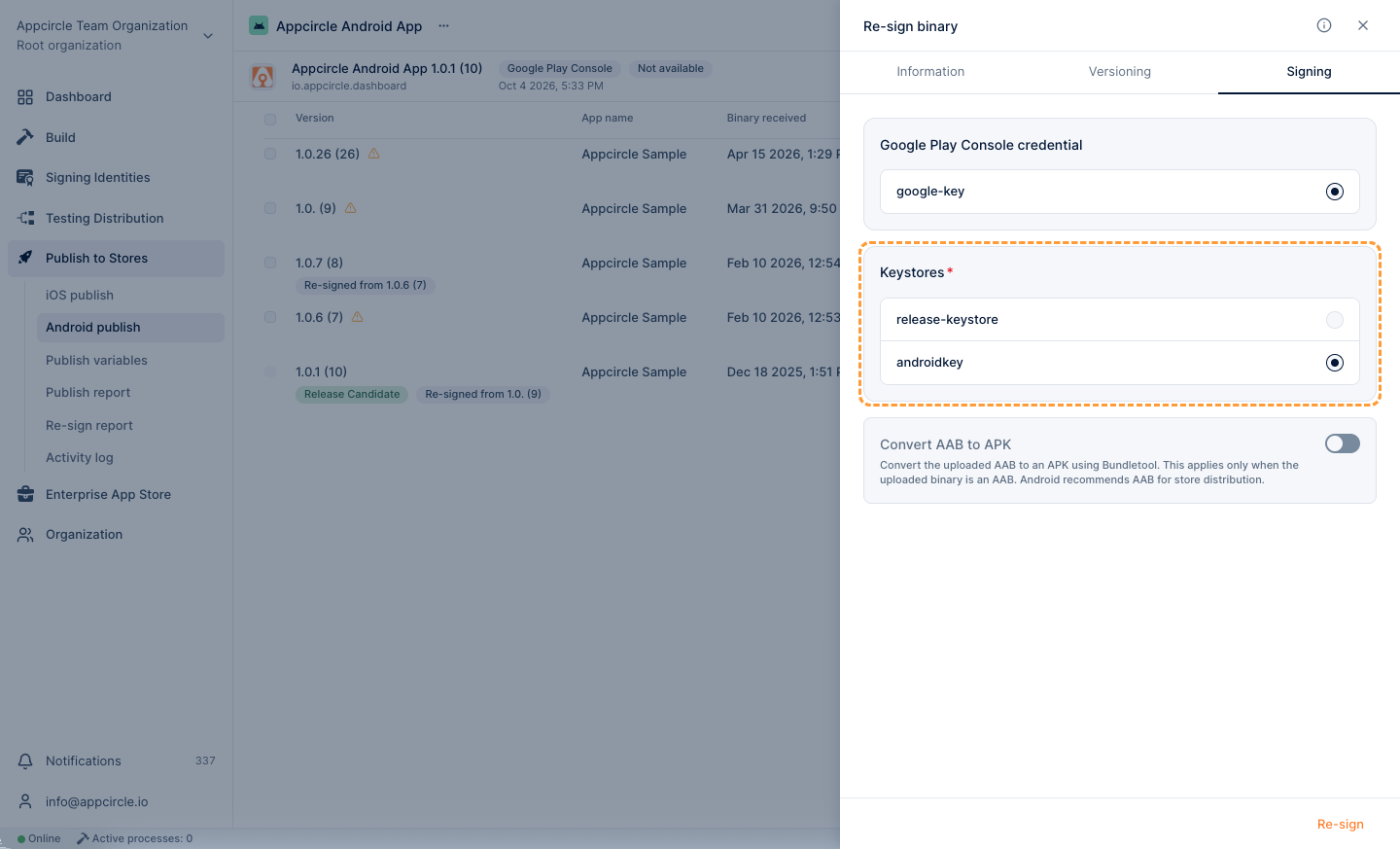
Convert AAB To APK
The Convert AAB to APK option allows you to automatically convert an Android App Bundle (AAB) file into an APK during the re-signing process. This is especially useful when your distribution channel requires an APK instead of an AAB. When enabled, Appcircle will handle the conversion and signing of the resulting APK seamlessly.
Re-signing Process
When you opt to resign an Android binary:
- Package ID: This is your Android application's unique identifier and cannot be changed during the re-signing process.
- Version Name & Code: Adjust the version name and code if necessary. This helps in maintaining versioning integrity across different release channels.
- Keystores: Select the keystore you wish to use for re-signing the binary. This could be a newly added keystore or one previously used in other projects.
After configuring the necessary options, click the Re-sign button to start the re-signing process.
Post-Resignation
Once the binary has been re-signed, it will create a new package with the updated signing configurations. The newly re-signed binary will appear in your version list marked with the new version code if updated during the process.